Interactive AI agents for Microsoft Teams meetings allow bots to participate in live calls with real-time voice, video, and screen sharing capabilities powered by Microsoft Graph APIs. These intelligent agents can handle tasks ranging from automated note-taking and interactive voice response to real-time media processing during ongoing Teams calls and scheduled meetings. Setting up these agents requires registering a bot through the Azure portal, configuring the Teams app manifest with calling permissions, and deploying the agent so meeting participants can interact with it naturally.
After testing several configurations across different Teams environments, the registration and manifest setup process becomes straightforward once you understand which Graph API permissions are needed for your specific use case. This article walks you through each step of creating and deploying an interactive AI agent that can join and participate in your Microsoft Teams meetings effectively.
How to Register a Teams Meeting Bot in Azure?
Create the Teams Bot App Registration
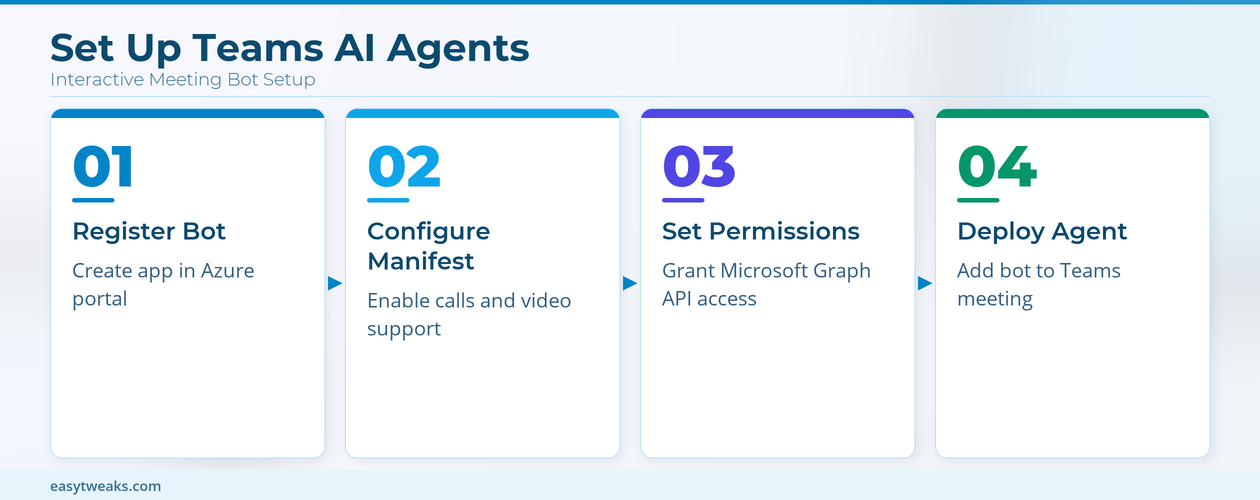
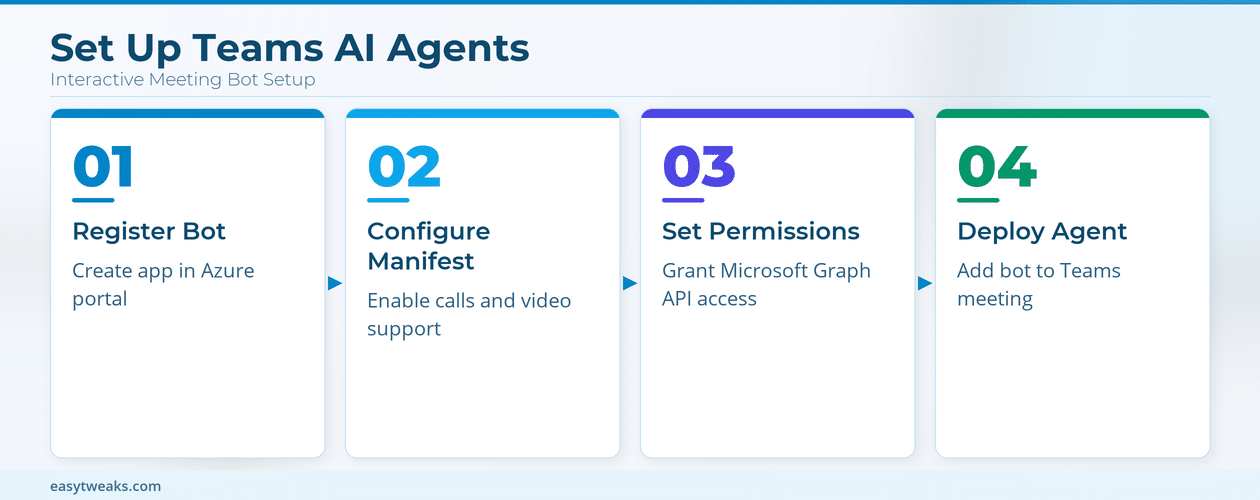
The first step toward building an interactive AI agent for Teams meetings involves creating a new bot registration through the Microsoft Azure portal under the Bot Framework section. You need to sign into Azure, navigate to the Bot Services resource, and select the option to create a new Azure Bot with a unique Microsoft App ID and generated password. The registration process requires you to specify a messaging endpoint URL that serves as the webhook destination where all incoming meeting calls and participant events are routed to your bot application.
Configure Teams App Manifest Settings
After completing the Azure registration, you must update your Teams app manifest file to include the supportsCalling and supportsVideo properties set to true for meeting integration. The Teams app manifest defines the bot’s capabilities and permissions, and these two boolean settings specifically unlock the ability for your agent to join calls and process real-time audio and video streams. You should also declare the required Graph permissions for calls and online meetings within the manifest, which enables the bot to list participants, manage call states, and share content during live sessions.
How to Configure Teams AI Agent Permissions?
Set Microsoft Graph API Permissions
Microsoft Graph APIs for calls and online meetings provide the backbone functionality that allows your interactive AI agent to join, manage, and interact within Teams meetings automatically. You need to grant specific application-level permissions including Calls.JoinGroupCall.All, Calls.InitiateGroupCall.All, and Calls.AccessMedia.All through the Azure portal’s API permissions section for your registered bot. Having configured multiple bots with varying permission sets, the exact combination of Graph permissions determines whether your agent can only listen passively or actively participate with voice, video, and screen sharing capabilities.
Enable Admin Consent for Teams Bot
Once you configure the required Graph permissions, a tenant administrator must grant organization-wide consent before the interactive AI agent can operate within any Teams meeting across your company. The admin consent process involves navigating to the Azure Active Directory admin center, locating your bot’s app registration under Enterprise Applications, and clicking the button to grant consent for all requested permissions. Without this critical administrative approval step, your bot will receive authentication errors whenever it attempts to join a meeting or access real-time media streams from participants.
How to Deploy Interactive Teams Meeting Agents?
Choose Teams Bot Media Processing Type
Microsoft Teams supports two distinct media processing approaches for meeting bots: service-hosted media where Microsoft handles audio processing, and application-hosted media where your bot directly accesses raw media streams. Service-hosted media bots are simpler to deploy because they offload audio and video processing to the Microsoft Real-time Media Platform, which provides built-in APIs for playing prompts, recording clips, and subscribing to tone inputs. Application-hosted media bots require the Microsoft.Graph.Communications.Calls.Media .NET library and must run on a Windows Server environment, but they provide direct access to real-time audio and video streams for advanced processing scenarios.
Add the Teams AI Bot to Meetings
After configuring permissions and choosing your media processing approach, you can deploy the interactive AI agent by adding the bot to your meetings through the Teams admin center or by side loading the app package directly into your organization. The bot can join meetings either through a user invitation where a participant adds it during a live call, or programmatically through the Graph API where the bot initiates joining using the meeting’s join URL coordinates. During active meetings the agent can perform mid-call controls including muting and unmuting participants, toggling video feeds, managing the participant roster, and sharing screen content with all attendees.
Test Teams Agent Real-Time Capabilities
Before rolling out your interactive AI agent to production Teams meetings, you should thoroughly test its real-time capabilities including transcription and media handling in a controlled environment with a small group of participants. Testing should verify that the bot correctly receives incoming call notifications at its webhook endpoint, properly handles connection state transitions from connecting through connected to disconnected, and manages participant events accurately. The Real-time Media Platform provides detailed logging and diagnostic information that helps you identify issues with audio stream processing, video rendering, or network connectivity before deploying to larger organizational meetings.
Frequently Asked Questions
What are the requirements for running interactive bots in Teams meetings?
Running interactive AI bots in Teams meetings requires an Azure Bot registration with a valid Microsoft App ID, Graph API permissions for calls and online meetings, and tenant administrator consent for your organization. For service-hosted media bots the infrastructure requirements are minimal since Microsoft handles the audio and video processing, but application-hosted media bots need the .NET Communications library running on Windows Server. You also need a publicly accessible HTTPS webhook endpoint that receives incoming call notifications and meeting event signals from the Teams platform in real time.
Can Copilot agents interact with participants during a live Teams meeting?
Copilot agents and custom AI bots can actively interact with meeting participants through multiple channels including text-based chat responses, real-time audio playback using the PlayPrompt API, and visual content sharing via screen sharing capabilities during live meetings. The level of interactivity depends on your configured permissions and chosen media processing type, with application-hosted media providing the most comprehensive participant interaction capabilities including direct audio and video stream access. Mid-call control APIs allow the bot to manage participant states, respond to dual-tone inputs, and dynamically adjust its behavior based on real-time meeting context and participant actions.
Conclusion
Setting up interactive AI agents for Microsoft Teams meetings involves registering a bot in Azure, configuring the app manifest with calling and video support, granting the appropriate Microsoft Graph API permissions with admin consent, and deploying the agent through the Teams admin center or sideloading method. Whether you choose service-hosted media for simpler audio processing or application-hosted media for direct stream access, these agents can transform your Teams meetings with automated participation, real-time media handling, and intelligent interaction capabilities that scale across your entire organization.
Add a governance gate before admitting a meeting agent
A meeting agent can receive conversation, identity, transcript, audio, video, or screen-sharing data depending on its design and permissions. Treat deployment as a data-access decision, not only an app-installation task. Document who owns the agent, which service stores meeting data, the retention period, and how participants can request deletion or support.
Teams administrators can manage external AI bots through meeting policy. Current controls can detect external bots during the join process and determine whether they are allowed, blocked, or require organizer handling. Test the policy with an account in the targeted user group because tenant-wide and assigned policies may differ.
Match permissions to the agent architecture
A conversational bot, a meeting tab, and a real-time media bot require different capabilities. Resource-specific consent permissions belong in the Teams app manifest and are granted for the specific chat or meeting resource. Microsoft Graph application permissions and real-time media access are broader and require explicit administrator review and consent.
Apply least privilege:
- Request only the meeting, call, or resource permissions the scenario needs.
- Separate development and production app registrations.
- Restrict secrets and certificates to an approved vault.
- Log joins, permission failures, and administrative changes.
- Rotate credentials and remove unused registrations.
- Validate where transcripts, recordings, and generated summaries are stored.
Real-time media bots also need the calling or video declarations in the app manifest and supported Graph calling components. Do not add those capabilities to a notification-only agent.
Make the bot visible to participants
Use a test meeting to confirm lobby behavior, participant-list identity, consent notices, recording indicators, and what happens when transcription is disabled. The organizer should know how to remove the bot, and participants should know whether a third party processes the meeting.
If the agent cannot join, capture the meeting policy, app permission status, consent state, bot identity, and join response. A developer should not bypass an organizer or admin block with a different account. Resolve the assigned policy or permission mismatch, then repeat the controlled test before production rollout.