Microsoft Copilot Agent Mode in Excel transforms how you interact with spreadsheets by enabling an autonomous assistant that executes multi-step data operations without requiring individual prompts for each action. This advanced capability goes beyond standard Copilot features by allowing the artificial intelligence to plan, execute, and iterate across your spreadsheet data with minimal manual intervention required. You can use Copilot Agent Mode in Excel to automate complex analysis workflows that previously demanded hours of repetitive formula writing, formatting adjustments, and manual data transformation steps.
What Copilot Agent Mode does differently in Excel
Standard Copilot in Excel responds to single prompts by performing one isolated task at a time, such as inserting a formula or creating a chart from selected data. Copilot Agent Mode operates autonomously by breaking your high-level request into multiple sequential steps and then executing each operation while maintaining context across the entire workflow. The agent monitors its own output at each stage, validates intermediate results for accuracy, and adjusts its approach when the data requires a different transformation strategy.
This autonomous behavior means you can describe a complete business objective like consolidating quarterly sales data across multiple worksheets and generating a summary report with visualizations. The agent determines which formulas to apply, how to structure the output, where to place summary calculations, and which chart types best represent the patterns discovered. If you need help getting started with the basics, learn how to add Microsoft Copilot to Excel on your device before enabling the advanced agent capabilities.
How to enable Copilot Agent Mode for Excel spreadsheets
Accessing Copilot Agent Mode requires a Microsoft 365 Copilot license and an Excel version that supports the latest artificial intelligence features available through the current update channel. Open Excel and navigate to the Home tab where the Copilot button appears in the ribbon, then click it to open the Copilot side panel on the right.
- Switch to Agent Mode — Look for the agent toggle or dropdown selector within the Copilot panel that allows you to change from standard single-prompt mode to autonomous agent mode. This toggle typically appears near the top of the panel interface and may display as a switch labeled Agent or an expanded mode dropdown selection.
- Verify data format compatibility — Ensure your spreadsheet data is formatted as an Excel Table because Copilot Agent Mode requires structured table references to identify columns, rows, and relationships accurately. Select your data range and press
Ctrl + Tto convert it into a formatted table if your data currently exists as a plain unformatted range. - Grant necessary permissions — The agent may request permission to modify multiple cells, insert new columns, or create additional worksheets during its autonomous operation across your spreadsheet workbook. Review each permission prompt carefully and approve actions that align with the data transformation objectives you described in your original natural language request.
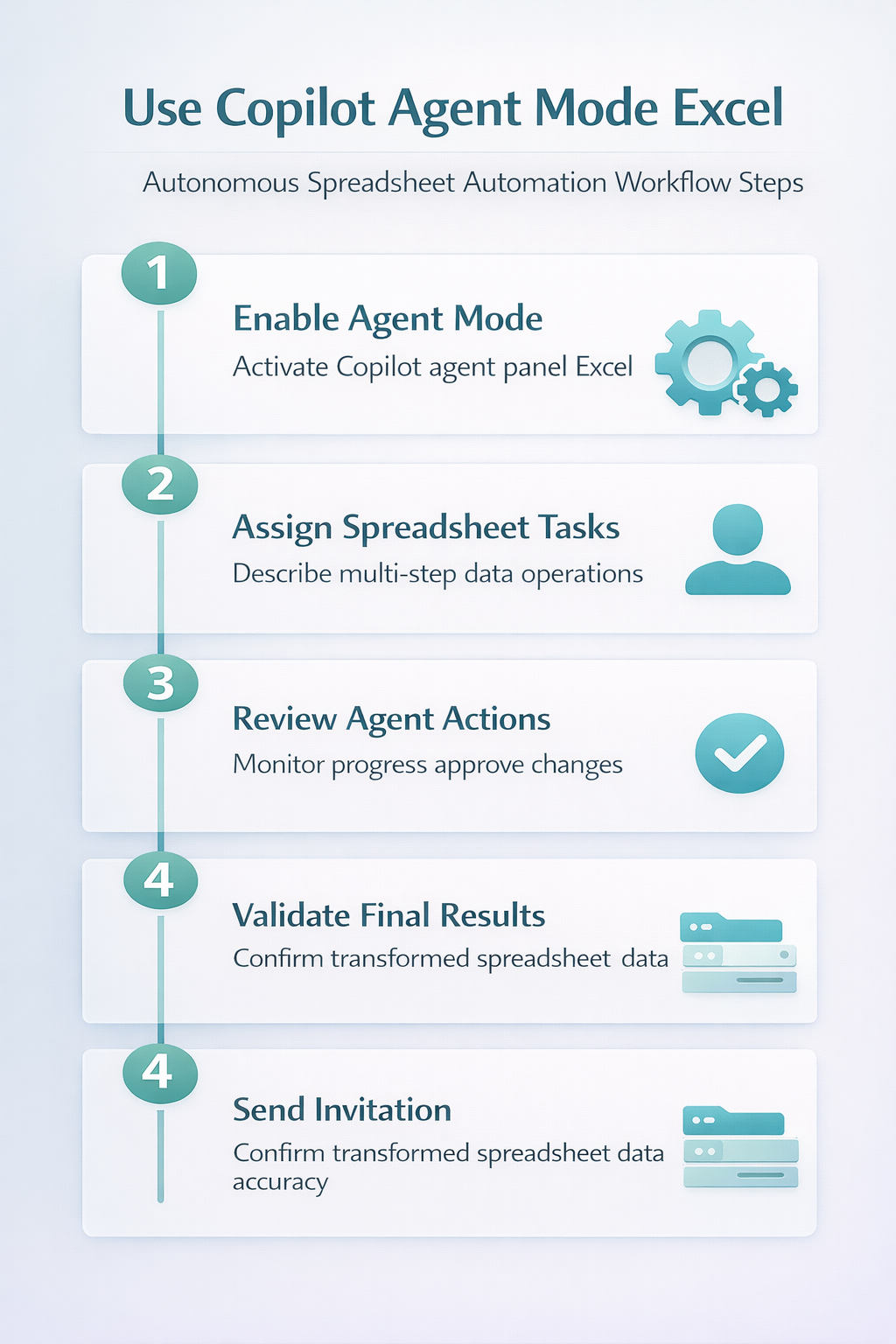
Assign multi-step data tasks to the Excel Copilot agent
Writing effective prompts for Copilot Agent Mode requires describing your complete objective rather than specifying individual steps, because the agent determines the optimal execution path autonomously. Provide context about your data structure, the desired outcome, and any constraints that the agent should respect while performing its autonomous multi-step transformation operations.
- Describe the complete workflow outcome — Instead of asking the agent to create a formula, explain that you need monthly revenue totals grouped by product category with percentage change calculations. The agent then autonomously creates the necessary formulas, applies formatting, calculates derived metrics, and organizes the output into a clear readable summary structure.
- Specify data quality requirements — Tell the agent to handle missing values, remove duplicate entries, and standardize date formats before performing any analytical calculations on your spreadsheet data. These preprocessing instructions ensure the agent addresses data quality issues at the beginning of its workflow rather than producing inaccurate results from unclean source data.
- Set output format expectations — Indicate whether you want results displayed as a PivotTable summary, a formatted report with conditional highlighting, or a dashboard-style layout with embedded charts and metrics. You can analyze Excel data with Copilot using standard prompts first to understand the analytical capabilities before scaling up to agent workflows.
Monitor and approve autonomous agent actions in Excel
Copilot Agent Mode presents each planned action for your review before applying permanent changes to the spreadsheet, giving you full control over the autonomous execution process. The agent displays a step-by-step preview showing which cells will be modified, what formulas will be inserted, and how the data structure changes after each operation.
- Review the execution plan summary — The agent presents its planned sequence of operations in a readable format that explains each transformation step along with the expected intermediate output results. Examine this plan to confirm the agent correctly interpreted your objective and chose appropriate methods for handling your specific data transformation requirements.
- Approve or modify individual steps — You can accept the entire plan, reject specific steps that seem incorrect, or provide additional instructions that refine the agent autonomous execution pathway. This collaborative approach ensures the agent produces accurate results while learning from your corrections to improve subsequent autonomous operations on similar spreadsheet data.
When your agent workflows involve recurring report generation, you can automate reports in Excel with Copilot to establish templates that the agent follows consistently for each reporting cycle.
Automate recurring data entry with Copilot Agent Mode
Copilot Agent Mode excels at automating repetitive data entry patterns where the same transformation logic applies to new incoming data on a regular weekly or monthly basis. The agent can learn from your initial instructions and apply consistent processing rules to fresh datasets that follow the same structure as previously processed spreadsheet files.
Configure the agent to validate incoming data against predefined business rules, flag entries that fall outside expected ranges, and apply standardized formatting across all new records automatically. If your organization handles high-volume data entry workflows, explore how to automate data entry in Excel with Copilot for additional configuration options and prompt templates.
Best practices for effective Copilot Agent Mode prompts
Crafting well-structured prompts significantly improves the accuracy and efficiency of Copilot Agent Mode operations across your Excel spreadsheets and connected workbook files throughout your organization.
- Use specific column and table references — Mention exact column headers and table names in your prompts so the agent identifies the correct data ranges without guessing or misinterpreting ambiguous references. Precise references reduce the number of clarification steps the agent needs and accelerate the overall autonomous execution timeline for complex multi-step data operations.
- Break extremely large tasks into phases — While the agent handles multi-step workflows autonomously, dividing massive projects into logical phases produces more reliable results and easier validation checkpoints. Request data cleaning as one phase, analysis as another, and visualization as a final phase to maintain clarity and allow targeted corrections between stages.
- Save your workbook before agent operations — Always save a backup copy of your spreadsheet before initiating an autonomous agent workflow to protect against unexpected modifications that may require reversal. The agent modifies cells directly and some complex operations may produce intermediate states that are difficult to undo through the standard Excel undo history.
Frequently asked questions about Copilot Agent Mode in Excel
What is the difference between Copilot and Copilot Agent Mode in Excel?
Standard Copilot in Excel processes one request at a time and returns a single result such as a formula insertion, chart creation, or data summary response. Copilot Agent Mode autonomously plans and executes multiple sequential operations from a single high-level prompt, handling complex multi-step workflows that would otherwise require numerous individual requests. The agent maintains context across all steps, validates intermediate results, and adjusts its approach when the data requires a different processing strategy than initially planned.
Do I need a special license to use Copilot Agent Mode?
Copilot Agent Mode requires an active Microsoft 365 Copilot license, which is available as an add-on subscription for qualifying Microsoft 365 business and enterprise plans. Your organization’s administrator must enable Copilot features through the Microsoft 365 admin center, and your Excel application must be updated to the latest version available. Check with your IT department to confirm that agent mode capabilities are included in your current licensing tier and enabled for your specific user account.
Can Copilot Agent Mode handle formulas and macros together?
Copilot Agent Mode can create, modify, and optimize Excel formulas as part of its autonomous multi-step workflow execution across your spreadsheet data and connected tables. The agent currently focuses on native Excel formula operations and structured table manipulations rather than generating or executing VBA macro code within your workbook environment. Future updates from Microsoft may expand agent capabilities to include broader automation integration with Power Automate and other Microsoft 365 extensibility platforms.
Conclusion
Copilot Agent Mode in Excel represents a significant advancement in spreadsheet automation by enabling autonomous multi-step data operations that reduce manual effort and accelerate complex analysis workflows. Start by enabling agent mode in your Copilot panel, formatting your data as structured Excel Tables, and describing complete business objectives in your prompts for optimal results. Experiment with progressively complex tasks to discover how the agent handles your specific data patterns and build confidence in its autonomous capabilities across your spreadsheet projects.