Why is Windows 11 draining battery faster on your laptop
You’ve noticed your laptop battery depleting much faster since upgrading to Windows 11, and you’re wondering if there’s something wrong with your system or if this is normal behavior. Your device that used to last eight hours now barely makes it through four hours of regular work, leaving you constantly searching for power outlets during meetings or travel.
Windows 11 battery drain fix and power optimization strategy
Windows 11 introduces several new features and background processes that can significantly impact battery consumption compared to previous versions. The operating system includes enhanced visual effects, more aggressive background app refresh, and improved connectivity features that, while beneficial for functionality, can drain your battery faster than expected.
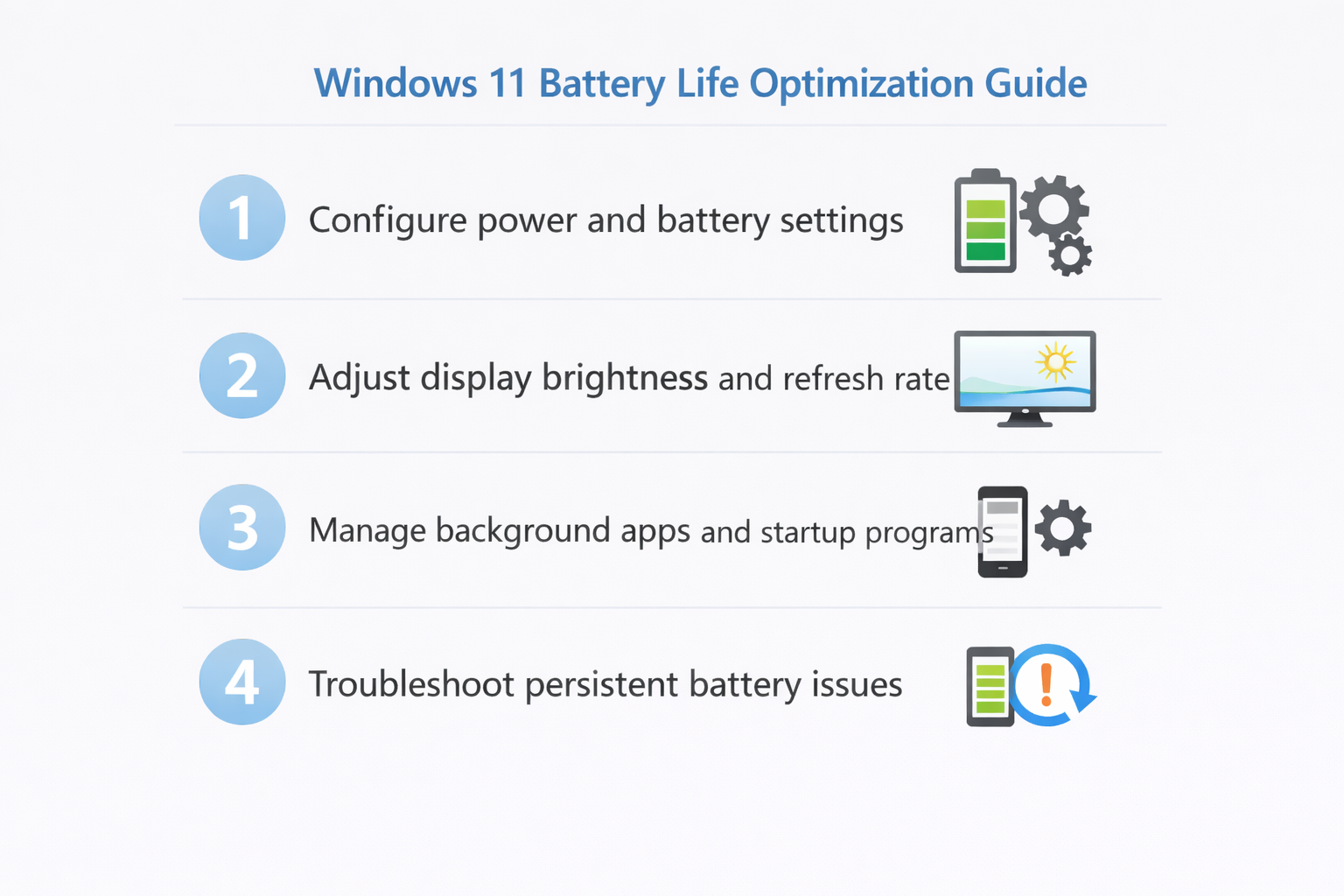
This tutorial will demonstrate how to configure Windows 11’s built-in power management tools, adjust system settings, and implement battery saving mode effectively, and troubleshoot common battery drain issues that affect Windows 11 users.
The solution involves configuring power plans, managing background applications, adjusting display settings, and utilizing Windows 11’s advanced battery features. You’ll need administrative access to your Windows 11 device and approximately 15-20 minutes to implement these optimizations.
Windows 11 battery saving settings for maximum efficiency
Windows 11 provides comprehensive battery management tools that require proper configuration to achieve optimal power efficiency and extend your laptop’s operational time between charges.
- Navigate to Settings by pressing Windows key + I, then select System from the left sidebar menu to access power and battery configuration options that control your device’s energy consumption patterns.
- Click on Power & battery to open the main battery management interface where you can monitor current usage statistics and configure power-saving features for different usage scenarios.
- Select Battery usage to view detailed information about which applications and system processes are consuming the most power over the past 24 hours or 7 days.
- Click on Power mode dropdown and choose Best power efficiency to automatically optimize system performance for maximum battery life by reducing background activity and limiting resource-intensive processes.
- Enable Battery saver by clicking the toggle switch, which automatically activates when your battery reaches 20% and reduces background app activity, lowers screen brightness, and disables non-essential features.
Expert Tip: Set Battery saver to activate at 30% instead of the default 20% to extend usage time during critical moments when you can’t immediately access a power source.
Optimize battery life on Windows 11 through display and connectivity
- Access Display settings through Settings > System > Display to modify screen brightness and refresh rate settings that significantly impact battery consumption throughout your work day.
- Reduce screen brightness to 50-70% depending on your environment, as the display typically accounts for 30-50% of total power consumption on most laptop devices running Windows 11.
- Change Screen refresh rate to 60Hz if your laptop supports higher refresh rates, as 120Hz or 144Hz displays consume considerably more power during normal productivity tasks.
- Navigate to Bluetooth & devices and disable Bluetooth when not actively using wireless peripherals, as maintaining active connections continuously searches for and communicates with nearby devices.
- Open WiFi settings and disable “Connect to suggested open hotspots” and “Connect to networks shared by my contacts” to prevent unnecessary network scanning and connection attempts.
- Turn off Location services for apps that don’t require geographic data by going to Settings > Privacy & security > Location and reviewing individual app permissions.
Implement laptop battery life extender on Windows 11
- Open Task Manager by pressing Ctrl + Shift + Esc and navigate to the Startup tab to identify programs that automatically launch when Windows starts and consume resources immediately.
- Disable unnecessary startup programs by right-clicking on applications you don’t need immediately upon boot and selecting Disable to reduce initial power consumption.
- Access Background apps through Settings > Apps > Installed apps, then click the three dots next to each app and select Advanced options to control background activity permissions.
- Review Background apps permissions and set power-hungry applications to Never run in background unless they’re essential for notifications or data synchronization requirements.
- Configure Windows Update to download updates during plugged-in hours by navigating to Settings > Windows Update > Advanced options > Delivery Optimization and enabling “Download over metered connections” restrictions.
- Enable Storage Sense through Settings > System > Storage to automatically clean temporary files and reduce disk activity that can drain battery during background maintenance operations.
Windows 11 battery troubleshooting for persistent power issues
Despite implementing standard battery optimization techniques, you may encounter specific issues that require targeted troubleshooting approaches to resolve underlying power management problems affecting your Windows 11 system.
- Battery calibration inaccuracy showing incorrect charge levels: Run Command Prompt as administrator and execute “powercfg /batteryreport” to generate a detailed battery health report that identifies capacity degradation and charging cycle information for hardware assessment.
- Background processes consuming excessive power despite configuration changes: Open Resource Monitor through Task Manager‘s Performance tab and identify specific processes with high CPU or disk usage that may require individual application settings adjustments or complete removal.
- Windows 11 battery conservation mode not activating automatically when configured: Check Windows Update for driver updates specific to your laptop manufacturer’s power management software and install any available BIOS updates that may resolve power state communication issues.
- Laptop battery life extender features not responding to power plan modifications: Reset power plans to default settings using Command Prompt with “powercfg /restoredefaultschemes” command, then reconfigure your preferred power management settings from the beginning to eliminate corrupted configuration files.