“My laptop battery drains too quickly during meetings, and I need to make it last longer without constantly searching for power outlets. How can I configure Windows to automatically manage power consumption when my battery gets low?”
Understanding Windows battery saver settings optimization
Modern Windows devices consume significant power through background processes, display brightness, and active applications. Battery saver mode represents a built-in Windows feature designed to extend battery life by reducing system performance and limiting background activity when power levels drop below specified thresholds.
Today you will learn to customize battery thresholds, manage application behavior during battery saver mode, and optimize overall power consumption for extended mobile productivity.
Tutorial prereqs include a Windows 10 or Windows 11 device with battery capability and administrator access for advanced power settings modifications. The configuration process utilizes built-in Windows Settings, Control Panel power options, and optionally – some PowerShell commands for advanced customization.
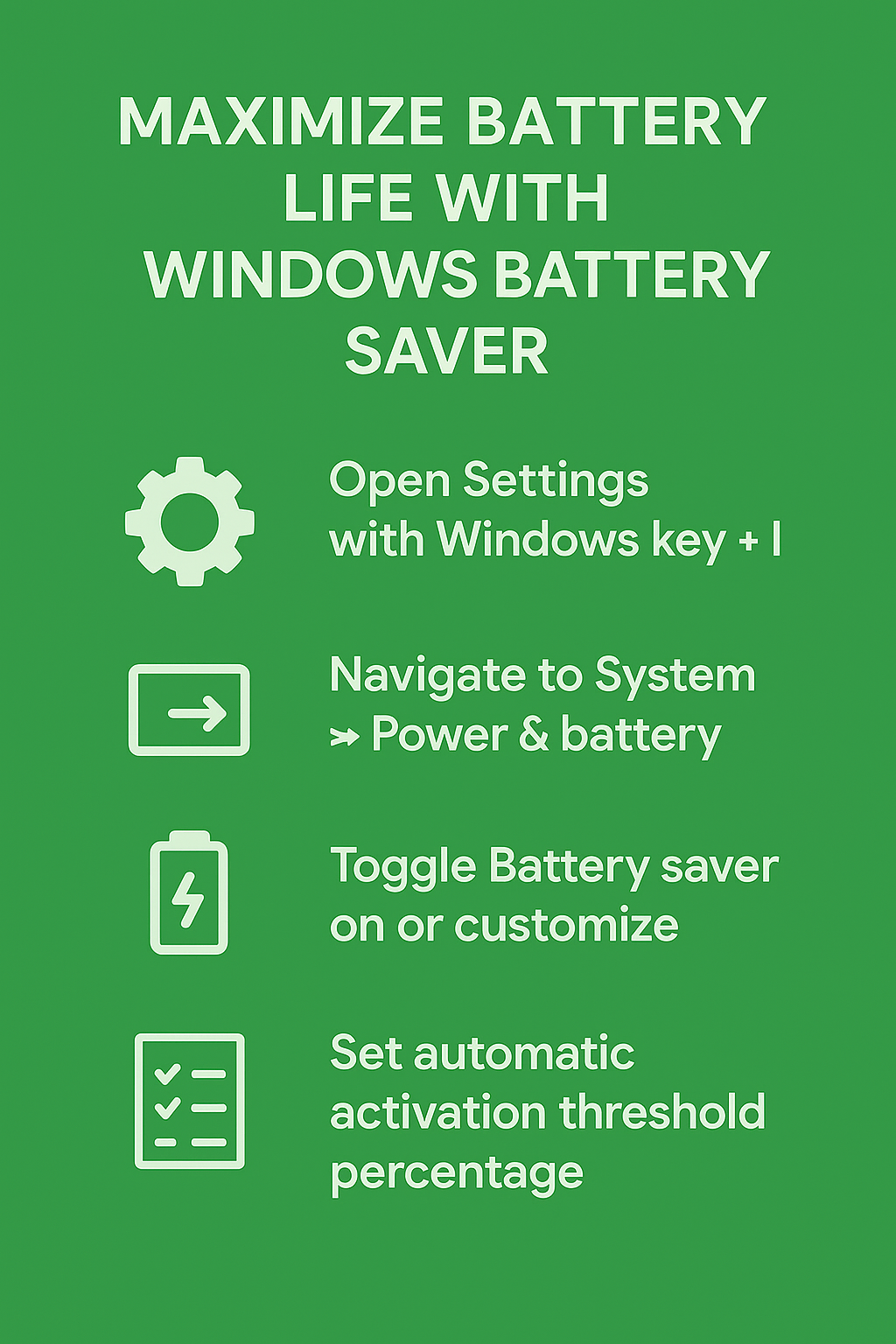
Windows battery saving mode activation and configuration
Enabling battery saver through Windows 10 settings interface
• Navigate to Windows Settings by pressing Windows key + I, then select “System” from the main settings categories to access power and battery management options.
• Click “Battery” in the left sidebar menu to display comprehensive battery usage statistics, power consumption by applications, and battery saver configuration controls.
• Locate the “Battery saver” section and toggle the switch to “On” position to immediately activate battery saver mode, which reduces background activity and system performance.
• Configure automatic activation by clicking “Battery saver settings” link, then adjust the percentage slider to determine when battery saver automatically engages (typically recommended between 20-30%).
• Enable “Turn battery saver on automatically if my battery falls below” option and set your preferred threshold percentage based on typical usage patterns and charging availability.
Customizing Windows 10 power saving settings for enhanced battery life
• Access advanced power options by typing “Power Options” in the Windows search bar, then select “Power & sleep settings” to modify display and sleep timing configurations.
• Click “Additional power settings” to open the classic Control Panel power management interface, where you can select or customize power plans for different usage scenarios.
• Choose “Power saver” plan for maximum battery conservation, or select “Balanced” plan and click “Change plan settings” to customize screen dimming and sleep timeouts.
• Modify “Turn off the display” and “Put the computer to sleep” settings to shorter intervals during battery operation, reducing power consumption during inactive periods.
Expert Tip: Set display timeout to 5 minutes and sleep mode to 15 minutes when on battery power to maximize battery life without significantly impacting productivity during brief interruptions.
• Configure advanced power settings by clicking “Change advanced power settings” link, then expand categories like “Processor power management” to limit maximum CPU performance during battery operation.
Windows 11 battery saving and automatic power management
Accessing Windows 11 battery saver mode
• Open Windows 11 Settings using Windows key + I keyboard shortcut, then navigate to “System” section and select “Power & battery” from the available options.
• Scroll down to locate “Battery saver” section, which displays current battery percentage, estimated remaining time, and battery saver activation controls for immediate or scheduled use.
• Toggle “Battery saver” switch to immediately activate power saving mode, or configure automatic activation by expanding the “Battery saver” section for detailed threshold settings.
• Set automatic activation percentage by adjusting the dropdown menu or slider control, selecting values between 10% and 50% based on your typical charging patterns and usage requirements.
• Enable “Turn on automatically” option to ensure battery saver activates without manual intervention when battery levels reach your specified threshold during mobile usage scenarios.
Advanced Windows 11 power optimization and application management
• Review battery usage by application in the “Battery usage” section, identifying power-hungry applications that significantly impact battery life during normal operation.
• Click individual applications to access detailed power consumption statistics and configure background activity permissions to reduce unnecessary battery drain during battery saver mode.
• Modify power mode settings by selecting “Power mode” dropdown and choosing “Best power efficiency” for maximum battery conservation or “Balanced” for moderate power savings.
• Configure screen and sleep settings by clicking “Screen and sleep” section, then adjust timeout values for both AC power and battery operation to optimize power consumption.
Important Tip: Windows 11’s adaptive brightness and refresh rate features automatically adjust display settings during battery saver mode, providing additional power savings without manual configuration.
• Access legacy power options by searching “Control Panel” and navigating to “Power Options” for advanced processor, wireless, and hardware-specific power management settings not available in modern Settings interface.
Measure what Energy saver changes on your PC
A reliable energy-saving setup procedure begins with a controlled test and a clear success condition. Record the current state, account, device or file involved, and the exact symptom before making changes. Apply one material change at a time so the outcome is reversible and useful evidence is preserved.
Run the focused check
In current Windows 11 versions, open Settings > System > Power & battery and review Energy saver. Choose a sensible automatic battery threshold and decide whether screen brightness should be reduced while the mode is active.
Test the same workload with Energy saver off and on. Note screen brightness, background synchronization, notification timing, fan activity, and remaining-time estimates. Some managed devices expose fewer controls because the manufacturer or organization applies a policy.
Verify and document the outcome
If an important sync or real-time application pauses, add a documented exception where supported or temporarily disable Energy saver while plugged in. Re-enable it afterward and avoid changing several power, display, and application settings at once.
For a managed work environment, check whether the behavior is controlled by policy, licensing, permissions, retention, or a staged feature rollout. A missing or locked control may be intentional. Do not bypass governance locally. Capture the application and operating-system versions, account type, relevant timestamps, and non-sensitive screenshots. This evidence helps support teams identify whether the remedy belongs on the device, in the user profile, in Microsoft 365 administration, or with another service owner.
Repeat the original action after the change and confirm the result from the perspective of another affected user when appropriate. If the test fails, restore the previous state before trying the next option. Keep the final working configuration and the reason for it in the team documentation.
Before closing the case, restart or refresh the affected client and perform the test once more. A result that survives a new session is stronger than a temporary improvement. Note any remaining limitation and the person responsible for follow-up.
Troubleshooting common battery saver configuration and performance issues
• Battery saver fails to activate automatically despite correct percentage settings, requiring verification of Windows Update installation status and potential system file corruption through SFC scan utility.
• Applications continue consuming excessive power during battery saver mode, necessitating manual review of background app permissions in Privacy settings and potential application updates or replacements.
• System performance becomes unacceptably slow during battery saver activation, indicating need to adjust power plan settings or disable specific power-saving features that impact critical workflow applications.
• Battery percentage reporting appears inaccurate or inconsistent, suggesting battery calibration issues that require complete discharge and recharge cycles or potential hardware diagnostic evaluation through manufacturer utilities.
Remember: Battery saver effectiveness varies significantly based on hardware age, battery condition, and installed applications, so regular monitoring and adjustment of settings ensures optimal power management performance.
Disable battery saver Windows 11 and restore normal performance settings
Temporarily disabling battery saver for high-performance requirements
• Access Windows 11 Settings through Windows key + I, navigate to “System” then “Power & battery” to locate current battery saver status and deactivation controls.
• Toggle off “Battery saver” switch to immediately restore normal system performance, background application activity, and full processor capabilities for demanding tasks or applications.
• Modify automatic activation settings by expanding “Battery saver” section and either increasing the activation percentage threshold or completely disabling “Turn on automatically” option.
• Switch power mode from “Best power efficiency” to “Best performance” or “Balanced” mode to ensure maximum system capabilities during AC power operation or when battery conservation is unnecessary.
Permanently configuring Windows for performance over battery conservation
• Disable battery saver automatic activation by setting the threshold to very low percentages (5-10%) or completely turning off automatic activation through the Power & battery settings interface.
• Create custom power plan through Control Panel Power Options, selecting “High performance” as base template and modifying sleep, display, and processor settings for consistent maximum performance.
• Configure individual application power management by reviewing “Battery usage by app” section and allowing unrestricted background activity for critical productivity applications and system services.
• Adjust Windows 11 power slider (if available on your device) to “Best performance” position, overriding battery saver limitations and ensuring full system capabilities during intensive work sessions.