“I’ve been trying to access our team’s Planner tab in Microsoft Teams, but it’s either not loading or showing outdated tasks. Some team members can’t see the Planner tab at all, and others mention tasks have disappeared. We recently got Microsoft Copilot, and since then, Planner seems to be having more issues. How can I fix Planner not working properly in Teams?”
How to refresh Microsoft Planner in Teams?
Microsoft Planner integration with Teams provides valuable task management capabilities for collaborative work. When Planner stops working correctly in Teams, it can disrupt project tracking, task assignments, and overall team productivity. For seamless integration, you might want to learn how to add Planner to your Teams channel properly. These issues often manifest as synchronization problems, loading failures, or missing content.
Before diving into more complex solutions, try these basic refresh techniques to resolve Planner not loading or syncing in Teams:
- Clear your browser cache if using Teams web client, or restart the Teams desktop application to refresh the connection to Planner services
- Check your internet connection stability, as intermittent connectivity can prevent Planner from properly syncing with Teams
- Verify you’re using the latest version of the Teams application, as outdated clients may have compatibility issues with current Planner features
- Wait approximately 15-30 minutes, as synchronization delays between Planner and Teams can sometimes resolve themselves
Troubleshoot Planner is not showing in Teams
Fix Planner loading issues in Teams
- Verify permissions and access: Ensure you have appropriate permissions to access the Planner tab by checking your membership status in the team and requesting the team owner to verify your access level if necessary.
- Recreate the Planner tab: If the existing Planner tab won’t load, try adding a new Planner tab to the channel by clicking the “+” button at the top of the channel, selecting “Planner,” and choosing either to create a new plan or link to an existing one.
- Check for Microsoft 365 service incidents: Visit the Microsoft 365 Admin Center Service Health dashboard to determine if there are any reported Planner or Teams service outages that might be affecting your organization.
- Reset the Teams client: Sign out of Teams completely, clear the Teams cache by navigating to %appdata%\Microsoft\Teams on Windows or ~/Library/Application Support/Microsoft/Teams on Mac, and delete the cache folders before restarting Teams.
- Try accessing Planner directly: Navigate to tasks.office.com to access Planner directly and verify if your plans and tasks are visible there, which can help determine if the issue is specific to Teams integration.
Resolving Planner and Copilot integration issues
- Verify Copilot licensing: Confirm that your organization has properly assigned Microsoft Copilot licenses to users experiencing Planner integration issues, as incomplete licensing can cause feature availability problems.
- Check Copilot policies: Work with your Microsoft 365 administrator to review any Copilot policies that might be restricting access to Planner data or integration capabilities through admin center settings.
- Update Microsoft Graph permissions: If Planner tasks aren’t appearing in Copilot suggestions, your administrator may need to review and update Microsoft Graph API permissions to ensure Copilot has appropriate access to Planner data.
- Reinstall the Teams application: For persistent issues with Planner and Copilot integration, completely uninstall and reinstall the Teams desktop application to ensure all components are properly configured.
Recovering disappeared Planner tasks in Teams
- Check the Recycle Bin: Navigate to the SharePoint site associated with your team and check the Recycle Bin for accidentally deleted Planner tasks or plans that can be restored within the retention period.
- Review task filters: Verify that no filters are applied in your Planner view that might be hiding tasks, by clicking on “Filter” and ensuring all categories and assignments are set to display.
- Check for plan migration: Determine if the plan was moved to another team or group by searching for the plan name across your organization’s Teams and Microsoft 365 Groups.
- Restore from backup: If your organization uses Microsoft 365 backup solutions, contact your IT administrator to explore restoring Planner data from a previous backup point.
Common Error Messages and Quick Fixes
“Plan Not Found” Error Resolution
- Verify the plan still exists by searching for it in the Microsoft Planner standalone app
- Check if the plan was accidentally deleted or moved to a different Microsoft 365 Group
- Confirm your Microsoft 365 Group membership hasn’t been removed, which would revoke access to associated plans
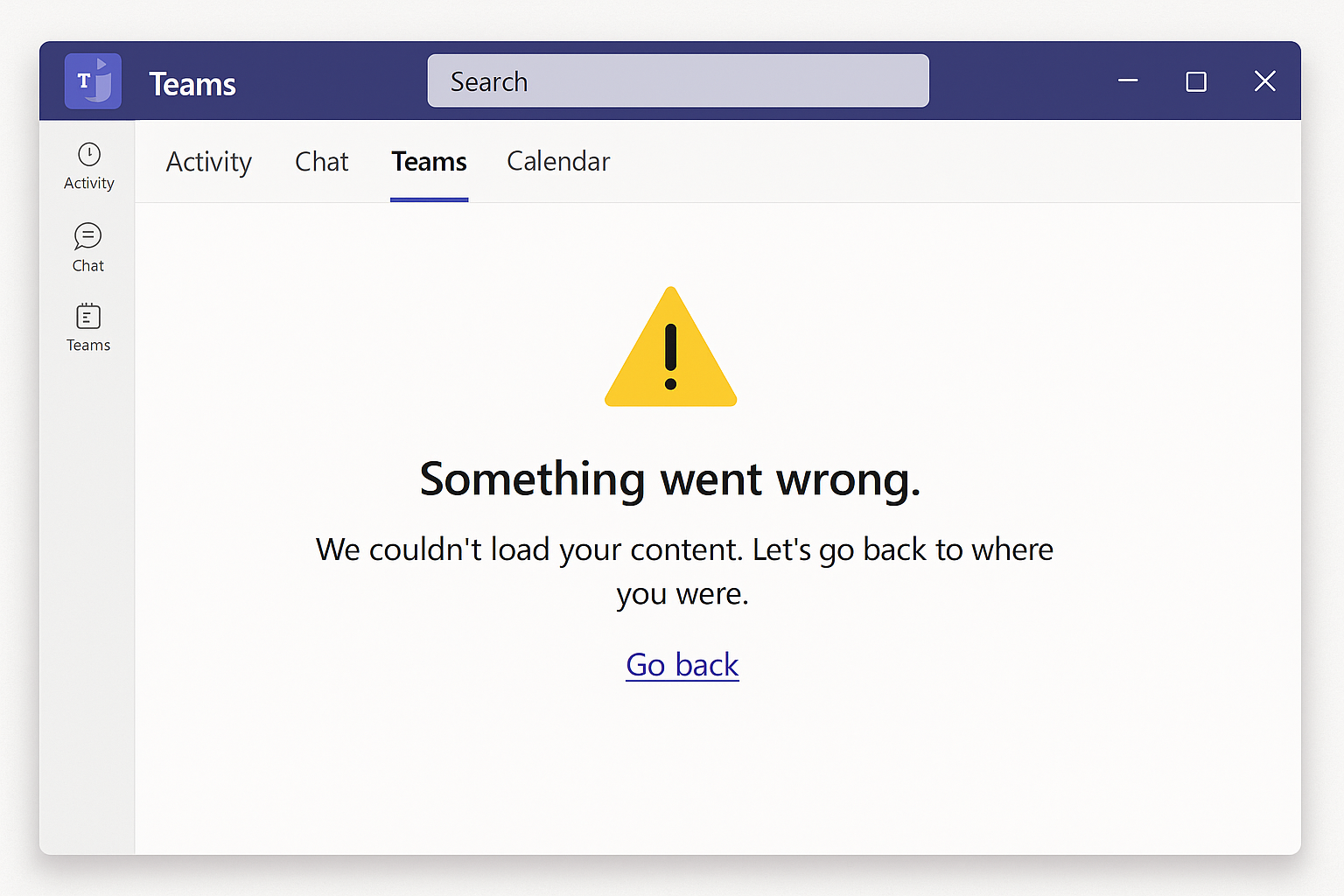
“Something Went Wrong” Generic Error
- Wait 10-15 minutes and retry, as this often indicates temporary server-side issues
- Try accessing Planner from a different device or network to rule out local connectivity problems
- Contact your IT administrator to verify there aren’t any conditional access policies blocking the integration
And If you cannot add Planner into Teams?
- If you receive an error message stating “You don’t have permission to add Planner to this team,” contact your team owner to verify you have sufficient permissions to add tabs to channels.
- When encountering the error “Something went wrong” while creating a Planner tab, try signing out of Teams completely, clearing browser cookies if using the web client, and then signing back in before attempting to create the Planner tab again.
- If Planner doesn’t appear in the available tabs list when clicking the “+” button in a channel, your Microsoft 365 administrator may need to check tenant-wide app permissions and ensure Planner is not blocked in the Teams admin center.
Access Planner Through Different Microsoft Applications
When Teams isn’t cooperating with Planner, you can maintain productivity by accessing your plans through alternative Microsoft applications:
- Outlook Integration: Open Outlook and navigate to the “Tasks” section where Planner assignments automatically appear alongside your regular tasks. This provides a unified view of all your work commitments and allows you to update task status directly from Outlook.
- Microsoft To Do: Install Microsoft To Do on your mobile device or desktop to access assigned Planner tasks. Changes made in To Do sync back to Planner and Teams, making it an excellent backup access method.
- SharePoint Integration: Visit your team’s SharePoint site directly, where you can often find embedded Planner web parts that may load more reliably than the Teams integration.
Can I work offline with Planner tasks?
The Teams desktop app caches recently viewed Planner data, allowing read-only access during brief disconnections. However, you cannot create or modify tasks offline. For offline task management, export your plan to Excel through the Planner web interface before losing connectivity. Changes made in the exported file must be manually re-entered when online.
Why do some team members see different task counts?
Permission inheritance from Microsoft 365 Groups controls Planner visibility. Guest users see only tasks assigned to them, while members view all plan tasks. Additionally, private plans created outside Teams channels won’t appear in the Teams interface. Administrators should verify group membership types in the Microsoft 365 Admin Center under Active Teams.
How long does Planner-Teams synchronization take?
Standard synchronization completes within 2-5 minutes under normal conditions. During high-traffic periods or after major updates, delays can extend to 30 minutes. If tasks remain invisible after one hour, the issue likely stems from permissions or service disruptions rather than sync delays.
Does clearing Teams cache delete my Planner data?
No. Clearing the Teams cache only removes locally stored interface data. All Planner tasks, plans, and attachments reside in Microsoft 365 cloud storage and remain intact. After cache clearing, Teams re-downloads current data from the server during the next login.