
Turn on virtual background Teams for professional meetings
How can I make my home office look more professional during Microsoft Teams video calls without spending money on equipment or room redesign? Many remote workers struggle with distracting backgrounds during important meetings, whether it’s cluttered home spaces, family members walking by, or simply wanting to maintain privacy. Virtual backgrounds in Microsoft Teams provide an elegant solution that transforms any environment into a professional setting.
Adding a virtual background to Teams solves workspace challenges
Remote work has made video conferencing essential for business communication, but not everyone has access to a dedicated, professional-looking office space. Cluttered rooms, poor lighting, or shared living spaces can create distractions during important client calls or team meetings. Virtual backgrounds address these concerns by replacing your actual background with professional images or company branding.
We will go through the process of adding virtual backgrounds in Microsoft Teams, from basic setup to uploading custom images. We’ll cover both the desktop application and web browser versions, ensuring you can maintain a professional appearance regardless of your physical workspace. You’ll need a Microsoft Teams account and either the desktop application or access to Teams through a web browser. The process works on Windows, Mac, and mobile devices, though some features may vary by platform.
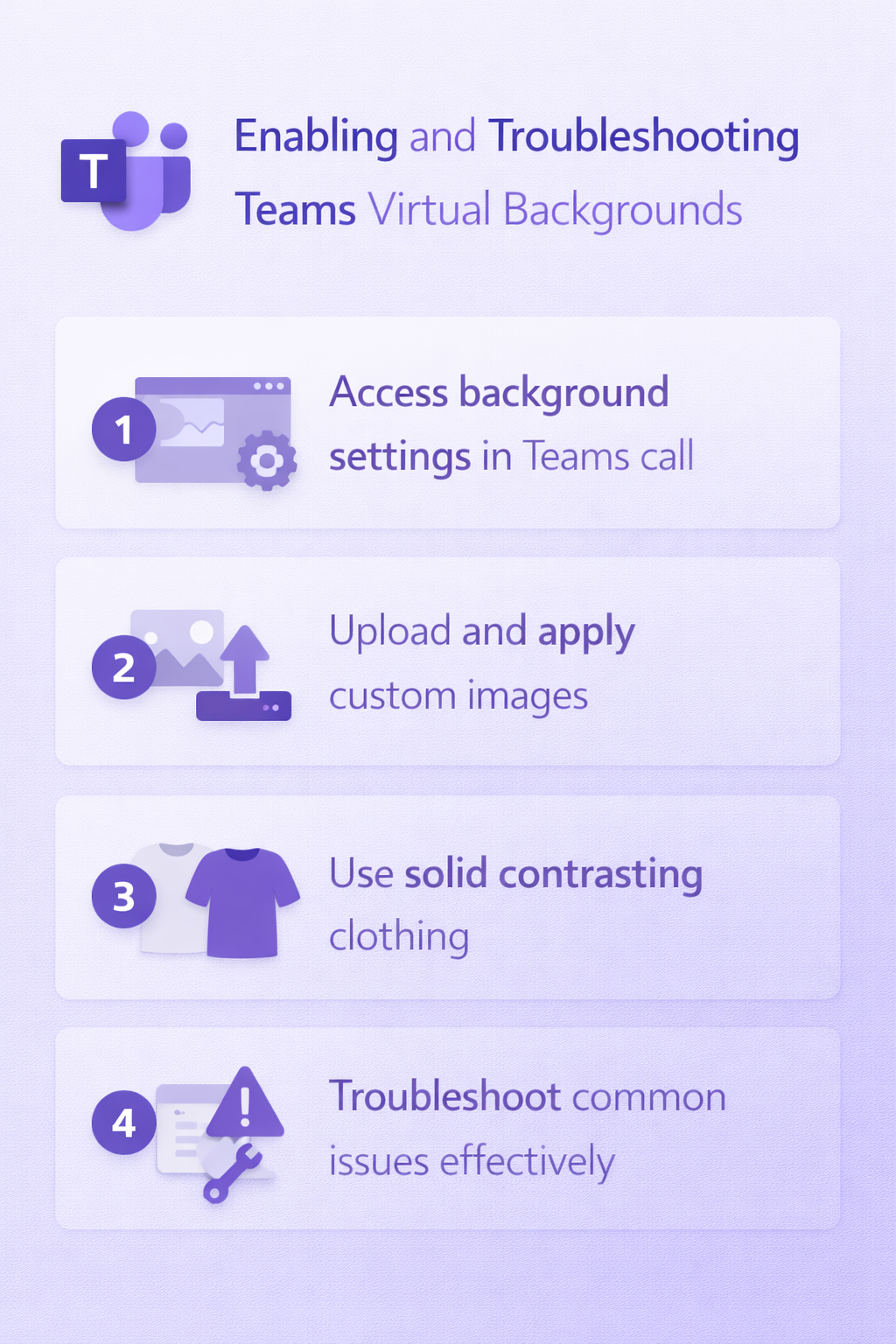
Upload virtual background Teams through desktop settings
The process to set virtual background in Teams begins with accessing the proper settings during a video call or in your pre-call configuration options.
- Open Microsoft Teams desktop application and navigate to your profile picture in the upper right corner of the interface. Click on Settings from the dropdown menu to access your account configuration options, then select Devices from the left navigation panel to find camera and background controls.
- Locate the Camera section within the Devices settings and look for the Background effects option which may appear as a dropdown menu or separate section. This area controls all visual effects applied to your video feed during Teams meetings and calls.
- Click on Background effects to open the virtual background selection panel where you’ll see default options including blur effects and pre-installed background images. The panel displays thumbnail previews of available backgrounds that you can immediately apply to your video feed.
Microsoft Teams virtual background settings configuration
- Select Add new from the background effects panel to begin the process of uploading your own custom virtual background images to Teams. The system will open a file browser dialog allowing you to navigate to images stored on your local computer or network drives.
- Choose image files in supported formats including JPG, PNG, or BMP with recommended dimensions of 1920×1080 pixels for optimal display quality during video calls. Teams automatically resizes images, but maintaining proper aspect ratios ensures the best visual appearance without distortion or stretching.
- Preview your selected background by hovering over the thumbnail in the effects panel before applying it to your video feed during actual meetings. The preview function helps you verify that the background appears correctly and complements your lighting and camera setup.
- Apply your chosen virtual background by clicking on the thumbnail, which immediately activates the effect and replaces your actual background with the selected image. Teams processes the background replacement in real-time using built-in AI technology that detects your silhouette and maintains edge clarity.
Setup virtual background in Teams for web browser users
- Access Microsoft Teams through your web browser and join a meeting or start a new call to access background effect controls during the video session. Web browser versions may have slightly different interface layouts compared to the desktop application.
- Click on the three-dot menu (More actions) during a video call and select Apply background effects from the dropdown options to open the virtual background selection panel. This method provides quick access to background controls without leaving your current meeting or call.
- Upload custom backgrounds using the same Add new process described for desktop users, ensuring your image files meet the size and format requirements for optimal performance. Web browser versions may have file size limitations that differ from desktop applications.
Expert Tip: Custom virtual backgrounds work best with solid colored clothing that contrasts with your chosen background image, helping Teams’ AI better distinguish between you and the background for cleaner edge detection.
Troubleshooting virtual background issues in Microsoft Teams
Even with proper setup, users occasionally encounter challenges when implementing virtual backgrounds in their Teams configuration, ranging from performance issues to visual artifacts.
- Virtual backgrounds may not appear in your background effects panel if your computer doesn’t meet the minimum system requirements for AI-powered background processing. Teams requires specific processor capabilities and available system memory to handle real-time background replacement without affecting call quality or performance.
- Custom uploaded backgrounds might appear distorted or pixelated during video calls if the original image resolution is too low or doesn’t match the recommended 1920×1080 aspect ratio. Teams automatically scales images, but starting with properly sized files ensures better visual quality and reduces processing overhead on your system.
- Background effects may cause increased CPU usage and battery drain on laptops, particularly older devices that lack dedicated graphics processing capabilities for handling AI workloads. Monitor your system performance during calls and consider using blur effects instead of full virtual backgrounds if you experience performance issues.
- Some users experience edge detection problems where parts of their body disappear or background elements appear through their silhouette, typically caused by insufficient lighting or backgrounds that are too similar in color to clothing. Improving your lighting setup and wearing solid colors that contrast with your virtual background helps Teams’ AI better distinguish your outline from the background elements. For more help, check our camera troubleshooting guide.