When Microsoft Teams appears to be taking lots of storage, the first challenge is identifying which storage is full. The Teams desktop app can build a large local cache on your PC. Files shared in a Team, however, live in the Team’s connected SharePoint site and use your organization’s pooled SharePoint capacity.
Those are separate problems with different fixes. Clearing local app data will not increase a Team’s cloud quota, and increasing a SharePoint site limit will not recover space on your Windows drive. Use the checks below to find the constrained location before deleting data or requesting more capacity.
Decide which Teams storage is running out
Start with the symptom rather than the size shown in a single screen.
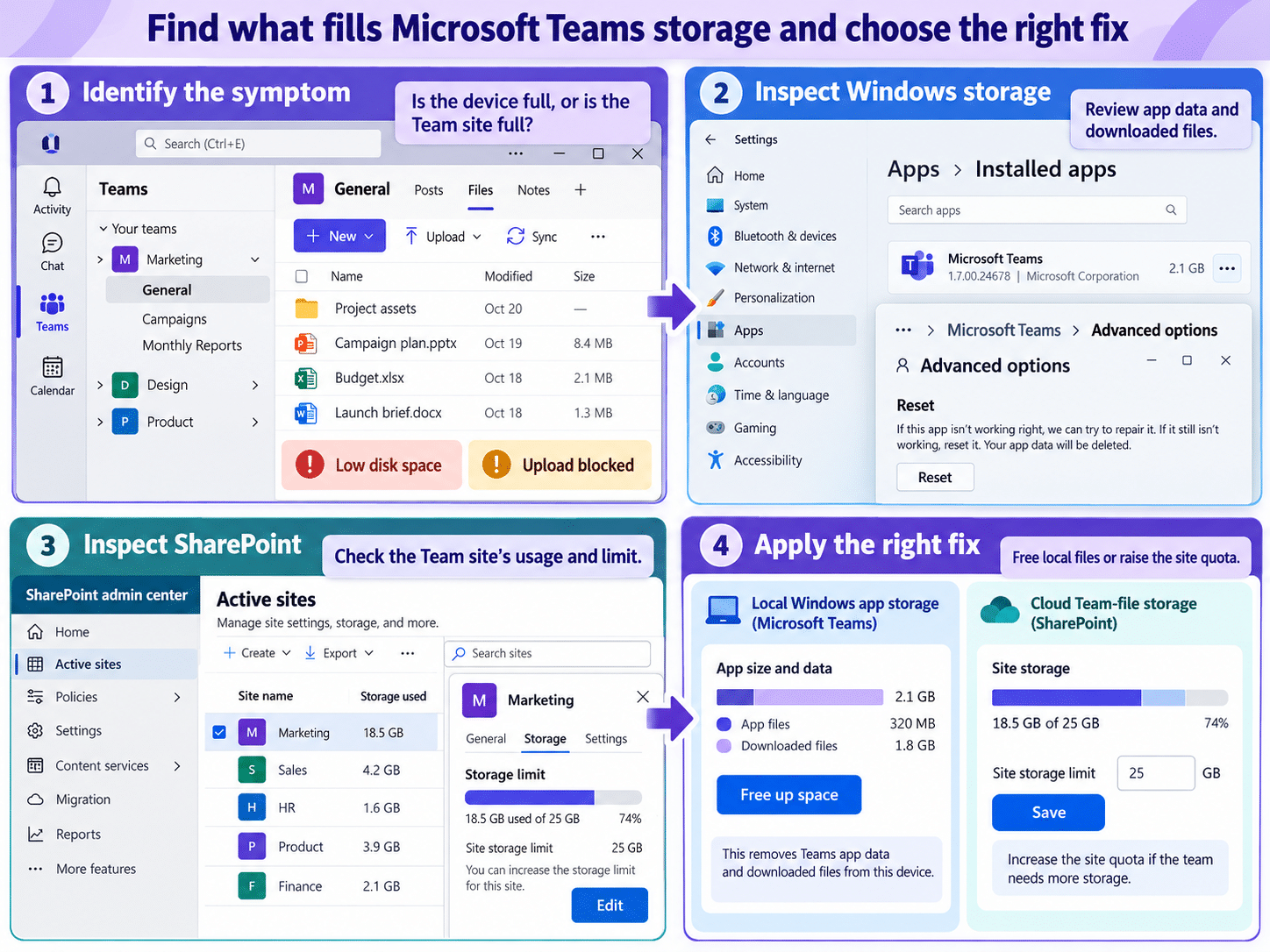
- If Windows reports low disk space and Teams is large under Settings > Apps > Installed apps, investigate the local app data and downloaded files.
- If a channel refuses uploads, a SharePoint warning mentions a quota, or owners receive storage alerts, inspect the Team’s connected SharePoint site.
- If a file shared in a private chat is consuming cloud storage, check the sender’s OneDrive rather than the Team site.
- If Teams uses high RAM or CPU while it is open, that is a performance issue, not a storage quota. Work through the broader performance checks for resource-heavy Teams sessions instead of changing a site limit.
Check local usage in Windows
Open Settings > Apps > Installed apps, find Microsoft Teams, and review the size Windows reports. Treat that figure as a clue, because it may combine the installed app with cached data. Also inspect Settings > System > Storage > Temporary files and your Downloads folder for meeting recordings, exported chats, or documents you downloaded from Teams.
Do not assume that every file visible in Teams is stored twice on the PC. Channel files normally remain in SharePoint unless you download them or sync their library through OneDrive. A synchronized library can occupy local disk space when files are marked Always keep on this device.
Check the Team’s cloud storage
Open the Team, select the channel, choose the Shared or Files area, and use Open in SharePoint. In SharePoint, site owners can open Settings > Site information > View all site settings > Storage Metrics to see which libraries and folders use space.
Administrators get the tenant-wide view in the SharePoint admin center. Under Active sites, select the Team’s site and review its storage usage and limit. Private and shared channels can have separate SharePoint sites, so inspect the channel site as well when the main Team site looks healthy.
Reclaim space used by the Teams desktop app
Use a targeted cleanup. Microsoft’s current guidance warns that clearing the cache is not a universal repair step for missing chats, channels, notifications, or unread counts, because it can remove diagnostic logs without fixing those service-side symptoms.
Remove obvious downloads first
Sort your Downloads folder by size and date. Move any recordings or documents you still need to another approved location, then delete unnecessary local copies and empty the Windows Recycle Bin. If you sync the Team’s document library through OneDrive, right-click large folders that do not need offline access and select Free up space.
This is usually safer than resetting Teams because it targets files you deliberately stored offline. It also avoids resetting personal app preferences.
Reset New Teams when its local cache is the problem
Quit Teams completely before resetting it. In Windows 11, open Settings > Apps > Installed apps, locate Microsoft Teams, select the three-dot menu, choose Advanced options, and select Reset. Restart Teams and sign in again if prompted.
The reset removes local app data and personalization, and the first restart can take longer while the cache is rebuilt. It does not expand the Team’s SharePoint quota. If you are troubleshooting missing conversations or channel content, preserve the logs and escalate the service issue instead of repeatedly clearing the cache.
Increase storage for Team files
Teams channel files use SharePoint storage. Standard channels use folders in the Team’s main site; private and shared channels can use their own sites. The organization therefore needs enough pooled SharePoint capacity before an administrator can raise a manually limited site’s quota.
Let pooled storage work automatically
Microsoft recommends automatic site storage management for most organizations. With automatic management, sites draw from the tenant’s available pool as needed, up to the applicable per-site limit. An admin does not have to assign a fixed quota to every Team.
If automatic management is already enabled, a site-level increase may not be the real answer. Check the organization’s available SharePoint storage, retention and version history, Recycle Bins, and unusually large or inactive sites. A library that appears full can also be a synchronization or permission problem; in that case, use the related synchronization checks before buying capacity.
Raise a manual site limit
A SharePoint administrator or higher role can change a manually managed Team site:
- Open the SharePoint admin center and select Active sites.
- Select the site connected to the Team. For a private or shared channel, open the relevant channel site.
- On the General tab, find Storage limit and select Edit.
- Enter the new maximum in GB, turn on notifications, and choose the warning percentage.
- Select Save, then allow the admin reports time to refresh.
Microsoft documents a maximum site limit of 25,600 GB, but setting that number does not create tenant capacity. The available pool still depends on your Microsoft 365 plan, licenses, add-ons, and current usage. If the tenant pool is exhausted, the practical options are to reduce stored data, adjust version history and retention where policy allows, add eligible licenses, or purchase additional SharePoint storage.
Avoid fixes that move the problem elsewhere
Deleting files in Teams deletes them from the connected SharePoint library for everyone with access; it is not a local cleanup. Confirm ownership, retention requirements, and backup expectations first. Items in SharePoint Recycle Bins can continue to affect storage until they expire or are permanently removed under your organization’s policy.
Likewise, changing OneDrive sync settings only changes which cloud files remain downloaded on one device. It can recover local disk space, but it does not reduce the size of the Team site. Keep the distinction visible in your change record: device cleanup, site quota adjustment, or tenant capacity increase.
Questions you might have
Will clearing the Teams cache delete channel files or chats?
Resetting New Teams removes local app data, not the authoritative channel files stored in SharePoint. Your cloud content should return after Teams rebuilds its cache and you sign in. However, Microsoft advises against cache clearing as a general fix for missing chats or channels because it can remove diagnostic logs without resolving the underlying problem.
Where are files from Teams private chats stored?
Files shared in a private chat normally use the sender’s OneDrive, while files in standard Team channels use the connected SharePoint site. Private and shared channels may have separate SharePoint sites. Follow the file’s Open in SharePoint or Open in OneDrive option when available so you inspect the correct location.
Can a Team owner increase the storage limit without an admin?
Usually not directly. A site owner may be able to request more quota from Storage Metrics, but changing the limit in the SharePoint admin center requires an appropriate admin role. The administrator also needs to confirm that the organization has available pooled capacity.
Why did the storage number not change immediately?
SharePoint storage reporting can lag behind recent changes, and deleted content may remain in a Recycle Bin. Teams also rebuilds local cache data after a reset. Wait for the relevant report to refresh, then compare the same device or site rather than mixing local disk and cloud figures.
The practical takeaway
Treat “Teams storage” as a location question first. Recover device space by removing downloads, freeing synced files, or resetting New Teams only when local app data is genuinely the issue. Increase Team file capacity through SharePoint administration, and only after confirming that the tenant has room in its storage pool. That separation prevents destructive file deletion, unnecessary license purchases, and quota changes that do nothing for the user’s actual symptom.