Microsoft Teams can appear near the top of Task Manager even when you are not in a meeting. That number is not automatically a fault: chats, calendars, notifications, embedded apps, and meeting media all need working memory. The useful question is whether Teams keeps consuming more memory while idle, makes the whole PC sluggish, or fails to release resources after a call.
The safest way to fix the problem is to establish a repeatable baseline, reduce work that Teams performs in the background, and repair its local data only if the lighter changes do not help. This order protects your settings and avoids treating every large memory figure as a broken cache.
Confirm that Teams is causing the slowdown
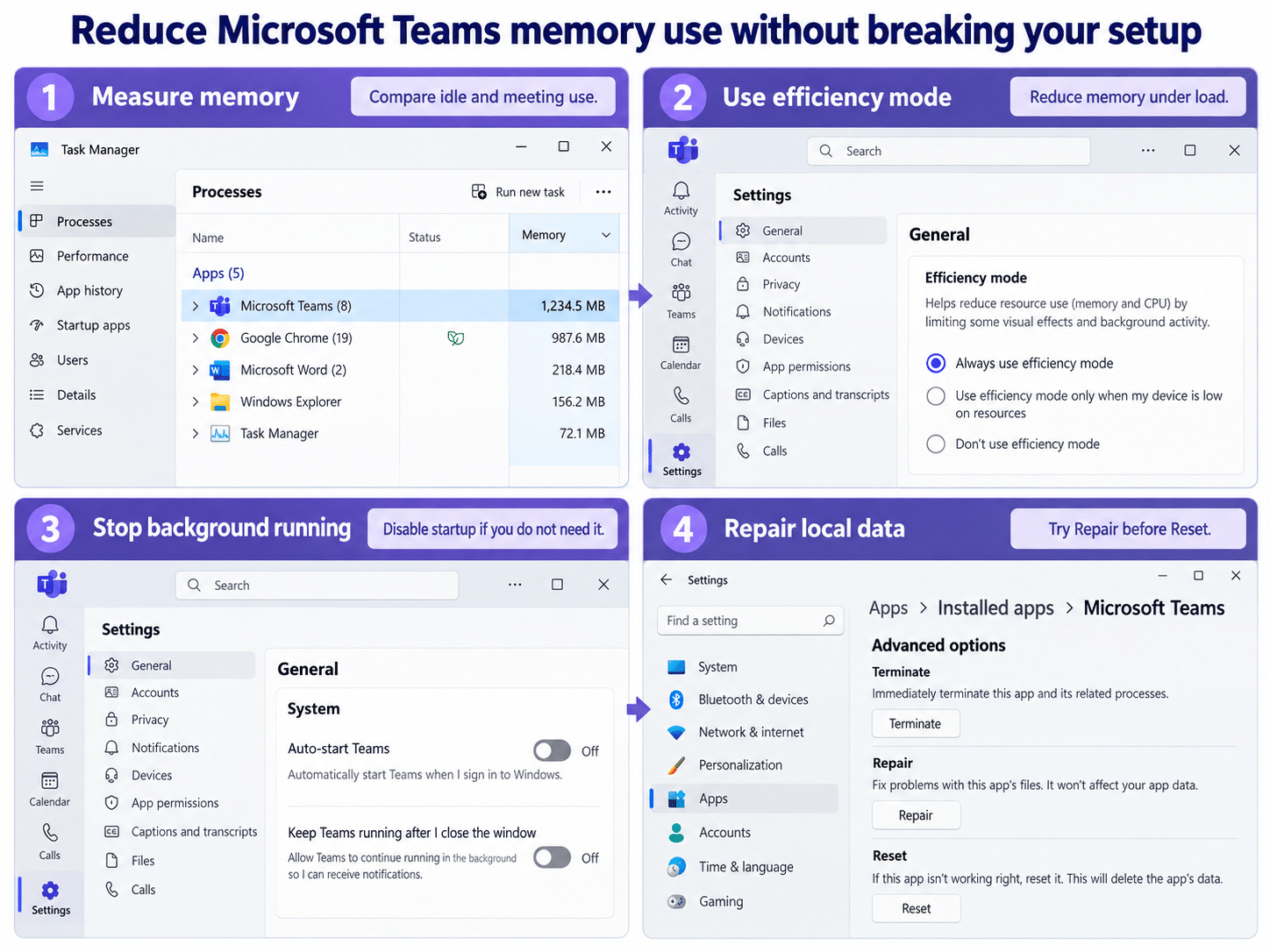
Open Task Manager with Ctrl + Shift + Esc, select Processes, and choose the Memory column to sort the list. Expand Microsoft Teams if Windows groups several related processes. Note the total while Teams is idle, then watch it during the activity that normally causes trouble.
Compare like with like
Do not compare an idle session with a large meeting. Video, screen sharing, live captions, background effects, and apps opened inside Teams can all raise resource use. A more useful test is to quit Teams completely, reopen it, wait five minutes without joining a meeting, and record the new baseline.
Also check the overall memory percentage at the top of Task Manager. Teams may be the largest single app without being the only pressure on the system. Several browsers, large Excel workbooks, synchronization tools, and virtual machines can leave Windows with too little headroom. If CPU or disk use is the main bottleneck instead, the broader Windows resource checks can help separate a Teams issue from a system-wide one.
Look for the pattern, not one peak
A brief spike during launch or a meeting is less concerning than a steady climb that continues after the meeting ends. Record three observations: after a clean launch, during the problem activity, and five minutes after the activity stops. This gives you evidence to judge each change below.
Reduce the work Teams keeps active
Start inside Teams. Select Settings and more (the three-dot menu) > Settings > General. The available controls can vary by account and organization, but current versions may show a System section and Efficiency mode.
Turn on efficiency mode
Under Efficiency mode, choose Always use efficiency mode for a sustained reduction in processor and memory demand. Microsoft notes that this can reduce camera resolution, so test it in a short call before relying on it for an important presentation. If video quality matters more than resource use, select Use only when resources are low instead.
Stop unnecessary background activity
In the System section, turn off Auto-start Teams if you do not need Teams immediately after signing in. If the option is present, also turn off the setting that keeps Teams running after you close its window. You will no longer receive Teams notifications while the app is fully closed.
Windows also lets you manage startup apps from Settings > Apps > Startup or the Startup apps page in Task Manager. If you want to review other automatic programs while you are there, use a leaner sign-in routine so Teams is not competing with several heavy apps at once.
Quit Teams from its taskbar notification-area icon after changing these options, then reopen it and repeat your idle baseline. Closing only the main window may leave the app running in the background when that behavior is enabled.
Update before clearing anything
Teams normally updates itself when an update is available and the app is idle. If an update banner appears, select Update > Update and restart Teams. You can also open Settings and more > Settings > About Teams to see the installed version and whether Update now is offered.
An update is preferable to deleting local data because it keeps your configuration intact. After Teams restarts, repeat the same activity that caused the high-memory pattern. If memory returns near the clean-launch baseline after the activity ends, no reset is needed.
Repair local app data in stages
Use Windows repair tools only when Teams still grows abnormally, becomes unresponsive, or remains heavy after a clean restart. Save unsent work and leave meetings before continuing.
- Open Start > Settings > Apps > Installed apps.
- Find Microsoft Teams, select More options (the three dots), and choose Advanced options.
- Select Repair if it is available. Windows attempts to fix the app without the more disruptive reset.
- Open Teams and repeat your baseline test.
- If the behavior continues, return to Advanced options and select Reset.
Reset deletes local app data and personalization settings. Expect to sign in again or restore preferences. It does not delete cloud-hosted chats, teams, or files, but it is still a later step rather than the first response to a large Task Manager number.
Clear the cache only for a persistent local-client problem
Microsoft describes cache clearing as a targeted troubleshooting step, not a universal fix. In particular, it is not recommended for missing chats, channel history, absent teams, or incorrect notification counts because it removes diagnostic logs without fixing those service-side symptoms.
For new Teams on Windows, Microsoft supports either the Reset method above or manually clearing the local cache after fully quitting Teams. Prefer Reset because it follows a visible Windows workflow. If your organization manages the device or you need logs for support, contact IT before deleting folders manually.
When the browser is the better temporary option
If an urgent call is starting and the desktop client remains unstable, use Teams on the web in a supported current browser. This is a workaround, not proof that the desktop app is defective: the browser has its own memory use and extensions can affect it. Still, a clean web session can keep you productive while IT examines the desktop client.
If Teams behaves normally on the web but the desktop client repeatedly climbs after Repair and Reset, capture the Teams version, Windows version, idle memory baseline, meeting conditions, and the time the increase begins. That evidence is more useful to support than a single screenshot taken during a busy meeting.
Questions about high Teams memory use
How much memory should Microsoft Teams use?
There is no single healthy number for every session. Memory use changes with meeting size, video, screen sharing, effects, open chats, embedded apps, and the amount of RAM in the PC. Judge the pattern against a clean idle baseline and the responsiveness of the whole system rather than an isolated peak.
Does ending Teams in Task Manager fix the problem?
Ending the process can recover resources immediately, but it does not fix the reason usage grew. Quit Teams normally when possible, then use Task Manager only if the app will not close. Repeated growth after every clean launch points to an update, local-data, add-in, policy, or device issue that needs further investigation.
Will Reset delete my chats and files?
Teams chats and files stored in Microsoft 365 are not removed by resetting the local Windows app. Reset does remove local app data and personalization, so you may need to sign in and restore preferences. Confirm with your IT team first if the device is tightly managed or support is collecting diagnostic logs.
Should I clear the cache whenever Teams feels slow?
No. First measure the workload, restart and update Teams, and test efficiency and background settings. Clear or reset local data only for a persistent client problem, and avoid doing it for missing-message or notification-count issues that Microsoft says cache clearing does not resolve.
The practical takeaway
Treat high memory as a pattern to diagnose rather than a number to erase. Establish an idle baseline, use efficiency mode, prevent unnecessary background activity, and update the client before touching local data. Repair is the next low-risk step; Reset or manual cache clearing belongs later. If memory still climbs under the same repeatable workload, move to the web temporarily and give IT the measurements needed to investigate the client, policy, or device.