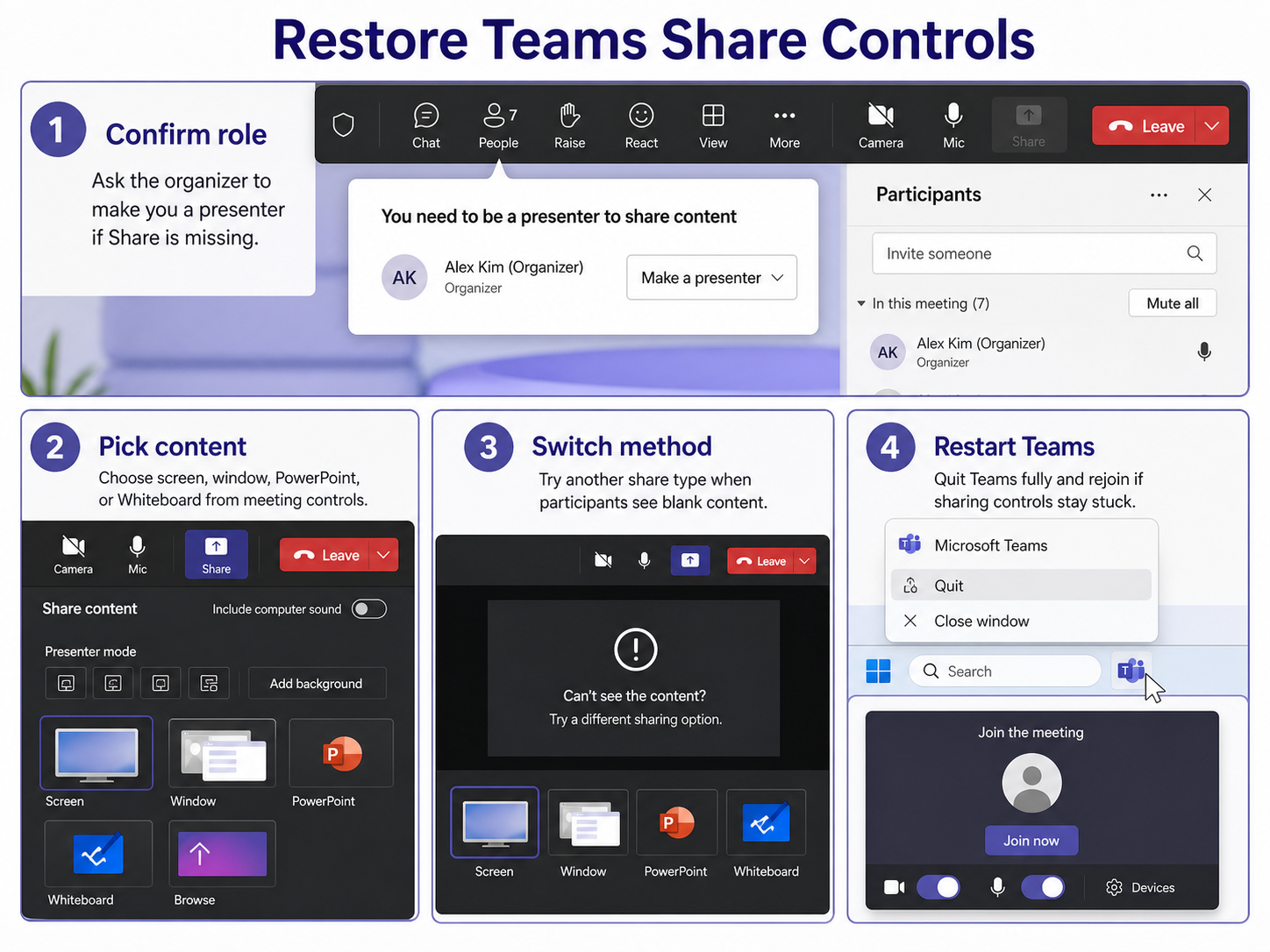
When Teams share screen is not showing, first separate two symptoms: the Share control is missing, or the control appears but participants cannot see the content. Microsoft documents the normal flow as selecting Share in meeting controls, then choosing a screen, window, PowerPoint, Whiteboard, or other content option. If the control is missing, check role and policy; if content is blank, check the selected window, display, app session, and device.
Check the Teams meeting role
Confirm presenter access before sharing
Only people with the right meeting role can present. If you are an attendee, the organizer may need to make you a presenter or adjust meeting options. Microsoft also notes that if a mobile presenter is changed from presenter to attendee while sharing, screen sharing stops.
This is the fastest first check because no local repair can override meeting policy. In webinars, external meetings, and tightly managed tenants, the share button may be intentionally unavailable. When my share button disappears in someone else’s meeting, I ask the organizer to confirm my role before I restart Teams.
Compare meeting types and policies
A one-to-one Teams call, channel meeting, webinar, town hall, and external meeting can expose different controls depending on policy. Test sharing in a simple test meeting you organize yourself. If sharing works there but not in the real meeting, the issue is meeting settings or organizer policy.
Ask whether other presenters can share. If nobody can share, the organizer or admin owns the fix. If only you cannot share, continue with app, account, and device checks.
Choose the right shared content
Pick screen or window sharing
Select Share, then choose whether to share the full screen or a specific window. Screen sharing is better when you need to switch between apps. Window sharing is better when privacy matters, but participants may see nothing useful if that window is minimized, hidden, or on another virtual desktop.
For a quick test, share a simple browser window with a static page. That removes PowerPoint Live, protected content, heavy apps, and multi-monitor confusion from the first check. If the browser shares but your target app does not, the issue is probably that app or window.
Avoid protected or hidden content
Some secure windows, admin prompts, DRM-protected video, and credential dialogs may not share normally. Teams may show a blank or frozen area even though your screen looks fine locally. Switch to a document, browser tab, or PowerPoint that is intended to be presented.
If participants see a dark shared area, fix black screen with the same isolation method: change one variable at a time. Do not update drivers, reinstall Teams, and change monitors in the same pass or you will not know what fixed it.
Repair the active Teams session
Restart Teams fully before rejoining
Stop presenting, leave the meeting if needed, then quit Teams from the system tray so it fully exits. Reopen Teams and rejoin the meeting. If you use Teams in a browser, close the tab and start a fresh browser session.
A full restart clears stuck meeting controls and stale device state. It is especially useful after a laptop wakes from sleep, reconnects to a dock, or changes monitors. My usual live-call fix is to hand presenting to someone else, restart Teams, then test sharing a browser window before returning to the real content.
Test another Teams sharing type
Switch from window sharing to full screen sharing, or from PowerPoint Live to desktop sharing. If PowerPoint Live fails but full screen works, continue the meeting with the working method and troubleshoot PowerPoint later. Meeting continuity matters more than proving the perfect share mode during the call.
If one monitor never appears in the picker, disconnect and reconnect the display or test with one monitor. Windows display numbering and dock changes can confuse which screen Teams presents.
Check browser screen sharing permissions
If you use Teams on the web, make sure the browser is allowed to share the screen or window. Browser updates, profiles, and enterprise policies can affect sharing permissions. Try Microsoft Edge or Chrome with a fresh tab if the current browser keeps failing.
On mobile, confirm screen broadcast permissions before joining. Device-level permission prompts can block sharing even when Teams meeting policy allows it.
Present content cleanly in Teams
Prepare files before screen sharing
Open the document, browser tab, app, or presentation before selecting Share. Close private windows, mute notifications, and move sensitive files off the desktop. If the goal is only to distribute a document, share channel files instead of making everyone read a moving screen.
Preparation reduces awkward pauses and privacy risk. It also makes troubleshooting easier because you know exactly which window should appear in the share picker.
Use presenter controls with confidence
While sharing, Teams shows presenter controls such as stop sharing and content options. Move the cursor near the top of the shared screen if the toolbar disappears. Knowing where controls live prevents the common panic where someone cannot stop sharing quickly.
Later, I keep Teams on one monitor and shared content on another, but I always test which screen number Teams sees before an important meeting. The label in the picker is not always obvious after docking changes.
Teams screen sharing questions answered
Why is Share button missing?
You may be an attendee, the organizer may restrict presenters, or a tenant policy may block screen sharing. Ask the organizer to change your role before reinstalling Teams.
Why does sharing show black?
The selected app, protected content, display driver, browser permission, or Teams session may be failing. Try a simple window, then full screen, then restart Teams if the blank share persists.
Can I share PowerPoint instead?
Yes. Microsoft Teams supports several content types, including screen, window, PowerPoint, Whiteboard, and other options depending on device and meeting context.
Fix sharing in the order the meeting actually depends on it: role first, content choice second, session repair third. That keeps the call moving while you narrow the real failure.