You can keep a project plan inside the same Microsoft Teams channel where the team discusses decisions, shares files, and holds meetings. In the current Teams experience, the supported way to “embed” a project plan is to add Microsoft Planner as a channel tab and then create or attach a plan.
This approach is cleaner than pasting a Planner link into a post. The plan remains one click from the channel, everyone works from the same task data, and you can choose a basic board or a premium plan with more formal project controls.
Decide what the channel should contain
Before adding the tab, confirm that the channel is the right home for the project. A Planner tab inherits the collaboration context of the team and its Microsoft 365 group, so the channel choice affects which existing plans appear and who can open them.
Use a shared plan, not a private list
An existing plan must be shared with the channel or the Microsoft 365 group associated with the team before it can be selected. A private plan that only appears under your personal plans is not a good candidate for a team tab.
If the project is new, create the plan from the channel and associate it with that team. If the work already exists, check its membership first. This prevents the common mistake of creating a second plan simply because the original does not appear in the picker.
Choose basic or premium deliberately
A basic plan is usually enough for task assignments, buckets, due dates, Board, Grid, and Charts views. Premium plans add project-management features such as Timeline, dependencies, milestones, custom fields, goals, and workload-oriented views. Those advanced features depend on licensing, so choose the plan type based on the controls the team will actually use.
For a small operational project, a board can be easier to maintain than a detailed schedule. If stakeholders also need a concise record of risks, decisions, or milestone health, keep a simple status register beside the plan instead of forcing every update into a task card.
Add the project plan as a Teams channel tab
Use a standard channel where project members already have access. The steps are the same in the Teams desktop app and the web client.
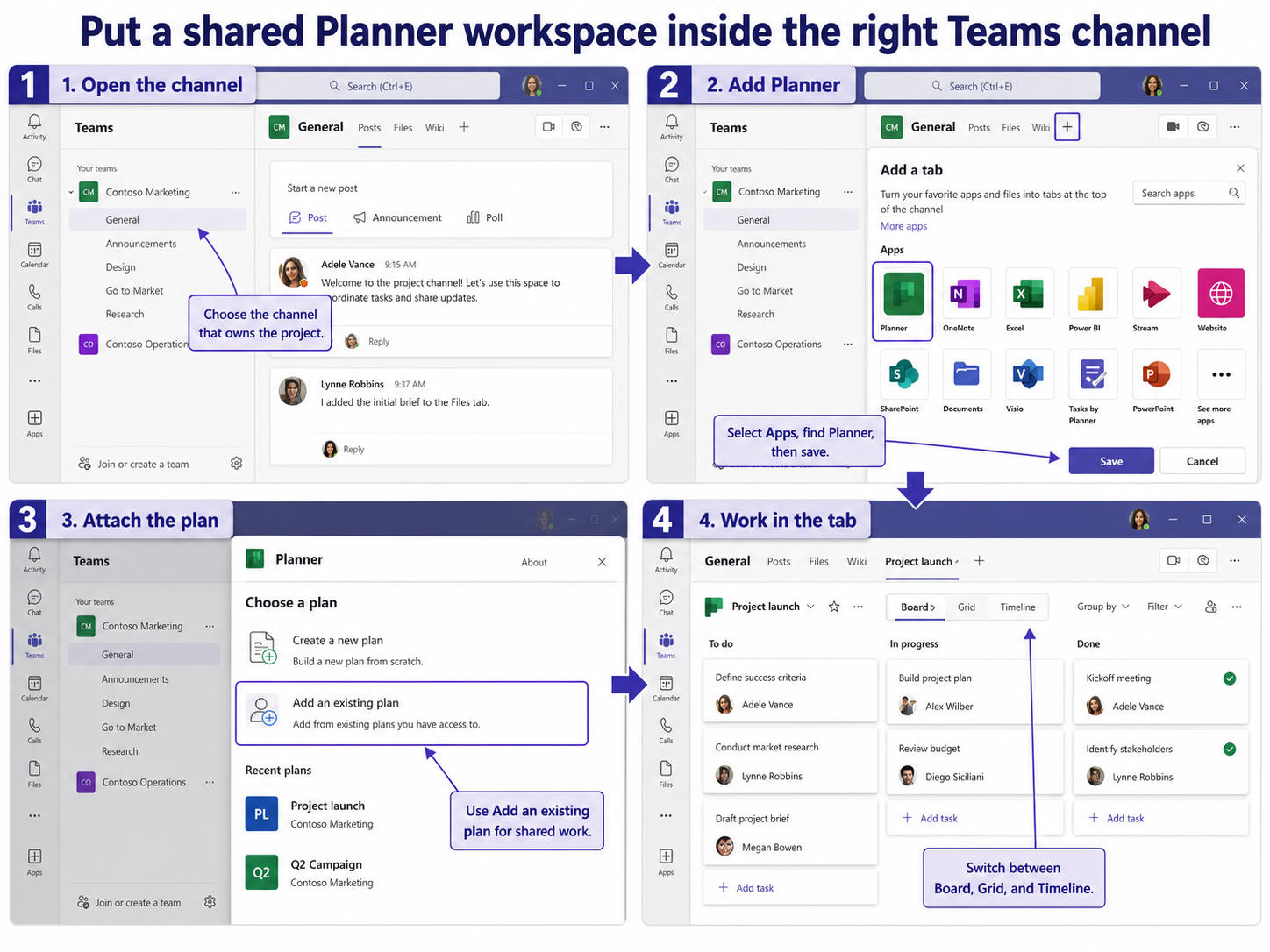
- Open Teams and select the team that owns the project.
- Open the channel where the plan should appear.
- Select Add a tab at the top of the channel, then choose Apps.
- Search for and select Planner, then select Save.
- Choose Create a new plan or Add an existing plan.
- Select the correct plan, confirm the tab name if prompted, and save the tab.
The plan now opens within the channel. Members can update tasks without leaving Teams, while the Planner app and Planner for the web continue to show the same underlying plan.
Make the embedded plan useful after setup
Adding the tab is only the container. A useful project plan also needs a structure that makes ownership and progress easy to scan.
Name buckets for the way work moves
Choose buckets that reflect either workflow stages or major workstreams. For example, a delivery team might use Backlog, Ready, In progress, Review, and Done. A launch project may work better with Research, Content, Operations, Enablement, and Launch.
Avoid mixing both models in one board. When some buckets are departments and others are statuses, team members spend more time deciding where a task belongs than updating it.
Set a lightweight update rhythm
Ask owners to update due dates, progress, and blockers before the regular project meeting. During the meeting, open the channel tab and filter by due date, progress, priority, or assignee. This turns the plan into the working agenda rather than a record that someone repairs afterward.
For projects that repeat, a repeatable setup for recurring initiatives can reduce setup time while preserving the bucket, label, and task pattern the team has already validated.
Fix a plan that does not appear in Teams
Most missing-plan problems come from membership or context rather than a broken tab.
The plan belongs to another group
An existing plan appears in the channel picker only when it is shared to the channel or its associated Microsoft 365 group. If the plan belongs to another team, either use the Planner app as a standalone workspace or move the collaboration to the group that owns the plan. Do not create a duplicate unless the project truly needs separate task data.
You are an owner but not a group member
Microsoft documents a less obvious case: an owner of a Microsoft 365 group may still be missing from the group membership list when the group was created through Microsoft Entra or a script. In that situation, request to join the group in Outlook or have an administrator add you as a member while retaining your owner role. Once membership is resolved, try adding the Planner tab again.
Planner is missing from the app list
If Planner does not appear when you add a tab, the app may be disabled by an organizational Teams app policy. Test the Planner app from View more apps. If it is unavailable there too, ask the Teams administrator to confirm that Planner is allowed for your account and team.
The Timeline option is unavailable
Timeline, dependencies, milestones, custom fields, critical path, and several workload features are premium capabilities. A basic plan can still be embedded and managed in Teams, but it will not expose every project scheduling view. Confirm the plan type and the licenses assigned to the people who need to edit premium fields.
Questions you might have
Can I add the same plan to more than one Teams channel?
You can expose a shared plan in more than one collaboration location when permissions and the plan’s group context allow it. Keep one plan as the source of truth, and name each tab clearly so users do not assume they are separate copies.
Will channel guests be able to edit the plan?
Guest access depends on the organization’s Teams, Microsoft 365 group, and Planner policies. A guest who can see the channel may still lack access to the plan, so test with a guest account before relying on the tab for external collaboration.
Does adding the tab copy the project data into Teams?
No. The tab displays the shared Planner plan inside Teams; it does not create a separate data copy. Updates made in the channel tab also appear in Planner because both surfaces open the same plan.
Should I use a Website tab with a Planner link instead?
Use the native Planner tab when it is available. It provides the supported plan-selection flow and respects the team’s collaboration context. A Website tab is a weaker fallback because authentication, framing, or tenant policies can interrupt the embedded page.
Keep one plan as the source of truth
The reliable setup is straightforward: select the channel that owns the work, add Planner as a tab, and attach a plan shared with the same group. Then choose a basic or premium structure that matches the project’s real complexity. If the plan picker is empty, investigate group membership and app policy before creating anything new. That discipline keeps conversations, files, meetings, and task updates connected without introducing a second plan that the team must reconcile.