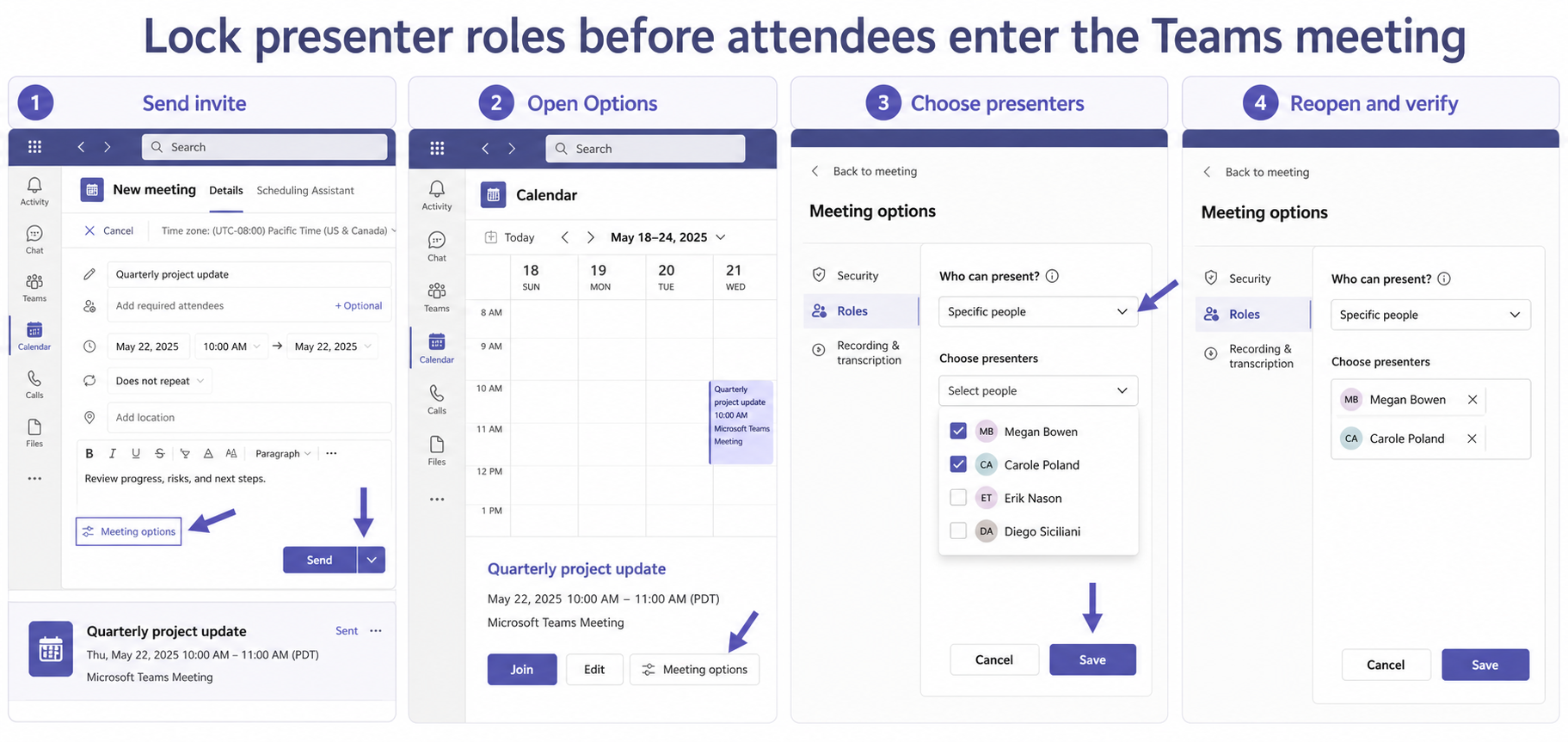
Teams cannot assign specific presenters before the invitation knows who the invitees are. Send the meeting invite first, reopen the event, choose Meeting options, and save the presenter setting there. Then close and reopen the options page to verify persistence before the meeting starts.
The organizer owns the pre-meeting setting. Co-organizers help during the meeting but cannot always change the event before it begins, and channel meetings do not offer the same specific-presenter choice. Check meeting type and role scope before troubleshooting the client.
Choose the responsible layer
What the user can verify
For teams meeting presenter role, record the exact account, item, client, and result before changing anything. A precise baseline distinguishes an unavailable control from a saved-data, permission, or synchronization failure and gives the later retest a meaningful comparison.
What belongs to an owner
The first useful milestone is “Send the invite to each intended presenter.” Once that result is known, continue to “Open the saved event and choose Meeting options” without changing unrelated settings. This keeps the diagnosis narrow enough for a user, owner, or administrator to repeat.
Use this preflight sequence
- Send the invite to each intended presenter. Record the result before moving on so later evidence stays attributable.
- Open the saved event and choose Meeting options. Keep the test narrow and use the same account that experienced the failure.
- Set Who can present and save the selection. Do not broaden permissions or delete data to force a passing result.
- Reopen options and run a two-account preflight. Confirm the saved or downstream state, not just the visible control.
Prepare an eligible attendee list
Send the invitation directly to each person who should present. Distribution-list expansion, forwarded links, anonymous join, and channel membership do not guarantee that a person will appear as an eligible specific presenter. Wait for the meeting to save before opening its options.
If you need a quick comparison of organizer, co-organizer, presenter, and attendee abilities, use the role-assignment walkthrough. Choose the least powerful role that still permits content sharing and meeting duties.
Save the role in Meeting options
From the Teams calendar, open the event, select View event, and choose Options. Under Roles, set Who can present to Specific people or another appropriate scope, select the named invitees when that choice is available, and select Save.
Reopen Meeting options from the calendar rather than relying on the still-open browser tab. If the value reverted, confirm you are the organizer, that the invite was already sent, and that the meeting is not a channel meeting with different limitations.
Treat recurring meetings as a series decision
A role change made from Options in the Teams calendar applies to future occurrences of a recurring meeting. A change made from the People pane during one live occurrence affects that occurrence. Decide whether you need a permanent series rule or a one-time exception.
For an existing series, open the same event path participants will use and verify the next occurrence. Avoid recreating the entire series until you know whether only one occurrence has an override.
Verify before the real presentation
Join from an organizer account and a test attendee account. Confirm the attendee enters with the intended role and can share content, while restricted actions remain unavailable. Review the wider meeting-options review if lobby, chat, recording, or Copilot behavior also needs adjustment.
If Teams still ignores the saved value, capture the meeting type, organizer, recurrence status, chosen Who can present option, invitee type, and result after reopening options. That evidence identifies policy or eligibility problems without granting Everyone presenter access as a workaround.
Test the authoritative service directly
Open the underlying Microsoft 365 service without relying on the convenience surface that reported the problem. Verify the calendar, file, form, connection, transcript, note, or hierarchy there. A correct server result points toward client context; the same failure in the service points toward access, configuration, data, or policy.
Before reopening Meeting options, record the organizer, meeting type, recurrence scope, invited presenters, and current Who can present value. Save once, close the event, and inspect the option again. This proves whether the role persisted without temporarily granting presenter rights to every attendee.
Keep the test reversible
Prefer actions that can be undone: a temporary test item, a refreshed view, a reauthenticated connection, or a newly opened chat. Record the prior value before editing it. Avoid deleting source content, resetting an entire profile, or changing organization-wide policy when a smaller comparison can identify the responsible layer.
If a destructive change becomes necessary, confirm the exact target and recovery path with the owner first. For managed Microsoft 365 data, an administrator should preserve identifiers, timestamps, and service evidence before removal or recreation.
Presenter role answers
Why is an attendee missing from Specific people?
Teams expects the person to be invited directly before role assignment. Send or update the invite, wait for it to save, and reopen Meeting options.
Do presenter choices apply to every recurring occurrence?
Changes made from Meeting options in the Teams calendar apply to future occurrences. A live-meeting role change from the People pane applies only to that occurrence.
Can a co-organizer configure roles before the meeting?
Microsoft notes that co-organizers cannot change a meeting before it starts. The organizer should save the pre-meeting role configuration.
Run a presenter preflight
A control appearing is only partial recovery. Repeat the original workflow and confirm the downstream result in the authoritative service: the shared calendar, Loop page, Forms response store, Teams destination, Copilot citation, transcript, or dashboard hierarchy. Then undo temporary test settings and retain only the targeted correction.
Keep owner and administrator boundaries clear. End users can verify their account, refresh a supported client, and test content they are allowed to use. Owners control sharing and source configuration; administrators control tenant policy, licensing, consent, retention, and service-health escalation. Stop when the evidence reaches one of those boundaries.
The durable fix is the smallest change that explains the symptom and survives a normal retest. Keep the verified configuration, remove temporary test content, and share the precise boundary with the owner of any policy or permission dependency. If the problem returns, compare it with the same baseline before repeating cleanup.