A user recently asked: “My Windows 11 laptop drains battery too quickly during meetings, but when I’m at my desk doing intensive work, I need maximum performance. How can I easily switch between different power settings to match my current work situation?” This common scenario highlights the need to understand and effectively manage Windows 11 power modes for optimal device performance.
Battery life optimization through power management settings
Windows 11 introduces refined power management capabilities that allow users to balance system performance with energy consumption based on their specific workflow requirements. Modern laptops and desktop computers benefit significantly from proper power mode configuration, especially when users alternate between portable productivity tasks and resource-intensive applications.
We will access and modify Windows 11 power modes through multiple methods, including the System Settings interface, battery icon controls, and Command Prompt options. You will learn to configure Best Power Efficiency, Balanced, and Best Performance modes to match your daily computing patterns.
Prerequisites include Windows 11 installed on your device and administrator access for certain advanced power configurations. The process works identically across laptops, tablets, and desktop computers, though battery-powered devices will display additional power management options.
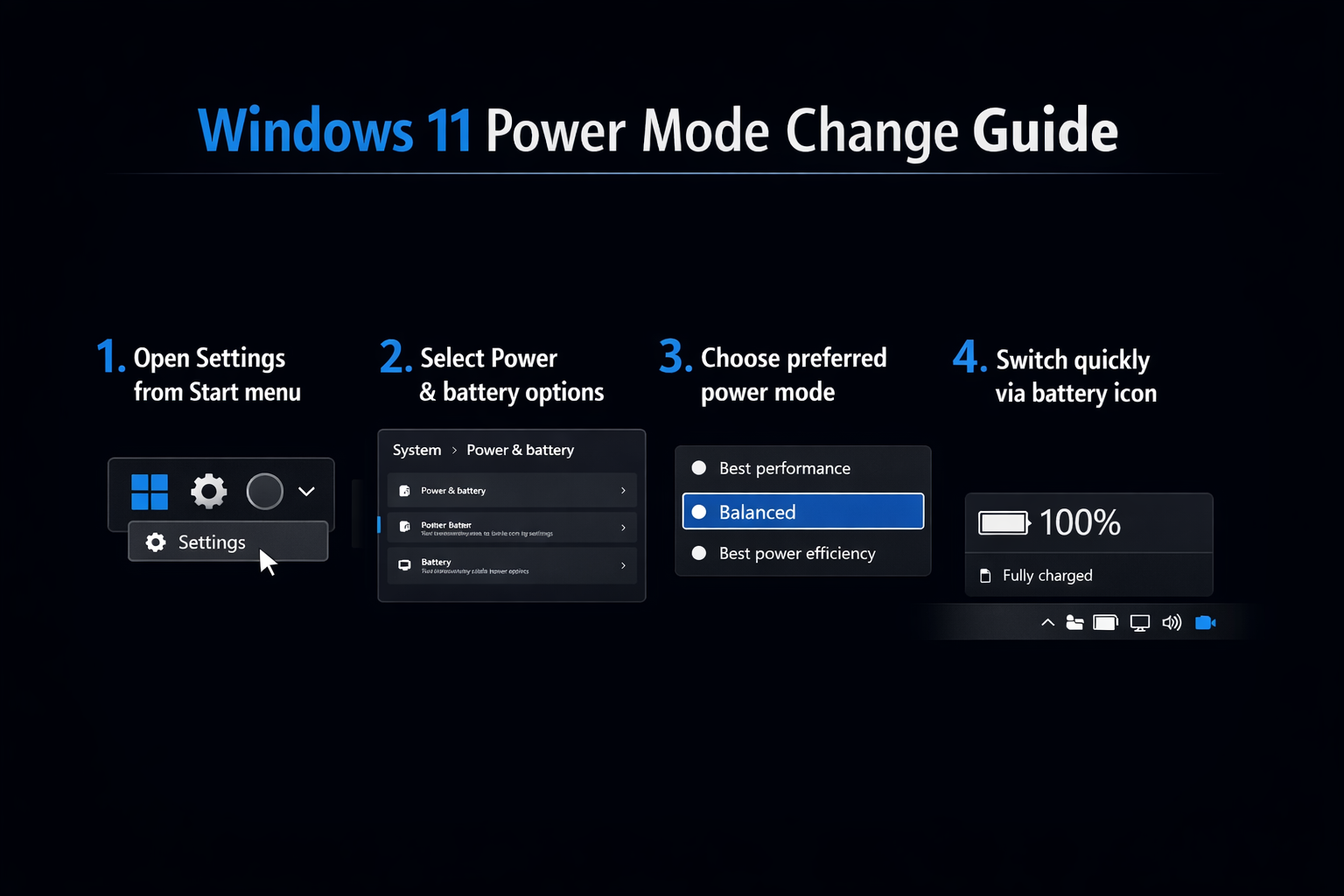
Accessing Windows 11 power settings through system interface
The primary method for changing power modes involves navigating through the Windows 11 Settings application, which provides comprehensive control over all power management features available on your device.
- Click the Start button and select Settings from the menu, or use the keyboard shortcut Windows key + I to open the Settings application directly.
- Navigate to the System section in the left sidebar, then scroll down to locate and click on Power & battery to access all power-related configuration options.
- Locate the Power mode dropdown menu in the main content area, which displays your current power setting and allows selection between available modes.
- Choose from Best Power Efficiency for maximum battery conservation, Balanced for optimal performance-to-battery ratio, or Best Performance for maximum system capabilities.
- Windows 11 will immediately apply your selected power mode without requiring a restart, and you will notice changes in system responsiveness and battery consumption patterns.
Expert Tip: The Best Power Efficiency mode can extend battery life by up to 30% on most devices, while Best Performance mode may reduce battery life but significantly improves processing speed for demanding applications.
Quick access through battery icon controls
For users who frequently switch between power modes throughout their workday, the system tray battery icon provides immediate access to power mode selection without navigating through multiple settings menus.
- Click on the battery icon located in the system tray area of your taskbar, typically positioned in the bottom-right corner of your screen.
- Observe the power mode slider that appears in the battery flyout menu, showing your current setting with a visual indicator for easy identification.
- Click and drag the slider to adjust between the three available power modes, with real-time feedback showing the expected impact on performance and battery life.
- The system will apply changes immediately, and you can verify the new setting by observing the updated power mode label in the battery flyout interface.
Advanced configuration using Command Prompt options
Power users and IT administrators can leverage Command Prompt utilities to modify power settings programmatically, enabling batch configurations or integration with automated deployment scripts for organizational environments.
- Open Command Prompt as administrator by right-clicking the Start button and selecting Terminal (Admin) or Windows PowerShell (Admin) from the context menu.
- Execute the command
powercfg /listto display all available power schemes on your system, including their unique identifiers and descriptive names. - Use
powercfg /setactive [GUID]to activate a specific power scheme, replacing [GUID] with the identifier from the previous command output. - For Windows 11 default schemes, use
powercfg /setactive 381b4222-f694-41f0-9685-ff5bb260df2efor Balanced mode or similar commands for other configurations.
Remember: Always run Command Prompt as administrator when modifying power settings, as these changes require elevated system privileges to ensure proper implementation across all user accounts.
Creating custom power profiles for specific workflows
Advanced users can create personalized power profiles that combine specific processor performance limits, display brightness settings, and sleep timers tailored to particular work scenarios or application requirements.
- Access the traditional Control Panel power options by typing “power options” in the Start menu search and selecting the Control Panel result.
- Click “Create a power plan” from the left sidebar to initiate the custom power profile creation wizard with personalized configuration options.
- Select a base plan template (Balanced, Power saver, or High performance) and provide a descriptive name that reflects your intended use case.
- Configure detailed settings including processor power management, display timeouts, hard disk sleep times, and wireless adapter power saving modes according to your specific requirements.
- Save your custom power plan and access it through the same power mode selection methods described earlier in this tutorial.
Troubleshooting common power mode issues
Users occasionally encounter challenges when attempting to modify Windows 11 power settings, ranging from missing options to unexpected behavior after power mode changes.
- Power mode options appear grayed out or unavailable, typically indicating driver conflicts or group policy restrictions that prevent user modification of system power settings.
- Battery percentage displays incorrectly after changing power modes, requiring a battery calibration process through complete discharge and recharge cycles to restore accurate reporting.
- System performance remains unchanged despite selecting Best Performance mode, often caused by thermal throttling protection that overrides power settings when device temperatures exceed safe operating limits.
- Custom power plans disappear after Windows updates, necessitating backup and restoration procedures using the
powercfg /exportandpowercfg /importcommands to preserve personalized configurations.
Important Tip: If power mode changes don’t take effect immediately, try restarting the Windows Power service through Services.msc or rebooting your device to refresh all power management components.