Interruptions kill productivity faster than you think, especially when three meetings stack back-to-back and someone books another one right when you planned to focus. Sound familiar? Blocking time in your Teams calendar creates protective barriers around your most important work, transforming scattered productivity into deep, focused sessions that actually move projects forward.
Here’s exactly how to block time in Teams calendar and reclaim control over your schedule using built-in features that most users overlook entirely.
Why Teams time blocking matters in Teams
What reserved time actually does in Teams
Time blocking reserves specific calendar slots exclusively for focused work. Unlike regular appointments, blocked time prevents others from scheduling over your protected periods entirely. Teams integrates this feature directly into your Outlook calendar, so when you block time in Teams calendar, colleagues see you as “busy” and cannot double-book meetings or send disruptive invitations during those hours.
It works. The difference between a productive week and a chaotic one often comes down to whether you protect your deep work hours or surrender them to whoever books first.
Blocked vs regular Teams events
Regular calendar events show as meetings. Blocked time appears differently as “focus time” or “busy” periods, and this distinction fundamentally changes how colleagues interact with your schedule:
- Blocked time signals unavailability for meetings and prevents scheduling conflicts
- Regular events might still allow interruptions from chat messages and calls
- Focus time automatically silences Teams notifications during protected periods
- Colleagues understand the boundary without requiring any explanation from you
Create your first time block
Schedule a focus session in Teams
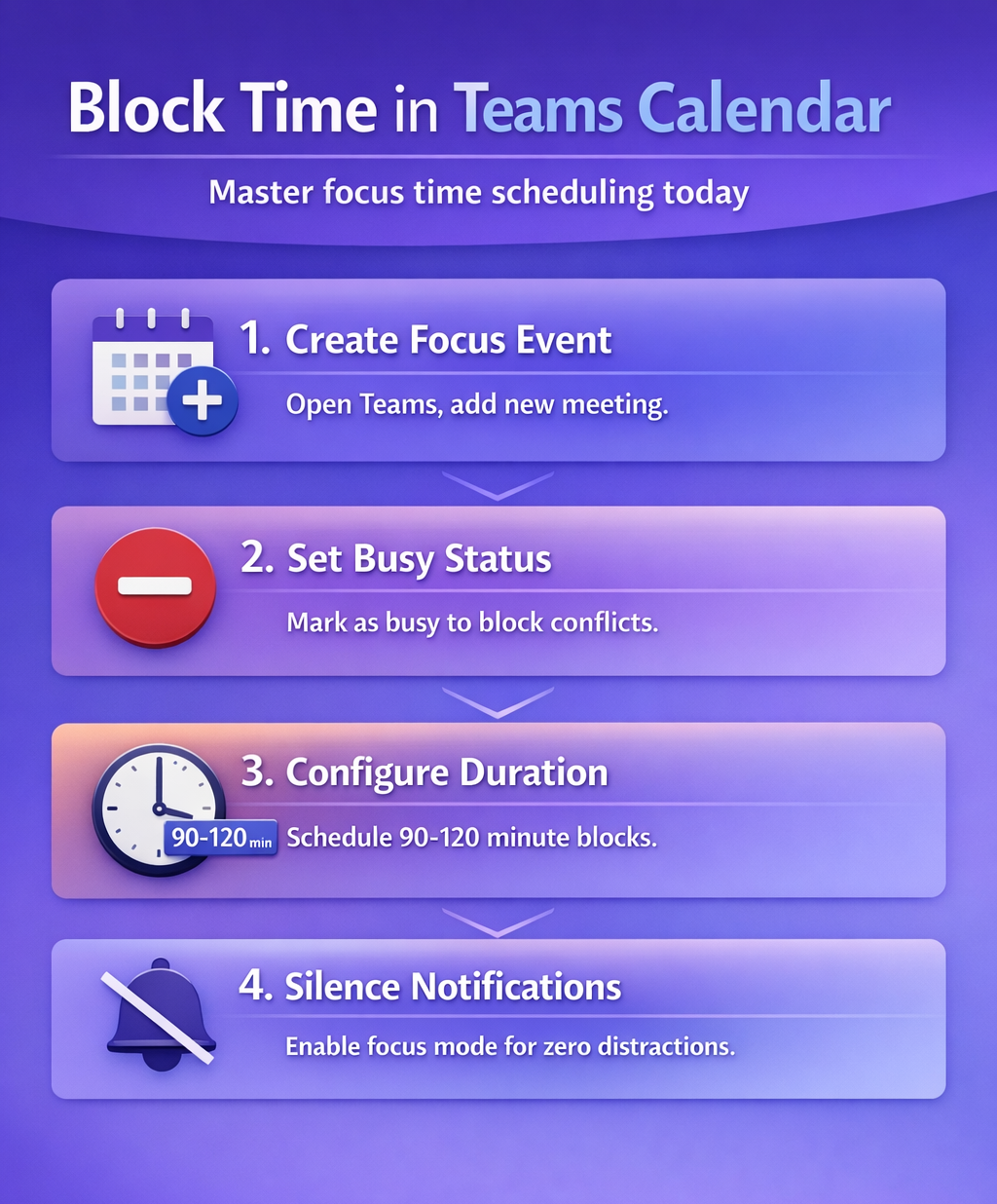
Open your Teams calendar view and click New meeting at the top toolbar to create your calendar entry. Instead of adding attendees, leave the participant field empty so the event functions as a personal time block rather than a group meeting.
Set your event title to something clear like “Focus Time” or “Deep Work Block,” then choose the Show as dropdown and select Busy to prevent others from seeing your time as available. Set the duration between 90 minutes and 3 hours, since research shows optimal focus sessions last 90-120 minutes before mental fatigue sets in.
Adjust your blocking settings
Access your Teams calendar settings through Settings >> Calendar and enable Automatic decline for overlapping meetings during blocked periods. Toggle Focus time notifications to minimize distractions, and Teams will automatically silence chat notifications and calls during these protected windows.
You can adjust your availability windows to match your peak productivity times, which helps Teams suggest appropriate focus time slots based on your energy patterns throughout the day.
Set up recurring focus blocks
For recurring focus sessions, set up recurring focus sessions by clicking Repeat when creating your time block. Choose daily, weekly, or custom patterns depending on your workflow needs. Weekly blocks work best for consistent deep work sessions, and picking the same 2-hour window each day maximizes habit formation while training colleagues to expect your unavailability.
Add location details if you work in shared spaces by writing “Do Not Disturb – Focus Session” in the location field to communicate boundaries clearly without requiring verbal explanation.
Advanced block management
Configure focus time in Teams
Navigate to Settings >> Privacy in the Teams desktop app and enable Priority notifications only during focus time. This is critical. Customize which notifications break through your focus barriers, allowing only urgent messages from your manager or critical project channels.
Set your Status message to automatically update during blocked time with something like “In focus session – will respond after [end time].” This simple step manages expectations proactively without appearing rude or unresponsive to teammates who need your attention later in the day.
Build a Teams blocking strategy
Use the Scheduling Assistant when creating longer blocks. This tool shows team availability across multiple calendars simultaneously, helping you find gaps where focus sessions fit naturally. Schedule your blocks during low-meeting periods like early morning or late afternoon when interruptions are least likely to occur.
Coordinate with your team for “focus time agreements” where everyone designates specific hours as meeting-free zones. It pays off quickly. Many teams successfully protect 9-11 AM for deep work, and the productivity improvements compound across the entire group within weeks.
Best practices for protected time
Start with shorter blocks if you are new to time blocking by beginning with 60-minute sessions and gradually extending to 90-120 minutes as your focus stamina improves. Batch similar tasks within each block rather than mixing email with coding or writing with research, because context switching destroys the productivity benefits of protected time.
Review and adjust your blocks weekly to identify which time slots produce your best work, then protect those periods most aggressively going forward.
Can others still book meetings during my Teams focus time?
What is the optimal length for Teams calendar time blocks?
Should I block the same time every day in Teams calendar?
Make focus blocks visible without overblocking colleagues
A reliable calendar protection procedure begins with a controlled test and a clear success condition. Record the current state, account, device or file involved, and the exact symptom before making changes. Apply one material change at a time so the outcome is reversible and useful evidence is preserved.
Run the focused check
Set the event’s Show as value intentionally. Busy protects the slot from normal scheduling, while a private event limits detail but does not automatically communicate why the time matters. Add a short, professional title colleagues can understand.
Use recurring focus blocks sparingly and review them when team schedules change. Leave buffers around customer calls or concentrated work, but avoid marking entire days busy when shorter blocks would preserve collaboration options.
Verify and document the outcome
After two weeks, compare planned blocks with completed focus sessions. Adjust duration and timing based on interruptions, not just calendar appearance. For shared responsibilities, publish office hours or an alternate contact route so protected time does not become a service bottleneck.
For a managed work environment, check whether the behavior is controlled by policy, licensing, permissions, retention, or a staged feature rollout. A missing or locked control may be intentional. Do not bypass governance locally. Capture the application and operating-system versions, account type, relevant timestamps, and non-sensitive screenshots. This evidence helps support teams identify whether the remedy belongs on the device, in the user profile, in Microsoft 365 administration, or with another service owner.
Repeat the original action after the change and confirm the result from the perspective of another affected user when appropriate. If the test fails, restore the previous state before trying the next option. Keep the final working configuration and the reason for it in the team documentation.
Before closing the case, restart or refresh the affected client and perform the test once more. A result that survives a new session is stronger than a temporary improvement. Note any remaining limitation and the person responsible for follow-up.
Measure and sustain your results
Effective time blocking requires more than just calendar entries, so communicate your new boundaries clearly to colleagues and explain how protected focus time benefits the entire team’s productivity. Start gradually with 2-3 blocks per week, then expand as the habit solidifies and you see measurable improvements in your output quality.
Track your accomplishments during blocked sessions by documenting what you complete during protected time versus interrupted periods. The productivity difference will motivate you to maintain these boundaries long-term, and your manager will appreciate the visible results that come from disciplined time management in Teams.