Microsoft 365 users who plan time away from work need a reliable method to block vacation days on the Outlook calendar so that colleagues can see their availability status clearly. Adding vacation entries to your Outlook calendar prevents scheduling conflicts and ensures that your team members know exactly when you are unavailable for meetings or project discussions throughout the week. This article walks you through the complete process of creating all-day events, setting your free/busy status correctly, and configuring automatic replies within the Microsoft 365 calendar environment effectively.
Why you should add vacation to Outlook calendar
Blocking vacation time on your Outlook calendar communicates your absence to every person in your organization who checks shared calendars before scheduling meetings or collaborative work sessions. When you schedule vacation as an Outlook out of office calendar event, Microsoft Teams automatically syncs your presence status to show that you are currently away from the office. Your manager and direct reports benefit from visible calendar time off entries because they can redistribute workload responsibilities and adjust project timelines without needing to send additional confirmation emails. Organizations that encourage employees to add vacation to Outlook calendar consistently experience fewer scheduling conflicts and smoother handoff processes during planned absences across their departments and teams.
Create an all-day vacation event in Outlook
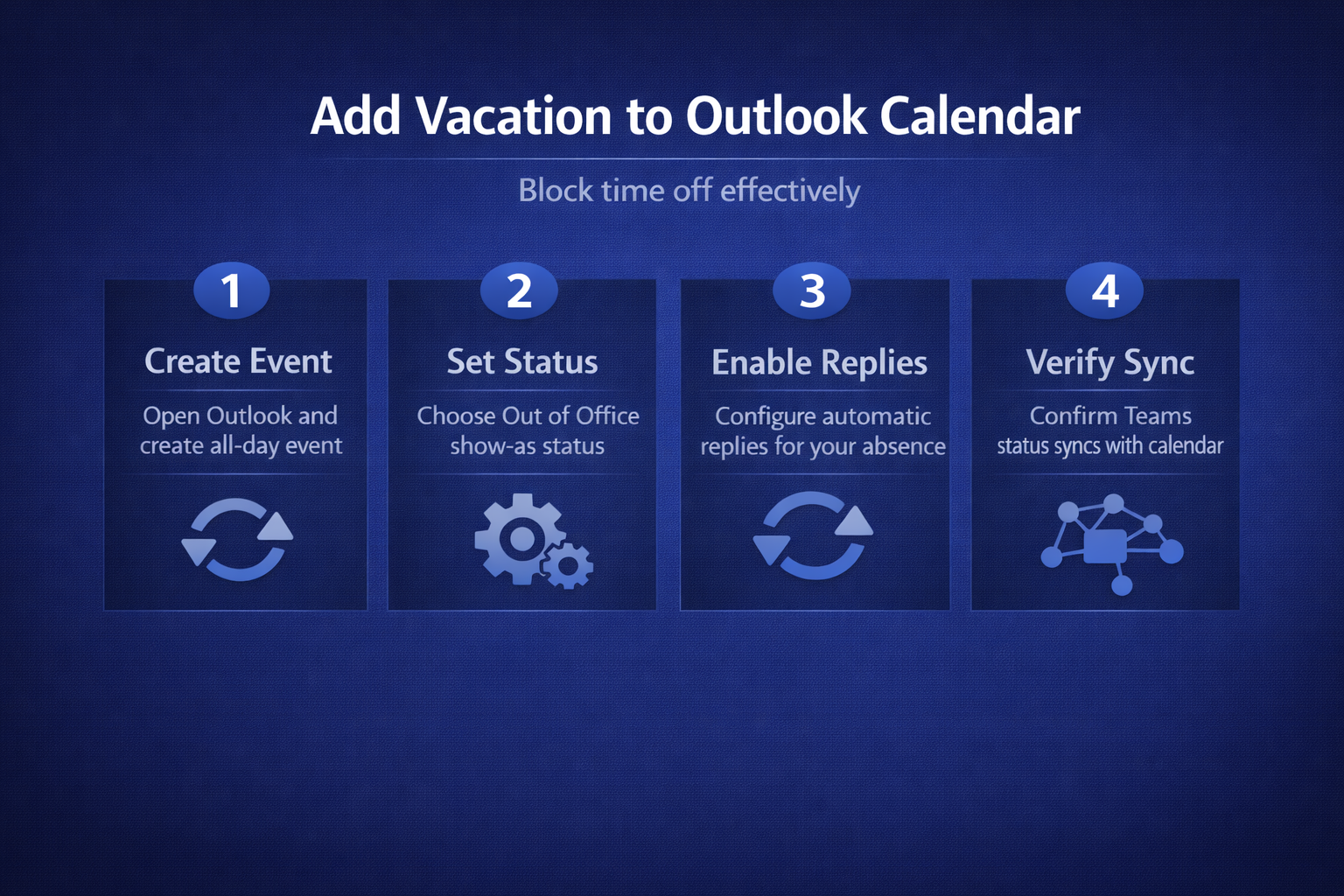
The fastest way to add vacation days to your Outlook calendar involves creating an all-day event that spans your entire absence period from the first day through your planned return date. Open Outlook on your desktop or navigate to Outlook on the web, then click the New Event button located at the top left corner of the calendar view interface. Toggle the All Day switch to enable full-day coverage, enter a descriptive title such as “Vacation – Out of Office,” and then set the start and end dates matching your trip. Select Out of Office from the Show As dropdown menu so that your free/busy status displays correctly to anyone who views your calendar when planning meetings or events.
Set the correct show-as status
The Show As field determines how your Outlook calendar time off appears to colleagues who use the scheduling assistant feature when they attempt to book meetings during your absence period. Choosing Out of Office rather than Busy or Free ensures that Outlook displays a purple bar across those dates and automatically declines new meeting invitations sent to your calendar address. This distinction matters because the Busy status still allows meeting organizers to send invitations, while Out of Office clearly communicates that you are completely unavailable for any work commitments.
Add vacation across multiple days
When your vacation spans several consecutive days, you should drag across the date range in the calendar grid view or manually enter the start and end dates within the event creation form. Outlook automatically calculates the duration and blocks every day within that range as a single continuous all-day event rather than creating separate individual entries for each vacation day separately. You can also create recurring vacation blocks and add holidays for regular time off patterns such as every Friday afternoon or alternating weeks if your organization supports flexible scheduling arrangements consistently.
Configure automatic replies alongside your vacation event
Setting up automatic replies while adding vacation to your Outlook calendar ensures that anyone who emails you receives an immediate notification about your absence and expected return date to the office. Navigate to Settings then select Mail followed by Automatic Replies to open the configuration panel for out of office messages where you can compose separate messages for internal colleagues and external contacts. Enable the Send replies only during a time period option and match the dates exactly to your calendar vacation event so that automatic replies activate and deactivate precisely when your out of office status begins. Include your return date, an emergency contact person, and any alternative resources that senders should reference while you are away from work during your scheduled vacation period.
How vacation events sync with Microsoft Teams status
When you add vacation to your Outlook calendar using the Out of Office status, Microsoft Teams automatically detects the calendar event and updates your presence indicator based on working hours to display the corresponding away message. This Teams status sync feature eliminates the need to manually update your availability in both applications separately because the Microsoft 365 calendar integration handles the synchronization process automatically in real time. Colleagues who view your profile card in Teams will see your out of office message along with your expected return date, which reduces unnecessary direct messages and chat notifications sent during vacation.
Block vacation time for team visibility in shared calendars
Organizations using shared Microsoft 365 calendars benefit significantly when every team member consistently adds vacation entries because managers can view the entire team availability through the scheduling assistant overlay feature. Open the shared team calendar in Outlook, verify that your vacation event displays with the correct Out of Office status, and confirm that the event appears in both your personal and organizational calendar views. Department leads who monitor shared calendars can proactively identify coverage gaps and reassign critical responsibilities before team members depart for their scheduled vacation time off across the quarter.
Coordinate vacation events, availability, and automatic replies
Start with a reversible check that separates configuration from missing data. Create one all-day event with the correct free-or-busy state rather than duplicating it across calendars. Do not combine several repairs at once; a successful result would not reveal which change mattered.
Isolate the failing layer
Check the start and end dates carefully because all-day events use date boundaries. Set automatic replies separately and include an alternate contact when appropriate. Use a non-sensitive sample and the normal user account so owner or administrator privileges do not hide the problem.
Verify Teams presence after mailbox synchronization rather than expecting an immediate change. Preserve the original state until the new result survives a restart or synchronization cycle.
Verify normal use
Share only the detail coworkers need on broadly visible calendars. Cancel or shorten the event when plans change so availability does not remain blocked. Compare the outcome with the expected business workflow, not only a one-time technical test.
Record the application version, account type, device, time, and exact error if behavior still differs. That evidence helps support distinguish a local cache, profile, permission, data, policy, hardware, or service problem. Remove names, addresses, file content, and credentials from screenshots before sharing them.
Have another authorized user repeat the shortest safe test when shared access is involved. Reverse experimental settings that did not help, and keep a note of the final working condition for the next update or device change. Recheck the result after the next sign-in or scheduled cycle when timing can affect it. Keep a concise note of the successful condition so it can be restored later. Verify that the change did not alter unrelated files, permissions, or settings. Recheck the result after the next sign-in or scheduled cycle when timing can affect it. Keep a concise note of the successful condition so it can be restored later.
Frequently asked questions
How do I add vacation time to my Outlook calendar?
Open Outlook and click New Event on the calendar view, toggle the All Day switch, enter your vacation dates, set Show As to Out of Office, and save the event. This process works identically across Outlook desktop, Outlook on the web, and the Outlook mobile application, ensuring that your vacation appears consistently across all devices and platforms you regularly use.
Does adding vacation to Outlook calendar set automatic replies?
Creating a calendar vacation event does not automatically enable the automatic replies feature because these are two separate functions within the Microsoft 365 environment that require individual configuration steps. You must navigate to Settings, then Mail, then Automatic Replies to compose and schedule your out of office message independently from the calendar event you already created for your vacation.
Can coworkers see my vacation on the Outlook calendar?
Coworkers can see your vacation status when they use the scheduling assistant or view your shared calendar, provided your organization allows free/busy status sharing through the Microsoft 365 admin policies. The Out of Office designation appears as a purple block on your calendar timeline, making it visually distinct from regular meetings and busy periods that appear in different standard color indicators.
Take control of your Outlook calendar before your next vacation
Adding vacation to your Outlook calendar takes only a few minutes but delivers significant benefits for your productivity, team coordination, and overall communication clarity throughout your planned absence period. Schedule vacation in Outlook today by creating an all-day event with the correct Out of Office status, configure automatic replies to keep contacts informed, and verify that your Teams status syncs properly before departing.