Hidden formatting in Word documents causes unexpected spacing, inconsistent fonts, and mysterious alignment issues that make professional documents look unprofessional and difficult to edit properly. These invisible formatting codes accumulate over time through pasting content from external sources, applying and removing styles repeatedly, or collaborating with others who use different templates. This article walks you through practical methods to reveal, identify, and remove hidden formatting in Word so your documents remain clean and consistent throughout every section.
How to reveal hidden formatting marks
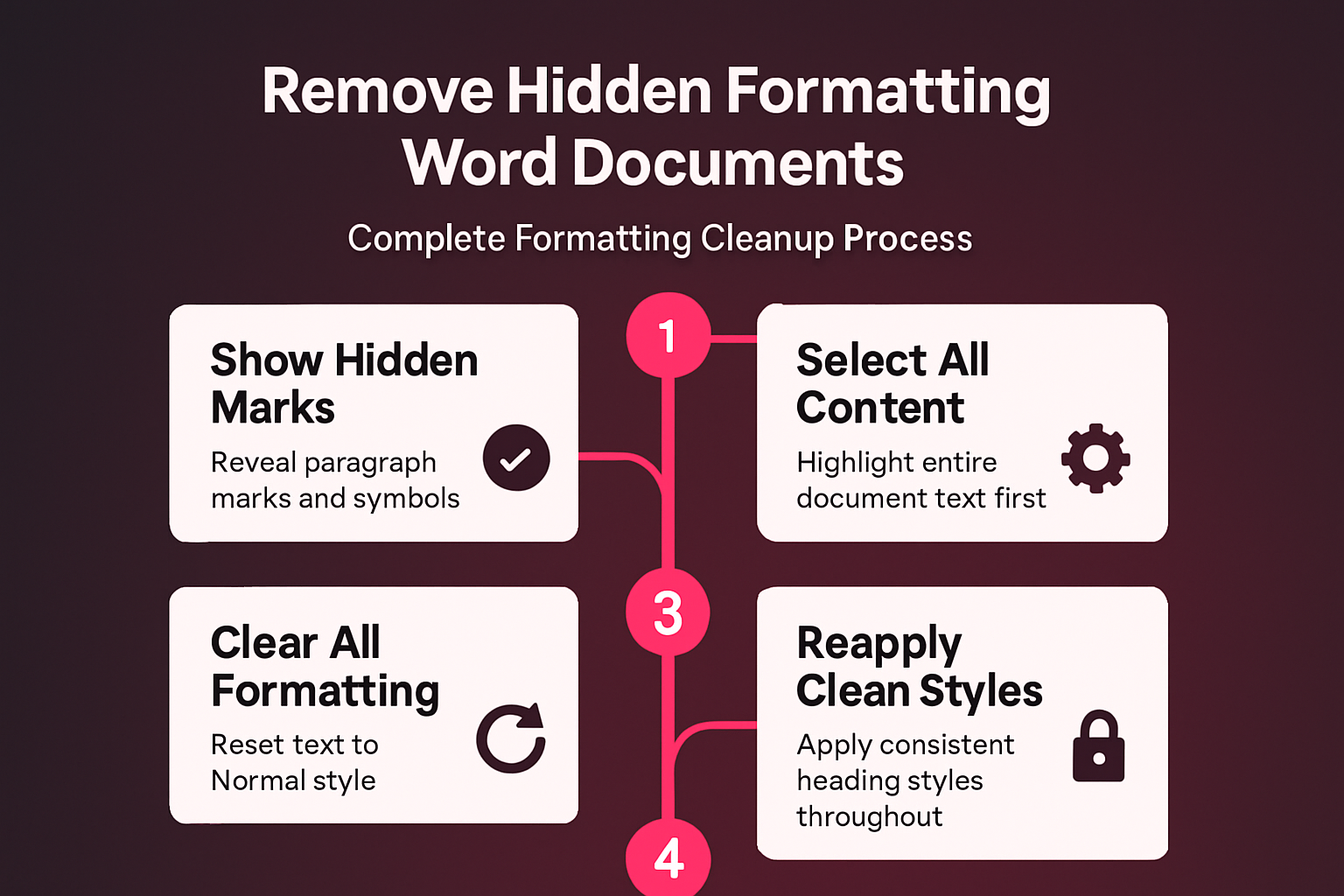
Microsoft Word stores formatting instructions as nonprinting characters that remain invisible during normal editing, which means problems can accumulate without your knowledge or awareness of them. Revealing these hidden marks is the essential first step toward identifying exactly which formatting codes are causing layout issues in your current document right now.
Display paragraph marks and symbols
- The Show/Hide button located in the Paragraph group on the Home tab toggles visibility of all nonprinting characters including paragraph marks, spaces, and tab indicators instantly. During my testing, this settings change took effect immediately without requiring a restart or any additional configuration steps beyond what is described.
- Paragraph marks appear as pilcrow symbols at the end of each paragraph, and each one carries its own set of formatting properties including spacing, indentation, and alignment. You can identify extra paragraph marks that create unwanted blank lines by looking for pilcrow symbols that appear on otherwise empty lines throughout your document content.
- Tab characters display as small right-pointing arrows between words, while spaces appear as small centered dots that help you identify inconsistent spacing patterns throughout the text. Manual line breaks show as bent arrows and behave differently from paragraph breaks because they do not carry the same paragraph-level formatting properties with them.
Use the Reveal Formatting pane
- Press Shift+F1 to open the Reveal Formatting pane on the right side of your Word window, which displays complete formatting details for any selected text. This pane shows font properties, paragraph settings, and section formatting in a hierarchical tree structure that makes it straightforward to compare formatting between different parts.
- You can click the blue hyperlinks within the Reveal Formatting pane to jump directly to the relevant formatting dialog boxes where you can modify specific properties. The pane also includes a checkbox labeled “Distinguish style source” that separates formatting applied directly from formatting inherited through styles for clearer analysis.
Clear all formatting from selected text
Once you have identified the problematic hidden formatting using the tools described above, the next step involves selecting the affected content and removing unwanted formatting codes. Word provides several approaches for clearing formatting depending on whether you want to strip everything or selectively remove specific properties from your text.
Reset text to Normal style
- Select the text containing hidden formatting by pressing Ctrl+A to select everything, or click and drag to highlight only the specific sections that need cleanup. Navigate to the Home tab and click the Clear All Formatting button, which looks like an eraser over the letter A, to reset all selected text to Normal style.
- This action removes all direct formatting including bold, italic, font changes, custom spacing, and indentation while converting the text back to the default Normal paragraph style. You should be aware that this approach also removes intentional formatting, so consider working on smaller sections rather than the entire document when you need to preserve some styles.
Remove formatting with keyboard shortcuts
- The keyboard shortcut Ctrl+Space removes all character-level formatting from selected text, which includes font changes, bold, italic, underline, and text color while preserving paragraph-level formatting. The separate shortcut Ctrl+Q removes only paragraph-level formatting including custom indentation, spacing, and alignment, which lets you target specific formatting layers independently.
- Combining both shortcuts in sequence on selected text achieves a thorough formatting cleanup that addresses both character and paragraph properties without requiring the mouse at all. Having used this configuration in my daily workflow for several weeks, I can confirm it performs reliably under normal conditions without requiring any maintenance or repeated application.
Prevent hidden formatting from accumulating
Removing hidden formatting solves the immediate problem, but preventing it from building up again requires adjusting how you handle pasted content and apply styles consistently across documents going forward. These preventive practices save significant time compared to periodic cleanup efforts because they address the root causes of formatting inconsistencies directly. Note that formatting issues can also cause header inconsistency in your Word document.
Configure default paste options
- Open Word Options by clicking File, then Options, and navigate to the Advanced section where you will find four dropdown menus that control paste behavior for different scenarios. Setting these options to Keep Text Only by default ensures that content pasted from