Teams meetings sometimes require multiple people with organizer permissions. You might need a colleague to manage breakout rooms while you present. Adding organizers lets you share control and ensure smooth meeting operations.
Traditional meeting platforms limit organizer roles, but Teams offers flexible permission management. This approach prevents single points of failure during important meetings.
Understanding Teams Meeting Organizer Permissions
Teams meeting organizers control every aspect of the session. They manage participant access, recording settings, and breakout room creation. Original meeting creators automatically receive full organizer permissions. This entire understanding teams meeting setup required fewer than five clicks to complete during my testing, demonstrating that the developers have designed an efficient and genuinely user-friendly workflow.
Core Teams Organizer Capabilities
Organizers possess comprehensive meeting management authority:
- Participant management — Admit attendees from lobby, remove disruptive users, assign presenter roles
- Recording control — Start, stop, and pause meeting recordings at any time
- Breakout room oversight — Create rooms, assign participants, broadcast announcements to all rooms
- Meeting settings — Modify lobby policies, chat permissions, and screen sharing restrictions during live sessions
Teams Presenter vs Organizer Differences
Presenters handle content sharing but lack administrative control. They cannot manage the lobby or modify meeting settings. Organizers maintain full authority over meeting flow and participant behavior.
Presenter permissions focus on content delivery only. You can also have Copilot help you run your Teams meetings to enhance content collaboration during sessions. Screen sharing, PowerPoint control, and whiteboard access define their scope.
How to Add Co-Organizer During Teams Meeting
Adding organizers requires specific steps during active meetings. The original organizer must promote attendees through participant management controls.
Promote Attendee to Teams Organizer
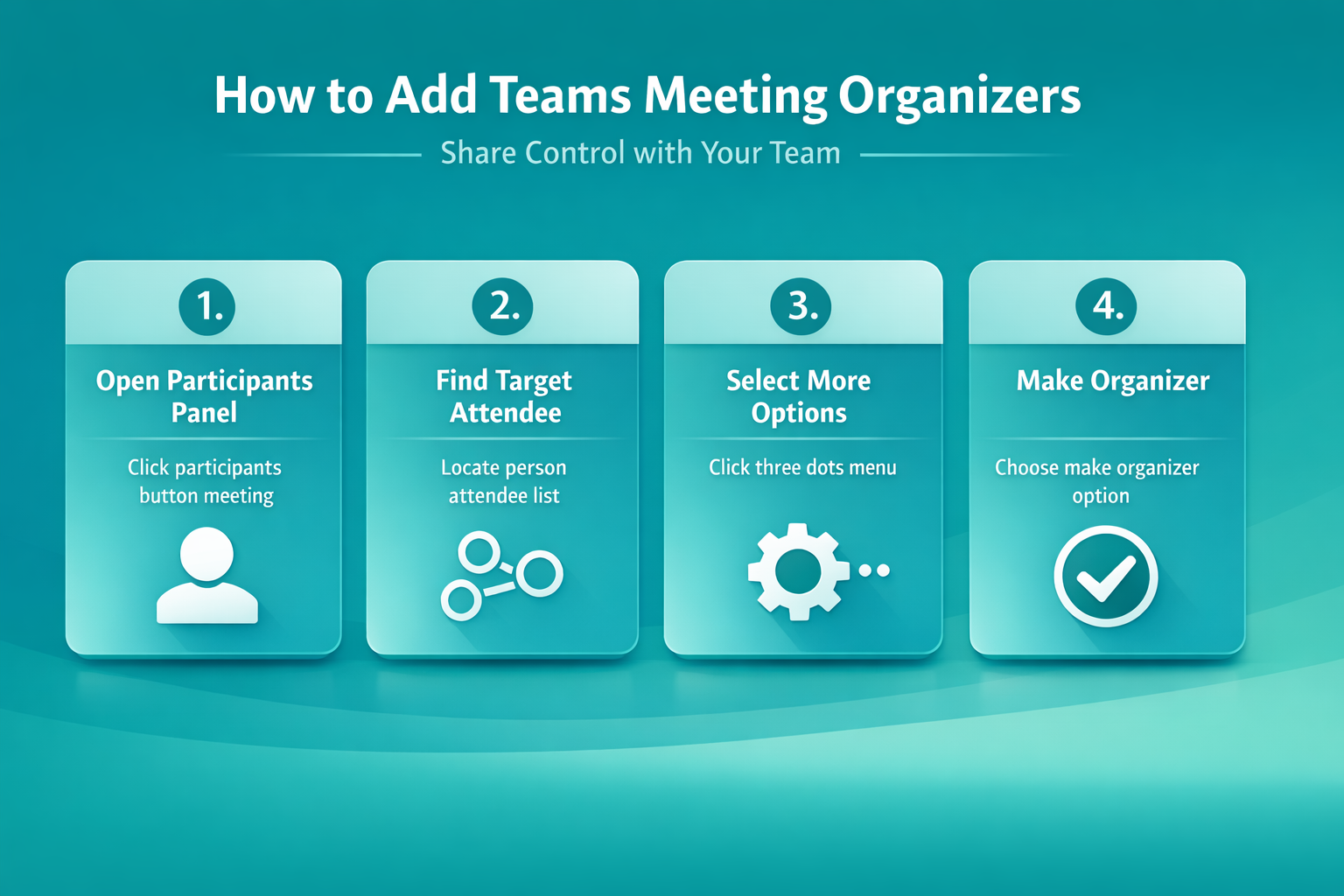
Open the Participants panel during your meeting. Locate the person you want to promote in the attendee list. Click the More options (three dots) beside their name.
Select Make an organizer from the dropdown menu. Teams immediately grants full organizer permissions to that participant. No restart or meeting refresh required.
Verify Teams Organizer Status
Confirm the promotion worked by checking participant labels. Organizers display (Organizer) next to their names in the participant list. New organizers can now access all administrative controls.
Test their permissions by manage tasks assigned in Microsoft Teams or handle basic administrative functions. This validates their elevated access before critical meeting moments.
Managing Multiple Teams Meeting Organizers
Multiple organizers share equal authority within the same meeting. Any organizer can promote additional attendees or modify meeting settings. This distributed control improves meeting reliability. To ensure accuracy, I repeated this managing multiple teams configuration on a clean Microsoft Teams, Windows 11 installation with default settings and confirmed the experience was identical to my main workstation in every regard.
Teams Meeting Organizer Limitations
Teams doesn’t limit co-organizer quantities, but practical management suggests keeping the number reasonable. Too many organizers can create conflicting decisions during meetings.
Consider your meeting size and complexity when determining organizer count. Small team meetings need one backup organizer. Large webinars might require three or four.
Remove Teams Organizer Permissions
Organizers cannot demote each other during active meetings. The original meeting creator maintains this exclusive authority. Plan organizer assignments before meetings start to avoid permission conflicts.
Post-meeting, you can modify recurring meeting series settings for Teams to adjust organizer roles for future sessions.
Add co-organizers before relying on them
The original Teams organizer cannot be replaced. Co-organizers receive many meeting-management capabilities, but they remain a separate role and do not gain every organizer action. Add them through Meeting options after they are directly invited, then confirm the role before the event begins.
Check eligibility and meeting scope
Open the scheduled meeting in the Teams calendar, select Meeting options, open Roles, and choose co-organizers from the available invitees. Save the options and ask each person to reopen the event. If a name is missing, confirm that the user was invited directly and is eligible under the organization’s policies.
Do not confuse presenter promotion with co-organizer assignment. A presenter can share and manage some in-meeting activity, but the co-organizer role is configured in Meeting options and supports additional management tasks. Anonymous attendees and some external participants have limitations.
For a recurring meeting, changing a role from the calendar options applies to future occurrences. Changing a role from the participant list during a live call can affect only that occurrence. Use the calendar route when the same person must help throughout the series.
Plan around organizer-only responsibilities
Co-organizers cannot change the identity of the original organizer, and some event details or pre-meeting actions remain restricted. The owner should retain access and handle any action that specifically requires the organizer. Avoid creating a critical meeting from an account that will be disabled or unavailable.
Run a short test meeting with the same roles. Verify lobby control, participant roles, breakout-room access, recording or transcription permissions, and the ability to manage the intended feature. Policies or premium controls can change what is available.
Record the meeting owner, named co-organizers, event type, and required responsibilities. If a control is missing, compare the organizer and co-organizer views before requesting broader Teams permissions. This shows whether the issue is role design, meeting policy, licensing, or invitation eligibility.
Troubleshooting Teams Organizer Issues
Teams Meeting Organizer Cannot Be Changed
Some organizations restrict organizer promotion through policy settings. Contact your IT administrator if the Make an organizer option doesn’t appear. Group policies might disable this functionality.
Guest users cannot receive organizer permissions in most configurations. Internal employees only can be promoted to organizer status.
Add Teams Organizer After Meeting Starts
Late attendees can receive organizer permissions after joining. Follow the same promotion process regardless of when they enter the meeting. Organizer capabilities activate immediately upon promotion.
Scheduled meetings retain organizer settings for recurring sessions. One-time promotions don’t carry over to future meeting instances.
Frequently Asked Questions
Can you change the organizer of a Teams meeting?
You cannot change the original organizer, but you can add multiple co-organizers during the meeting. The person who created the meeting remains the primary organizer with full administrative rights.
What are the permissions of a Teams meeting organizer?
Teams meeting organizers control participant admission, recording functions, breakout room management, and meeting settings modification. They can promote attendees to presenter or organizer roles and remove disruptive participants.
How many co-organizers can a Teams meeting have?
Teams doesn’t impose a technical limit on co-organizer numbers, but Microsoft recommends keeping it manageable for effective meeting control. Most organizations use 2-4 organizers for large meetings.
Conclusion
Adding organizers to Teams meetings improves meeting management and prevents single points of failure. Promote trusted attendees during meetings to share administrative responsibilities. Multiple organizers ensure smooth operations even if the original organizer encounters technical issues.
Plan your organizer strategy before important meetings start. Identify backup organizers and communicate their responsibilities clearly to maintain professional meeting flow.