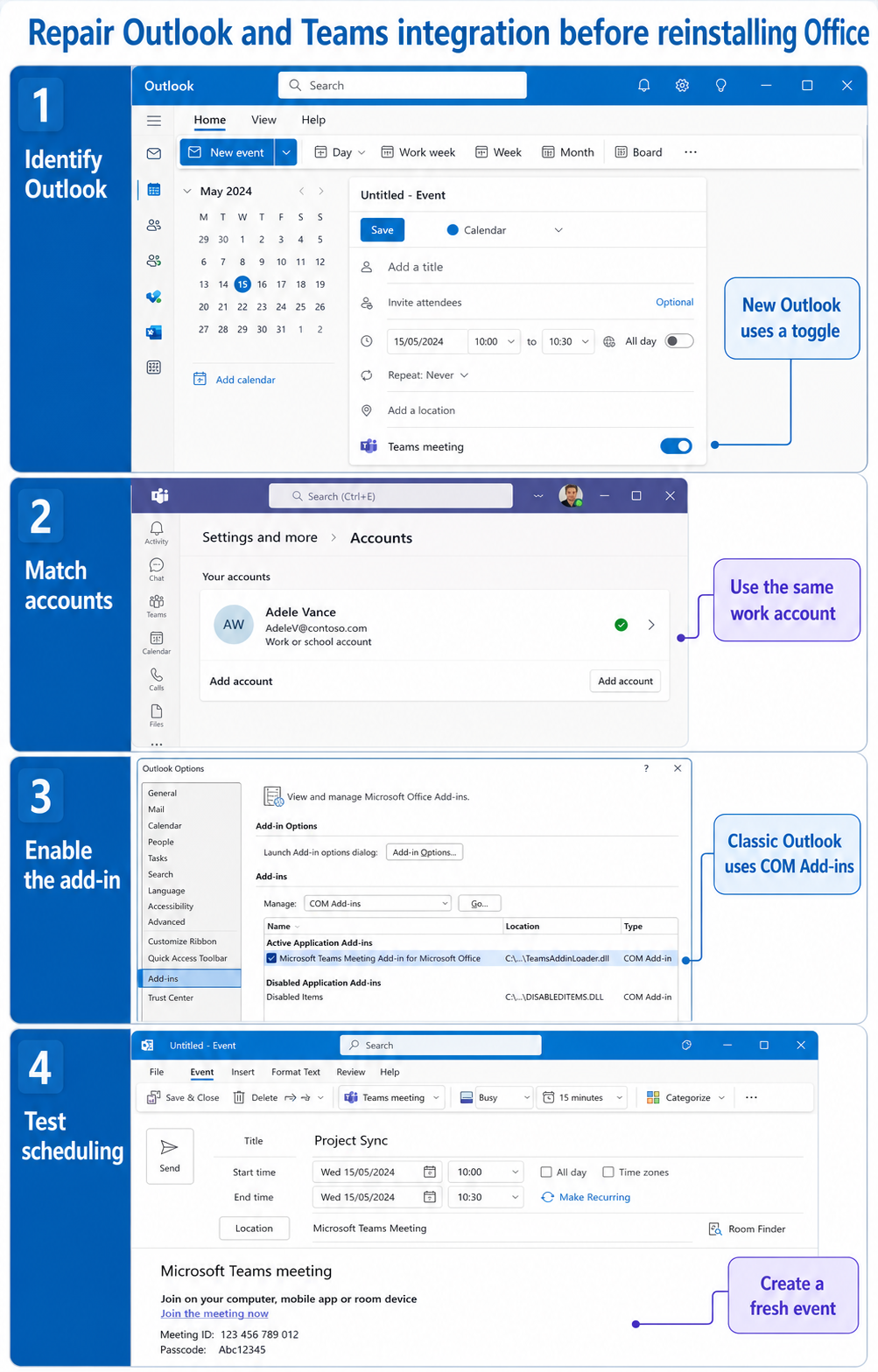
An “installation failed” message for the Teams meeting add-in is easy to misread because new Outlook and classic Outlook use different integration models. New Outlook has a built-in Teams meeting toggle; there is no separate COM add-in to install. Classic Outlook for Windows uses the Microsoft Teams Meeting Add-in for Microsoft Office and normally receives it with Teams.
Identify the Outlook client first. That one decision prevents repeated reinstalls of a component that new Outlook does not use and keeps classic Outlook repairs focused on registration, sign-in context, and disabled-add-in controls.
Pick the correct branch
New Outlook shows no Teams toggle
Open a new calendar event and look for the Teams meeting toggle. Microsoft requires new Teams and the same work or school account signed in to both Teams and Outlook. If those conditions are met but the toggle is absent, close Outlook, quit Teams from its taskbar icon, start Teams and sign in, and then start Outlook.
Do not search File > Options > Add-ins in new Outlook. That COM add-in page belongs to classic Outlook. If a guide asks you to register a DLL for the new Outlook experience, stop and verify that it actually addresses your client.
Classic Outlook reports an add-in problem
Switch to Calendar and look for New Teams Meeting. Then open File > Options > Add-ins. Microsoft says Microsoft Teams Meeting Add-in for Microsoft Office should appear in Active Application Add-ins when it is loaded correctly.
If it is listed under Disabled Application Add-ins, choose COM Add-ins in the Manage list, select Go, enable the Teams add-in, confirm the dialogs, and restart Outlook. If Outlook categorized it as a slow or disabled add-in, use File > Manage COM Add-ins and choose the available enable option.
The normal configuration in this Outlook-and-Teams connection walkthrough is useful for comparing the finished state, but the repair order below matters when installation has already failed.
Recover classic Outlook in a controlled order
- Close Outlook completely.
- Quit Teams, start it again, and sign in with the licensed commercial account used in Outlook.
- Start classic Outlook without Run as administrator. Teams and Outlook should run in the same privilege context.
- Re-enable the add-in through File > Options > Add-ins if it is disabled.
- Run Microsoft’s classic Teams add-in troubleshooter through Get Help on the affected Windows PC.
- Reinstall Teams only if the add-in remains absent or its registration is damaged.
The Get Help troubleshooter requires Windows 10 or later, must run on the same PC as classic Outlook, and does not support new Outlook. Those limitations are another reason to identify the client before treating a failed installation as a general Office problem.
When the add-in keeps disabling itself
Classic Outlook can disable an add-in that affects startup performance. Open File > Manage COM Add-ins, expand the Teams add-in options, and select Always enable this add-in when offered. Microsoft also documents Do not monitor this add-in for the next 30 days in affected builds.
Check prerequisites without inventing a DLL path
Current Microsoft guidance identifies supported Outlook versions, a valid Microsoft 365 subscription that includes Teams, a Teams license, and the Teams desktop app on the same Windows computer. Older Microsoft guidance also calls out .NET Framework 4.8 and Edge WebView2 Runtime for the classic add-in.
Avoid copying a registration command from another PC. The add-in location varies by Teams deployment and architecture. Use Microsoft’s troubleshooter or the exact current manual-registration article if advanced repair becomes necessary, and let IT perform registry work under change control.
Compare account and privilege context
The add-in depends on Teams being signed in with a valid commercial account. If Teams uses one tenant and Outlook another, scheduling integration may not initialize as expected. Also check shortcut compatibility settings so one app is not always elevated while the other is not.
Know when installation is not the issue
If New Teams Meeting appears but clicking it returns a sign-in error, the add-in is installed. Repair the Teams sign-in and account match rather than reinstalling Office. If the feature works in Outlook on the web, that confirms the service and license are at least broadly available, while the local classic integration still needs attention.
Some organizations intentionally disable Outlook integration through Teams policy. Ask the admin whether the Outlook add-in is allowed for the affected user before rebuilding the workstation. Likewise, if the goal is to stop Teams from being applied to every event, the meeting-default controls address that preference and should not be confused with a failed add-in.
Questions users ask during add-in repair
Should I install the Teams meeting add-in separately in new Outlook?
No. Microsoft states that new Outlook includes a Teams meeting toggle in the event window. Sign in to new Outlook and new Teams with the same work or school account, then restart both in the documented order if the toggle is missing.
Why does the add-in return after reinstalling Teams and disappear again?
Classic Outlook may be disabling it for performance, or an organizational policy may be preventing it. Check Manage COM Add-ins, effective Teams policy, and update levels before reinstalling again. Repeated installation will not change a policy decision.
Can the Get Help troubleshooter repair new Outlook?
No. Microsoft’s Teams add-in troubleshooter is for classic Outlook on Windows and explicitly does not work with new Outlook. Use the built-in toggle and integration restart path for new Outlook.
Is reinstalling all Microsoft 365 apps necessary?
Usually not. Start with account alignment, process restart, add-in enablement, and the targeted troubleshooter. Reinstalling Office is a broad last resort after Teams reinstallation and current Microsoft repair guidance fail.
Finish with one scheduling test
Create a fresh calendar event, enable Teams, save it, and reopen it to verify the join information remains. Test from the same account and client you repaired. If the button still fails, capture the Outlook client type, add-in list position, Teams account, and troubleshooter result for IT; those facts are more actionable than another full reinstall.