A SharePoint “created or modified” trigger fires for every qualifying update, including an update made by the same flow. If the flow writes back to the item without a guard, the write can start another run and repeat until throttling, failure, or manual cancellation.
The lasting repair is not a long delay. It is a condition that distinguishes a user or business transition from the flow’s own maintenance update.
Put the filter at the trigger
- Turn off the flow temporarily if it is consuming runs, then preserve one pair of run records for diagnosis.
- Add or identify a column that represents the business state, such as Ready for automation or Processed.
- Open the SharePoint trigger settings and add a trigger condition that is true only for the intended state. Microsoft notes that trigger conditions prevent a run from starting when the expression is false.
- Before Update item, set the guard to a value that will fail the next trigger evaluation, or ensure the update itself moves the item out of scope.
- Turn the flow on and change one test item. Confirm one intended run, one write-back, and no second active run for the same item.
Draw the loop from trigger to write-back
Find the action that closes the circle
Open two adjacent run records for the same item and compare their trigger time and modified fields. Then inspect every Update item, Send an HTTP request to SharePoint, or child flow that writes to the monitored list. A SharePoint flow pattern can help you recognize where list updates normally belong.
Choose a stable guard
Useful guards include a Processed Yes/No column, a status transition, a source value, or a comparison that proves relevant fields changed. Avoid a condition based only on Modified time, because every write changes it. The guard must become false before the flow performs its own update.
Do not over-filter the flow
A malformed trigger condition can stop legitimate runs. If the flow becomes silent, use the trigger-health checklist and inspect the trigger condition syntax, data type, and actual SharePoint internal column name. Keep a test item that represents each allowed transition.
Concurrency control can reduce overlapping work but does not define business intent and may not eliminate a self-triggering design. Likewise, terminating the second run still consumes a trigger and hides the real cause. Prefer preventing the unnecessary run at the trigger.
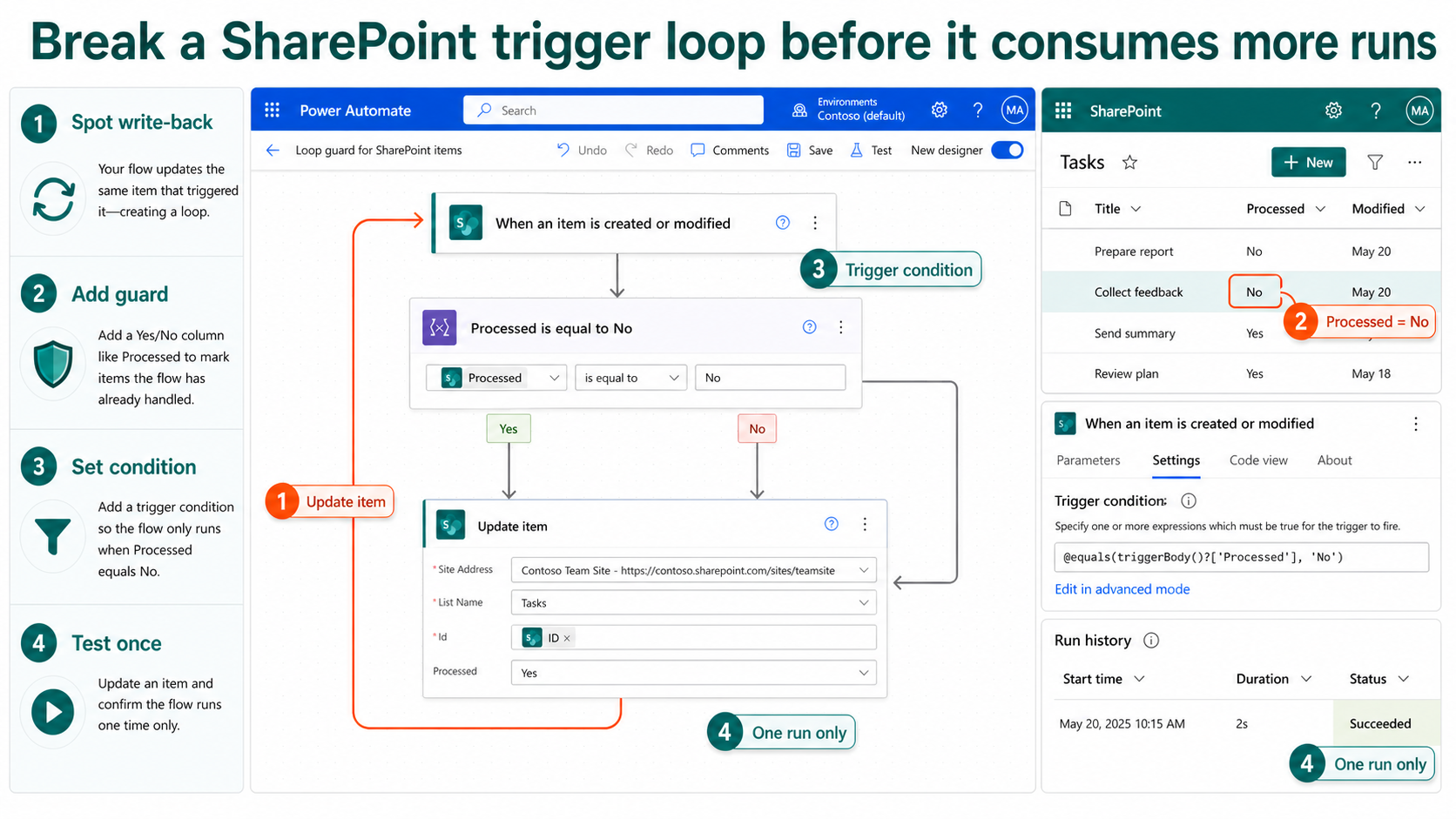
Prove one update creates one run
Change one test item once and watch the flow through its write-back. A second run for the same item proves the guard still allows the loop. Change only one variable before repeating the test, and keep the failing example unchanged until the comparison is complete.
For the SharePoint loop, save two consecutive run IDs for one item and identify the field changed by the flow. After adding the guard, update a fresh test item once and watch beyond the first completion. One intended run plus one rejected nonqualifying edit proves both sides of the trigger condition more convincingly than a quiet run list.
When results differ between desktop and web, do not keep changing both clients. A working web result usually proves that the cloud object and account still exist, leaving desktop installation, operating-system permission, or cached session as the narrower scope. Failure in both places makes the item, account, policy, connector, or service configuration more likely.
For a managed account, provide the affected identity, client, time, one reproducible example, the second-client result, and any visible error. Keep screenshots focused on the relevant pane and remove private names. Avoid sending passwords, private documents, recordings, or full card payloads unless the support owner requests them through an approved channel.
Before closing this Power Automate issue, repeat the successful path with a second ordinary example. If the second example works, preserve the original failure for object-specific review. If it fails in the same place, the shared client, account, permission, policy, or connector layer remains the stronger lead.
Practical verification notes
Repeat the successful path with a second ordinary example before calling the issue resolved. The second test should use the same account and client but a different item, meeting, file, or run. If only the original example fails, investigate that object’s settings and history. If both fail, continue at the client, policy, connector, or service layer.
Keep rollback simple. Save existing settings before changing them, avoid deleting shared data during diagnosis, and prefer reversible tests such as a new appointment, copied flow, private meeting, or sample file. This protects production work while giving support a clean comparison.
Loop-control questions
Why does a Condition action not stop the extra run?
A normal Condition runs after the flow has already started, so the extra run is still created. It can prevent downstream actions, but a trigger condition is better when you want to avoid the run entirely. Use both only when they serve distinct purposes.
Can I check who modified the item?
A modifier check can help, but service accounts and user context can vary by connector and action. A dedicated state or source marker is easier to reason about. If you use Editor, test the resolved value in run history.
Should the flow turn itself off?
No. Turning off the flow is an emergency containment step, not the design. Add a guard that excludes the flow’s own write-back, test it, and then return the flow to normal operation.
How do I prove the loop is gone?
Update one controlled item once and monitor run history beyond the expected completion. There should be one qualifying run and no repeating sequence for that item. Repeat with an update that should not run to verify the condition rejects it.
The practical safeguard
A good loop guard is visible in the SharePoint data and explainable in one sentence. It makes the first business update eligible and the flow’s own update ineligible. After the controlled test, monitor run counts and a second representative item before applying the pattern to higher-volume lists.