OneDrive can look healthy while still missing new files from one folder. That usually means the sync engine is running, but the new file is outside the selected sync scope, blocked by a file rule, paused by account storage, or waiting behind a local index problem. Restarting the computer may hide the symptom for a day, but it does not tell you which part failed.
Work through the folder, status icon, file rule, and reset path in that order. It is faster than unlinking the account first, and it protects you from removing a local copy before you know whether the cloud copy exists.
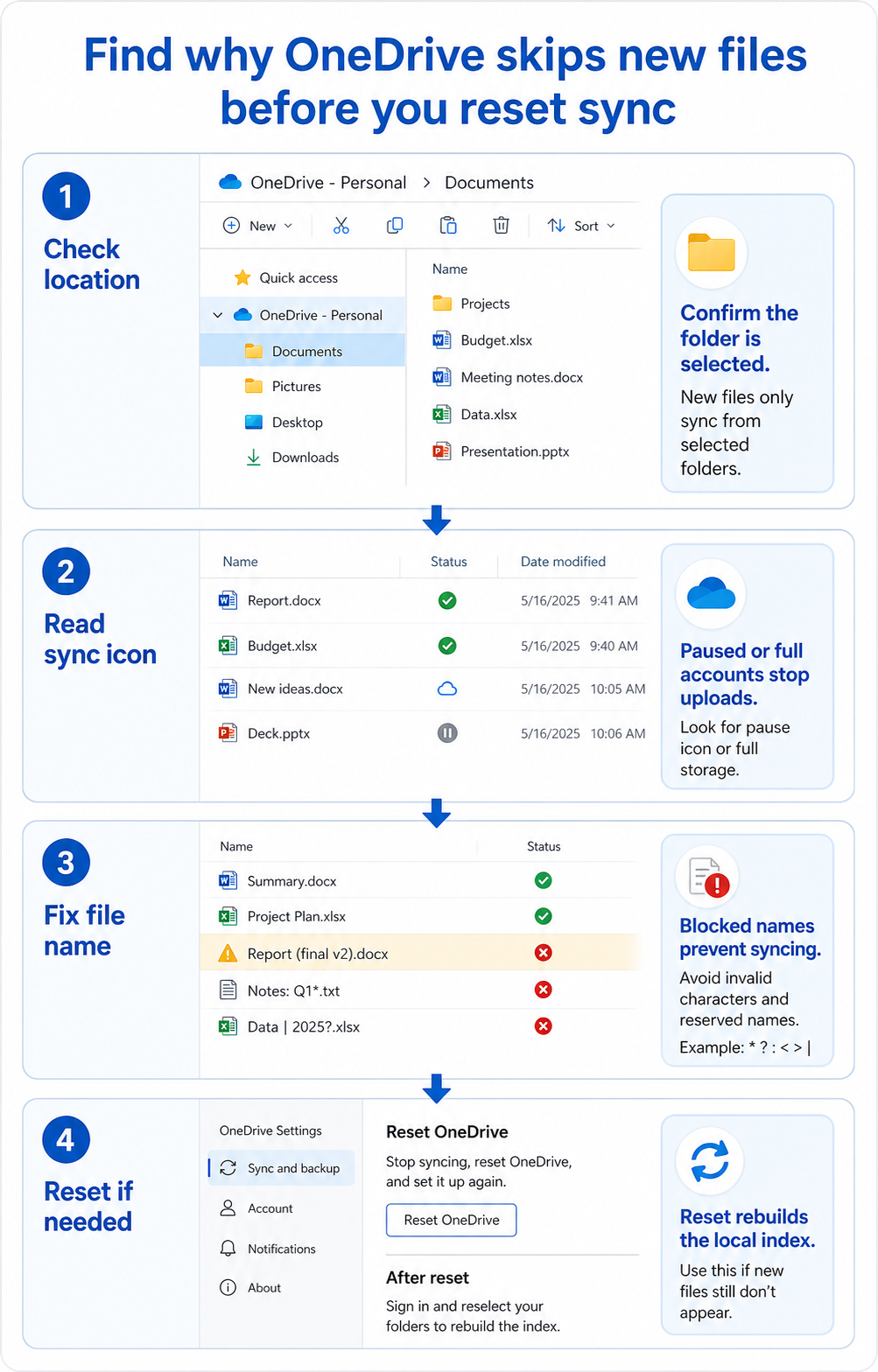
Start with the folder that should receive the file
Confirm the file is inside a synced location
The most common cause is simple: the file was saved to a folder that looks related to OneDrive but is not actually selected for sync. In File Explorer, open the folder from the OneDrive node in the left pane, not from Quick access or a pinned shortcut. Then compare the address bar with the OneDrive account name.
If you use both a work account and a personal account, check the exact account. A file saved under OneDrive – Personal will not appear in a work library. A file saved under a local Documents folder may never upload, even if another Documents shortcut in File Explorer is synced.
Check selected folders before blaming the app
OneDrive can sync only chosen folders when selective sync is enabled. Open OneDrive settings, review the account, and make sure the folder that should contain the new file is selected. If the folder was unchecked, existing cloud files may still be visible through the browser, while new local files in that path do not move the way you expect.
This is also where camera-upload and mobile expectations can confuse the issue. If the new files come from a phone, confirm whether the phone is uploading to the same Microsoft account and folder. The camera-upload route is a separate habit from desktop folder sync, so verify both sides before you rename or reset anything.
Read the status icons instead of restarting first
Status icons tell you whether OneDrive sees the file. Look for these clues:
- A blue cloud usually means the item is online-only and available from the cloud.
- A green check means the item is available locally or fully downloaded.
- A sync arrow means the item is still uploading or downloading.
- A pause icon means sync is paused.
- A red error means the item needs attention before it can sync.
If older files show green checks but the new file has no icon at all, OneDrive may not be watching that folder. If the new file has a red error, open the OneDrive activity center and read the exact message. Do not reset OneDrive until you know whether the file is being ignored, blocked, or queued.
Clean up names, paths, and account limits
OneDrive and SharePoint still have restrictions around names, characters, path length, temporary files, and item limits. A new file can fail while older files continue syncing because only the new item violates a rule.
Check for these patterns:
- Characters that are blocked or risky in file names.
- Very long folder paths after several nested folders.
- Files that are still open, locked, or being written by another app.
- Temporary files created by Office, design tools, accounting apps, or exports.
- A work or school account that is out of storage or blocked by policy.
Move one problem file to the root of the synced OneDrive folder and rename it with a short plain name such as sync-test.docx. If that file uploads, the original folder path or name is the problem. If it still does not upload, the account, client, or local index is more likely.
Reset only after targeted checks
Resetting OneDrive rebuilds the local sync process. It is useful when OneDrive is watching the right folder, the account is not full, the file name is clean, and the activity center still does not recover. It should not be the first step because a reset does not fix an excluded folder or a blocked file name.
Before a reset, open OneDrive on the web and confirm whether the file already exists online. If a teammate deleted or moved it in a shared library, the library recovery path may be more relevant than a desktop sync reset. Also copy any unsynced local files to a temporary folder so you are not relying on one local working copy during the repair.
After the reset, sign back in, select the correct folders, and let the client finish indexing before judging the result. Large libraries can take time to settle. Watch one small test file first instead of dragging a large folder into the sync root immediately.
Quick answers before you reset OneDrive
Why do old files sync but new files do not?
Old files can already be in the cloud while new files are blocked locally. That can happen when the folder is no longer selected, the account is paused, storage is full, or the new file name violates a rule. The older green checks do not prove that every new location is being watched.
Should I unlink and relink OneDrive?
Use unlinking only after safer checks fail. If the issue is a blocked name, wrong folder, or full account, relinking wastes time and may create duplicate local folders. A targeted reset is usually cleaner than removing the account first.
Can Files On-Demand make a file look missing?
Yes, but the symptom is different. Files On-Demand changes whether files are stored locally, not whether they exist in the cloud. If the browser version of OneDrive shows the file, the problem is local visibility or download state. If the browser does not show it, focus on upload and sync status.
What if the missing file is in a shared folder?
Check whether you still have permission to the shared folder and whether the folder is still synced to your device. Shared library changes, moved folders, or removed access can make new files disappear from the expected path. Ask the library owner before resetting your local client repeatedly.
When the new files still do not appear
If the test file cannot upload from a simple path, collect the OneDrive error text, the account type, the folder path, and a screenshot of the sync icon. For work or school accounts, send that to your Microsoft 365 admin because tenant policies, storage quotas, device restrictions, and library settings can all block sync from outside the desktop app.
The goal is not to reset OneDrive until it behaves. The goal is to prove whether the new files are outside scope, blocked by a rule, waiting in the client, or missing from the cloud entirely.