Teams invites not showing in Outlook calendar
“Why aren’t my Teams meetings appearing in Outlook, and how can I schedule Teams calls directly from my email client?” This common question reflects one of the most reported integration challenges in Microsoft 365 environments. Users expect seamless collaboration between these two essential productivity tools, yet connection issues frequently disrupt daily workflows and meeting management processes. See teams appointments not showing troubleshooting.
Common Outlook with Teams connectivity problems
Microsoft Teams and Outlook integration relies on several interconnected services including Exchange Online, Microsoft Graph API, and the Teams Meeting add-in for Outlook. When Teams meetings don’t sync properly or the Teams add-in fails to load, users lose access to streamlined meeting scheduling and calendar synchronization features that enhance productivity across the organization.
We address the most effective methods to diagnose and resolve Teams-Outlook integration failures. We’ll configure proper add-in settings, verify service connections, and implement registry fixes when standard troubleshooting methods prove insufficient. The solution requires local administrator access and applies to Microsoft 365 Business Premium, Enterprise E3, and Enterprise E5 licensing tiers with current Outlook desktop versions.
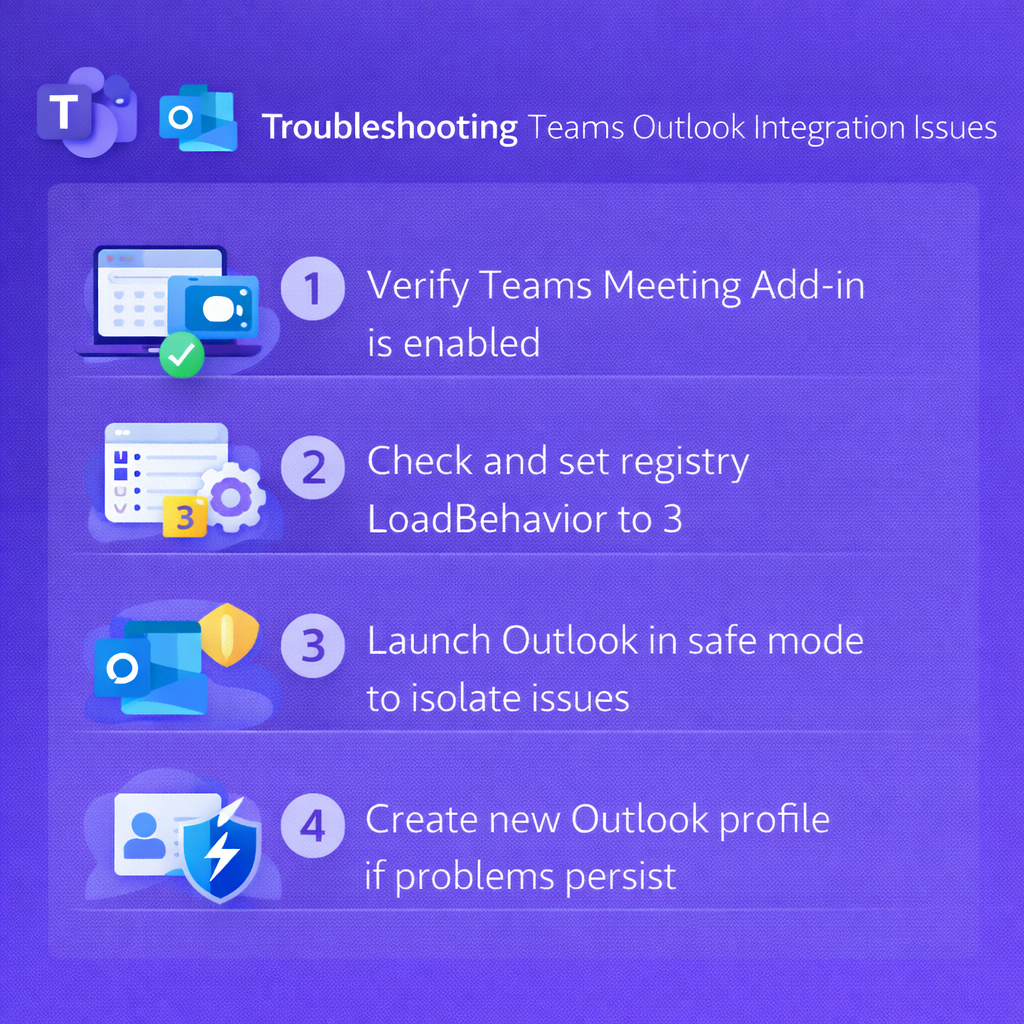
Enable Teams add in Outlook 365 desktop app for Windows
The primary cause of Teams-Outlook integration problems stems from disabled or corrupted add-in components that prevent proper communication between applications.
- Navigate to Outlook desktop application and select File from the ribbon menu to access account and application settings for comprehensive add-in management.
- Choose Options from the left navigation panel, then select Add-ins to view all currently installed extensions and their operational status within your Outlook environment.
- Locate Microsoft Teams Meeting Add-in for Microsoft Office in the active add-ins list and verify its status shows as Active rather than disabled or missing.
- If the add-in appears in the Inactive Application Add-ins section, select COM Add-ins from the Manage dropdown menu and click Go to access detailed configuration options.
- Check the box next to Microsoft Teams Meeting Add-in for Microsoft Office to enable the integration component and restore meeting scheduling functionality within Outlook calendar interface.
Expert Tip: If the Teams add-in doesn’t appear in either active or inactive lists, you’ll need to reinstall the Microsoft Teams client to restore the Outlook integration components automatically.
Teams not loading in Outlook desktop application
Outlook profile corruption or authentication issues can prevent Teams integration from functioning correctly even with proper add-in configuration.
- Close all Office applications including Outlook, Teams, and any related Microsoft 365 processes running in the background to ensure clean application restart and profile reload.
- Hold Ctrl key while clicking the Outlook desktop shortcut to launch Outlook in safe mode, which disables add-ins temporarily and helps identify integration conflicts or profile issues.
- If Teams meetings appear correctly in safe mode, the problem relates to add-in conflicts rather than authentication or profile corruption requiring different troubleshooting approaches and solutions.
- Create a new Outlook profile by accessing Control Panel > Mail > Show Profiles and selecting Add to establish fresh authentication credentials and integration settings with Microsoft 365 services.
- Configure the new profile with your Microsoft 365 account credentials and set it as the default profile to bypass existing corruption and restore full Teams-Outlook integration functionality.
Identify the exact Teams–Outlook integration path
New Outlook, classic Outlook, and Outlook on the web do not use identical integration components. Microsoft documents that new Outlook has native Teams-meeting capability and does not depend on the classic COM add-in. If you use new Outlook, repeatedly enabling or reinstalling the old add-in will not address the real path. In classic Outlook for Windows, the Teams Meeting add-in and its status remain relevant.
Create a test meeting in your primary calendar. In new Outlook or the web version, enable the Teams meeting toggle, save the event, reopen it, and verify the join details. In classic Outlook, confirm that the Teams Meeting command is present and the add-in is enabled. Restart Teams before Outlook after account or add-in changes.
Confirm account and mailbox alignment
Check the profile identity in Teams and the mailbox used by Outlook. They should belong to the intended Microsoft 365 organization. Personal accounts, multiple tenants, shared mailboxes, delegated calendars, and some hybrid configurations can behave differently. Test the user’s primary mailbox first. If that works while a delegated calendar fails, focus on permissions and supported delegation rather than repairing the entire Office installation.
Also distinguish calendar synchronization from meeting creation. A meeting visible in one calendar without Teams join information may be an ordinary Outlook event, not evidence that Teams is disconnected.
Escalate without destroying useful state
Compare the same account in Outlook on the web and Teams on the web. If web scheduling works, capture that result and focus on the desktop client. If web scheduling also fails, ask the administrator to check mailbox eligibility, assigned policies, licensing, and Microsoft 365 service health.
Provide the Outlook type and version, Teams version, mailbox and Teams tenant, event type, time, error, and whether the primary calendar worked. In classic Outlook, include the add-in state. Avoid clearing all Office credentials or rebuilding the Outlook profile until IT confirms the fault is local; those actions can disrupt other accounts without fixing a tenant, mailbox, or policy issue.
Teams not showing in Outlook troubleshooting solutions
Several common issues can disrupt the Teams-Outlook integration even after completing initial configuration steps and registry modifications.
- Teams add-in appears grayed out or disabled: This typically indicates Office licensing conflicts or version compatibility issues between Teams client and Outlook installation requiring administrative intervention and potential software updates.
- Meeting invitations lack Teams join information: Exchange Online mailbox permissions may restrict Teams integration features, requiring tenant administrator to verify user licensing and enable Teams meeting policies through Microsoft 365 admin center.
- Outlook crashes when accessing Teams features: Outdated Office installation or conflicting third-party add-ins can cause application instability, necessitating Office repair through Control Panel Programs and Features or complete reinstallation of Microsoft 365 applications. See Teams Outlook plugin issue fix.
- Calendar synchronization delays between platforms: Network connectivity issues or Exchange Online throttling policies can delay meeting updates, requiring verification of internet connection stability and potential adjustment of synchronization frequency settings in Outlook.