You’re in the middle of an important client presentation on Microsoft Teams when suddenly you realize you can’t hear anyone speaking. The video feeds are working perfectly, participants appear to be talking, but complete silence fills your headphones. You check your volume settings, restart the meeting, and still nothing works. This frustrating scenario disrupts productivity and creates awkward moments during critical business conversations that require immediate troubleshooting to restore normal communication.
People can’t hear you or you can’t hear them on Teams?
Audio connectivity issues in Microsoft Teams meetings represent one of the most common technical challenges facing remote and hybrid workers today. When you cannot hear other participants during a Teams meeting, the problem typically stems from incorrect device settings, conflicting audio drivers, permission restrictions, or application-level configurations that prevent proper sound transmission. These issues affect both desktop and mobile users across Windows, Mac, iOS, and Android platforms with varying degrees of complexity. Similar to fixing Teams microphone detection issues, audio output problems require systematic troubleshooting to identify the root cause.
Before proceeding with the troubleshooting steps, ensure you have administrative access to your computer if working on a corporate device. Verify that your internet connection remains stable throughout the process, as intermittent connectivity can compound audio problems. This guide assumes you are using a recent version of Microsoft Teams on either Windows 10/11, macOS, or mobile devices with current operating system updates installed.
Resolving Teams audio problems if participants cannot be heard
Verify your audio output device selection in Microsoft Teams settings
- Open Microsoft Teams and click your profile picture in the top-right corner of the application window to access your account settings menu.
- Select Settings from the dropdown menu, then navigate to the Devices section in the left sidebar where all audio and video hardware configurations are managed.
- Locate the Speaker dropdown menu under the Audio devices section and verify that your intended output device appears as the selected option rather than a disconnected or incorrect device.
- Click the blue Test button next to the speaker selection to play a sample audio tone that confirms whether sound routes correctly through your chosen output device.
- If you hear the test tone but still cannot hear meeting participants, the issue likely resides in meeting-specific settings rather than general device configuration.
- Change the speaker selection to a different available output device, test again, then switch back to your preferred device to refresh the audio connection pathway.
- Ensure the volume slider beneath the speaker selection sits above fifty percent, as extremely low system volume often gets mistaken for complete audio failure during meetings.
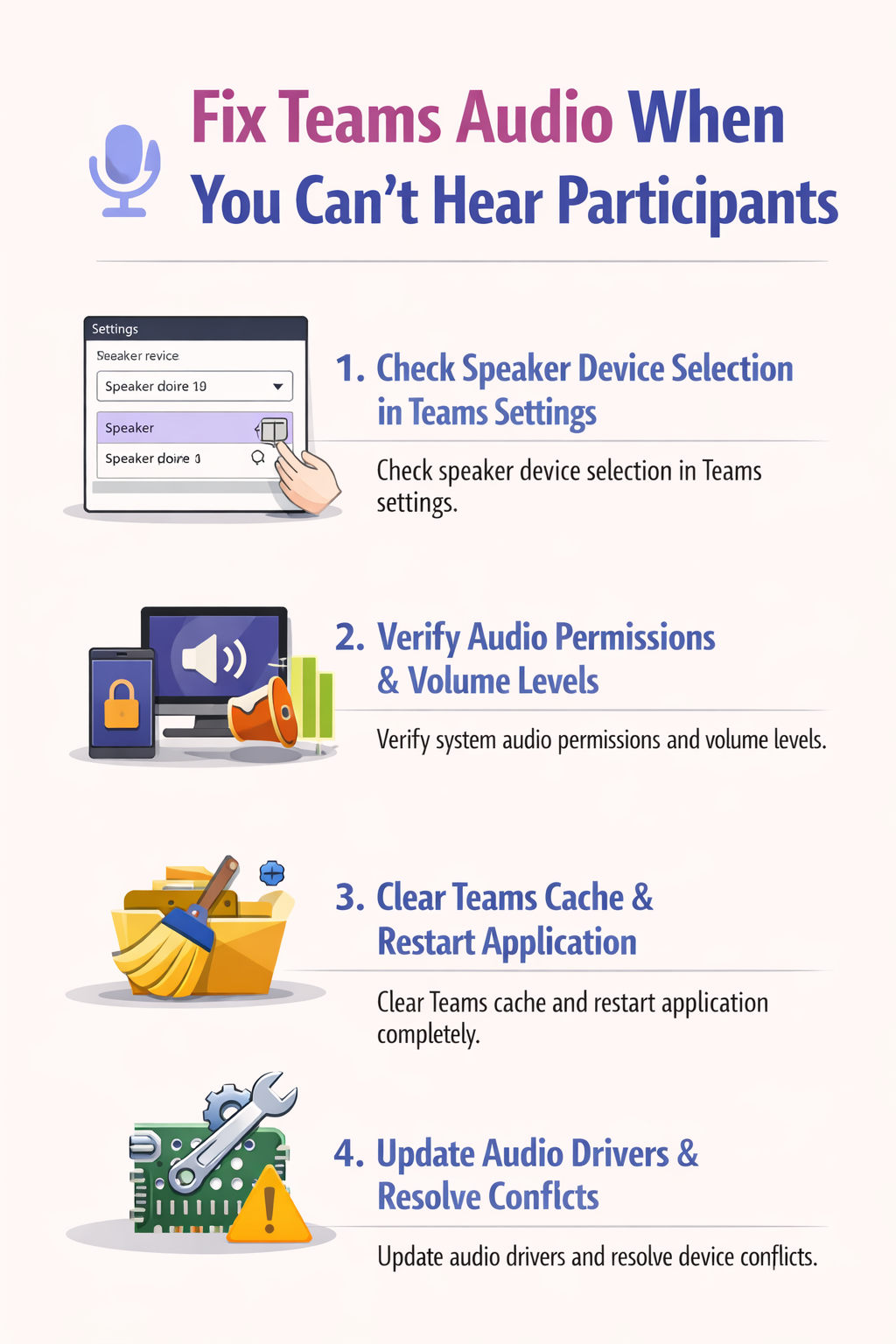
Check system-level audio settings and permissions on Windows 11
- On Windows devices, right-click the speaker icon in your system tray and select Open Sound settings to access comprehensive audio configuration options beyond Teams-specific controls.
- Verify that your output device appears correctly in the Choose your output device dropdown menu and that the volume level shows active signal bars when audio should be playing.
- Click Device properties under your selected output device to confirm the device remains enabled and that the volume level has not been muted at the hardware level.
- Navigate to App volume and device preferences at the bottom of the Sound settings page to check whether Microsoft Teams has been individually muted or assigned to an incorrect output device.
- On Mac computers, open System Preferences and select Sound, then click the Output tab to verify your intended audio device appears selected with an appropriate volume level set.
- Check the Input tab as well because some audio interfaces require matching input and output device selections to function properly during bidirectional communication applications like Teams.
- Return to your active Teams meeting and verify whether audio now functions correctly after adjusting these system-level configurations that override application-specific settings.
Expert Tip: Corporate devices often have audio policies managed through Group Policy or Mobile Device Management that can override your local settings. Contact your IT department if audio devices appear grayed out or restricted in system settings.
Reset Microsoft Teams audio settings and clear application cache files
- Exit Microsoft Teams completely by right-clicking the Teams icon in your system tray and selecting Quit to ensure the application fully closes rather than continuing to run in the background.
- Press Windows Key plus R to open the Run dialog box, then type
%appdata%\Microsoft\Teamsand press Enter to navigate directly to the Teams application data folder location. - Locate and delete the following folders within the Teams directory: Cache, blob_storage, databases, GPUcache, IndexedDB, Local Storage, and tmp to remove potentially corrupted configuration files.
- Restart your computer to ensure all Teams processes terminate completely and system audio drivers reload with fresh configurations before relaunching the application.
- Open Microsoft Teams again and sign in with your credentials, which will trigger the application to rebuild its cache and restore default audio settings automatically.
- Join a test meeting or use the Teams audio test call feature by navigating to Settings, Devices, and clicking Make a test call to verify audio functionality before joining important meetings.
- If audio works in the test call but fails in actual meetings, the issue may relate to meeting-specific permissions or organizer settings rather than your local configuration.
Adjust meeting-specific audio controls and participant permissions
- During an active Teams meeting where you cannot hear participants, hover your mouse over the meeting control bar at the bottom of the screen to reveal all available options.
- Click the three-dot More actions button in the meeting controls and select Device settings to access in-meeting audio configuration without leaving the conversation.
- Verify that the correct speaker device appears selected in the meeting-specific settings, as Teams sometimes switches devices when new hardware connects during an active meeting.
- Check whether the meeting organizer has muted all participants or disabled incoming audio as part of meeting settings that restrict audio transmission from other attendees.
- Ask another participant through the meeting chat whether they can hear others, which helps determine if the problem affects only you or represents a broader meeting configuration issue.
- Leave the meeting completely and rejoin using the same meeting link, as this action forces Teams to re-establish all audio connections and often resolves temporary glitches.
- If rejoining does not resolve the issue, ask the meeting organizer to verify that no audio restrictions exist in the meeting options that might prevent participants from transmitting sound.
Update audio drivers and resolve conflicts with other applications
- Open Device Manager on Windows by pressing Windows Key plus X and selecting Device Manager from the power user menu that appears.
- Expand the Sound, video and game controllers section to display all audio devices currently recognized by your operating system including integrated and external hardware.
- Right-click your primary audio device and select Update driver, then choose Search automatically for updated driver software to allow Windows to find and install the latest compatible drivers.
- If Windows reports that the best drivers are already installed, visit your computer manufacturer’s website or audio device manufacturer’s support page to download the most recent drivers directly.
- Restart your computer after installing updated drivers to ensure the new software loads correctly and integrates properly with Microsoft Teams and other audio applications.
- Close any other applications that might be using your audio device exclusively, such as music players, video conferencing tools, or recording software that can block Teams from accessing the hardware.
- Check whether browser-based Teams meetings work differently than the desktop application, as this comparison helps identify whether the issue relates to the specific Teams client or broader system audio problems.