
Why is my New Outlook search suddenly broken?
You rely on search functionality to quickly locate emails, contacts, and calendar items throughout your workday. When search stops working in New Outlook, productivity grinds to a halt as you manually scroll through hundreds of messages. This common issue affects users across different Microsoft 365 tenants and can stem from various underlying causes including indexing problems, synchronization delays, or corrupted cache files.
Outlook search functionality and common failure points
New Outlook utilizes cloud-based search indexing that differs significantly from the classic Outlook desktop application’s local search capabilities. The search function depends on proper synchronization between your local client and Microsoft 365 servers, along with maintained search indexes that catalog your email content. When these components fail to communicate effectively, search results become incomplete, delayed, or entirely absent from your interface.
We will teach how to restore full search functionality in New Outlook. We’ll cover cache clearing, index rebuilding, account re-synchronization, and advanced configuration adjustments. Prerequisites include administrative access to your device and an active Microsoft 365 subscription with New Outlook enabled for your organization.
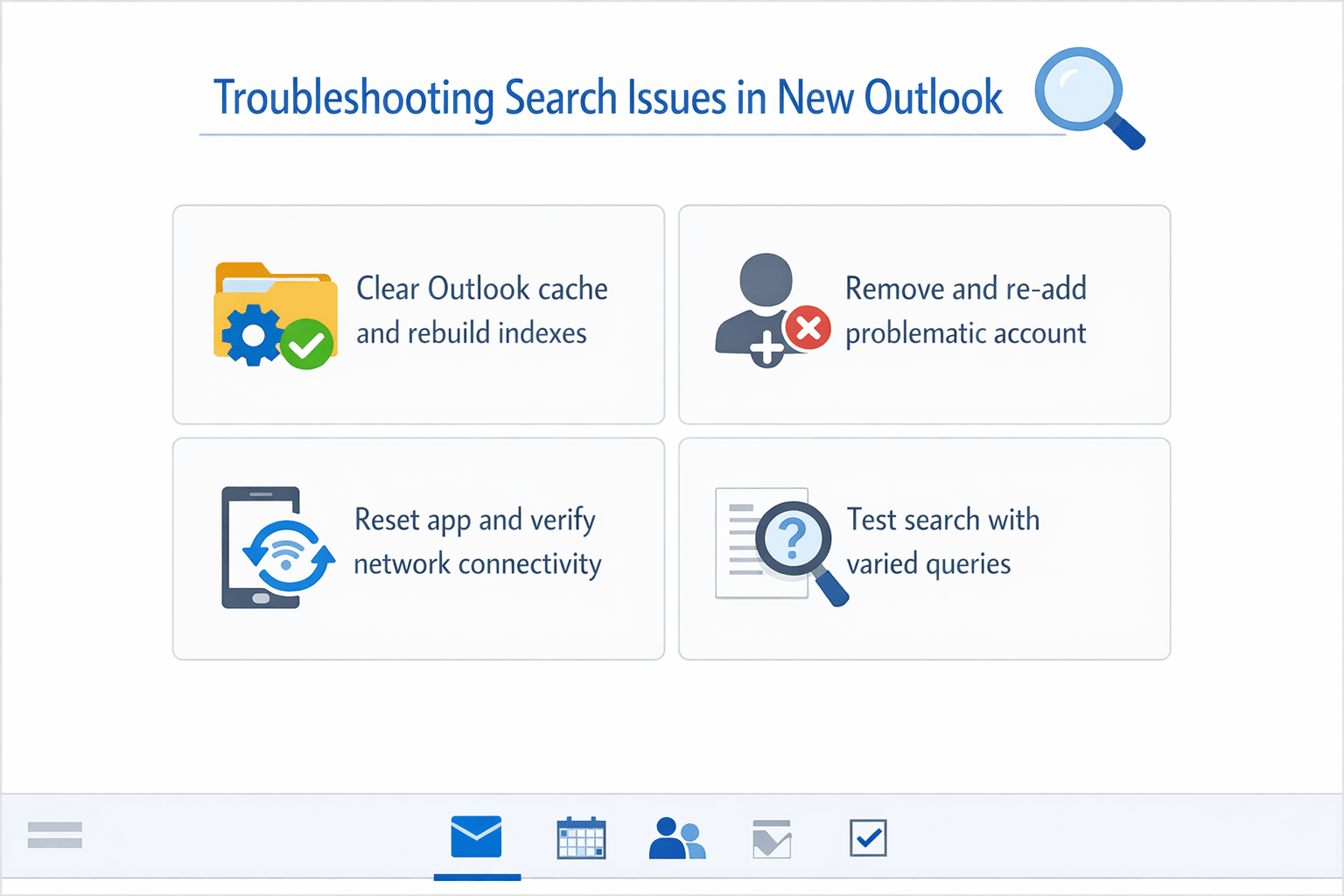
Clearing cache and rebuilding search to solve Outlook search
The most effective starting point for resolving search issues involves clearing accumulated cache data that may have become corrupted over time.
- Close New Outlook completely and ensure no background processes remain active by checking Task Manager for any Outlook-related processes that need manual termination.
- Navigate to the Windows Run dialog by pressing Windows key + R, then type %localappdata%\Microsoft\Outlook and press Enter to access the local Outlook data directory.
- Locate and delete the entire “RoamCache” folder, which contains temporary search index files that may be preventing proper search functionality from operating correctly.
- Restart New Outlook and allow approximately 10-15 minutes for the application to rebuild search indexes automatically, during which time search functionality may remain temporarily unavailable.
Forcing account re-synchronization
When cache clearing doesn’t resolve the issue, forcing a complete account synchronization often restores search capabilities by refreshing the connection between your local client and Microsoft 365 servers.
- Open New Outlook and click on your profile picture in the top-right corner, then select “Manage Accounts” from the dropdown menu to access account configuration options.
- Click the gear icon next to your problematic account, then select “Remove account” to temporarily disconnect your mailbox from the New Outlook client without affecting server data.
- Restart New Outlook completely, then re-add your account by clicking “Add account” and entering your Microsoft 365 credentials to establish a fresh synchronization connection.
- Monitor the synchronization progress in the bottom status bar and wait for completion before attempting to use search functionality, as partial synchronization can cause intermittent search problems.
Expert Tip: If you manage multiple email accounts in New Outlook, remove and re-add only the account experiencing search issues rather than disrupting all configured accounts unnecessarily.
Advanced troubleshooting for persistent search problems
More complex search issues may require deeper investigation into New Outlook’s configuration and Microsoft 365 connectivity settings.
- Press Windows key + R, type “wsreset.exe” and press Enter to reset the Microsoft Store cache, which can resolve underlying application conflicts affecting New Outlook’s search functionality.
- Open Windows Settings, navigate to “Apps & Features,” locate New Outlook, click “Advanced options,” and select “Reset” to restore the application to its default configuration state.
- Verify your Microsoft 365 license includes full New Outlook functionality by signing into admin.microsoft.com and checking your subscription details under “Licenses” to ensure search features aren’t restricted.
- Test search functionality using different query types including sender names, subject keywords, and date ranges to isolate whether the problem affects all search categories or specific content types.
Verifying network and firewall configurations
Network connectivity issues can prevent New Outlook from accessing Microsoft 365 search services, resulting in failed or incomplete search operations across your mailbox content.
- Temporarily disable Windows Defender Firewall and any third-party antivirus software to test whether security applications are blocking New Outlook’s communication with Microsoft 365 search endpoints.
- Check your organization’s proxy settings by opening Internet Explorer, clicking “Tools,” selecting “Internet Options,” navigating to “Connections,” and clicking “LAN Settings” to verify proxy configuration matches your IT department’s requirements.
- Run the Microsoft 365 connectivity test at testconnectivity.microsoft.com, selecting “Office 365” and “Outlook Connectivity” to diagnose potential network-level issues affecting search functionality.
- Contact your network administrator if connectivity tests reveal blocked ports or restricted access to outlook.office365.com and other essential Microsoft 365 endpoints required for search operations.
Troubleshooting common search error scenarios
Several specific error conditions frequently prevent New Outlook search from functioning correctly, each requiring targeted resolution approaches.
- Search returns no results despite visible emails: This indicates index corruption where clearing the RoamCache folder and waiting 24 hours for complete re-indexing typically resolves the underlying synchronization problem effectively.
- Search works intermittently or displays outdated results: Network connectivity issues or partial synchronization problems usually cause this behavior, requiring account removal and re-addition to establish stable communication with Microsoft servers.
- Error message displays “Search is currently unavailable”: Microsoft 365 service disruptions or tenant-level configuration issues often trigger this message, requiring verification through the Microsoft 365 Service Health dashboard before attempting local troubleshooting.
- Search freezes New Outlook application completely: Memory or performance issues within the application typically cause this problem, requiring application reset through Windows Settings or complete reinstallation if the issue persists consistently.
Important Tip: Document which troubleshooting steps resolve your specific search issue, as the same solution will likely work for future occurrences of similar problems in your environment.