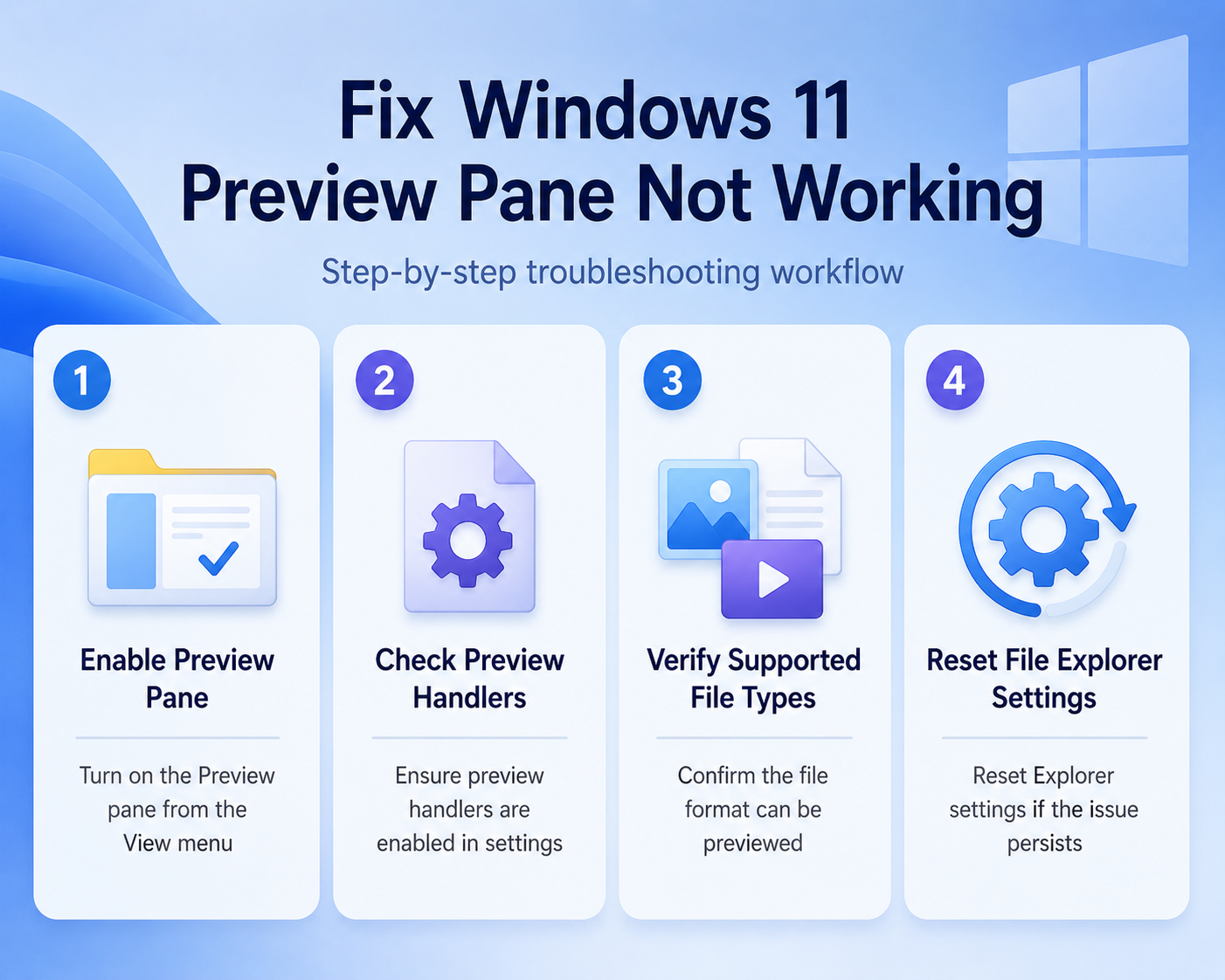
When File Explorer shows a blank preview area, the file is not always damaged. The usual causes are a hidden Preview pane, disabled preview handlers, a file type without a handler, cloud-only files, or a slow Explorer process that needs a reset. To Fix Windows 11 Preview Pane Not Working, start with the view setting, then move through folder options, file association, and cache checks before you reset Windows itself.
Restore the Windows preview panel
Turn on the File Explorer pane
Open File Explorer with Windows key + E, select View on the command bar, choose Show, and turn on Preview pane. Select one ordinary file, such as a TXT, JPG, PDF, DOCX, or XLSX file, and give Windows a few seconds to render it. If you are in a narrow window, widen File Explorer because the pane can be technically enabled while leaving too little room to display useful content.
My first check is always the pane toggle, because it is easy to hide during layout cleanup.
If File Explorer itself is missing expected view controls or does not show files correctly, fix that broader display problem before chasing preview handlers. The related guide to restore Explorer file display is a better starting point when thumbnails, icons, and file lists are also broken.
Enable preview handlers in options
The Preview pane relies on preview handlers for many document formats. Open File Explorer, select See more on the command bar, choose Options, and switch to the View tab. Under Advanced settings, make sure Show preview handlers in preview pane is checked, then select Apply and OK.
If that box was already enabled, toggle it off, apply the change, turn it back on, and apply again. That simple refresh often rebuilds the setting after a profile migration or a Windows feature update. Avoid changing unrelated folder options in the same pass, because it makes the result harder to judge.
Test local files and file types
Copy one affected file to Documents or Desktop, then test it again from that local folder. Preview can fail when the file is still cloud-only in OneDrive, blocked by a network share, password protected, or being synced by another app. Try at least two file types: one image and one Office or PDF file.
If images preview but PDFs or Office files do not, Windows is probably working and the specific file handler is the problem. Update or repair the app that owns that file type, such as Microsoft 365, Adobe Acrobat, or your preferred PDF reader. If no file type previews, stay focused on Windows settings and Explorer resets.
Fix handlers and file associations
Reset the default opening app
Preview handlers are often installed with the app that opens the file. Go to Settings >> Apps >> Default apps, search for the affected extension, and confirm that the right desktop app opens it. For PDF files, choose a reader that includes a preview handler; for Office files, make sure the Microsoft 365 desktop apps are installed and not only web shortcuts.
Open the file once in the chosen app, close it, and return to File Explorer. That sequence forces Windows to refresh file association data and can restore the preview without a full repair. If the app asks to make itself the default, accept only when it is the reader you actually want.
Repair Microsoft 365 or readers
When DOCX, XLSX, PPTX, or PDF previews fail while images work, repair the responsible application. Open Settings >> Apps >> Installed apps, find Microsoft 365 or the PDF reader, select Modify or Advanced options, and run the light repair first. Reboot after the repair if the installer asks for it.
The repair is worth doing before registry edits because preview handlers are COM components registered by the application. A broken update can leave the app opening files correctly while Explorer cannot call its preview component. I usually test with a small new document afterward, not a large file from email.
Restart File Explorer safely
Open Task Manager, find Windows Explorer, right-click it, and choose Restart. Your taskbar and open Explorer windows will disappear briefly, then reload. This does not delete files; it restarts the shell process that owns the pane, thumbnails, and many folder views.
If the restart works but the issue returns soon, check whether a file sync tool, archive utility, PDF extension, or shell add-in was installed recently. A shell extension can interrupt preview rendering without causing a full Explorer crash. Keep the change list narrow: disable or update one recent add-in, test, then move to the next.
Resolve stubborn preview pane failures
Clear thumbnail and Explorer cache
Open Settings >> System >> Storage >> Temporary files, select Thumbnails, and remove them. You can also run Disk Cleanup, choose your Windows drive, select Thumbnails, and confirm the cleanup. Reopen File Explorer and test a simple local image file first.
Thumbnail cache and preview rendering are not identical, but they share enough Explorer plumbing that clearing stale cache can help after file type or app changes. Expect the first folder load to be slower while Windows rebuilds thumbnails. If search results are part of the problem, the File Explorer article on finding Windows files faster can help separate preview issues from indexing issues.
Check protected and cloud-only files
Right-click the file, choose Properties, and look for warnings such as an Unblock checkbox or read-only restrictions. For OneDrive files, right-click and choose Always keep on this device before testing the preview again. For email attachments, save a clean copy outside Outlook or your browser download cache.
A blank preview can also be normal for encrypted, password-protected, oversized, or unsupported formats. Test with a small file you created yourself to confirm Windows can preview ordinary content. If only one document fails, replace or repair that document instead of resetting File Explorer.
Run system checks last
Use system repair only after the quick checks fail. Open Terminal or Command Prompt as administrator, run sfc /scannow, and let Windows check protected system files. If SFC reports problems it cannot fix, run DISM /Online /Cleanup-Image /RestoreHealth, reboot, then run SFC once more.
These commands are slower than the earlier fixes, but they are useful when multiple Explorer features break at the same time. They are also safer than downloading random preview handler packages from unknown sites. If this PC is managed by work or school, check with IT before changing system components or default apps.
Windows preview pane questions answered
Why is my Preview pane blank?
The pane is usually blank because the pane is off, preview handlers are disabled, the file type has no working handler, or the file is not fully available locally. Test a JPG or TXT file first because those are good baselines. If those work, troubleshoot the app that owns the failing format.
Does Preview pane work for PDFs?
Yes, but only when Windows has a PDF preview handler available. Microsoft Edge and some PDF readers can open PDFs, but a separate preview handler may still be missing or broken. Updating or repairing your preferred PDF reader often fixes PDF-only preview failures.
Can Preview pane slow File Explorer?
It can, especially in folders with large PDFs, media files, cloud files, or network locations. Turn the pane off while browsing heavy folders, then turn it on only when you need to inspect a file. If Explorer stays slow with the pane off, treat that as a separate performance issue.
Once the pane setting, preview handlers, and local file availability are healthy, File Explorer previews become predictable again. Keep a small test file handy so you can tell the difference between a Windows problem and a single unsupported document.