
Why can’t I open attachments in Outlook anymore??
You receive an important email with a document attached, but when you click to open it, nothing happens or an error message appears. This scenario affects lots of of users daily, particularly those working with sensitive business documents, contracts, or project files that require immediate attention. Whether you’re using the classic Outlook application or the new Outlook interface, attachment issues can severely impact your productivity and workflow efficiency.
Why are attachments not showing up in Outlook?
Attachment visibility and opening problems in Outlook typically stem from security settings, registry configurations, or application conflicts that prevent proper file handling. This comprehensive tutorial addresses the most common scenarios where users cannot open email attachments, including situations where attachments appear missing, fail to launch, or generate error messages when accessed. You’ll learn systematic approaches to diagnose and resolve these issues across different Outlook versions.
We will tech how to troubleshoot for both classic Outlook and the new Outlook experience, addressing security settings adjustments, and application repair procedures. Prerequisites include administrative access to your Windows system and basic familiarity with Outlook’s interface, though specific technical knowledge isn’t required as we’ll provide detailed explanations for each step.
Show email attachments in Outlook through configuration
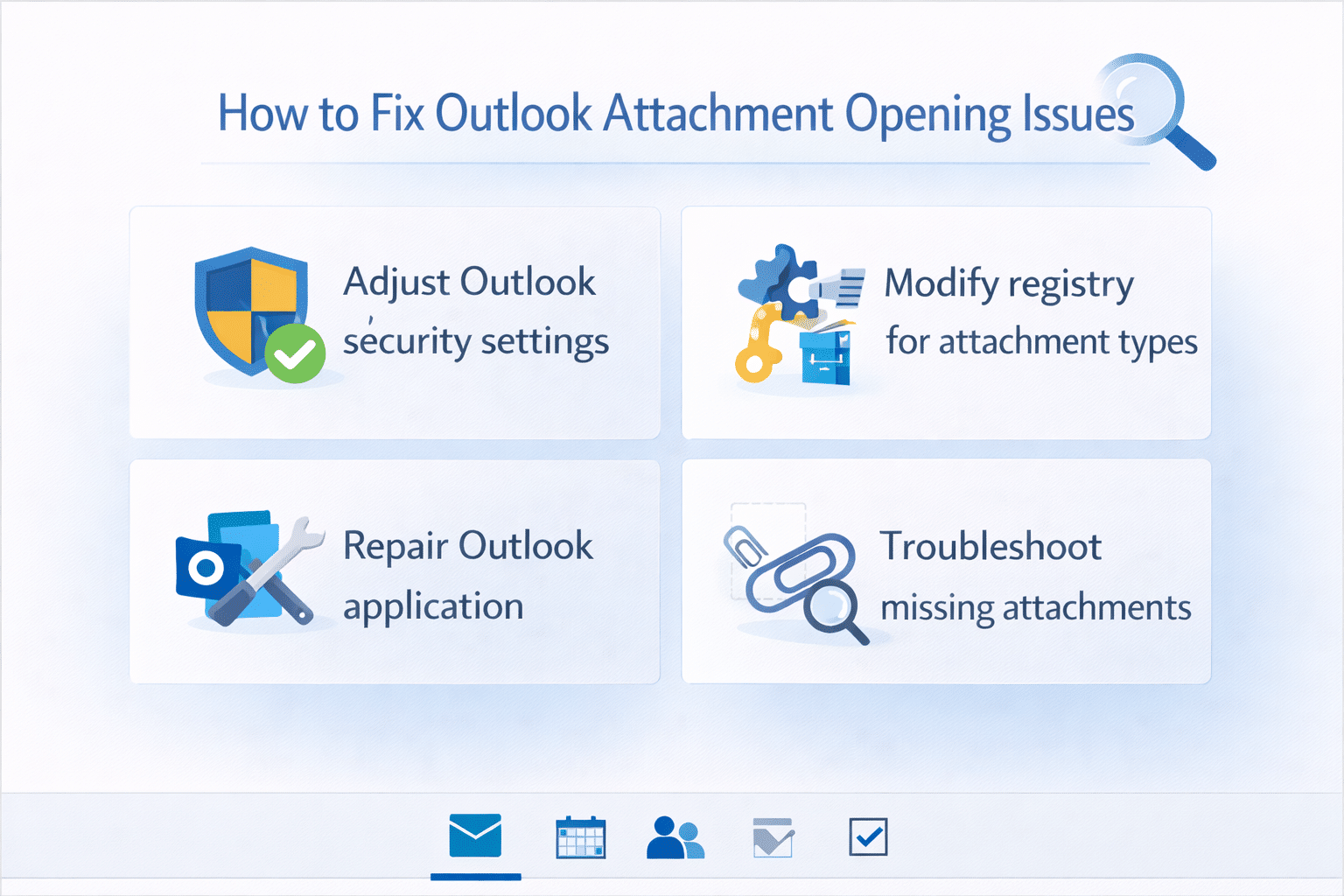
Begin by examining your Outlook security settings, which often block attachment access as a protective measure against potentially harmful files. Navigate to File menu, select Options, then click Trust Center followed by Trust Center Settings to access the comprehensive security configuration panel that controls attachment behavior throughout your Outlook installation.
- Open Outlook and navigate to File > Options > Trust Center > Trust Center Settings to access the primary security configuration area where attachment restrictions are typically configured.
- Select Attachment Handling from the left navigation panel and review the current settings that determine which file types can be opened directly from email messages.
- Uncheck “Don’t allow attachments to be saved or opened that could potentially be a virus” if this option is enabled, as this setting prevents many legitimate file types from opening properly.
- Click OK to save your changes, then restart Outlook completely to ensure the new security settings take effect across all email accounts and folders.
Automatically open attachments in Outlook through application repair
- Access Control Panel through the Windows Start menu and select Programs and Features to view all installed applications on your system.
- Locate Microsoft Office or Microsoft 365 in the program list, select it, then click Change to access the built-in repair functionality that can resolve attachment handling issues.
- Choose Quick Repair first, which addresses common configuration problems without requiring internet connectivity or extensive system modifications while preserving your current settings and customizations.
- If Quick Repair doesn’t resolve the attachment opening problem, run the process again but select Online Repair, which performs a more comprehensive restoration of Outlook’s default functionality.
- Allow the repair process to complete fully, then launch Outlook and test attachment opening functionality with various file types to confirm the repair resolved your specific issue.
Expert Tip: Always create a system restore point before making registry changes, as incorrect modifications can affect other applications or system stability beyond just Outlook functionality.
Attachment not showing in Outlook email troubleshooting
When attachments appear completely missing from emails, the issue often relates to view settings, indexing problems, or corrupted Outlook data files that require systematic diagnosis and repair. These problems frequently occur after system updates, Outlook version changes, or when switching between different email account configurations within the same installation.
- Verify your current view settings by clicking View tab in Outlook, then selecting Reading Pane and ensuring it’s set to Right or Bottom rather than Off, which can hide attachment indicators.
- Check if attachments are being filtered by examining the current folder’s view settings through View > View Settings > Filter to ensure no criteria are hiding messages with attachments.
- Clear Outlook’s search index by navigating to File > Options > Search > Indexing Options > Advanced > Rebuild to refresh the system’s understanding of your email content and attachments.
- Create a new Outlook profile through Control Panel > Mail > Show Profiles > Add to test whether the issue is profile-specific or affects your entire Outlook installation across different configurations.
- Run Outlook in Safe Mode by pressing Windows + R, typing “outlook /safe” and pressing Enter to launch without add-ins that might interfere with attachment display or functionality. Learn more about starting Outlook safe mode.
Why can I not open attachments on my emails – common solutions
- Antivirus interference: Temporarily disable real-time scanning in your antivirus software to test if security programs are blocking attachment access, then configure appropriate exceptions for Outlook if this resolves the issue.
- File association problems: Right-click any file of the same type on your desktop, select Open With, choose the appropriate application, and check “Always use this app” to ensure Windows knows which program should handle specific attachment formats.
- Outlook add-in conflicts: Access File > Options > Add-ins > COM Add-ins > Go and systematically disable third-party add-ins one at a time to identify which extension might be preventing proper attachment handling.
- Corrupted OST or PST files: Use the built-in Inbox Repair Tool (scanpst.exe) located in your Office installation directory to scan and repair data file corruption that can prevent attachments from displaying or opening correctly.