To create an Outlook recurring meeting on the first working day of each month, use a monthly first weekday pattern instead of choosing day 1. That pattern moves a Saturday or Sunday month start to Monday. It does not understand company holidays, so holiday exceptions still need a deliberate edit.
Classic Outlook exposes the clearest control for this schedule. New Outlook and Outlook on the web can show different custom-repeat choices as features roll out. If your client does not offer first weekday, create the series in classic Outlook and then manage individual occurrences from either client.
Define what “working day” means for this series
Outlook’s recurrence model can select weekdays, but your business calendar may exclude more than weekends. Decide which rule you actually need:
- First weekday: the first Monday through Friday in each month.
- First configured workday: based on a team pattern that may not be Monday through Friday.
- First business day: excludes weekends plus public and company holidays.
- First day everyone is available: depends on attendee and room calendars.
Only the first rule is a native monthly recurrence pattern. The others require exceptions, automation, or a manual monthly review. Changing which days Outlook treats as your work week changes calendar display and free/busy expectations, but it should not be treated as a holiday-aware recurrence engine.
Check the next three months before inviting anyone
Open a calendar and note the first calendar day of the next three months. Include at least one month that starts on a weekend if possible. This gives you a simple preview set before a large attendee list receives the series.
Also identify holidays that could affect the first weekday. If January 1 is a weekday but your office is closed, Outlook can still schedule the recurrence there.
Create the first-weekday series in classic Outlook
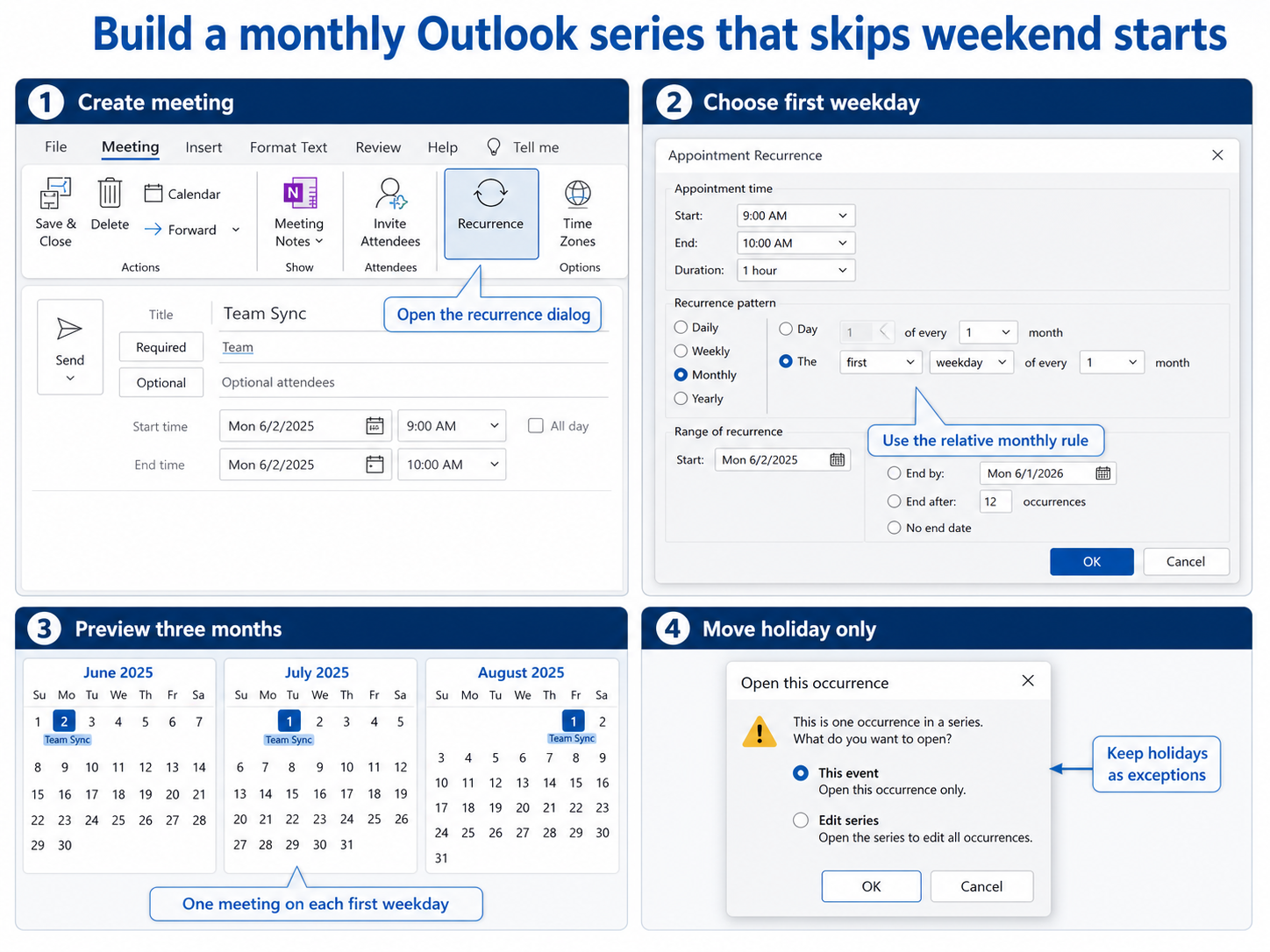
Create a new meeting with its subject, attendees, location or Teams meeting setting, start time, and duration. Then select Meeting > Recurrence. Microsoft also documents Ctrl+G as a shortcut for making the meeting repeat.
In Appointment Recurrence:
- Choose Monthly.
- Select the relative pattern beginning with The rather than the fixed day-of-month option.
- Choose first and weekday.
- Set the interval to every 1 month.
- Choose an appropriate start date and an end date or number of occurrences.
- Select OK, review the meeting, and send it.
Do not select day 1 of every 1 month. That is an absolute monthly recurrence and will put the meeting on the weekend whenever the first falls on Saturday or Sunday.
Preview the generated occurrences
After saving, switch to Month view and inspect several occurrences. You should see Monday when a month begins on Saturday or Sunday. Check the meeting time and time zone as well, especially if the series crosses a daylight-saving transition.
The general recurring-meeting setup path is helpful for finding repeat controls in other Outlook clients. Return to classic Outlook when the custom menu does not expose a relative first-weekday choice.
Handle holidays as occurrence exceptions
A first-weekday pattern treats Monday through Friday as eligible even when the office is closed. Open the single occurrence that lands on a holiday, choose to edit This event or Just this one, and move it to the next working day. Send the update only for that occurrence when the client offers the choice.
Avoid changing the series pattern to solve one holiday. Editing the entire series can recalculate future dates, reset exceptions, or create attendee confusion. Use a clear subject suffix such as “Holiday move” only if participants need the reason.
For a company with many regional holiday calendars, schedule the series for a limited range such as 6 or 12 months. Review the next range before extending it. A finite series makes holiday maintenance visible and reduces long-lived exceptions.
Prevent duplicate meetings while correcting the pattern
Duplicates usually appear when the organizer creates a replacement series but leaves the old one active. Before sending a new first-weekday series, search the calendar by subject and organizer. Open each result and determine whether it belongs to the old series or is a single exception.
If the current series has few exceptions, edit the series recurrence and send one series update. If it has many moved occurrences, changing the pattern may produce surprising results. In that case, cancel the old series from a clear cutoff date and create a replacement beginning after that date.
Keep one organizer and one authoritative series
Do not copy an attendee’s meeting into a second organizer’s calendar and call it the replacement. Only the organizer controls updates and cancellations. Use one account to own the new series, and state the transition date in the update message.
Rooms can expose duplicates before people notice them. Use Scheduling Assistant to inspect the room and key attendees for the first three occurrences. If both old and new meetings appear, cancel the obsolete organizer-owned series rather than asking attendees to delete copies locally.
Choose the right fallback for nonstandard calendars
If the meeting must always occur after every regional holiday, a native first-weekday series is not sufficient. The safest low-volume approach is a finite series plus reviewed exceptions. For a formal business calendar, an administrator or automation owner can generate individual meetings from an approved holiday source.
Do not assume Outlook’s visible holiday calendar changes recurrence evaluation. Adding holidays helps you see conflicts; it does not automatically shift a relative weekday meeting.
Common questions about monthly workday meetings
Is the first weekday always the first business day?
No. It skips Saturday and Sunday, but a Monday public holiday still qualifies as a weekday. Move that occurrence manually or use a controlled calendar process that knows your organization’s holiday list.
Why does my Outlook only offer a fixed monthly date?
Client interfaces differ. Open the meeting in classic Outlook and use Meeting > Recurrence, then choose the relative The first weekday of every 1 month pattern. If your organization has disabled classic Outlook, use the available custom repeat options or create reviewed individual events.
Can I change an existing series without resending every invitation?
Changing recurrence affects the series and normally requires an update to attendees. For a single holiday, edit only that occurrence. For a broad pattern change, send the series update and check that prior exceptions did not reset.
Why did a second set of meetings appear?
The old series may still exist alongside a replacement, or an attendee may have copied events. Search by subject and organizer, compare recurrence ranges, and cancel only the obsolete organizer-owned series. Deleting local attendee copies does not cancel the source invitation.
Review the calendar, not just the recurrence dialog
The correct setup is monthly, relative, first, and weekday. The reliable process also previews upcoming months, moves holiday exceptions one occurrence at a time, and confirms the old series is not still active. With one authoritative organizer and a finite review horizon, the meeting lands on the intended weekday without creating a second calendar trail.