A missing ChatGPT conversation is not always a deleted conversation. The left sidebar intentionally shows a compact list of recent chats, archived chats stay outside that list, and a different account or workspace has its own history. Search and account checks can often bring an existing conversation back into view.
Deletion is the important boundary. OpenAI states that a deleted chat cannot be recovered through ChatGPT, an API, or Support. The goal of this guide is to locate chats that still exist and recognize early when an irreversible action or Temporary Chat explains the gap.
Classify what disappeared before changing settings
Start with the pattern rather than clearing cookies or reinstalling an app. A single missing title, an empty sidebar, and an absent Temporary Chat point to different causes.
| What you notice | Best first check |
|---|---|
| An older chat is absent from the sidebar | Search for a phrase from the conversation |
| One chat vanished after you cleaned up the list | Open Archived Chats in Data controls |
| Every conversation is missing | Verify the account, sign-in method, and workspace |
| Web has history but the app does not | Reload the app and check service status |
| The chat was labeled Temporary | It was never intended to appear in history |
| You confirmed Delete or Delete all chats | The deleted conversations cannot be restored |
Separate one missing chat from an empty account
If only one title is missing, search and archives are the highest-value checks. If the whole list is empty, verify the email address, authentication method, and selected workspace first. An account reached through Google sign-in can be different from one reached through another email or SSO path.
Do not treat the short sidebar as the full database
OpenAI explains that older conversations may be trimmed from the fast-loading recent sidebar without being deleted. Search forces ChatGPT to fetch matching conversations from the source. This design keeps the sidebar responsive while leaving saved chats discoverable.
Search beyond the recent-chat sidebar
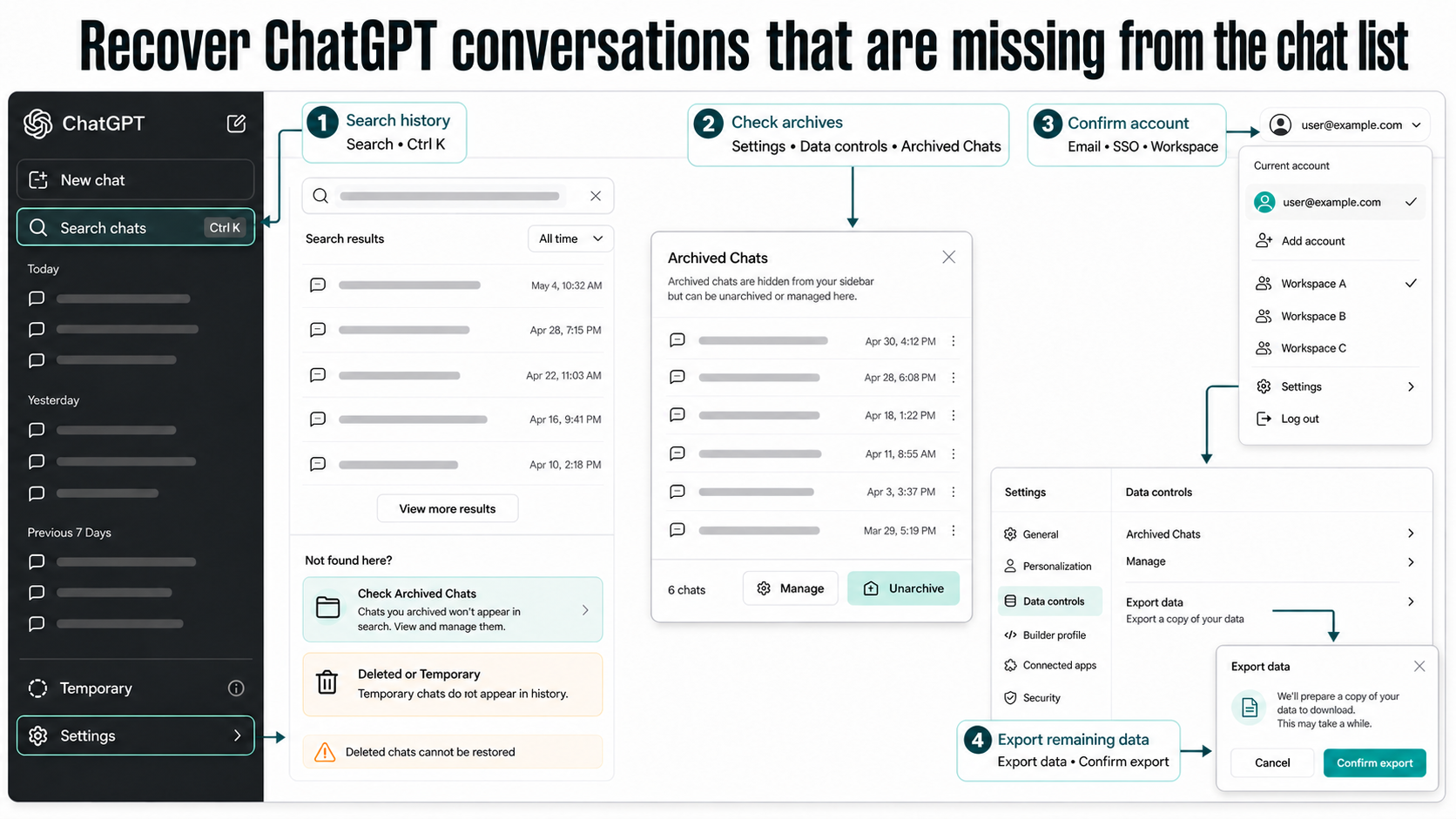
On the web, select the magnifying glass in the left sidebar or press Ctrl+K on Windows and Cmd+K on macOS. Search for a distinctive phrase from your prompt or response rather than relying only on the auto-generated title. Open a result to read or continue the conversation.
On iOS or Android, open the sidebar and use its Search bar. Newly created conversations normally become searchable shortly after they happen. Archived chats can also appear in results even though they are hidden from the ordinary sidebar.
If Search itself stays blank or the conversation list never finishes loading, the problem may be wider than one missing item. The browser and app checks in this chat-list troubleshooting path help separate a display failure from a conversation that is genuinely absent.
Restore an archived conversation to the sidebar
Archiving hides a chat without deleting it. To inspect the archive on supported ChatGPT interfaces:
- Open your profile menu and select Settings.
- Choose Data controls.
- Find Archived Chats and select Manage.
- Locate the conversation and choose Unarchive.
The chat returns to the active history list. You can also leave it archived and open it through Search when needed. Avoid selecting Delete inside the archive unless you intend to remove the conversation permanently.
Verify the account, workspace, and sign-in method
ChatGPT can present different histories for a personal account and a managed Business, Enterprise, Edu, or Healthcare workspace. Open the account menu and confirm the expected email and workspace name. Repeat the check in the browser and mobile or desktop app instead of assuming they use the same session.
Match the authentication path you originally used
Use the same method that created the conversation: email and password, Google, Microsoft, Apple, or organization SSO. If you normally enter through Google, confirm the sign-in route associated with that identity before concluding that the history was erased.
An administrator can help confirm workspace membership, but they cannot restore a deleted personal chat. For managed workspaces, retention and export availability may depend on organization policy, so contact the workspace owner when the missing material belongs to company data.
Reload the history without destroying useful clues
Check the official OpenAI status page for an active ChatGPT incident. A temporary service problem can hide or delay the sidebar even though the conversations remain stored. During an incident, wait for recovery and refresh before making account changes.
When status is normal, reload the page, close and reopen the app, or sign out and back in to the verified account. Test the web version in a private browser window if an extension may be interfering. Keep cache deletion until after account and archive checks, because it removes local session information without restoring server-side data.
If one device shows the full history, use that working surface to search, archive, or copy important content. That is stronger evidence that the account data still exists and the other client has a loading or session problem.
Use an export to confirm what the account still holds
Eligible signed-in accounts can open Settings > Data controls > Export data, select Export, and confirm the request. OpenAI sends the download link by email or SMS; the link expires 24 hours after delivery, and the export can take up to seven days to arrive.
The downloaded ZIP includes eligible chat history and other account data. Search it for a title, date, or distinctive phrase. An export can confirm and preserve conversations that remain in the account, but OpenAI explicitly says it cannot restore chats that were already deleted.
Self-service export is available for ChatGPT Free, Go, Plus, Pro, and eligible Edu workspaces. It is not available from Settings for logged-out users or ChatGPT Business, Enterprise, and Healthcare workspaces; those users should ask the workspace owner about organization-managed access.
Questions before you call a ChatGPT chat deleted
Can OpenAI Support restore a deleted ChatGPT conversation?
No. OpenAI’s retention guidance says deleted chats are not retrievable through the interface, APIs, or Support. They disappear from the account immediately and are scheduled for permanent deletion from OpenAI systems within 30 days, subject to stated legal or de-identification exceptions.
Why can Search find a chat that the sidebar does not show?
The sidebar keeps a compact recent-chat cache for speed. Older saved conversations can fall out of that quick list while remaining searchable. Opening a matching result fetches the conversation and may refresh its sidebar visibility.
Will a Temporary Chat appear after I sign out and back in?
No. Temporary Chats do not appear in history and ChatGPT does not remember their contents as ordinary conversation history. OpenAI may retain a safety copy for up to 30 days, but that does not make the chat recoverable from your history.
Does turning off model training remove saved chats?
No. OpenAI’s Data Controls guidance says turning off Improve the model for everyone does not remove conversations from history. Temporary Chat is a separate mode and is specifically excluded from the history list.
Keep important conversations recoverable
Use Archive when you want a cleaner sidebar without losing a conversation, and reserve Delete for material you are certain you no longer need. Search by memorable prompt text before assuming an older chat is gone. Export important account data periodically and copy business-critical decisions into the system where the work belongs. Those habits will not undo deletion, but they make ordinary sidebar gaps and account mix-ups far easier to resolve.