When Edge workspaces not syncing devices is the problem, the first thing to check is not the workspace itself. Edge Workspaces depends on the browser profile, the main Edge sync service, and the newer Workspaces and Tab Groups sync options. If any one of those layers is off, the workspace can look normal on one computer while missing tabs, groups, or the whole workspace on another.
Use the checks below when a workspace appears on your main PC but does not show correctly on a second Windows or Mac computer. The goal is to separate a profile mismatch from a sync setting issue, then refresh the workspace without deleting useful tabs.
Start with the profile that owns the workspace
Open Edge on the device where the workspace is still correct. Select the profile icon in the upper-right corner and confirm the account shown there. Then open Edge on the second device and check the same profile area before changing any workspace settings.
This matters because Workspaces follow the signed-in Edge profile. A personal Microsoft account, a work or school account, and a second tenant profile can each have different sync states. If you create the workspace under one profile and open Edge under another, the workspace will not appear even though Edge itself looks signed in.
Quick profile checks
- Confirm both devices use the same Edge profile account.
- Make sure the profile says sync is on, not paused or waiting for sign-in.
- Close any guest, temporary, or secondary profile windows.
- Avoid testing from InPrivate windows because they are not a normal workspace sync test.
- If this is a managed work account, note whether your organization controls sync settings.
If the profile is wrong, switch to the correct account and wait a few minutes before touching the workspace. If the profile is correct but sync is paused, sign in again and let Edge finish syncing basic data first.
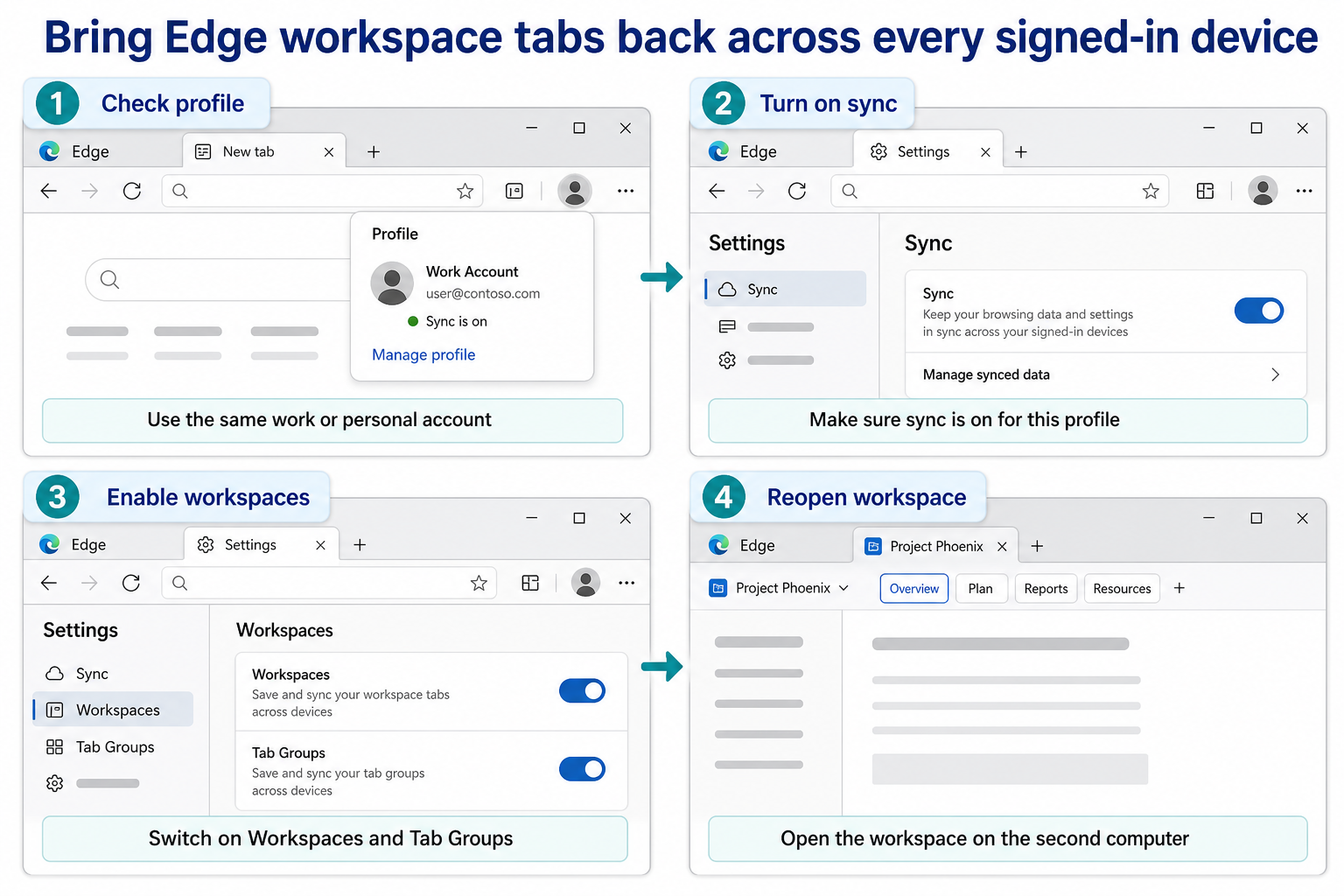
Turn on Edge sync for this profile
In Edge, open Settings, then go to Profiles and Sync. Confirm that sync is enabled for the profile on both devices. Microsoft documents Edge sync as the feature that keeps browser data such as favorites, history, passwords, settings, open tabs, and workspaces available across signed-in devices.
Do not reset sync as the first fix. A reset can remove cloud sync data and make it harder to know whether the workspace issue was caused by the second device, the current profile, or a temporary service delay. Start by confirming that sync is active and that the affected device has a stable connection.
What to check under Sync
Look for a Workspaces option and a Tab Groups option in the Sync page. Microsoft now describes Workspaces and Tab Groups as syncable Edge items, but availability can vary by device type, region, and browser version. If those toggles exist, turn them on for the same profile on every device that should receive the workspace.
If the toggles are missing, update Edge, restart the browser, and check again. On work-managed computers, the option may also be controlled by policy, so a user may not be able to enable it manually. In that case, capture the profile account, Edge version, and missing toggle before asking an administrator to review sync policy.
Refresh the workspace without losing tabs
After confirming the profile and sync toggles, return to the device where the workspace is still correct. Close duplicate Edge windows, leave one workspace window open, and wait briefly for the tab list to settle. Then open the workspace menu and confirm that the expected workspace name and tabs are still present.
On the second device, close Edge completely and reopen it under the same profile. Open the Workspaces menu rather than relying on a pinned taskbar shortcut or an old browser window. Cached windows can reopen a stale session that does not reflect the current cloud copy.
- Confirm the workspace is correct on the source device.
- Turn on Workspaces and Tab Groups sync on the source device.
- Turn on the same sync options on the second device.
- Fully close and reopen Edge on the second device.
- Open the workspace from the Workspaces menu and compare the tabs.
If the workspace appears but some tabs are missing, check whether the missing pages were local files, internal intranet pages, expired sessions, or pages that require a different signed-in web account. Workspaces can carry the tab structure, but a second device still needs access to each site or file.
Fix partial sync and stale workspace windows
Partial sync is common when Edge sync is working for favorites or passwords but not for workspace tabs. In that case, focus on the newer sync categories instead of assuming the whole browser profile is broken. Turn Workspaces and Tab Groups off, restart Edge, turn them back on, and wait before testing again.
If Edge shows old tabs on the second device, close the workspace there before reopening it. A stale local workspace window can keep showing its previous tab set. Reopening from the workspace picker forces a cleaner comparison with the cloud state.
Be careful with password and profile troubleshooting at the same time. If the same user also reports that Edge is not remembering sign-ins, handle that separately with the guide to the browser setting checks. Password sync, saved sessions, and workspace tabs can look related, but they should be tested one layer at a time.
When this is probably an admin or policy issue
Escalate the issue when the same Edge profile syncs normally on a personal device but the Workspaces or Tab Groups toggle is missing on a work computer. That pattern usually points to device management, enterprise sync configuration, or a browser version controlled by the organization.
Send the administrator a short summary instead of a general complaint that sync is broken. Include the profile type, Edge version, device names, whether normal favorites sync works, and whether the Workspaces and Tab Groups options appear under Sync. If your team is also troubleshooting Microsoft 365 file sync, compare the symptoms with that follow-up checklist so you can separate browser sync from OneDrive or Teams storage sync.
Run a two-device workspace sync proof
Use one harmless test tab to prove whether the workspace service is syncing before deleting, renaming, or rebuilding a real workspace. Both devices should use a supported desktop version of Edge and the same signed-in profile. Keep both devices online and prevent sleep until each direction has been checked.
Confirm the profile on both devices
Open Edge Settings on each computer and compare the account shown under Profiles. A work profile and a personal profile with similar display names are separate identities. Update Edge on both devices before testing.
Enable the workspace sync control
On each device, select Settings and more, open Settings, choose the profile, and select Sync. Turn on Workspaces and Tab Groups. If the toggle is missing, disabled, or managed, stop and ask the administrator to review the profile’s sync policy.
Add a unique neutral tab
On the first device, open the affected workspace and add a public page that contains no private session or local file, such as a product help page. Place it last and note the page title. Do not close or delete any existing workspace tabs during this test.
Check the second device after a clean reopen
Close the workspace window on the second device, reopen Manage workspaces, and open the same workspace again. Allow time for sync, then look for the unique tab. If favorites sync but the workspace does not, capture the Workspaces and Tab Groups toggle state on both devices.
Prove the return path
Add a different neutral tab from the second device, then close and reopen the workspace on the first. Confirm that both test tabs appear once and in the expected workspace. Remove only the two test tabs. If either direction fails, record the Edge versions, profile type, sync status, workspace name, and direction of failure before escalating; do not delete the workspace as a diagnostic shortcut.
A few practical questions
Why do my Edge favorites sync but Workspaces do not?
Favorites and Workspaces are separate sync categories. Basic sync can be active while the Workspaces or Tab Groups toggle is off, unavailable, or controlled by policy. Check the full Sync page for the current profile instead of stopping at the first sign that favorites are syncing.
Will deleting the workspace fix the problem?
Deleting should be a last resort. It can remove the useful source copy before you know whether the second device was using the wrong profile or missing a sync toggle. First confirm the source workspace, sync settings, Edge version, and second-device access.
Do Workspaces sync local files or private site sessions?
Do not assume every tab will reopen with full access on another device. The workspace can preserve browser tabs, but the second computer still needs access to local files, work sites, intranet pages, and signed-in services. If only those tabs fail, the sync problem may actually be an access problem.
What should I do if the Workspaces toggle is missing?
Update Edge, restart the browser, and check the same profile again. If the device is managed by your organization, ask an administrator whether Edge sync or Workspaces sync is restricted by policy. Include screenshots of the Sync page and the profile account, but avoid sharing private tab content.
A cleaner way to finish
The clean fix is to prove the profile first, enable Edge sync, confirm Workspaces and Tab Groups sync, and reopen the workspace from the picker on the second device. If those checks pass and the workspace still does not move across devices, capture the missing toggle or stale workspace behavior and escalate it as a profile or policy-specific Edge sync issue.
Before you ask
Should I test this in the web app first?
Yes. The web app is a useful control because it removes part of the local desktop app from the test. If the same account works on the web but not in the desktop app, focus on cache, updates, add-ins, or the local profile before changing tenant-wide settings.
What if the same setup works for another user?
That usually points to an account, license, permission, or profile difference rather than a broken feature for everyone. Compare the affected user’s role, mailbox or file access, app license, and client version before rebuilding the workflow.
When should I ask an administrator to check this?
Escalate when several users see the same symptom, when the setting is controlled by policy, or when the fix requires access you do not have. Give the administrator the affected account, client, time of the test, and the exact result from the web or desktop comparison.