Outlook mail that vanishes after delivery usually leaves a trail. The message may be moved by a rule, swept into Archive, placed in Junk Email, removed by retention, or deleted by another client that is signed in to the same mailbox. The mistake is to treat every disappearance as one problem.
Work from the result backward. First confirm whether the message moved to another folder, then test the automation that could have moved it. If you change rules, mobile settings, and retention assumptions at the same time, you may stop the symptom without learning which control caused it.
Start with the route the message took
Pick one message that disappeared recently and search for its sender, subject, and a unique word from the body. Search All Mailboxes or All Outlook Items, not only the Inbox. If the message is in Deleted Items, Archive, Junk Email, or a project folder, Outlook did not lose it. Something moved it.
If search cannot find it, check Recoverable Items where your Outlook version exposes that option. Deleted-item recovery is time limited and depends on mailbox policy, so restore the important message before you spend time diagnosing why it moved.
Use one test message
Send yourself a new test message from a different account with a unique subject, such as “Inbox routing test Monday 9 AM.” Watch it in Outlook on the web first. If it remains in the Inbox there but disappears in the desktop app, the desktop client, add-in, or local profile deserves more attention. If it disappears everywhere, start with server-side rules and policies.
Rules and cleanup actions are the first suspects
Inbox rules are the most common cause because they can process matching mail automatically. A forgotten rule can delete reports, move invoices, or archive newsletters long after you created it. Conditions also become too broad when a sender changes its display name or when a subject line starts using the same keyword as your rule.
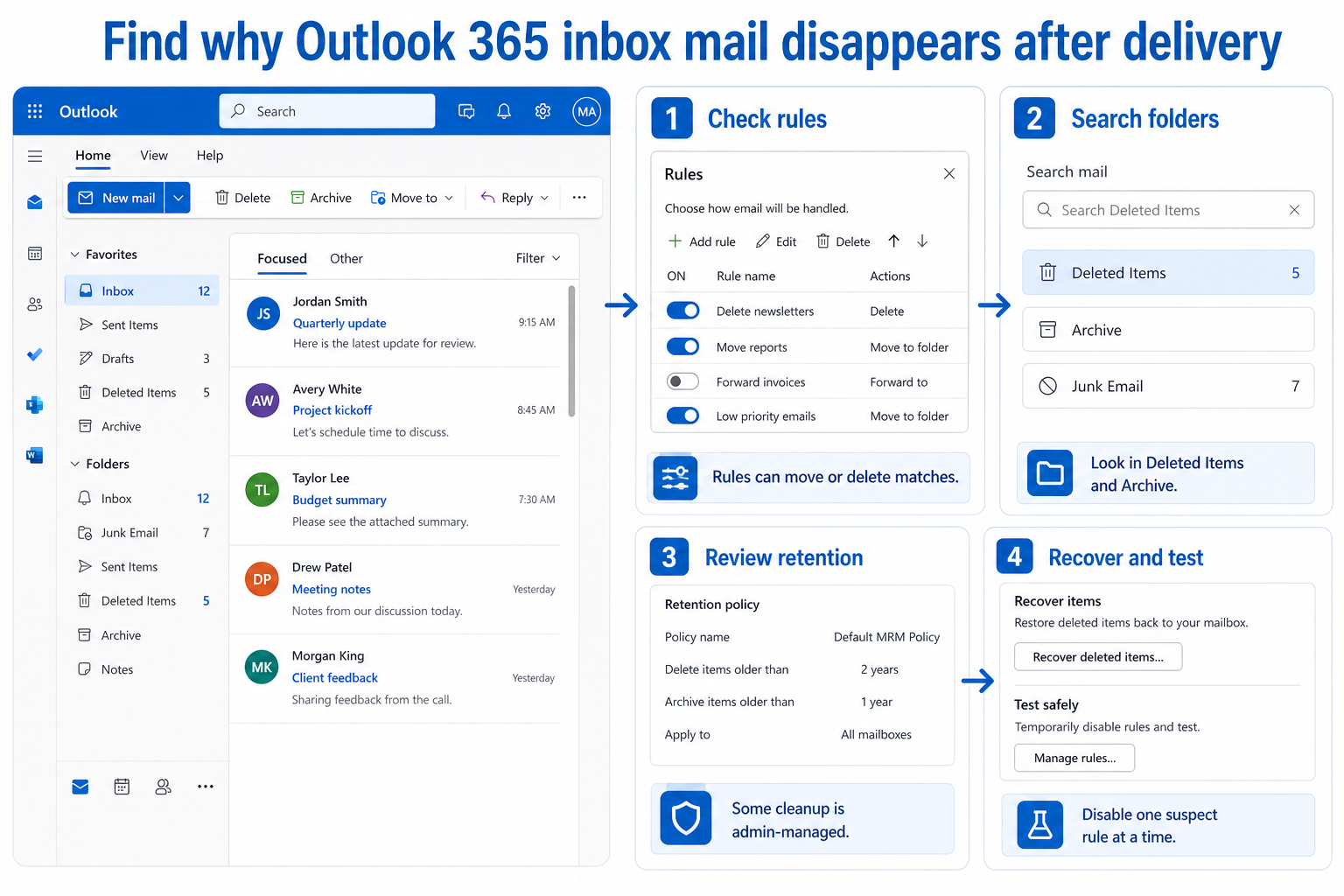
Open your rule list and look for actions that delete, move, forward, redirect, or mark messages as read. Do not delete every rule. Turn off the rule that best matches the affected message, send the test message again, and record the result. If the test message stays put, revise the rule instead of rebuilding the mailbox.
When the rule list is messy, compare it against a clean rule workflow before editing. That related guide is useful here because it reminds you to check both the condition and the action, not just the rule name.
Check folders before changing retention
A message in Archive is not the same as a message in Deleted Items. Archive usually means a mailbox action moved it for storage. Deleted Items means a delete action occurred, either from a rule, a client, a delegate, or the user. Junk Email can also look like deletion if you only watch the Inbox.
Check these places before assuming the message is gone:
- Deleted Items, including any recovery option your mailbox exposes.
- Archive and custom project folders.
- Junk Email and quarantine notifications if your organization uses them.
- Focused and Other tabs, because filtered views can make mail look missing.
- Shared mailbox folders, if more than one person can act on the same messages.
Keep a short note of where each test message lands. Patterns matter. One sender landing in Archive points to a different cause than every external message landing in Deleted Items.
Recovery and retention need a different conversation
If the message is already deleted, recover the important item before you continue testing. Use the recovery steps while the message is still within the recoverable window. Recovery first, root cause second.
Retention policies are different from personal rules. Microsoft Purview retention can keep, delete, or keep and then delete content according to an organizational policy. A normal mailbox user may not be able to see every policy that applies. If mail disappears after a predictable age, or only in a regulated shared mailbox, ask an administrator to check retention and audit details.
What admins can see that you cannot
Administrators may be able to review retention labels, mailbox audit events, transport rules, and shared mailbox delegate activity. Those checks matter when several users say the same mailbox is losing mail. They also matter when the affected messages are sensitive, because repeated test deletions can make recovery harder.
Connected clients can undo your fix
Outlook on a phone, a desktop add-in, a third-party mail client, or a delegate can keep moving mail after you fix the web rules. Temporarily sign out old mobile devices, disable mailbox add-ins, and test in Outlook on the web with the desktop app closed. This narrows the problem without rebuilding your profile too early.
Shared mailboxes need extra discipline. Ask other delegates whether they use cleanup rules, quick steps, or mobile mail apps. If nobody coordinates the test, one person can re-enable the behavior while another person thinks the rule was fixed.
Questions you might have
Why does Outlook delete mail without asking me?
Outlook usually does not delete messages at random. A rule, sweep action, mobile client, delegate, retention policy, or junk filter normally performs the action. The right test is to find where the message lands and then disable one suspect at a time.
Should I remove every Outlook rule?
No. Removing every rule makes the mailbox harder to audit and can break useful routing. Disable one likely rule, test with a fresh message, and then edit the condition if that rule caused the move.
What if the email is not in Deleted Items?
Search Archive, Junk Email, custom folders, and any Focused Inbox view before assuming it is unrecoverable. If search and recovery both fail, the next step is an admin review of retention, audit, and server-side processing.
Can a phone delete mail from Outlook 365?
Yes, if the phone is connected to the same mailbox and the user or app deletes or moves a message. The change syncs back to Microsoft 365. That is why testing in Outlook on the web with other clients closed is useful.
What to change last?
Rebuilding the Outlook profile, reinstalling the app, or asking IT to change retention should come after the routing test. Most disappearing-mail cases become clearer once you know whether messages are being moved, deleted, or hidden by a view. Protect the important message first, test one cause at a time, and keep the final rule or policy change narrow enough that it does not create a new mailbox problem.