Create Email Rules and Filters in Outlook 365 when your inbox is full of repeat messages that always need the same treatment. A good rule moves vendor invoices, flags messages from a manager, categorizes support mail, or deletes newsletters before they interrupt you. The trick is to build rules from the right Outlook interface, keep each condition specific, and check the rule order before you trust the automation.
Create Outlook rules from messages
Start with one reliable message
Pick a message that represents the mail you want to filter, not a one-off exception. In new Outlook for Windows, right-click the message, point to Rules, and choose Create rule. If you only need to move future mail from that sender, choose the folder and save the rule.
My rule setup is cleaner when I start from a real message because Outlook fills in the sender correctly.
Use this quick method for simple sender-based rules: receipts from one address, reports from one service, or team updates from a distribution list. Avoid using it for broad subjects like “invoice” until you check whether unrelated messages also use that word. A rule that is too loose creates a second cleanup job.
Open the full rules settings
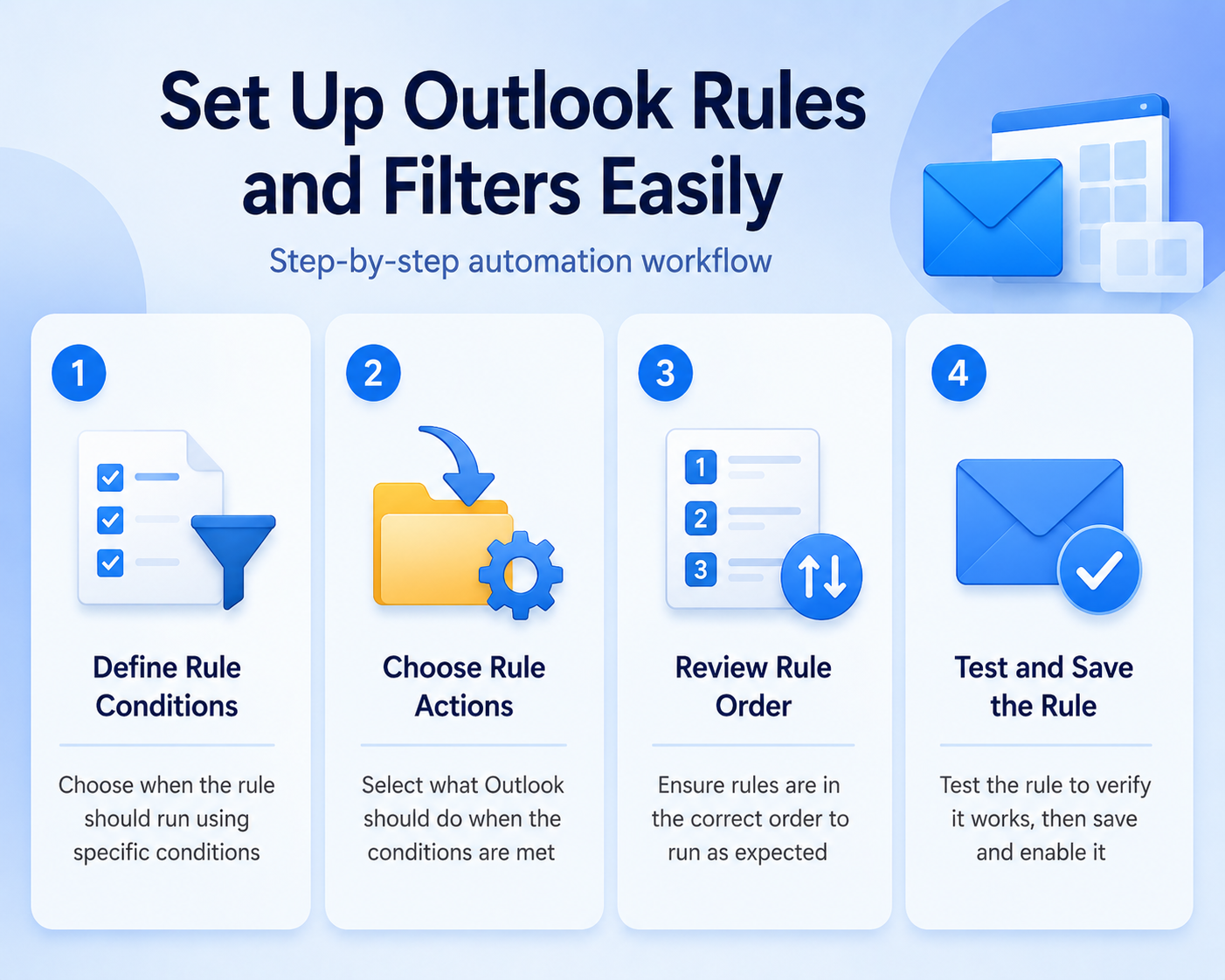
For anything more precise, choose More options from the rule dialog or open Settings >> Mail >> Rules in new Outlook. Microsoft documents that each rule needs a name, a condition, and an action, and that rules can also include exceptions. Give the rule a plain name such as “Move vendor receipts” or “Flag manager requests” so you can recognize it later.
- Choose a condition that identifies the message, such as sender, subject words, recipient, category, or importance.
- Choose the action Outlook should take, such as move, categorize, mark as read, flag, forward, or delete.
- Add an exception if the rule should skip urgent mail, direct mail, or messages from a specific sender.
- Save the rule, then send yourself a test message when the condition is easy to reproduce.
If you are also trying to reduce notification noise, pair rules with focused alert settings. The guide to quiet Outlook alerts is useful once the messages are already being categorized or moved.
Use classic Outlook templates carefully
Classic Outlook still has File >> Manage Rules & Alerts >> New Rule, with templates for moving mail, flagging messages, and routing messages from people or public groups. This is useful if your organization still uses classic Outlook or if you need options that are not exposed in new Outlook. Follow the wizard slowly, because the underlined values inside the rule description are where most mistakes happen.
Some classic Outlook rules are client-side rules, which means they run only when Outlook is open on that PC. New Outlook may not process those migrated rules the same way, so recreate important automations in the new rules settings when possible. If you see warnings about client-side behavior, take them seriously before relying on the rule for time-sensitive messages.
Tune filters for useful automation
Choose actions that reduce handling
The best Outlook filters remove repeated decisions. Move newsletters to a reading folder, categorize client mail by account, flag messages from a manager, or mark automated reports as read after moving them. Do not delete business mail until the rule has run safely for a few days.
For most users, a move rule is safer than a delete rule because you can audit the folder later. A category rule is even safer when the message still needs to remain visible in the inbox. Use flags for messages that should become tasks, not for every message from an important person.
Add exceptions before broad filters
Broad rules need exceptions. If every message from a vendor moves to Receipts, add an exception for subject words like “past due”, “contract”, or “action required” if those need attention. If newsletters are moved automatically, exclude mail where your address appears in To instead of Cc or a list header.
The exceptions are what turn a blunt filter into a trustworthy workflow. I usually add one exception for urgency and one for direct messages before saving a broad rule.
When Outlook seems delayed after rule changes, refresh and sync behavior can look like a rules problem. The related guide to refresh Outlook inbox mail helps if messages do not appear or move until much later.
Set rule order deliberately
Outlook applies inbox rules based on their order. Put specific rules above broad rules, such as “Move mail from payroll@example.com” above “Move all payroll subject lines”. If a broad rule runs first, it may move the message before a later rule can categorize or flag it.
Use Settings >> Mail >> Rules in new Outlook to move rules up or down. If a rule should prevent later rules from changing the same message, use Stop processing more rules when the option fits the workflow. Keep a short note in the rule name when order matters, such as “01 manager flag” and “02 client move”.
Build Outlook rules that remain understandable and reversible
Start with a reversible check that separates configuration from missing data. Start with a narrow condition and move messages rather than deleting them. Do not combine several repairs at once; a successful result would not reveal which change mattered.
Isolate the failing layer
Add exceptions for important senders or keywords before enabling a broad rule. Place stop-processing behavior deliberately because rule order changes outcomes. Use a non-sensitive sample and the normal user account so owner or administrator privileges do not hide the problem.
Test with existing noncritical messages. Preserve the original state until the new result survives a restart or synchronization cycle.
Verify normal use
Check whether the rule runs on the server or requires Outlook to be open. Review rules periodically for obsolete folders and conflicting conditions. Compare the outcome with the expected business workflow, not only a one-time technical test.
Record the application version, account type, device, time, and exact error if behavior still differs. That evidence helps support distinguish a local cache, profile, permission, data, policy, hardware, or service problem. Remove names, addresses, file content, and credentials from screenshots before sharing them.
Have another authorized user repeat the shortest safe test when shared access is involved. Reverse experimental settings that did not help, and keep a note of the final working condition for the next update or device change. Recheck the result after the next sign-in or scheduled cycle when timing can affect it. Keep a concise note of the successful condition so it can be restored later. Verify that the change did not alter unrelated files, permissions, or settings. Recheck the result after the next sign-in or scheduled cycle when timing can affect it. Keep a concise note of the successful condition so it can be restored later.
Troubleshoot broken Outlook rules
Check account and Outlook version
New Outlook rules do not currently manage third-party accounts such as Gmail, Yahoo, and iCloud inside Outlook. Configure those rules in the original mail provider instead. Also confirm whether you are using new Outlook, classic Outlook, Outlook on the web, or Outlook.com because the rule screens and available actions differ.
If the steps do not match your screen, switch tabs in Microsoft’s Outlook rules article or search Outlook settings directly for Rules. Do not create duplicate rules in multiple clients until you know where the mailbox actually processes them. Duplicate filters can move the same message twice or leave it in an unexpected folder.
Run rules on existing messages
Most rules apply to new incoming mail after they are created. In new Outlook, open Settings >> Mail >> Rules and use Run rule now beside the rule when you want to apply it to existing messages. In classic Outlook, the rule wizard may offer Run this new rule now on messages already in the current folder.
Run the rule on one folder first, then check the destination folder before applying similar rules elsewhere. If you accidentally move too much, sort the destination folder by time received and move the recent batch back. This is another reason to test move rules before delete rules.
Fix rules that stop working
Open the rules list and check whether the rule is disabled, below a broader rule, missing a destination folder, or using an address that changed. Edit the condition so it uses a stable sender address or domain rather than a display name. If a migrated classic rule is marked unsupported, recreate it in the current Outlook rules page.
For shared mailboxes and work accounts, permissions can also affect rule behavior. Ask the mailbox owner or Microsoft 365 admin to confirm whether server-side rules are allowed and whether the account has access to the destination folders. Keep the old rule disabled until the replacement has worked for several days.
Outlook rules questions answered
How do Outlook rules differ from filters?
Outlook usually uses “rules” for automated actions on incoming messages and “filter” for temporary message list views. A filter helps you view unread or flagged mail right now. A rule keeps applying in the background after you save it.
Why are my rules not running?
The most common causes are rule order, disabled rules, unsupported migrated classic rules, missing folders, or rules created for an account new Outlook cannot manage. Check whether the rule works on new incoming messages before testing older mail. Then use Run rule now if you want to process existing messages.
Should I delete emails with rules?
Use delete rules only for low-risk mail you are certain you never need. Moving to a folder or marking as read is safer for work mail because you can audit the result. After a week without mistakes, you can tighten the rule if the folder still fills with noise.
Start with two or three high-confidence rules and tune them for a week. A small, reliable rule set saves more time than a large set of filters you no longer understand.