When SharePoint says a file is locked by another user, the other user may not be actively editing. A desktop Office app, browser tab, checkout state, sync conflict, or crashed session can leave a lock behind. The safest fix is to identify the lock source before making copies.
Open the file from the SharePoint library first, not from a local shortcut. If the library is synced through Teams or OneDrive, compare the behavior with the Teams and SharePoint sync checks so you know whether the lock is really a sync problem.
Find where the file is open
Start with the person named in the lock message. Ask them to close the file in desktop Office, browser Office, Teams, and the mobile Office app. A file can remain locked if it is open in more than one place.
- Check whether the file is open in Word, Excel, or PowerPoint desktop.
- Close browser tabs that have the file open in Office for the web.
- Check Teams Files tabs that may still have the document preview open.
- Wait a few minutes after closing apps before testing again.
If the named user is unavailable, ask a site owner to check version history, checked-out status, and active editing indicators before taking stronger action.
Check checkout, required metadata, and sync conflicts
Some locks are not simple coauthoring locks. A library may require checkout, required metadata may block saving, or OneDrive may be holding a conflicted local copy. These cases need a library-level fix, not repeated Office restarts.
In the SharePoint library, look for checked-out indicators, missing required fields, and sync warning icons. If the file is checked out, the owner or a site owner needs to check it in or discard the checkout. If OneDrive shows a sync conflict, resolve that conflict before editing the cloud version.
Use the browser version as the safe test
After the possible editor closes the file, open it in Office for the web. If browser editing works, the SharePoint lock is cleared and the remaining issue is local Office or OneDrive cache. If browser editing still fails, the lock or checkout is server-side.
- Open the library in SharePoint.
- Select the file and check details, version history, and checkout state.
- Try editing in the browser.
- Return to desktop Office only after browser editing works.
If the file came from a Teams channel, use the Teams files in SharePoint guide to open the real library location instead of working from a copied link.
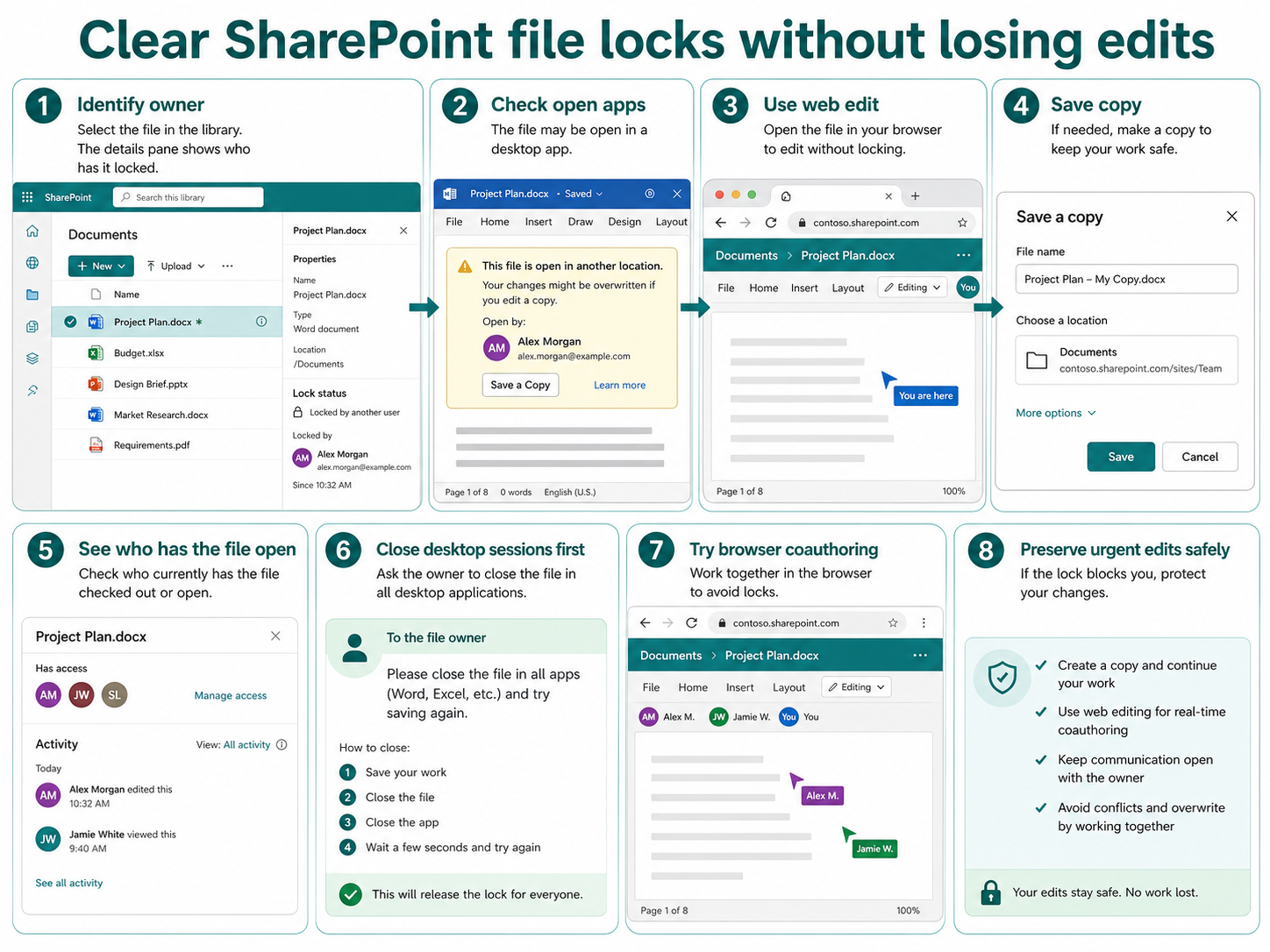
Release a stale checkout without losing another person’s work
A checked-out document is intentionally locked for exclusive editing. Before overriding it, confirm whether the named editor has unsaved changes and whether the library requires checkout for every edit.
Inspect the file in the document library
Open the SharePoint library in a browser, select the file, and review its details and checkout status. Use the file’s More actions menu to look for Check in or Discard check out. If the library requires checkout, the lock is expected behavior rather than a sync fault.
Ask the current editor to finish safely
Contact the person shown as holding the checkout. Ask them to save and close the desktop app, return to the SharePoint library, and choose Check in. They should add a useful version comment when prompted. If their changes are unwanted, they can choose Discard check out after confirming that no work must be preserved.
Confirm the lock actually cleared
Refresh the library and open the document in the browser. Make a harmless edit only if you have permission, save it, and undo the test. If editing works in the browser but a desktop app still reports a lock, close every copy of the app and pause before reopening the file from SharePoint.
Use administrator override only as a last resort
If the editor is unavailable, a site or library administrator with Override Check Out permission can check in or discard another user’s checkout. The administrator should first preserve any accessible copy and record who owned the checkout. Overriding can abandon local changes that were never uploaded.
Verify version history after recovery
Open Version history and confirm the expected latest version, author, and modified time. Reopen the document from its SharePoint link and make sure normal coauthoring or checkout behavior has returned. If locks recur, review the library’s Versioning settings and the team’s collaboration requirements instead of repeatedly forcing releases.
Questions before you make a copy
Why does SharePoint say another user locked the file after they closed it?
The user’s Office app, browser tab, mobile app, or OneDrive sync client may still have a session open. Locks can also take a few minutes to clear after the app closes.
Should I download the file and upload a new copy?
Only as a last resort. A copy can split version history and confuse collaborators. Check active sessions, checkout, metadata, and sync conflicts first.
Who can clear a checked-out file?
The person who checked out the file can check it in. A site owner can usually discard the checkout, but they should confirm that no unsaved changes need to be preserved.
The practical fix is to work from the SharePoint library, prove whether the browser can edit, and clear the specific lock source instead of creating duplicate documents.