Microsoft Copilot has transformed how professionals handle meeting documentation, but writing an effective Copilot prompt for meeting minutes requires specific techniques that most users overlook entirely. Without the right prompt structure, Copilot produces vague summaries that miss critical decisions, action items, and deadlines discussed during your Teams meeting sessions.
This article provides proven Copilot meeting minutes prompts that generate complete, structured notes from any Teams meeting with transcription enabled in your Microsoft 365 environment. You will learn how to craft prompts that capture every important detail, extract action items with assigned owners, and produce professional Microsoft Copilot meeting notes ready for distribution.
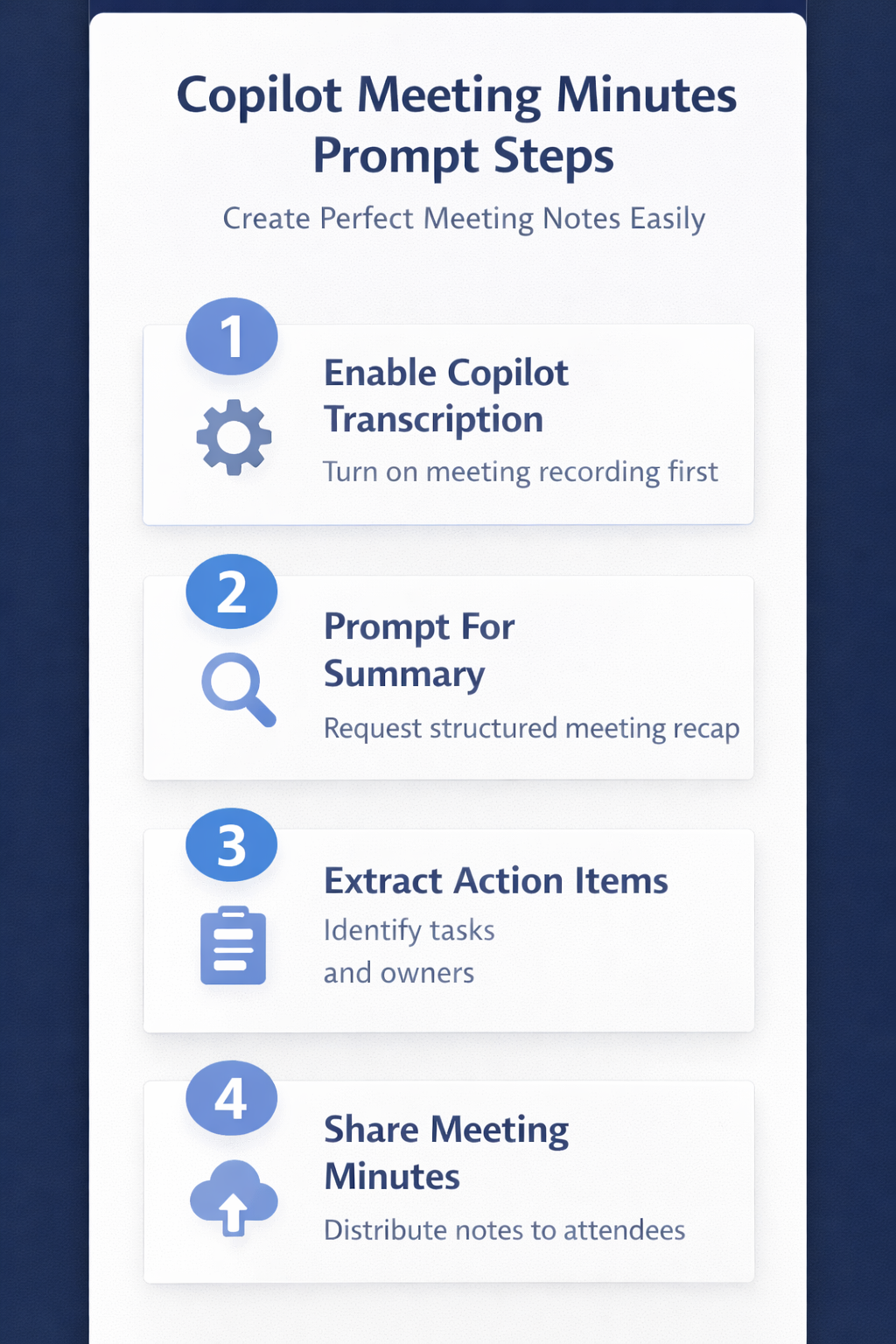
Enable transcription before prompting Copilot
Your Copilot meeting summary prompt will only produce useful results when Teams has a complete transcript of the conversation available for processing and analysis. You must enable transcription or recording before the meeting starts, because Copilot relies on that transcript data to generate accurate meeting documentation for all participants.
Your Teams administrator controls whether transcription is available across your organization, so verify this setting before relying on Copilot for automated meeting notes. If you need help configuring this feature, review this article on enabling Copilot automatic notes in Teams meetings for detailed setup instructions.
Write structured prompts for comprehensive meeting minutes
The most effective Copilot prompt for meeting minutes uses explicit structure that tells Copilot exactly what sections, formatting, and level of detail you expect. A vague prompt like “summarize this meeting” produces a generic paragraph that lacks the organization and specificity that professional meeting minutes require for business documentation.
Use this prompt template to generate thorough Copilot Teams meeting minutes that capture all essential information from your recorded sessions:
- “Summarize this meeting in formal minutes format including attendees, key discussion topics, all decisions made, action items with owners and deadlines, and next steps.” This prompt forces Copilot to organize the output into distinct categories rather than producing a single narrative block that buries important details.
- “List every action item from this meeting with the person responsible and the agreed deadline for each task.” This targeted Copilot meeting minutes prompt extracts only the commitments and responsibilities, which is exactly what managers and project leads need after a planning session.
- “Create a meeting recap organized by agenda topic, noting who contributed to each discussion point and what conclusions the group reached.” This approach produces a Copilot meeting summary prompt output that maps directly to the original meeting agenda for easy cross-reference and follow-up tracking.
Use follow-up prompts to refine your meeting notes
Your initial Copilot prompt meeting recap may not capture every nuance, so follow-up prompts allow you to drill into specific sections without regenerating the entire summary from scratch. Copilot maintains context from your previous prompts during the same session, which means each subsequent question builds on the information already extracted from the transcript.
Try these follow-up prompts after your initial meeting minutes generation to ensure nothing important was missed in the first automated pass:
- Ask Copilot to identify any unresolved questions that participants raised but the group did not answer during the meeting, giving you a clear list of open items.
- Request a list of all dates and deadlines mentioned throughout the conversation, which helps you verify that your meeting action items Copilot output includes every time-sensitive commitment.
- Prompt Copilot to highlight any disagreements or alternative proposals that were discussed, so your minutes accurately reflect the full scope of deliberation that occurred.
For additional prompt strategies that maximize your meeting productivity, explore these best Copilot prompts for Teams meetings that cover scenarios beyond standard meeting minutes.
Automate meeting minutes with Copilot in Teams
Microsoft has introduced features that allow Copilot to generate meeting notes automatically without requiring manual prompts after every call in your Teams environment. This AI meeting documentation capability means you can configure Copilot to produce a standardized summary at the end of each meeting using your preferred format and structure.
You can learn how to set up this automated workflow by following the instructions for Copilot meeting minutes with automatic documentation on your Teams account. Once configured, every meeting with transcription enabled will produce consistent notes that include attendees, topics discussed, decisions reached, and action items assigned to participants.
Create tasks directly from your Copilot meeting minutes
The real productivity advantage of Microsoft Copilot meeting notes comes when you convert extracted action items into tracked tasks inside Microsoft Planner or other project management tools. Rather than manually copying each action item from your meeting minutes into a separate task management application, you can use Copilot to streamline this entire workflow directly.
This integration between Copilot and task management tools means your meeting follow-up process becomes significantly faster and more reliable for distributed teams working across time zones. Review this article on creating Planner tasks from Copilot to connect your meeting outputs directly to your project tracking system without any manual data entry.
Configure Copilot meeting notes for your organization
Your IT administrator can enable or restrict Copilot meeting note capabilities at the tenant level, which affects how every user in your organization accesses this Teams meeting transcription feature. The configuration options include controlling who can use Copilot during meetings, whether notes are saved automatically, and how long transcripts remain available for reference.
If your organization has not yet enabled these capabilities, share this resource on enabling Copilot Teams meeting notes with your Microsoft 365 administrator. The setup process requires specific Teams admin center permissions and may involve changes to your organization’s data retention and compliance policies before activation.
Frequently asked questions about Copilot meeting minutes prompts
How do I prompt Copilot to generate meeting minutes?
Open the Copilot panel during or after a Teams meeting with transcription enabled, then type a structured prompt that specifies the format you want and the details to include. The best Copilot prompts to summarize Teams meetings explicitly request sections for attendees, decisions, action items with owners, and next steps rather than asking for a generic summary.
What is the best Copilot prompt for meeting summaries?
The most effective prompt is “Summarize this meeting as formal minutes with sections for attendees, key discussion points, decisions made, action items with owners and deadlines, and follow-up steps.” This Copilot meeting summary prompt produces organized output that captures all essential information in a professional format suitable for distribution to stakeholders and absent colleagues.
Can Copilot automatically create meeting notes in Teams?
Yes, Microsoft Copilot can generate automated meeting notes when transcription is enabled and your administrator has configured the automatic notes feature in your Teams environment. This Copilot meeting follow-up capability produces standardized summaries at the conclusion of each meeting without requiring any manual prompting from participants during the call.
Conclusion
Using the right Copilot prompt for meeting minutes transforms how your team documents decisions, tracks action items, and follows up on commitments made during Teams meetings. Start with the structured prompt templates provided in this article, then refine your approach using follow-up prompts that target specific details like unresolved questions, deadlines, and disagreements. Enable automatic meeting notes through your Teams administrator to ensure every meeting produces consistent, professional documentation without relying on manual effort from any single participant.