Microsoft Copilot transforms how professionals capture and review meeting discussions, but the quality of your meeting recap depends entirely on the prompts you provide to the AI assistant. A well-crafted Copilot meeting summary prompt helps you extract decisions, action items, and key takeaways from any Teams meeting without manually reviewing the entire transcript afterward. This article walks you through proven prompt techniques that produce structured, actionable summaries every time you finish a conversation in Microsoft Teams with your colleagues.
How a Copilot meeting summary prompt works in Teams
Copilot uses the meeting transcript as its primary data source, which means it can only summarize content that was actually spoken and captured during the recording session. When you enter a prompt in the Copilot panel during or after a Teams meeting, the AI processes the full transcript and returns a response shaped by your instructions. The more specific your Copilot prompt for meeting notes becomes, the more useful and targeted the output will be for your particular workflow and reporting requirements.
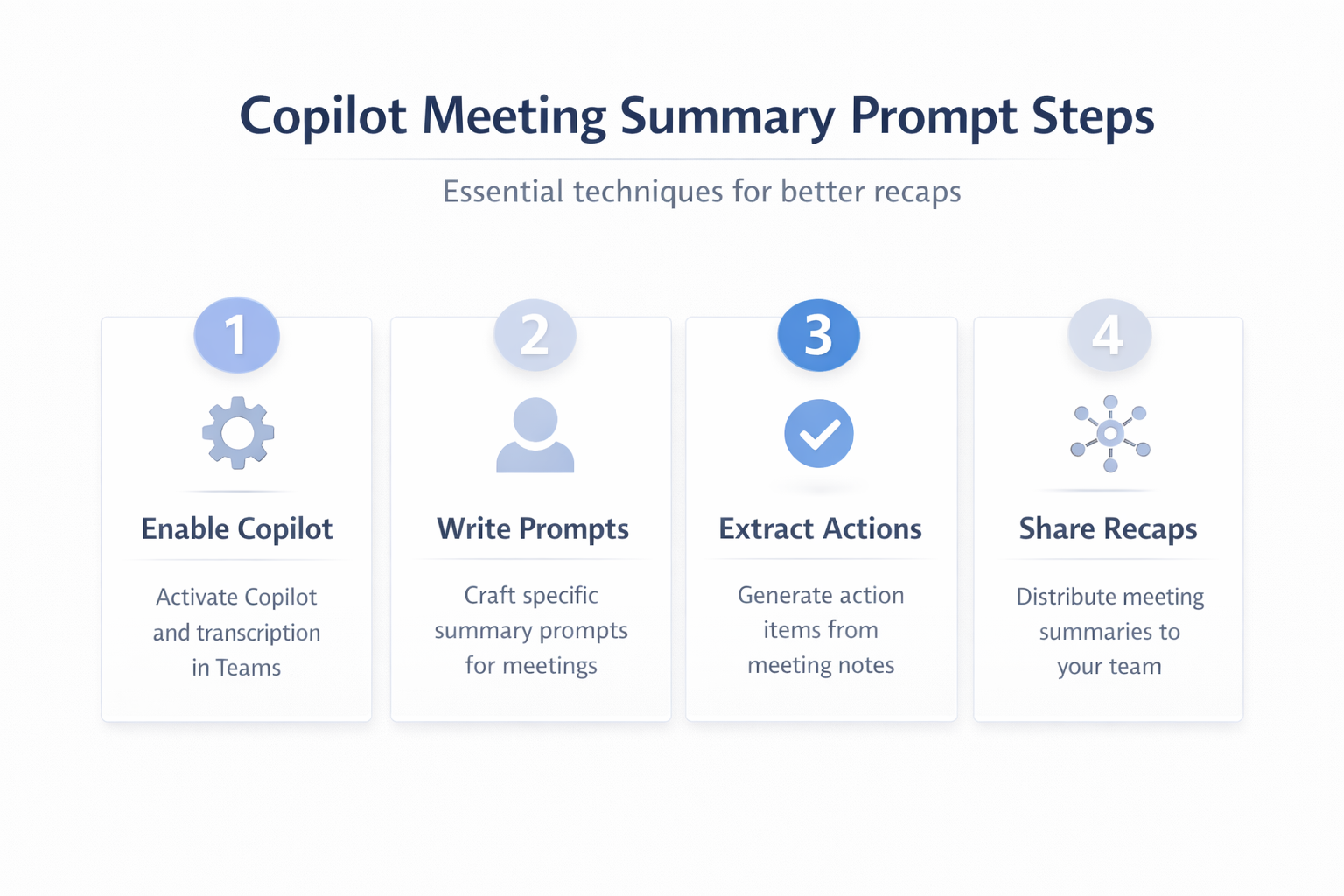
You need to enable Copilot automatic notes in Teams meetings before the session starts so that the transcript captures every participant contribution accurately throughout the discussion. Activating transcription ensures that Copilot has complete context available when you ask it to generate meeting highlights, decisions, or follow-up tasks after the call ends.
Best Copilot prompts for summarizing Teams meetings
These prompt examples produce structured meeting recaps that you can immediately share with stakeholders who missed the call or need a quick refresher on the discussion points. Each prompt targets a different output format, so choose the one that matches your team communication style and the level of detail your organization requires.
- Executive summary prompt — type “Summarize this meeting in five bullet points covering the main topics discussed, decisions reached, and any unresolved questions that need follow-up from attendees” to get a concise overview
- Detailed recap prompt — use “Create a comprehensive meeting summary organized by agenda topic, including who spoke about each item, what conclusions were drawn, and the next steps agreed upon” for thorough documentation
- Decision-focused prompt — enter “List every decision made during this meeting, who proposed it, whether the group reached consensus, and any conditions or deadlines attached to each specific decision” when accountability matters
- Timeline prompt — try “Summarize this meeting chronologically, noting when topics shifted, which participants introduced new subjects, and how long the group spent discussing each major agenda item” for process review
You can explore additional Copilot prompts for Teams meetings to maximize productivity that cover scenarios beyond basic summaries, including brainstorming sessions, project status updates, and client-facing calls.
Microsoft Copilot meeting recap for action items
Extracting action items from a meeting transcript represents one of the highest-value uses of Copilot because it eliminates the risk of forgotten commitments and overlooked deadlines in your team. The prompt “List all action items from this meeting, including who is responsible, the deadline mentioned, and any dependencies on other tasks or team members” consistently produces well-organized output. Adding specificity to your request by mentioning particular participants or project names helps Copilot filter the transcript more effectively and return only the relevant assignments.
For teams that need automatic meeting documentation through Copilot, combining action item prompts with summary prompts creates a complete meeting record that requires minimal editing before distribution to the wider team.
AI meeting summary techniques with advanced prompts
Moving beyond basic prompts requires understanding how Copilot interprets instructions, which means structuring your requests with clear output formats, specific content filters, and explicit length constraints. A prompt like “Summarize this meeting as a table with columns for Topic, Discussion Points, Owner, and Status where status is either Decided, Pending, or Requires Escalation” forces Copilot output. Using role-based instructions such as “As a project manager reviewing this meeting, identify risks, blockers, and resource requests that were mentioned by any participant during the discussion” adds perspective.
- Format specification — always tell Copilot whether you want bullet points, numbered lists, tables, or paragraph format because the default output may not match your documentation standards
- Length control — include word limits or item counts in your prompt such as “in under 200 words” or “top five items only” to prevent overly verbose summaries
- Audience targeting — specify who will read the summary by adding “for the executive team” or “for the engineering leads” so Copilot adjusts terminology and detail accordingly
How to set up Copilot for meeting notes in Teams?
Before you can use any meeting summary prompt, your Microsoft 365 administrator must assign Copilot licenses and your Teams meeting must have transcription enabled for the session. You should enable Copilot in Teams meeting notes through the meeting options panel where you can configure whether Copilot starts automatically or waits until invoked. Verifying these settings before each important meeting prevents the frustrating scenario where you try to generate a summary but discover that no transcript was recorded.
For organizations deploying Copilot across multiple teams and departments, administrators can enable the Copilot assistant agent in Teams to provide consistent meeting summary capabilities without requiring each user to configure settings individually on their own devices.
Common mistakes to avoid with meeting summary prompts
Vague prompts produce vague summaries, which represents the single most frequent error professionals make when using Copilot for meeting recaps in their daily workflow and collaboration. Asking “What happened in the meeting?” returns a generic overview, while asking “What decisions did the product team make about the Q3 launch timeline and resource allocation?” returns precise information. Another common mistake involves running prompts during a meeting before the most important discussions have taken place, which means Copilot only summarizes the early portion.
- Avoid single-word prompts — requests like “summarize” or “recap” give Copilot no guidance about format, length, or focus area, which results in output that rarely matches expectations
- Do not skip transcript verification — always confirm that the meeting transcript captured all participants and that no audio gaps exist before running your summary prompt for accuracy
- Refine iteratively — if the first summary misses key points, follow up with a targeted prompt like “What did Sarah say about the budget constraints during the second half” rather than repeating
Frequently asked questions about meeting summary prompts
What is the best Copilot prompt for meeting summaries?
The most effective prompt combines a specific output format with content focus, such as “Summarize this meeting as bullet points covering decisions, action items with owners, and unresolved questions that need follow-up from the team.” Tailoring the prompt to your audience and purpose produces significantly better results than generic summary requests because Copilot uses your instructions to filter the transcript.
How do I use Copilot to summarize a Teams meeting?
Open the Copilot panel during or after a recorded Teams meeting, type your summary prompt in the chat field, and Copilot will process the meeting transcript to generate a structured response. You must have a Microsoft 365 Copilot license and transcription enabled for the meeting before the session starts to ensure complete coverage of all discussion points.
Can Copilot generate action items from meeting notes?
Copilot can extract action items by using a targeted prompt such as “List all action items including the responsible person, deadline, and any dependencies mentioned during the meeting discussion today.” The accuracy of action item extraction depends on how clearly participants stated commitments during the meeting and whether the transcript captured those statements without gaps or errors.
Conclusion
Using well-structured Copilot meeting summary prompts saves significant time and ensures that no critical decision or action item gets lost in lengthy meeting transcripts across your organization. Start with the prompt examples in this article, then refine them based on your specific meeting types, team size, and documentation requirements to build a personal prompt library. Bookmark this page and test each prompt style during your next Teams meeting to discover which format works best for your workflow and stakeholder communication needs.