You scheduled a Teams meeting last week but the agenda fell through, and now you need to remove it cleanly so nobody shows up to an empty call. Deleting the event from your own calendar is not enough — the meeting link stays active and attendees still see it on their end unless you cancel properly through Teams or Outlook. The right method takes about thirty seconds and sends everyone a notification automatically.
Cancel from Teams or Outlook
Cancel from the Teams calendar
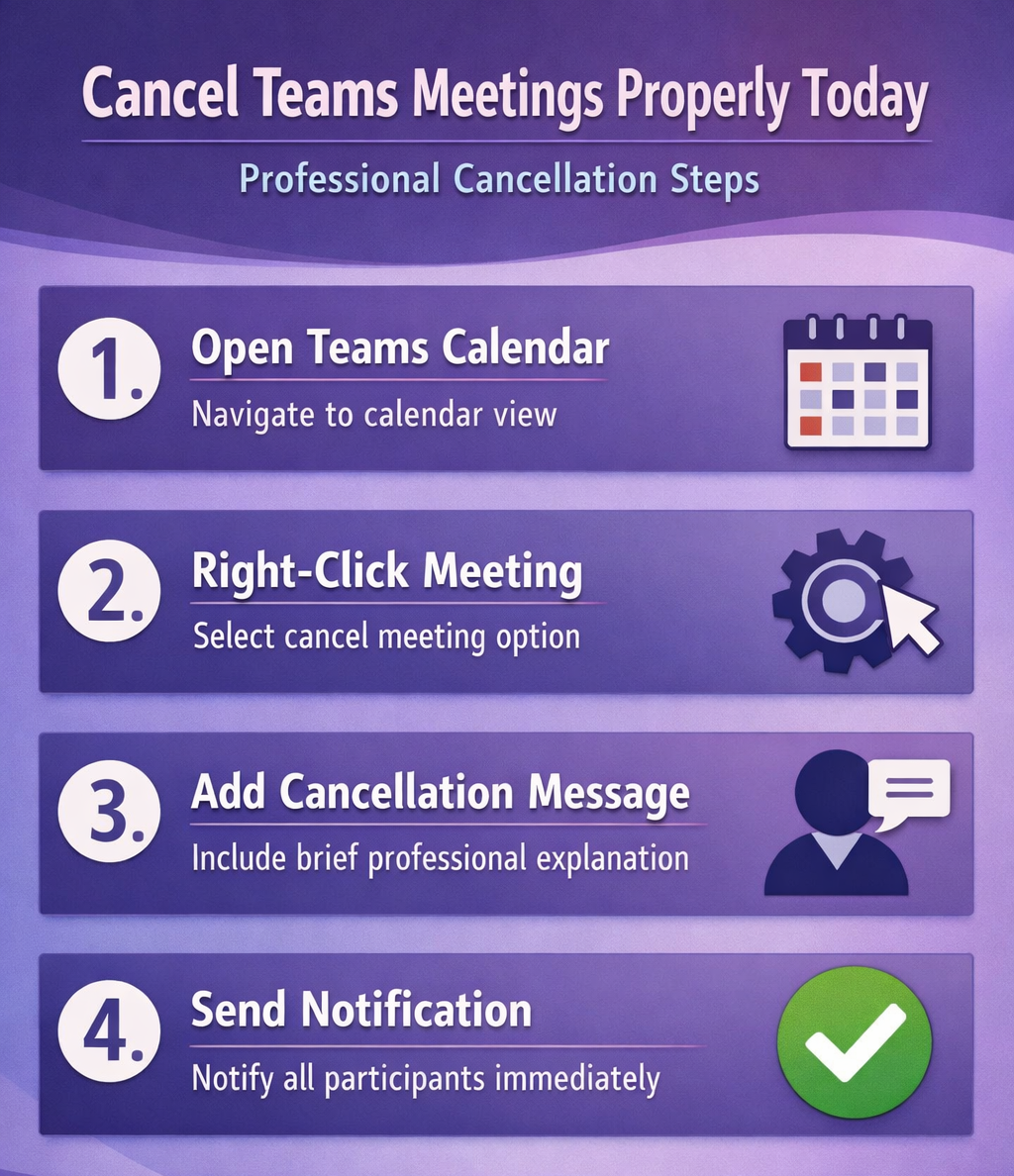
Open Teams and click Calendar in the left sidebar, then find your meeting and right-click it. Select Cancel meeting from the context menu, and Teams opens a compose window where you can type a brief reason before sending the cancellation to all participants. Write something like “scheduling conflict — will reschedule for Thursday” so attendees understand why the meeting disappeared from their calendar rather than wondering if it was a glitch. Click Send cancellation and Teams removes the event from every participant’s calendar within a few minutes while simultaneously invalidating the meeting join link so nobody can connect to a dead session.
Cancel through Outlook instead
If you created the meeting in Outlook, open it from your Outlook calendar and click Cancel Meeting in the ribbon at the top. Outlook prompts you to send a cancellation notice — always send it rather than deleting silently, because a silent delete removes the event from your calendar only and leaves it on everyone else’s schedule. Add your cancellation reason in the body, click Send, and the Teams meeting link embedded in the original invite becomes invalid automatically. This approach works identically whether you originally set up the meeting series in Outlook or Teams, since both applications share the same Exchange calendar backend and cancellations propagate across both clients regardless of where you initiated them.
Handle recurring meeting series
When you cancel a recurring meeting, Teams asks whether you want to remove just this one occurrence or the entire series. For a one-time skip, select Delete this occurrence and mention in your message that the rest of the series continues as normal so attendees do not assume the whole thing is permanently canceled. To end a recurring meeting permanently, choose Delete the series, which cancels all future instances at once and sends a single notification covering the full cancellation. Be careful with this choice because there is no way to undo a series cancellation — you would need to create an entirely new recurring meeting from scratch if you change your mind.
Cancellation etiquette that matters
Give at least two hours notice
Cancel meetings at least two hours before the start time whenever circumstances allow, because last-minute cancellations waste time people already blocked off and disrupt their schedule planning for the rest of the day. If you know by noon that a 3 PM meeting is unnecessary, cancel it then rather than waiting until 2:45 when attendees have already started preparing. Include a brief note about whether you plan to reschedule or if the topic is resolved entirely — the difference matters to people who need to decide whether to keep that time slot open or fill it with something else.
Suggest alternatives in the message
When the discussion still needs to happen, propose two or three replacement times directly in the cancellation notice rather than sending a separate scheduling email afterward. Something like “Canceled today’s sync — does Thursday at 2 PM or Friday at 10 AM work?” reduces the back-and-forth that typically follows a cancellation and keeps the project from stalling while everyone negotiates a new time.
Tip: For high-priority meetings with external participants, create the replacement invite immediately so attendees can accept the new time right after they acknowledge the cancellation, keeping the gap between meetings as short as possible.
Communicate directly for critical meetings
For meetings with clients, executives, or cross-company stakeholders, do not rely on the automated cancellation email alone. Make sure to send a quick personal message via Teams chat or email explaining the reason and proposed next steps — the automated notice can feel impersonal for high-stakes meetings, and a personal follow-up shows respect for the relationship. This takes thirty seconds and prevents any misunderstanding about whether the cancellation reflects a change in priority or just a scheduling conflict.
Troubleshoot cancellation problems
Attendees did not receive the notice
Cancellation emails occasionally get caught by spam filters or delayed by mail routing rules, especially for external guests whose email systems handle automated meeting notices differently than internal Exchange traffic. Follow up with a quick Teams chat message to key participants if the meeting was important, and check your Sent Items folder in Outlook to confirm the cancellation email actually went out from your side. Missing notices almost always indicate a sending-side or routing issue rather than something wrong on the recipient’s end — if the email is in your sent folder, the problem is between their mail server and their inbox.
Canceled meeting still showing up
If a canceled event lingers on someone’s calendar after fifteen minutes, ask them to press Ctrl+R to force a calendar refresh in Teams, or close and reopen the calendar view entirely. For stubborn ghost entries that survive a refresh, signing out of Teams completely and signing back in triggers a full calendar sync with the Exchange server that overwrites the stale local data. This resolves most lingering display problems — the event data is already deleted server-side, the local client just has not pulled the update yet because calendar sync runs on a periodic interval rather than continuously.
External guests missed the update
Guests from outside your organization receive cancellation notices through their own email system, which sometimes delays or filters automated meeting messages from external senders. Send a separate personal email to any external attendees confirming the cancellation and include the reason and any rescheduling plans — it takes thirty seconds and prevents someone from an outside company logging on to a meeting room that no longer exists, which is especially embarrassing for client-facing or cross-company meetings where professionalism matters.
Quick answers to common questions
Do attendees get notified when I cancel?
Yes, all participants receive an automatic email notification that includes any message you add during cancellation. The meeting link becomes invalid immediately, and the calendar entry disappears from attendee calendars within a few minutes of sending.
What happens to the meeting link after cancellation?
The Teams meeting link becomes invalid as soon as you send the cancellation. Anyone who clicks it sees a message that the meeting no longer exists. Chat history from previous instances of a recurring meeting remains accessible in the Teams chat list even after cancellation.
Can I cancel just one occurrence of a series?
Yes, Teams lets you cancel individual occurrences by selecting “Delete this occurrence” when prompted. Only that specific date gets canceled and sends a notification, while the rest of the recurring series continues unchanged on everyone’s calendar.
Always use the cancel function rather than deleting the event — it is the only way to notify attendees and invalidate the meeting link in one step.