Breakout-room assignments usually appear to vanish for one of three reasons: you opened a different occurrence of a recurring meeting, you are not acting as the organizer or appointed room manager, or the participant list changed after the rooms were prepared. Rebuilding immediately can hide the cause and waste work.
Use a recovery-first approach. Confirm the meeting object, preserve the roster you expected, and only then reassign people. Teams supports manual assignment, shuffling, and CSV import, so a saved roster can turn a stressful rebuild into a controlled operation.
Prove that you opened the same meeting
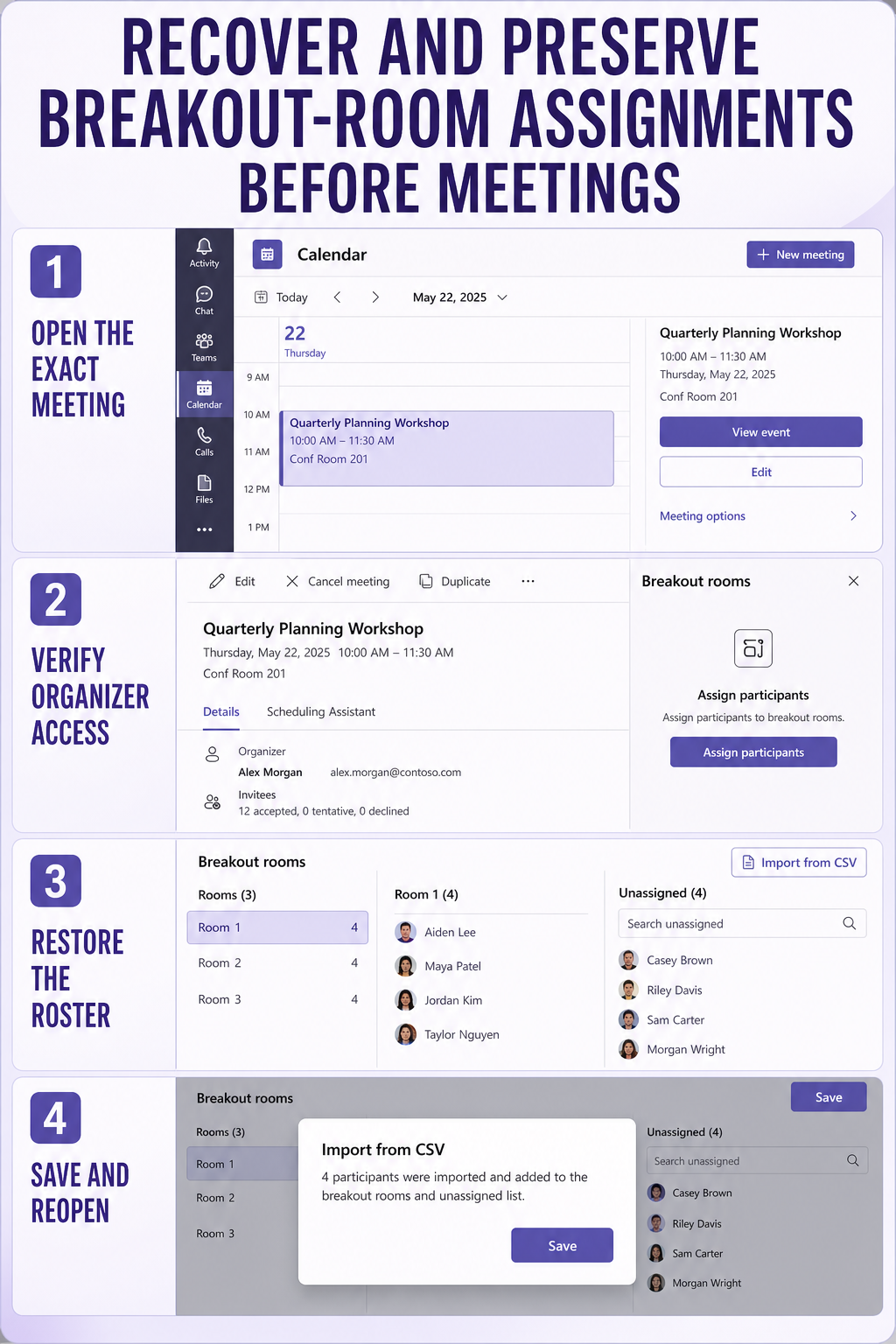
Go to Calendar in the Teams desktop app and open the exact date and time of the meeting. Select View event, then More options > Breakout rooms. The pre-meeting option appears after invitations have been sent.
For a recurring meeting, compare the occurrence date with the invitation used when assignments were created. Microsoft states that assignments made for a meeting series apply to future occurrences unless the organizer changes them, but edits and copied meetings can create a different object that looks nearly identical.
Compare the organizer and attendee list
The organizer and appointed breakout-room managers can assign participants. A manager must join the meeting before assigning during the session. If you opened the right event but cannot edit assignments, confirm your role instead of repeatedly recreating rooms.
If the Breakout rooms control itself is absent, work through the missing-control checks before assuming the assignments were deleted. Client, role, meeting type, and participant limits can affect what you see.
Preserve the expected roster
Write down the room names and export or reconstruct a simple two-column list of participant email and room name. Email addresses are safer than display names, especially when guests or duplicate names are involved.
This roster is your recovery source. It also lets a co-organizer confirm that the intended people were invited to the current occurrence. Do not include people who were removed from the meeting or invited through a different address.
Rebuild with the least risky method
For a small meeting, open Assign participants, choose manual assignment, select each person’s room, and select Save. Check the Unassigned group before leaving the pane.
For a larger structured meeting, use Import from CSV if the option is available. Teams creates rooms from the room names in the file and maps participants by email address. Correct any format or unmatched-address errors shown during import rather than changing names until the file merely uploads.
The steps in the room setup walkthrough help confirm the basic creation sequence. During recovery, the important addition is to save, close the event, reopen it from Calendar, and verify that the assignments persist before attendees join.
Handle participants who arrive late
Late arrivals may remain under Unassigned. During the meeting, open Rooms > Assign participants, then assign only those people or use the shuffle option for unassigned participants. Avoid shuffling everyone unless you intentionally want to replace the recovered plan.
When the saved plan still does not return
Create a new test room, assign one organizer-controlled test account, select Save, close the pane, and reopen it. If that one-person assignment disappears on the same meeting occurrence, capture the meeting link, organizer, client version, and time of the test for your administrator.
Do not delete the meeting as a first repair. A replacement changes the join link, invitations, attendance context, and potentially recordings or recap association. Recreating the event is a last resort when the meeting object itself is confirmed damaged and stakeholders can accept a new invitation.
Breakout-room recovery questions
Do assignments carry across a recurring meeting series?
Microsoft says assignments made for the series apply to future occurrences unless the organizer changes them. Still verify that you are opening the same series rather than a copied or independently edited meeting. Use the occurrence date and join link as evidence.
Why are several attendees listed as unassigned?
Their invitation address may not match the address in the saved roster, or they may have joined as guests. Assign the identity Teams currently displays, then update the roster for next time. Do not assume two identical display names are the same account.
Can a presenter restore the rooms?
Presenters do not automatically receive breakout-room management rights. The organizer can appoint room managers, and those managers must join the meeting before assigning people during it. If the controls are read-only, verify the meeting role.
Is CSV import safer than manual assignment?
It is faster and repeatable for large groups, but only when email addresses and room names are correct. Manual assignment is easier for a small meeting or a handful of late arrivals. Keep the CSV as a recovery artifact, not as proof that Teams saved the final state.
Make the next meeting resilient
After recovery, close and reopen the meeting from Teams Calendar and check Unassigned. Keep the roster outside the meeting, and appoint a second room manager who understands the plan. Those two habits protect you from a changed participant list, a mistaken occurrence, or a last-minute organizer absence without forcing a new meeting link.
A five-minute organizer rehearsal
Before the real session, ask one colleague to join a short test meeting created by the same organizer. Create two rooms, assign the colleague, save, close the pane, and reopen it. This verifies that the organizer can persist assignments in the current client without risking the production invitation.
During the rehearsal, appoint the colleague as a breakout-room manager and have them join before opening the room controls. Confirm what they can see and change. If their role works in the test but not in the production meeting, compare the meeting type, organizer, and invitation rather than changing tenant-wide policy.
Keep the roster file in an access-controlled team location with a clear meeting date. Delete outdated copies when the participant list changes. This prevents a well-meaning co-organizer from importing last month’s assignments over the recovered plan.