When the Windows 11 taskbar is missing, the cause is often less serious than it looks. The bar may be hidden, moved to another display, or unavailable because the Windows Explorer shell stopped responding. You can usually bring it back without resetting Windows or changing the registry.
Work through the checks below in order. The early fixes take less than a minute and do not affect your files. Save open work before restarting Explorer or Windows, because some desktop windows may close or refresh.
Identify what actually disappeared
Before repairing anything, press the Windows key once. If Start opens, Windows is still responding and the taskbar may simply be hidden or displayed on another monitor. Press Windows + I as a second test; Settings can open even when the taskbar is unavailable.
The whole bar is gone
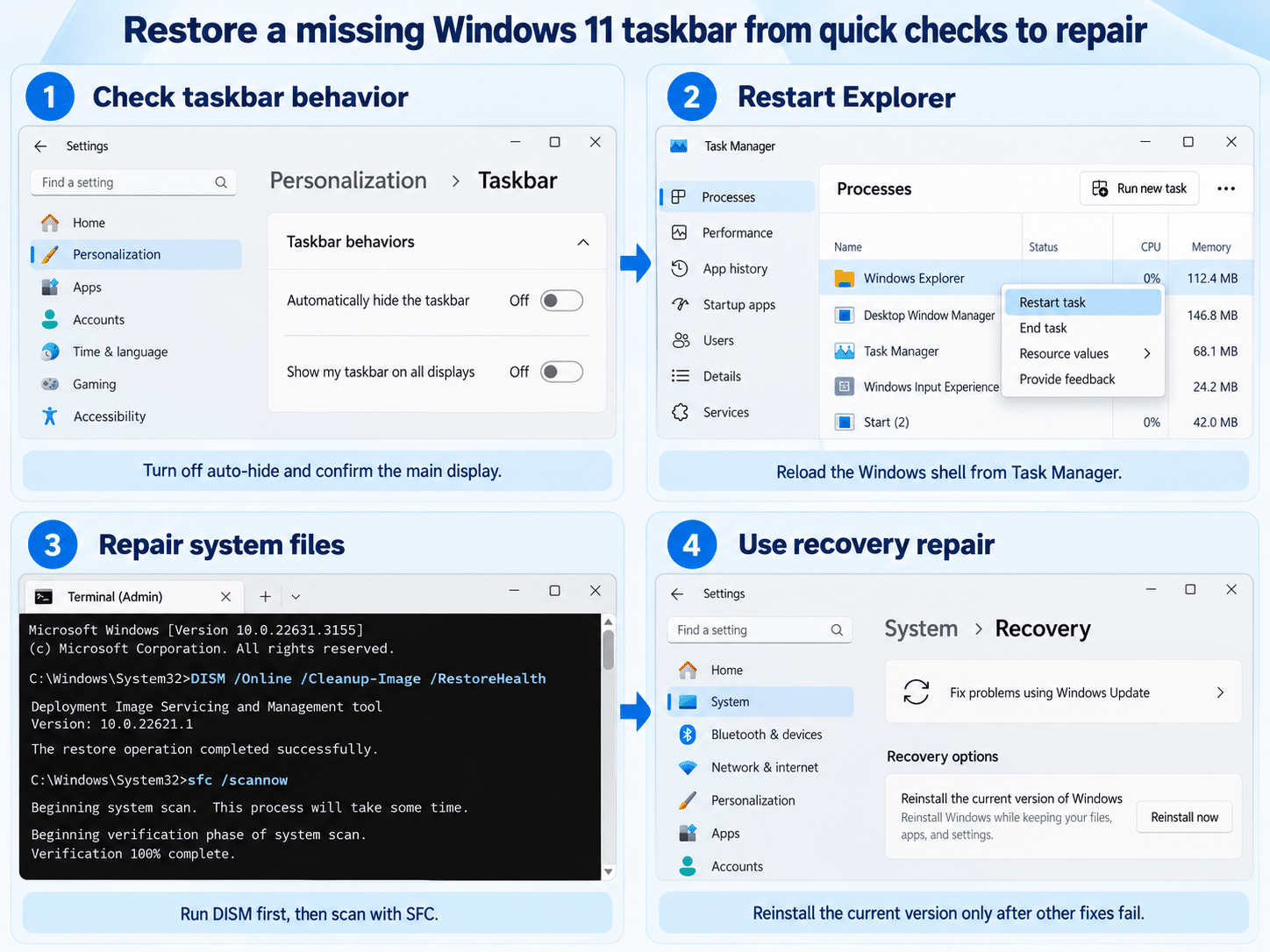
Move the pointer to the bottom edge of every connected screen. A hidden taskbar should slide into view. If it appears only while the pointer is at the edge, open Settings > Personalization > Taskbar > Taskbar behaviors and clear Automatically hide the taskbar.
While that page is open, review Show my taskbar on all displays if you use more than one monitor. Windows can keep the taskbar on the primary display only. Press Windows + P, choose PC screen only temporarily, and see whether the taskbar returns to the laptop or main monitor.
If the bar is visible but its arrangement is inconvenient, save layout changes until the shell is stable. The options for adjusting the Start layout for daily work are easier to evaluate after the missing-bar problem is resolved.
Only icons or the system tray are missing
If the taskbar frame remains but Search, Widgets, pinned apps, or tray icons are absent, do not jump to a Windows reinstall. Open Settings > Personalization > Taskbar and check Taskbar items, System tray icons, and Other system tray icons. Missing shortcuts can also be repinned after Explorer is working normally.
Bring the Windows shell back in a controlled order
The taskbar, desktop, and much of File Explorer share the Windows Explorer process. Restarting that process is the most useful repair when the whole shell vanishes or freezes.
1. Restart Windows Explorer from Task Manager
- Press Ctrl + Shift + Esc to open Task Manager.
- Select Processes. If Task Manager opens in a compact view, select More details first.
- Find Windows Explorer, select it, and choose Restart task.
- Wait several seconds while the desktop and taskbar reload.
If Windows Explorer is not listed, select Run new task in Task Manager, type explorer.exe, and select OK. This starts the desktop shell without requiring a full reboot.
2. Restart Windows and finish pending updates
If the taskbar returns but disappears again, restart the PC rather than repeatedly relaunching Explorer. Press Ctrl + Alt + Delete, select the power icon, and choose Restart. This route still works when Start and the taskbar do not.
After signing in, open Settings > Windows Update and select Check for updates. Install available quality updates and restart again if Windows requests it. A recent update can also be incomplete until the reboot finishes.
3. Remove the recent shell change from the equation
Think about what changed just before the taskbar vanished. Third-party taskbar customizers, Start-menu replacements, display utilities, and some graphics tools can hook into the Windows shell. Disable or uninstall the newest shell-modifying utility, then restart Windows.
On a work-managed PC, do not remove security or management software. Ask IT whether a policy, update ring, or approved desktop utility changed recently. If several employees lost the taskbar at once, the problem is more likely organizational than a fault in your profile.
Repair Windows when Explorer will not stay running
Move to these steps only when the display and Explorer checks fail. They take longer, and the repair commands require administrator approval.
Repair the component store and system files
Open Task Manager with Ctrl + Shift + Esc, select Run new task, type cmd, check Create this task with administrative privileges, and select OK. Run these commands one at a time:
DISM.exe /Online /Cleanup-Image /RestoreHealth
sfc /scannow
Let DISM finish before starting SFC, even if the percentage pauses. Restart the computer after both commands complete. These tools repair Windows components and protected system files; they do not remove personal documents.
Compare normal startup with Safe Mode
Safe Mode helps separate a Windows shell problem from a third-party startup conflict. Hold Shift while selecting Restart from the sign-in screen, then choose Troubleshoot > Advanced options > Startup Settings > Restart. On the Startup Settings screen, choose Enable Safe Mode.
If the taskbar works in Safe Mode, focus on recently installed customization tools, startup apps, and display software. Restart normally after the test. Avoid changing several services at once, because that makes the actual cause harder to identify.
Use the Windows Update repair reinstall as the last built-in step
On supported Windows 11 devices, open Settings > System > Recovery and look for Fix problems using Windows Update. Select Reinstall now only after the earlier repairs fail. Microsoft describes this option as reinstalling the current Windows version while preserving apps, files, and settings.
Keep the PC connected to power and the internet during the process. The option may be unavailable on organization-managed devices or on systems controlled by update policy. In that case, contact IT instead of attempting an unmanaged reinstall.
Questions about a missing taskbar
Why does the taskbar appear when I move the mouse to the bottom?
That behavior usually means automatic hiding is enabled, not that the taskbar is broken. Open Settings > Personalization > Taskbar > Taskbar behaviors and clear Automatically hide the taskbar. If the setting turns itself back on, check whether a customization utility or workplace policy is controlling it.
What if the taskbar is missing on only one monitor?
Temporarily use Windows + P > PC screen only to bring all desktop elements back to the primary screen. Then reconnect or extend the display and enable Show my taskbar on all displays under Taskbar behaviors. Also confirm that Windows identifies the intended monitor as the main display.
Are missing desktop icons part of the same problem?
They can be. The taskbar and desktop both depend on Explorer, so restarting it may restore both surfaces. If the taskbar returns but the desktop is still empty, follow the broader desktop icon recovery steps instead of repeating taskbar settings changes.
Will restarting Windows Explorer close my applications?
Most applications remain open, but File Explorer windows and parts of the desktop shell may close and reload. Save documents before restarting the process. If Explorer repeatedly crashes after relaunching, continue with updates, system-file repair, and the Safe Mode comparison.
Choose the smallest repair that matches the symptom
A hidden or misplaced taskbar needs a settings correction, while a blank desktop and missing bar usually point to the Explorer shell. Restart Explorer before running repair commands, and reserve the Windows Update reinstall for a taskbar that still fails after system-file checks. On a managed computer, stop before removing corporate software or changing policy-controlled settings and involve IT.