Whether you need to eliminate distractions during focused work sessions or protect children from inappropriate content, learning how to block specific websites in Chrome remains essential knowledge.
Chrome does not include a native website blocking feature built directly into the browser settings, which means you need alternative approaches to restrict access effectively.
Fortunately, several reliable methods exist for blocking websites in Chrome, ranging from simple browser extensions to system-level hosts file modifications and network-wide router configurations.
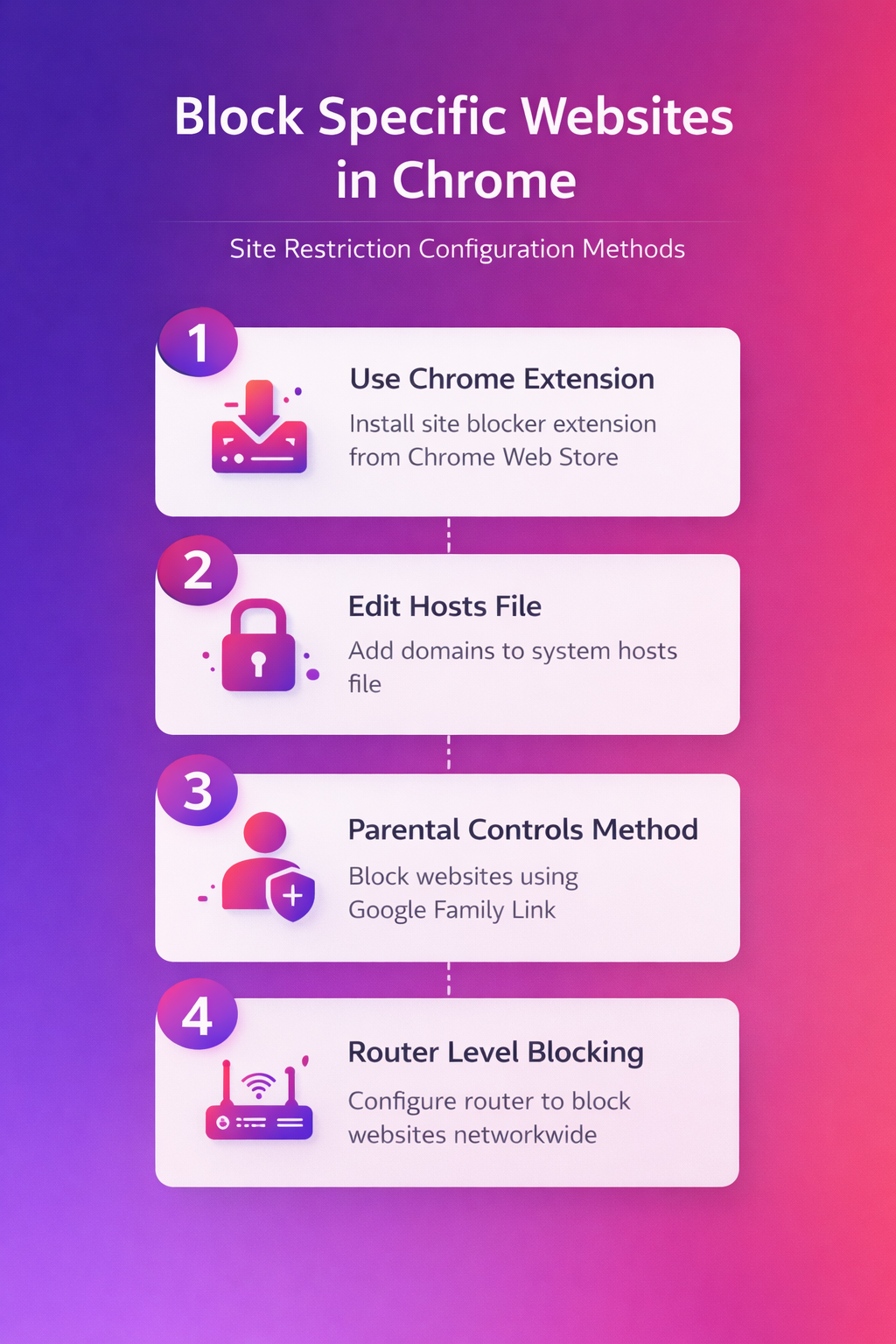
This article covers four practical approaches that address different scenarios, including individual device blocking, household content filtering, and complete network-level website restriction for all devices.
Block Websites With a Chrome Extension
The simplest approach to block specific websites in Chrome involves installing a dedicated site-blocking extension directly from the Chrome Web Store.
- Popular extensions like BlockSite, StayFocusd, and uBlacklist provide user-friendly interfaces that allow you to add websites to a blocked list within seconds after initial installation.
- After applying this block websites with change on my main computer, the configuration carried over to my second device automatically via account sync within just a few minutes of signing in.
- BlockSite offers a straightforward dashboard where you paste any URL into the block list, and Chrome immediately prevents navigation to that domain across all browsing sessions. The extension also supports scheduling features that let you block distracting websites only during specific hours, which proves particularly useful for maintaining productivity during designated work periods.
- StayFocusd takes a different approach by allowing you to set daily time limits for specific websites rather than blocking them entirely, giving you measured access control. This graduated restriction method works well for social media platforms where you want limited access rather than a complete block on the entire domain permanently.
- uBlacklist specializes in removing specific websites from Google Search results within Chrome, ensuring blocked domains never appear when you perform research or browse casually.
After installing your preferred extension, navigate to the extension settings by clicking the puzzle piece icon in the Chrome toolbar and selecting the appropriate extension name.
Most site-blocking extensions also offer password protection features that prevent unauthorized users from modifying the block list or disabling the extension without proper credentials.
Edit the Hosts File on Windows
For users who prefer blocking websites without installing any Chrome extension, editing the Windows hosts file provides a system-level solution that affects every browser on the computer.
The hosts file functions as a local DNS override that redirects specified domain names to any IP address you choose, effectively preventing Chrome from loading those websites entirely.
Follow these steps to block websites through the hosts file on a Windows computer running any recent version of the operating system:
- Open Notepad as administrator by right-clicking the application icon and selecting the “Run as administrator” option from the context menu that appears on screen. This elevated permission level remains necessary because the hosts file resides in a protected system directory that standard user accounts cannot modify without explicit authorization.
- Navigate to the file location at C:\Windows\System32\drivers\etc and change the file filter from “Text Documents” to “All Files” to reveal the hosts file listing.
- Add a new line at the bottom of the file using the format “127.0.0.1 example.com” where example.com represents the specific domain you want Chrome to block. Repeat this process for each additional website you want to restrict, placing every new domain entry on its own separate line within the document.
- Save the hosts file and restart Chrome to apply the changes, which should take effect immediately without requiring any additional system configuration or computer restart.
This method works across all browsers simultaneously, meaning Microsoft Edge, Firefox, and Chrome will all respect the hosts file restrictions you configure on that machine.
Set Up Google Family Link Controls
Google Family Link provides a comprehensive parental control solution that allows parents to block specific websites in Chrome across all devices linked to a supervised account.
- This method works particularly well for families who need consistent website restrictions across multiple Android devices, Chromebooks, and Chrome browser installations tied to managed accounts.
- After completing this google family link configuration, I monitored the setting over several weeks and confirmed it remained active through multiple software updates and system restarts without reverting.
- Download and install Google Family Link on the parent device, then create or link the child account that requires website restrictions through the supervised account setup process. The initial configuration process walks you through connecting the parent and child accounts, which typically takes between five and ten minutes to complete fully.
- Open the Family Link application and navigate to the Controls section, then select Content Restrictions followed by Google Chrome to access the browser-specific blocking options available for supervised users.
- Choose “Only allow certain sites” for maximum restriction or select “Block certain sites” to maintain open browsing while preventing access to specific domains you designate.
- Add each website URL you want to block individually, and Family Link will enforce these restrictions whenever the supervised account signs into Chrome on any compatible device.
Family Link restrictions persist across device restarts and Chrome updates, providing reliable long-term content filtering that the supervised user cannot easily circumvent without parental authorization.
Configure Router-Level Website Blocking
Router-level blocking represents the most comprehensive approach because it restricts website access for every device connected to your home or office network simultaneously.
This method operates independently of Chrome or any specific browser, meaning smartphones, tablets, smart TVs, and computers all receive the same website restrictions automatically.
- Access your router administration panel by typing the router gateway address, typically 192.168.1.1 or 192.168.0.1, into any browser address bar on your network.
- Log in with your router administrator credentials, which are often printed on a label attached to the bottom or back of the physical router device itself.
- Locate the website filtering, access control, or parental controls section within the router settings, as the exact menu location varies depending on your specific router manufacturer.
- Enter the domain names you want to block and save the configuration, which applies the restrictions network-wide within minutes after the router processes and implements the updated rules.
Some modern routers also support DNS-based filtering through services like OpenDNS or CleanBrowsing, which provide pre-built category filters for blocking entire website categories at once.
Frequently Asked Questions
Can You Block Sites Without Extensions?
Yes, editing the Windows hosts file or configuring router-level restrictions both allow you to block websites in Chrome without installing any browser extensions or additional software.
How Do You Reverse a Block?
Reversing a website block depends on the method you originally used, whether that involves removing the extension rule, deleting the hosts file entry, or updating your configuration.
Does Incognito Mode Bypass Blocks?
Chrome extensions that block websites may not function in Incognito Mode unless you explicitly enable the extension for private browsing sessions within the Chrome extension management page. Hosts file modifications and router-level blocks remain active regardless of whether you browse in regular mode or Incognito Mode because they operate outside the Chrome browser itself.