Understanding Edge pop up management
“I keep missing important notifications from my banking website because Edge blocks the pop-ups automatically. How can I disable the pop-up blocker without compromising my security?” This common frustration affects millions of Microsoft Edge users who need legitimate pop-ups for work applications, online banking, or educational platforms while maintaining protection against malicious content.
How to turn off pop up blocker in Edge
Modern web applications increasingly rely on pop-up windows for essential functions like payment processing, document downloads, and user authentication. Microsoft Edge’s built-in pop-up blocker, while protective, can interfere with legitimate business operations and productivity workflows. Understanding how to manage these settings ensures you maintain both functionality and security.
Today we will cover comprehensive methods for disabling pop up blocker in Edge, including site-specific exceptions, global settings modifications, and advanced configuration options. You’ll learn to balance security with functionality while managing pop up blocker Edge settings across different scenarios. We’ll explore both temporary and permanent solutions, ensuring you can enable pop ups on Edge when needed while maintaining protection against unwanted advertisements and malicious content.
You will need Microsoft Edge version 90 or later, administrative access to your device, and basic familiarity with browser settings navigation.
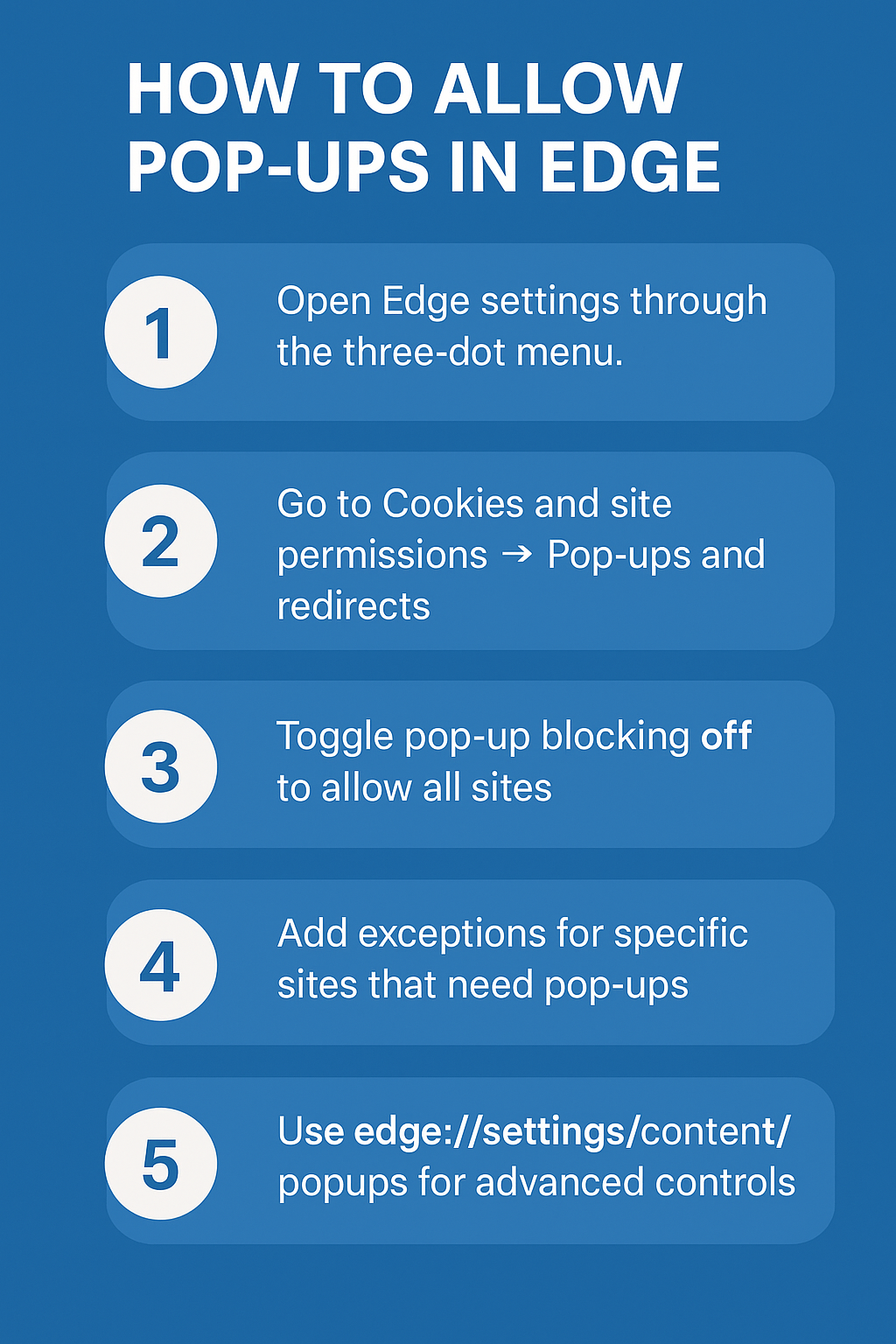
How to allow pop up in Edge?
Accessing Edge pop up blocker settings
- Navigate to Microsoft Edge and click the three-dot menu icon located in the upper-right corner of your browser window to access the main settings menu. Select “Settings” from the drop-down menu, which opens the comprehensive Edge configuration panel where you can modify various browser behaviors and security preferences. Click on “Cookies and site permissions” in the left sidebar menu, then scroll down to locate the “Pop-ups and redirects” option under the site permissions section. Toggle the “Pop-ups and redirects” switch to the “Off” position to completely disable pop up blocker Microsoft Edge functionality across all websites and domains.
- Select “Settings” from the drop-down menu, which opens the comprehensive Edge configuration panel where you can modify various browser behaviors and security preferences.
- Click on “Cookies and site permissions” in the left sidebar menu, then scroll down to locate the “Pop-ups and redirects” option under the site permissions section.
- Toggle the “Pop-ups and redirects” switch to the “Off” position to completely disable pop up blocker Microsoft Edge functionality across all websites and domains.
Managing site-specific pop up exceptions
- Return to the “Pop-ups and redirects” settings page and click the “Add” button next to “Allow” to create exceptions for specific websites that require pop-up functionality.
- Enter the complete URL of the website where you want to enable pop ups on Edge, ensuring you include the proper protocol (https:// or https://) for accurate domain recognition.
- Click “Add” to save the exception, which immediately allows pop-ups from that specific domain while maintaining protection on other websites you visit regularly.
- Repeat this process for additional websites that require pop-up access, creating a customized whitelist that balances security with functionality for your specific browsing needs.
Expert Tip: Create site-specific exceptions rather than disabling the pop-up blocker entirely to maintain protection against malicious pop-ups while allowing legitimate ones.
Remove Edge pop up blocker through advanced settings
- Type “edge://settings/content/popups” directly into your address bar to access advanced pop-up management settings that provide granular control over blocking behaviors.
- Review the “Block” list to identify websites that are currently restricted from displaying pop-ups, and remove any entries that you need to access regularly.
- Modify the default behavior by selecting “Sites can send pop-ups and use redirects” to establish a more permissive approach to pop-up management across your browsing experience.
- Configure notification preferences to receive alerts when Edge blocks pop-ups, allowing you to make real-time decisions about allowing or blocking specific content requests.
Troubleshooting common Edge pop up blocker issues
- Pop-ups still blocked after disabling settings: Clear your browser cache and cookies by pressing Ctrl+Shift+Delete, selecting “All time” as the time range, and ensuring all data types are selected before clicking “Clear now” to remove conflicting stored preferences. For persistent issues, you may need to check your Edge browser cache location Windows to manually clear specific files.
- Site-specific exceptions not working properly: Verify that you’ve entered the exact URL format including subdomain variations, as “www.example.com” and “example.com” are treated as separate entities requiring individual exception entries in Edge’s permission system.
- Pop-up blocker resets after browser updates: Check your Edge sync settings under “Profiles” > “Sync” to ensure that pop-up preferences are included in your synchronized data, preventing automatic resets when Edge updates or syncs across devices.
- Enterprise policy conflicts preventing changes: Contact your IT administrator if you’re unable to modify pop-up settings, as Group Policy or Microsoft Intune configurations may override individual user preferences in managed corporate environments.
Remember: Always test your pop-up settings on trusted websites first to ensure the changes work correctly before relying on them for important business applications or financial transactions.