“How can I keep track of all the important discussion points and action items from my meetings without using separate note-taking apps?” This common question reflects the challenge many professionals face when trying to maintain organized records of their meetings. While attending back-to-back meetings throughout the week, you need a centralized system that connects your notes directly to your calendar entries. Outlook provides built-in functionality to add meeting notes that stay connected to your calendar invitations, making it easier to reference past discussions and track follow-up items without switching between multiple applications.
Insert notes in your Outlook Calendar meetings
Many professionals struggle with scattered meeting notes across different platforms, making it difficult to locate specific discussion points when needed later. Without a centralized note-taking system, important action items get lost, follow-up tasks are forgotten, and meeting outcomes become unclear over time. This disconnection between calendar events and meeting documentation creates inefficiencies in workflow management and team collaboration.
We will add comprehensive meeting notes directly within Outlook using the built-in notes functionality available in calendar entries. You will learn to create detailed meeting records that include discussion points, action items, attendee feedback, and follow-up tasks all within your existing Outlook environment. The solution covers both desktop and web versions of Outlook, ensuring you can add notes regardless of which platform you are using. Prerequisites include having an active Microsoft 365 or Outlook account with calendar access permissions.
Step-by-step for creating Outlook meeting notes
Adding notes to existing calendar entries
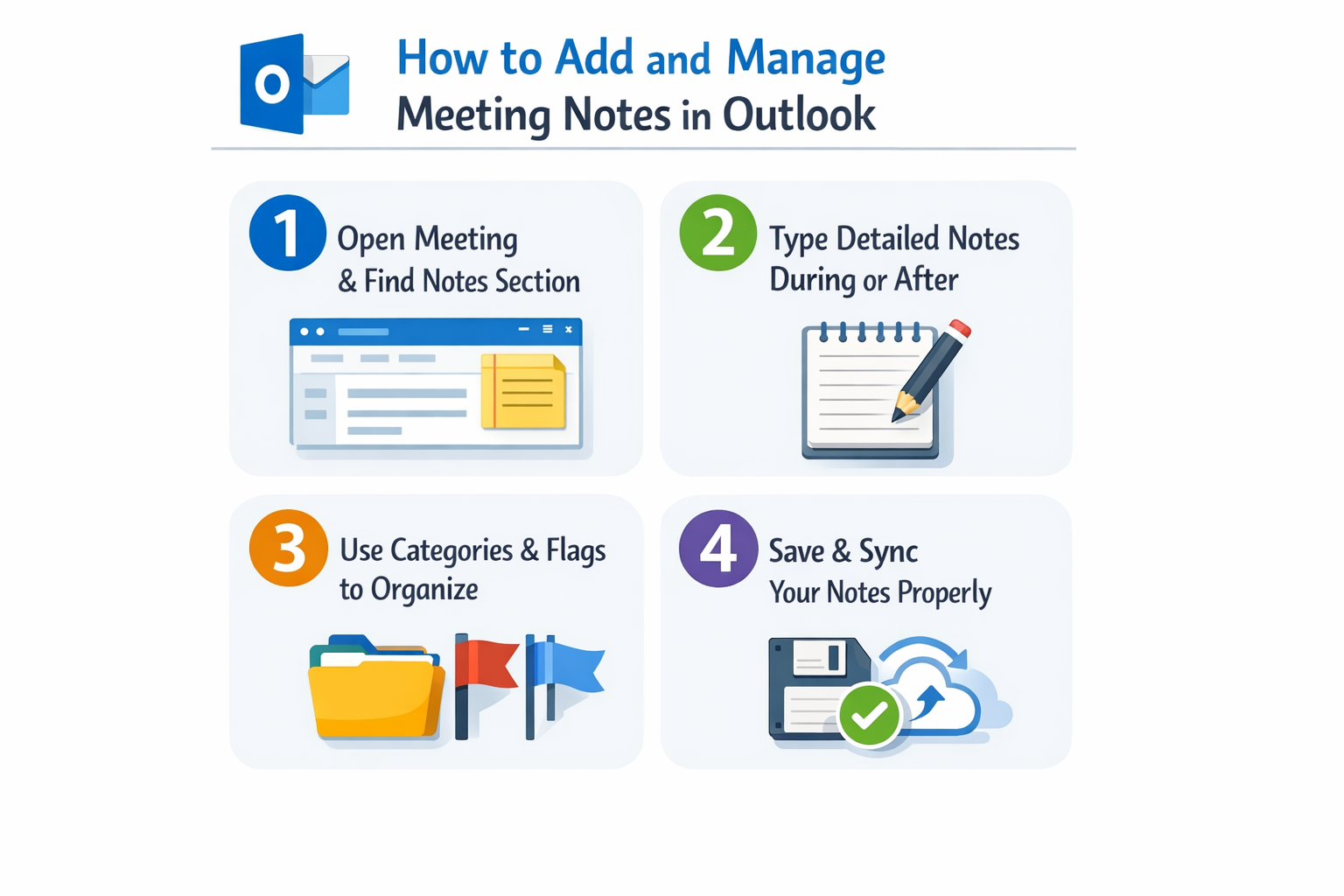
- Open Outlook and navigate to your calendar view by clicking the calendar icon in the navigation pane or pressing Ctrl+2 to switch directly to the calendar interface.
- Locate the meeting for which you want to add notes by browsing through your calendar or using the search function to find specific appointments by typing the meeting title or attendee names.
- Double-click on the meeting entry to open it in a new window, which will display all the meeting details including the subject line, attendees, location, and any existing description or agenda items.
- Click in the large text area below the meeting details, which serves as the notes section where you can add comprehensive meeting documentation including discussion points, decisions made, and action items assigned.
- Type your meeting notes using a structured format that includes attendee names, key discussion topics, decisions reached during the meeting, action items with assigned owners, and deadlines for follow-up tasks to ensure comprehensive documentation.
Expert Tip: Use bullet points and clear headings in your notes to make them easily scannable when you need to reference them later. Consider creating a consistent template format for all your meeting notes.
Creating notes during live meetings
- Before the meeting starts, open the calendar entry and position the notes section on your screen alongside your meeting application such as Microsoft Teams, Zoom, or any other conferencing platform you are using.
- During the meeting, actively type notes in real-time by documenting key discussion points, participant contributions, decisions made, and any action items that emerge throughout the conversation to maintain accurate meeting records.
- Save your progress periodically by clicking the Save & Close button or using Ctrl+S to ensure your notes are preserved even if technical issues arise during the meeting session.
- After the meeting concludes, review and refine your notes by adding any additional details you remember, clarifying action items, and ensuring all participant names and deadlines are accurately recorded for future reference.
Organizing notes with categories and follow-up flags
- Assign categories to your meeting entries by clicking the Categorize button in the ribbon and selecting appropriate color-coded categories such as “Project Alpha,” “Budget Review,” or “Team Planning” to make meetings easier to locate later.
- Set follow-up flags on meetings with outstanding action items by clicking the Follow Up button and choosing an appropriate timeframe that aligns with your project deadlines and task management system.
- Create recurring meeting templates with pre-formatted notes sections that include standard agenda items, participant roles, and action item tracking formats to maintain consistency across similar meeting types.
- Use the search functionality to locate specific meetings and their associated notes by typing keywords, attendee names, or project references in the Outlook search bar to quickly access relevant meeting documentation.
Troubleshooting common meeting notes challenges
- Notes disappearing after saving meetings: This issue typically occurs when Outlook syncing encounters problems with your Exchange server or when working offline without proper synchronization settings configured in your account preferences.
- Unable to edit notes in meeting invitations from others: Meeting organizers control editing permissions for calendar entries, so you may need to request editing access or create your own separate calendar entry to document personal meeting notes and action items.
- Formatting issues when copying notes to other applications: Outlook’s rich text formatting may not transfer correctly to plain text applications, so consider using basic formatting or copying content in smaller sections to preserve the intended layout structure. Learn more about copying meetings in Outlook.
- Missing notes in mobile Outlook applications: The mobile versions of Outlook have limited note editing capabilities compared to desktop versions, so complex meeting documentation should be completed using the full desktop application or web interface for optimal functionality.