Adding Excel to Teams usually means one of two things: upload the workbook so the channel can work on it, or pin the workbook as a tab so everyone can open it without hunting through messages. The cleanest method is to store the workbook in the channel’s Shared files area, then make it a tab only when the team uses it often. That keeps one workbook copy in SharePoint behind Teams instead of scattering attachments across chats.
Add an Excel workbook to your Teams channel
Upload Excel to Teams
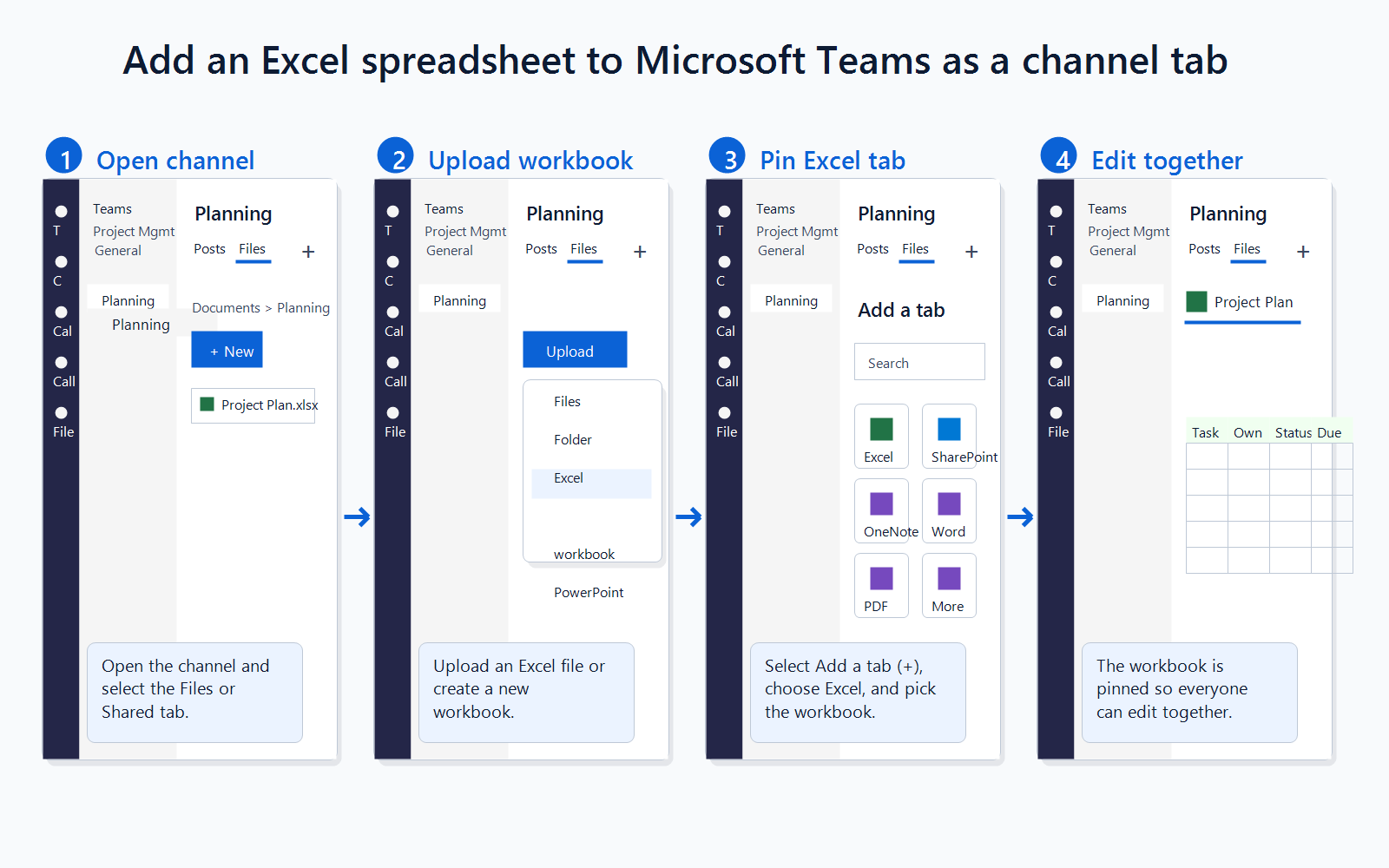
Open the team and channel where the workbook belongs, then select Shared at the top of the channel. Choose Upload >> Files, pick the Excel workbook, and select Open. Teams uploads the file into the channel library, where channel members can access it from the same Shared tab. If the channel needs task tracking instead of a workbook tab, add a Planner workspace for the team.
My usual rule is to upload the workbook before posting about it, because the permissions are easier to reason about.
For a workbook that people will update together, avoid sending separate copies in chat. A channel upload keeps the workbook tied to the team and uses the Microsoft 365 file storage model behind the channel. If the workbook is large or slow to upload, it is worth checking fix upload limits before people start creating duplicate versions.
Share spreadsheet from OneDrive
If the workbook already lives in your OneDrive for Business, you can share it from inside Teams instead of uploading a new copy. Select OneDrive on the left side of Teams, go to My files, hover over the workbook, and choose Share. Use Sharing settings to decide whether people can edit, review, view, or download the file, then send the link or copy it into the channel.
This is better when the workbook is owned by one person but shared with a defined group. The gotcha is ownership: a OneDrive link stays tied to the owner’s OneDrive, while a channel upload belongs to the team’s SharePoint-backed file area. For recurring team workbooks, the channel library is usually the more durable home.
Create a new workbook
Teams can also create a new Excel workbook directly in a channel. In the channel, select Shared, choose New, and then pick Excel workbook. Name the file clearly before editing, because the file is saved into the channel library immediately.
Use this route when the team is starting a tracker, budget sheet, issue log, or planning workbook from scratch. It saves the extra upload step and makes the workbook visible to everyone who already has channel access. The only friction is naming: a vague name like “Book.xlsx” becomes hard to find once the channel has months of files.
<meta itemprop=”name” content=”Add Excel to Teams” />
<meta itemprop=”name” content=”Open the channel” />
<meta itemprop=”name” content=”Upload the workbook” />
<meta itemprop=”name” content=”Set access expectations” />
<meta itemprop=”name” content=”Pin frequent workbooks” />
Pin a shortcut to Excel in Teams
Make Excel a tab
After the workbook is in the channel, open the Shared tab and find the file. Use More actions next to the workbook and choose Make this a tab when that option is available. The workbook appears along the top of the channel so people can open it from the channel header instead of browsing the file list.
Pinning is helpful for planning sheets, project trackers, and customer handoff lists. It is not necessary for every workbook, and overusing tabs makes the channel harder to scan. I only pin files that the team opens repeatedly during the week.
Open Excel files cleanly
Teams can open Word, PowerPoint, and Excel files inside Teams, in the desktop app, or in the browser depending on the user’s file preference. To change that behavior, select Settings and more >> Settings >> Files and links, then adjust File open preference. This setting affects how Office files open for that user, not the file itself.
If formulas, add-ins, or workbook performance matter, the desktop Excel app is often the safer editing environment. If the team only needs quick edits or comments, opening inside Teams is convenient. For channel organization tips, reuse channel files instead of reposting attachments.
Manage editing rights
When sharing from OneDrive, open Sharing settings before sending the workbook link. Choose whether recipients can edit, review, view, or download the file, then apply the setting. When the workbook sits in a channel library, access generally follows the channel and team membership.
This distinction explains many “why can they edit this?” problems. A channel file is governed by team access, while a OneDrive share can be narrowed to specific people. If the workbook contains sensitive numbers, do not assume the tab controls permissions; verify the file location and sharing settings.
Verify the workbook is stored in the intended channel
Before pinning a workbook as a tab, confirm where Teams will store it and who belongs to that location. A standard channel uses a folder in the team's parent SharePoint site, while private and shared channels use separate channel sites with their own membership boundaries.
Identify the channel type
Open the team and select the destination channel. Confirm whether it is standard, private, or shared and review the channel members. Do not assume that everyone in the parent team can open files from a private or shared channel.
Open the connected document location
Open the channel's Files or Shared tab and choose Open in SharePoint. Check the site name, document library, and channel folder before uploading anything. This is the storage location Teams will use, even though users normally work with the file through the Teams interface.
Move or upload the workbook once
Place the authoritative workbook in that connected library and avoid keeping competing copies in personal OneDrive folders or another channel. Open the workbook from the channel and confirm that edits save to the expected SharePoint address.
Test access as a normal member
Ask a channel member who is not an owner to open the workbook from Files and make a harmless test edit in an agreed cell. Confirm that the change appears for you, then remove the test value. If the member receives an access request, correct the channel membership or file permission before creating the tab.
Add the tab and verify the same file
Select the plus button on the channel tab bar, choose the appropriate Excel or file option, and select the workbook from the connected location. Open the new tab and use the file details or Open in SharePoint command to confirm it points to the same item tested earlier. Rename or move the workbook only through a coordinated change, because an existing tab may retain an outdated reference.
Fix common workbook issues
Workbook is not visible
First, confirm that you uploaded the workbook to the correct channel. Teams channels have their own file areas, so a workbook uploaded in one channel does not automatically appear in another. If you shared a OneDrive link, check that the recipient has permission to open it.
The second check is timing. Large workbooks can take a moment to appear after upload, especially when the connection is weak. Refresh the Shared tab before uploading another copy.
Excel opens in the wrong app
If Excel opens in Teams when you expected the desktop app, change your Teams file open preference under Settings >> Files and links. Pick Desktop app if you need the full Excel experience. Pick Browser or Teams if lightweight collaboration matters more than advanced desktop features.
This setting is personal, so changing it will not force the rest of the channel to use the same app. Tell coworkers which app you recommend when the workbook depends on macros, external data, or complex formatting.
Edits are not syncing
Channel files sync between Teams and the related SharePoint site. If updates look stale, open the file from the channel’s Shared tab and confirm everyone is editing the same workbook. For OneDrive shares, make sure no one downloaded and edited a local copy.
Version confusion is the main risk with Excel in Teams. Keep one source file, use links instead of reattachments, and pin only the workbook that should be treated as current.
Teams questions answered
Can I add an Excel file as a Teams tab?
Yes. Upload the workbook to the channel first, then use the file’s menu to make it a tab when the option appears. This is best for workbooks the channel uses often.
Where are Teams Excel files stored?
Files uploaded to a channel are stored in the team’s SharePoint-backed file area. Files shared in chats are stored in the sender’s OneDrive for Business and shared with the chat participants.
Can everyone edit the workbook?
It depends on where the workbook is stored and how it was shared. Channel members can usually access channel files, while OneDrive shares can be limited with specific view, review, or edit permissions.
Add Excel to Teams by choosing the right home first: channel files for shared team work, OneDrive links for owner-controlled sharing, and tabs only for workbooks people open constantly.