
Managing multiple email accounts efficiently
“I have three email accounts connected to New Outlook, but it keeps using my personal Gmail as the default sender when I need my work account to be primary. How can I change which email account New Outlook uses as the default for sending messages?” This scenario affects professionals who manage multiple email accounts and need specific accounts to serve as their primary communication channel for different contexts.
Understanding default account configuration in New Outlook
The default email account determines which address appears automatically in the “From” field when composing new messages, replies, and forwards in New Outlook. Unlike the classic Outlook application, New Outlook handles default account settings differently and requires specific steps to modify this behavior. This tutorial will demonstrate how to change your default email account in New Outlook for Windows, ensuring your preferred account serves as the primary sender for all outgoing communications.
You’ll learn to navigate New Outlook’s account settings, modify the default sending account, and verify the changes take effect across different message types. Prerequisites include having New Outlook installed on Windows with at least two email accounts already configured and connected. The process works with Microsoft 365 accounts, Gmail, Yahoo, and other IMAP/POP3 email services supported by New Outlook.
Configuring your primary sending account in New Outlook
New Outlook determines the default account based on the order accounts were added and specific account priorities set within the application. The following steps will help you establish your preferred email account as the default sender.
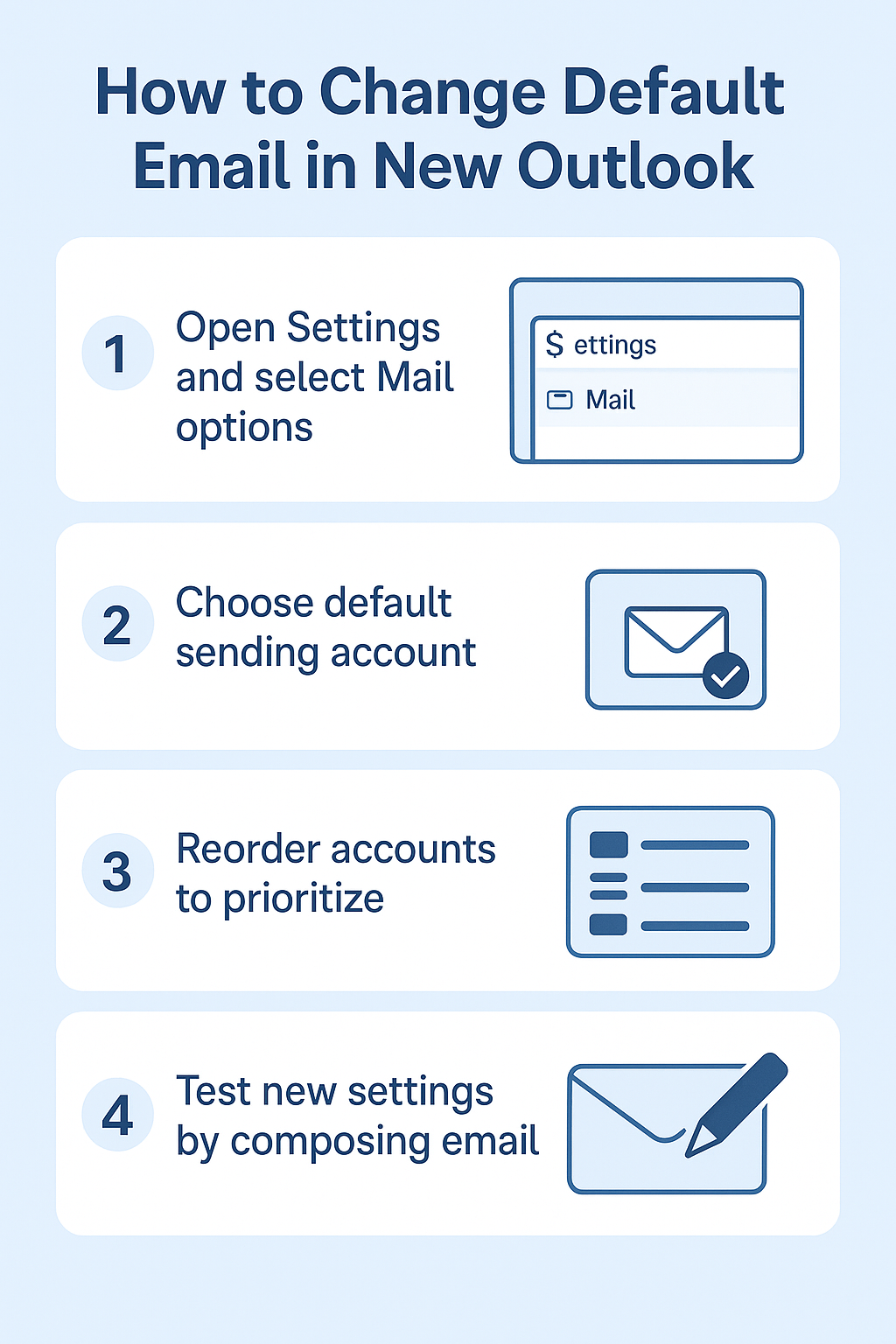
- Open New Outlook by clicking the Outlook icon in your taskbar or searching for “Outlook” in the Windows Start menu to launch the application with all your connected accounts visible.
- Navigate to the Settings menu by clicking the gear icon located in the top-right corner of the New Outlook interface, which opens the comprehensive settings panel for account and application management.
- Select “Mail” from the left sidebar menu within Settings, then locate the “Compose and reply” section to access options that control how New Outlook handles outgoing messages from multiple accounts.
- Click on “Default account for sending mail” dropdown menu, which displays all currently connected email accounts available for selection as your primary sending address.
- Choose your preferred email account from the dropdown list, ensuring you select the account you want to appear automatically in the From field for new messages, replies, and forwards.
- Confirm the selection by clicking “Save” or “Apply” button at the bottom of the settings panel to ensure New Outlook stores your default account preference permanently.
Verifying account priority settings
- Return to the main Settings menu and select “Accounts” from the left navigation panel to view all connected email accounts and their current configuration status in New Outlook.
- Review the account order displayed in the Accounts section, noting that New Outlook sometimes uses the first account listed as the default sender regardless of other settings.
- Use the drag-and-drop functionality to reorder accounts by clicking and holding an account entry, then moving it to your preferred position in the list hierarchy.
- Place your desired default account at the top of the list to ensure New Outlook prioritizes this account for sending operations and general email management functions.
Expert Tip: The account order in New Outlook’s settings panel directly influences which account appears first in dropdown menus throughout the application, making reordering a crucial step for consistent default behavior.
Testing default account functionality
- Create a new email message by clicking the “New mail” button or pressing Ctrl+N to open the compose window and verify which account appears in the From field.
- Check that your newly configured default account appears automatically in the From field without requiring manual selection from the dropdown menu each time you compose messages.
- Reply to an existing email from any of your connected accounts to confirm that New Outlook uses your default account rather than automatically matching the recipient’s original account.
- Forward a message to test whether the default account setting applies consistently across all types of outgoing communications in New Outlook’s messaging system.
Resolving common default account issues
Several challenges can prevent New Outlook from properly recognizing your default account selection, requiring specific troubleshooting approaches to restore proper functionality.
- Default account reverts to original setting: New Outlook occasionally resets the default account to the first account added during initial setup, requiring you to clear the application cache by navigating to Settings > General > Storage and clicking “Clear cache” to resolve persistent configuration conflicts. See our guide on speeding up Outlook slow performance for related tips.
- From field shows wrong account despite correct settings: This issue occurs when New Outlook’s internal account priority conflicts with user settings, requiring you to sign out of all accounts through Settings > Accounts, then sign back in starting with your preferred default account first to establish proper hierarchy.
- Reply messages ignore default account preference: New Outlook may automatically match the recipient’s account when replying, overriding your default selection, which you can resolve by disabling “Automatically select account based on recipient” in Settings > Mail > Compose and reply options.
- Multiple Microsoft 365 accounts causing confusion: When using several work accounts, New Outlook may prioritize the primary organizational account regardless of settings, requiring administrator assistance to modify account policies or switching to manual account selection for each message to maintain control over sender identity.
Important Tip: Always restart New Outlook completely after making default account changes to ensure all settings take effect across different message types and recipient scenarios.