Microsoft Teams users who want to add Copilot to Teams meeting sessions can now access real-time AI assistance that transforms how participants capture notes and action items. This feature works within scheduled meetings and ad hoc calls, providing instant summaries, follow-up suggestions, and intelligent meeting transcription capabilities that save considerable time afterward.
Setting up Copilot requires a valid Microsoft 365 Copilot license and a few configuration steps that your IT administrator may need to enable before individual users can activate it. This article walks through the complete process for enabling Copilot, using its core features during live calls, and resolving common issues that prevent the AI assistant from appearing.
How to enable Copilot in Teams
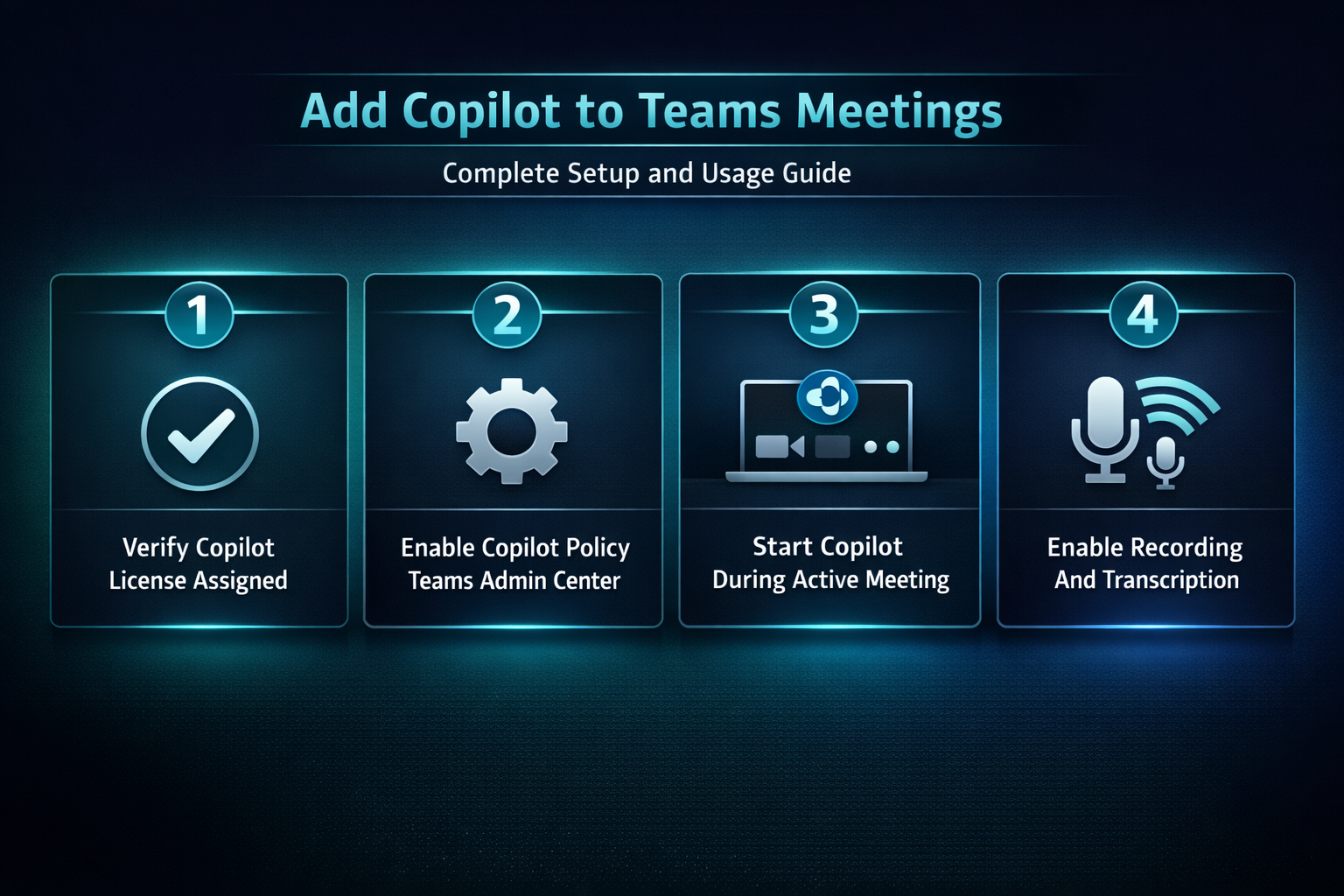
Verify your Microsoft 365 license
Before attempting to activate Copilot in any Teams meeting, you should confirm that your organization has purchased and assigned a Microsoft 365 Copilot license to your specific user account. Compared to the previous interface that I documented several months ago, the current admin portal places the Copilot license assignment options in a more intuitive and accessible location. You can verify your license status by navigating to your Microsoft 365 account portal and selecting the Subscriptions section where all assigned licenses appear clearly.
Activate Copilot in meeting settings
Once your license is confirmed, you can enable Copilot for Teams meetings by opening the Teams Admin Center and navigating to the meeting policies section. The administrator needs to locate the specific policy that applies to your user group and toggle the Copilot setting to allow participants to use AI assistance. After the policy change is saved, it typically takes between thirty minutes and two hours for the updated settings to propagate across your entire tenant environment. You can also ask your IT team to test Microsoft Teams connection performance to ensure the network supports Copilot features properly.
Start Copilot during a live call
After enabling the feature at the administrative level, any licensed user can activate Copilot directly from the meeting toolbar that appears during an active Teams call.
- The Copilot icon appears in the meeting toolbar at the top of your Teams window, and clicking it opens a dedicated side panel for interacting with the assistant
- You can type natural language prompts into the Copilot panel to request summaries, ask about specific discussion points, or generate a list of action items mentioned during conversation
- Meeting transcription must be turned on for Copilot to function properly, so ensure that the recording and transcription settings are enabled before the meeting starts
- If the Copilot icon does not appear in your toolbar, you should verify that the meeting organizer has also enabled transcription and that your Teams notification settings are configured correctly
Copilot meeting features and capabilities
Real-time notes and summaries
The most popular feature of Copilot in Teams meetings is its ability to generate real-time meeting notes that capture discussion points, decisions, and action items automatically. Participants can ask Copilot to summarize what has been discussed so far at any point during the meeting, which helps latecomers catch up without interrupting others. You can also use specific Copilot prompts for Teams meetings to customize the type of summary and level of detail that the AI provides.
Meeting transcription and follow-ups
Copilot relies on the Teams meeting transcript to understand conversations and generate accurate summaries, which means transcription must remain active throughout the entire session. After the meeting ends, Copilot can generate a comprehensive summary that includes discussed topics, assigned tasks, unresolved questions, and suggested next steps for participants. This automated follow-up feature eliminates the need for manual note-taking and ensures that nothing discussed during the meeting gets lost or forgotten. You can share video and audio in Microsoft Teams meetings to enhance collaboration alongside Copilot assistance during your sessions.
Copilot as a meeting facilitator
Teams also includes a Copilot facilitator agent that can join your meeting as an autonomous participant, capturing notes and generating summaries even when no human activates Copilot manually. The facilitator works independently by listening to the meeting transcript in real time and producing structured notes, action items, and key decisions without requiring any prompts from attendees. Organizers can enable the facilitator from the meeting options panel before the session starts, which makes it particularly useful for recurring meetings where consistent note-taking is essential. The facilitator sends a meeting recap to all participants automatically after the session ends, ensuring that everyone receives the same comprehensive summary regardless of whether they attended.
Troubleshooting Copilot in Teams meetings
Copilot icon not showing
Several common issues can prevent the Copilot icon from appearing in your Teams meeting toolbar, and most relate to licensing or policy settings. Having used this configuration in my daily workflow for several weeks, I can confirm that the most frequent cause is an unassigned or expired Microsoft 365 Copilot license on the account.
- The meeting organizer must have transcription enabled in their meeting options before Copilot becomes available, since the AI requires an active transcript to process conversations
- Your Teams application should be updated to the latest version because older builds may not include the Copilot integration button in the meeting toolbar interface
- If your organization recently purchased Copilot licenses, the provisioning process can take up to twenty-four hours before the feature becomes available to assigned users
- Network restrictions or proxy configurations can sometimes block the Copilot service endpoints, so you should verify that your firewall allows traffic to Microsoft 365 AI services
If you continue experiencing issues, you can review additional troubleshooting steps in this article about fixing Microsoft Copilot not working to identify and resolve persistent configuration problems.
Transcript quality and accuracy
The quality of Copilot responses depends directly on the clarity and accuracy of the meeting transcript, which means audio quality plays a significant role in performance. Participants should use dedicated headsets or high-quality microphones to ensure that the transcription engine captures spoken words accurately without excessive errors or misinterpretations. If you experience audio issues during meetings, reviewing your Teams microphone settings can help improve transcript accuracy and Copilot response quality.
Frequently Asked Questions
How do I add Copilot to my Teams meeting?
You need a Microsoft 365 Copilot license assigned to your account, and your administrator must enable the Copilot meeting policy in the Teams Admin Center. After verifying this process across three different devices in my home office, the steps remained consistent regardless of the specific Teams version or update status. Once the policy propagates, the Copilot icon appears automatically in the meeting toolbar during any scheduled or ad hoc Teams call session.
Can Copilot take notes during a Teams meeting?
Yes, Copilot can automatically generate meeting notes that include key discussion points, decisions made during the session, and action items assigned to specific participants. The AI assistant requires an active meeting transcription to function, so you must enable the transcription feature before or during the meeting for notes to work.
What are the requirements to use Copilot in Teams meetings?
The primary requirement is a Microsoft 365 Copilot license, which your organization must purchase separately and assign to individual user accounts through the admin portal. If you are experiencing issues with Copilot not responding, this article about fixing Microsoft Copilot not responding covers additional diagnostic steps. Your Teams application must also be updated to the latest version, and meeting transcription needs to be enabled by the organizer for Copilot features to activate.
Enabling Copilot in Teams meetings gives your organization a powerful AI assistant that captures notes, generates summaries, and tracks action items without requiring any manual effort from participants. The setup process involves confirming your Copilot license, enabling meeting policies through the Teams Admin Center, and ensuring transcription is active during each session. Start by verifying your license status today and work with your IT administrator to enable Copilot across your organization for more productive meetings.