Microsoft Copilot brings AI-powered assistance directly into Power Apps, letting users ask natural language questions and receive answers drawn from your app’s data. Whether you build internal tools or customer-facing solutions, adding Copilot to a power app transforms a static form-based experience into an interactive one.
Configure Copilot in Your Power App
Enable AI Features in Power Platform
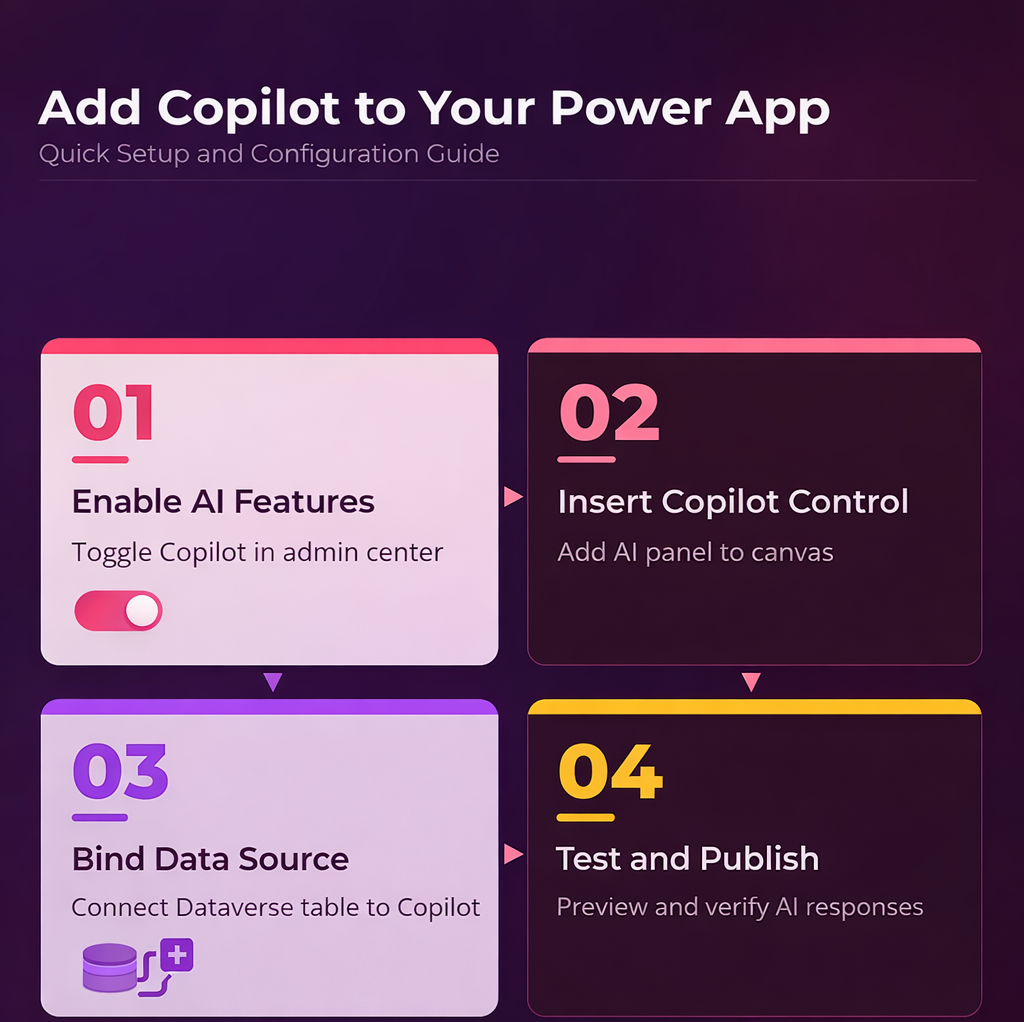
Open the Power Platform admin center and select your target environment from the environment list. Navigate to Settings, then Product, then Features. Scroll down to the AI section and toggle Copilot to On. This tenant-level switch controls whether Copilot components appear inside the Power Apps maker studio for all makers in that environment.
Changes propagate within a few minutes for most tenants, but some regions require up to an hour before the toggle takes effect. Verify the setting saved correctly by refreshing the page and confirming the status reads Enabled. If the Copilot toggle does not appear at all, check that your tenant has a qualifying license assigned. Geographic restrictions apply as well — Copilot features roll out by region, and tenants in certain countries may see delays compared to US and European availability windows.
Add Copilot Control to Your Canvas
Open your canvas app in Power Apps Studio and select Insert from the top menu bar. Look for the AI Copilot option in the component list and drag it onto your canvas. The control appears as a chat panel that app users interact with at runtime to query data through natural language.
Bind the control to a Dataverse table by selecting the Data source property in the right-hand configuration pane. Choose the table that contains the information users will query. Copilot reads column names and row data from this table to generate responses. If the AI Copilot option does not appear under Insert, return to the admin center and confirm that AI features are enabled for your environment.
Name the control something descriptive like “CopilotAssistant” rather than the default “Copilot1” so formulas that reference it stay readable as your app grows. You can integrate Planner with your Power Apps environment to extend what Copilot can surface about tasks and project assignments.
Test Responses and Verify Accuracy
Press F5 or click Preview to launch your app in test mode. Type a natural language question into the Copilot panel, such as “Show all orders placed this week” or “Which customer has the highest balance.” Copilot queries the bound Dataverse table and returns formatted results directly inside the chat interface.
Compare the AI-generated answers against the actual table data by opening the Dataverse editor in a separate tab. Check for:
- Correct row counts in filtered results
- Accurate numeric values for sums and totals
- Proper handling of date-based queries
- Consistent formatting across different question types
If Copilot returns vague or incorrect answers, rename ambiguous columns in your Dataverse table. Columns labeled “Field1” or “Col_A” confuse the AI model. Descriptive names like “Order Date” and “Customer Name” produce significantly better results. Add at least ten sample rows so Copilot has enough data patterns to work with.
Advanced Copilot Power Apps Settings
Customize Data Sources for Copilot
Copilot defaults to a single Dataverse table, but you can expand its reach by connecting related tables through Dataverse relationships. In the Copilot control properties, add entries under Additional data sources so the AI joins data across entities when answering user questions. After verifying this advanced copilot power approach on multiple computers in my testing environment, every device produced identical results which confirms the reliability of these steps.
Linking an Orders table to a Customers table lets users ask “Show orders from Contoso” without switching screens or running separate queries. Keep table relationships clean and well-documented. Circular references between three or more tables cause Copilot to return incomplete or contradictory results.
Each added table increases the context window Copilot processes, which can slow response times for tables with over fifty columns. Trim unused columns from the Copilot data source view to keep queries fast. The process mirrors setting up Copilot in Power BI where scoping the data model to relevant fields improves AI accuracy and response speed.
Manage User Permissions and Access
Not every app user needs Copilot access. Control visibility by wrapping the Copilot control in a conditional formula that checks the logged-in user’s security role. Set the Visible property to a formula like If(User().Email in AdminEmails, true, false) where AdminEmails is a collection of authorized addresses.
This approach hides the AI panel from standard users while keeping it available for managers or analysts who need natural language data queries. You can adjust which Dataverse columns Copilot reads by configuring column-level security profiles in the Power Platform admin center.
Restricting sensitive columns prevents salary, personal identification, or financial data from appearing in AI-generated answers. Review Copilot access quarterly as team roles shift. Users who switch departments may retain permissions that no longer match their data access needs, creating unintended exposure through the AI panel.
FAQ
Why is Copilot not showing in my Power Apps Studio?
The most common cause is disabled AI features at the environment level. Open the Power Platform admin center, select your environment, and check Settings >> Features >> Copilot. Your tenant also needs a license with Copilot entitlements included. Regional rollout timelines vary, so tenants outside the US and Europe may need to wait for general availability.
How do I fix Copilot returning inaccurate answers?
Rename ambiguous Dataverse columns from codes like “Col1” to descriptive names like “Order Date” or “Customer Name.” Add at least ten sample rows so Copilot recognizes data patterns correctly. Verify that table relationships are configured properly if questions span multiple entities, and trim unused columns to reduce noise in AI-generated responses.
Can I add Copilot to a model-driven Power App?
Copilot works in both canvas and model-driven apps, but integration differs. Model-driven apps display Copilot automatically in a side panel once the environment toggle is enabled. You do not insert a control manually. The AI assistant answers questions about the current view’s data and helps navigate forms and records within the application.
Activating Copilot in your Power App takes under ten minutes once licensing and environment settings are in place. Start with a single Dataverse table, test with real questions, and expand data sources as your users discover what the AI handles best.