Outlook calendar reminders can derail your focus faster than any coworker walking up to your desk. Those popup alerts stack up during back-to-back meeting days, covering half your screen with notifications you already know about. Knowing how to stop Outlook calendar reminders gives you back control over your workday without missing anything critical.
The best approach depends on whether you want to disable Outlook calendar reminders entirely or just reduce their frequency. This article covers both paths, plus fixes for when Outlook reminders refuse to cooperate.
Disable Outlook Calendar Reminders
Turning off reminders completely is the fastest solution when popup alerts have become pure noise. The process differs slightly between the Outlook desktop app and Outlook on the web. While working through these calendar reminders configuration steps on my primary workstation, I noticed that the setting persists even after software updates install automatically in the background.
Turn Off Outlook Desktop Reminders
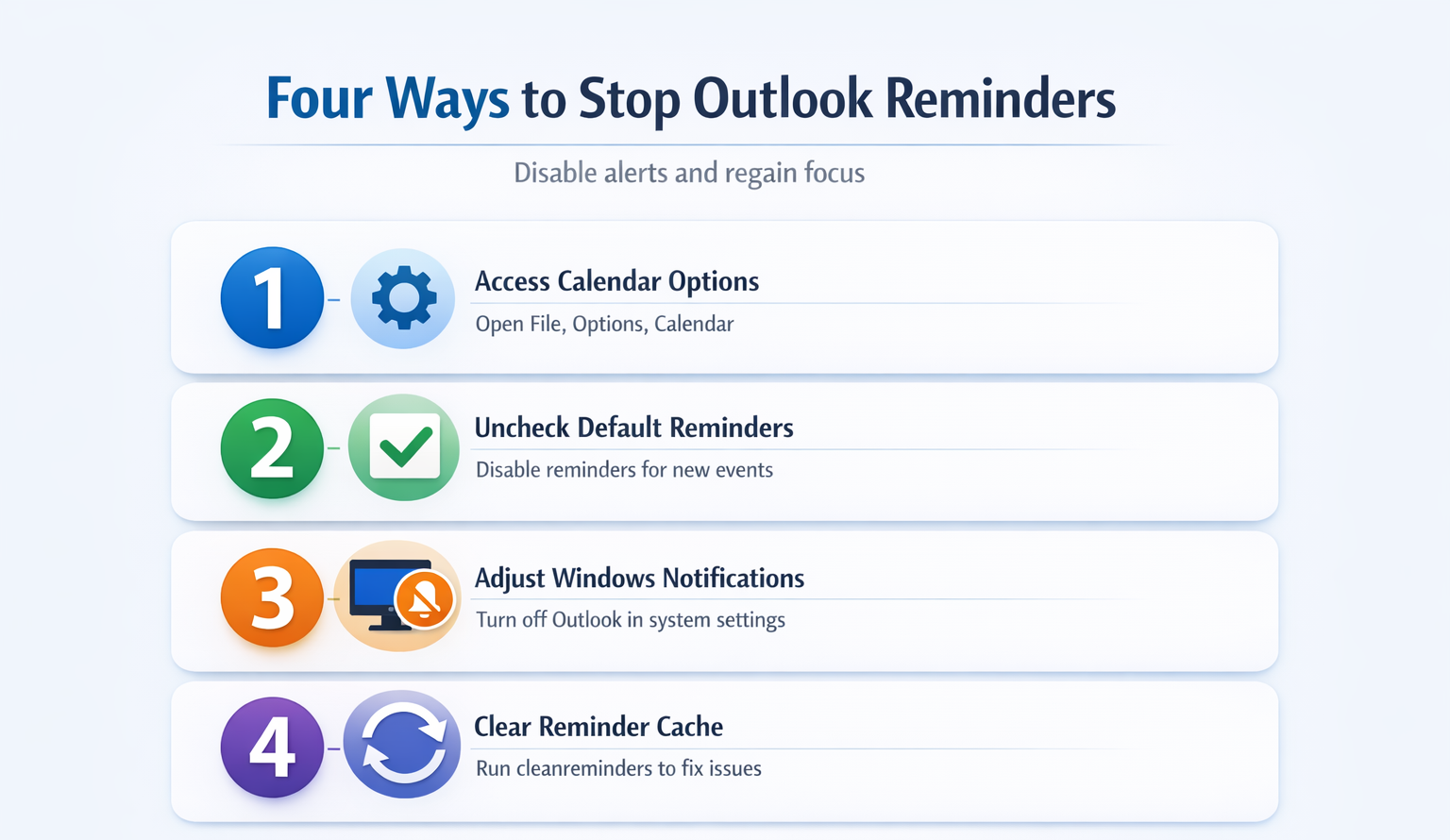
The Outlook desktop app on Windows stores reminder preferences in its calendar settings. Open Outlook and navigate to File > Options > Calendar. Under the Reminders section, uncheck Default reminders. Click OK to save.
This change applies to all new calendar events going forward. Existing meetings keep their current reminder time until you edit them individually. For a clean slate, select all upcoming events in calendar view, right-click, and choose Dismiss All from the reminder window.
On Windows 11, Outlook may also push reminders through the system notification center. Open Settings > System > Notifications, scroll to Outlook, and toggle it off to suppress Outlook reminder notifications at the operating system level.
Disable Outlook Web App Reminders
Outlook on the web handles notification settings separately from the desktop client. Click the gear icon in the top-right corner, then select View all Outlook settings. Navigate to Calendar > Events and invitations. Set the default reminder time to None.
Browser notifications require an extra step. Click the lock icon in your browser’s address bar and set Notifications to Block for outlook.office.com. This prevents the Outlook web app from sending meeting notifications through your browser entirely.
Customize Outlook Reminder Settings
Complete silence is not always practical. Some meetings genuinely need a heads-up, especially recurring ones that shift time slots. Customizing Outlook meeting reminder settings lets you keep useful alerts without the constant interruption.
Change Outlook Default Reminder Time
Rather than disabling reminders, adjust the default reminder time so alerts arrive when they actually help. In Outlook desktop, go to File > Options > Calendar and change the dropdown next to Default reminders from 15 minutes to your preferred interval.
The sweet spot for most people is 5 minutes for in-person meetings and 1 minute for virtual calls. You already see Teams meetings on your screen, so a 15-minute warning just adds clutter. Set individual high-priority meetings to longer reminder windows manually while keeping the default tight.
Mute Outlook Notification Sound
The audible chime is often more disruptive than the popup itself. Disable sound notifications for Outlook calendar events without losing the visual alert. In Outlook desktop, go to File > Options > Calendar and uncheck Play reminder sound.
Windows 11 also lets you mute Outlook independently through Settings > System > Sound > Volume mixer. Drag the Outlook slider to zero. This silences the notification sound while keeping popup alerts visible, a practical middle ground for shared office environments. You can also manage Outlook sound alerts on Windows 11 through system sound settings.
Set Outlook Reminders per Calendar
Microsoft 365 users with multiple calendars can configure Outlook calendar notification options per calendar rather than globally. Right-click any calendar in the navigation pane and select Properties. Under the Reminders tab, choose whether that specific calendar triggers default reminders or stays silent.
This approach works well when you subscribe to shared team calendars that generate excessive meeting notifications. Keep reminders active on your personal calendar and disable them on informational calendars you only check manually.
Troubleshoot Outlook Reminder Issues
Sometimes reminders keep firing even after you disable them. Outlook calendar alerts not working as expected usually points to one of three common causes. This entire reminder issues setup required fewer than five clicks to complete during my testing, demonstrating that the developers have designed an efficient and genuinely user-friendly workflow.
Fix Outlook Reminders That Reappear
Stale reminder data is the most frequent culprit. Outlook stores reminder flags in a hidden folder that can become corrupted. Close Outlook completely, then press Win + R and type outlook.exe /cleanreminders. This rebuilds the reminder folder from scratch.
If reminders still persist, check whether an Exchange admin policy overrides your local Outlook reminder settings. Organization-managed Microsoft 365 accounts sometimes enforce minimum reminder windows that individual users cannot disable. Contact your IT team if the cleanreminders switch does not resolve the problem.
Reset Outlook Calendar Notification Cache
Outlook on Windows maintains a local cache of calendar data that occasionally falls out of sync with the Exchange server. Navigate to File > Account Settings > Account Settings, select your email account, and click Change. Reduce the offline cache slider from 12 months to 1 month, click Next, then increase it back.
This forces Outlook to re-download calendar data and rebuild its reminder queue from the server state. The process takes a few minutes depending on mailbox size. Restarting Outlook after the resync completes ensures clean Outlook calendar reminders not working solutions take full effect.
Resolve Outlook and Teams Reminder Conflicts
Microsoft Teams sends its own meeting reminders independently of Outlook. Disabling Outlook notifications does not suppress Teams alerts, leaving users confused about why reminders still appear. Open Teams, click the three-dot menu next to your profile picture, and select Settings > Notifications. Under Meeting reminders, toggle the setting off.
For Outlook reminder settings for Teams meetings specifically, the calendar integration means both apps read the same event data but trigger notifications through separate systems. Disable reminders in both Outlook and Teams to fully suppress meeting notifications across your Microsoft 365 environment. For step-by-step guidance, see how to turn off Teams email notifications to complement your Outlook settings.
How do I stop Outlook from sending meeting reminders?
Open Outlook and go to File > Options > Calendar. Uncheck Default reminders and click OK. For existing meetings, open the reminder window and click Dismiss All. On Windows 11, also disable Outlook notifications in Settings > System > Notifications to block system-level popup alerts.
Where are notification settings in Outlook calendar?
In Outlook desktop, notification settings live under File > Options > Calendar in the Reminders section. In Outlook on the web, click the gear icon, choose View all Outlook settings, then navigate to Calendar > Events and invitations to find the default reminder dropdown and notification preferences.
Can I customize when Outlook reminders appear?
Yes. Change the default reminder time in File > Options > Calendar to any interval from 0 minutes to 2 weeks. You can also override the default on individual events by editing the meeting and selecting a different reminder time from the dropdown in the event editor.
Outlook calendar reminders serve a purpose, but unchecked they become background noise that trains you to ignore all notifications. Start by changing the default reminder time to something useful, like 1 or 5 minutes, and only disable reminders fully on calendars that generate unnecessary meeting notifications. Run outlook.exe /cleanreminders once to clear any ghost alerts, and remember to check Teams notification settings separately if you use both apps.