Chrome opening automatically every time you start your computer can slow down your boot process and consume system resources before you even begin working on your daily tasks. Several different settings across both Windows and Chrome itself can trigger this automatic launch behavior, including startup program entries, background app permissions, and browser session restore configurations. This article covers every method available to stop Chrome from opening on startup, so you can regain full control over which applications launch when your computer boots up.
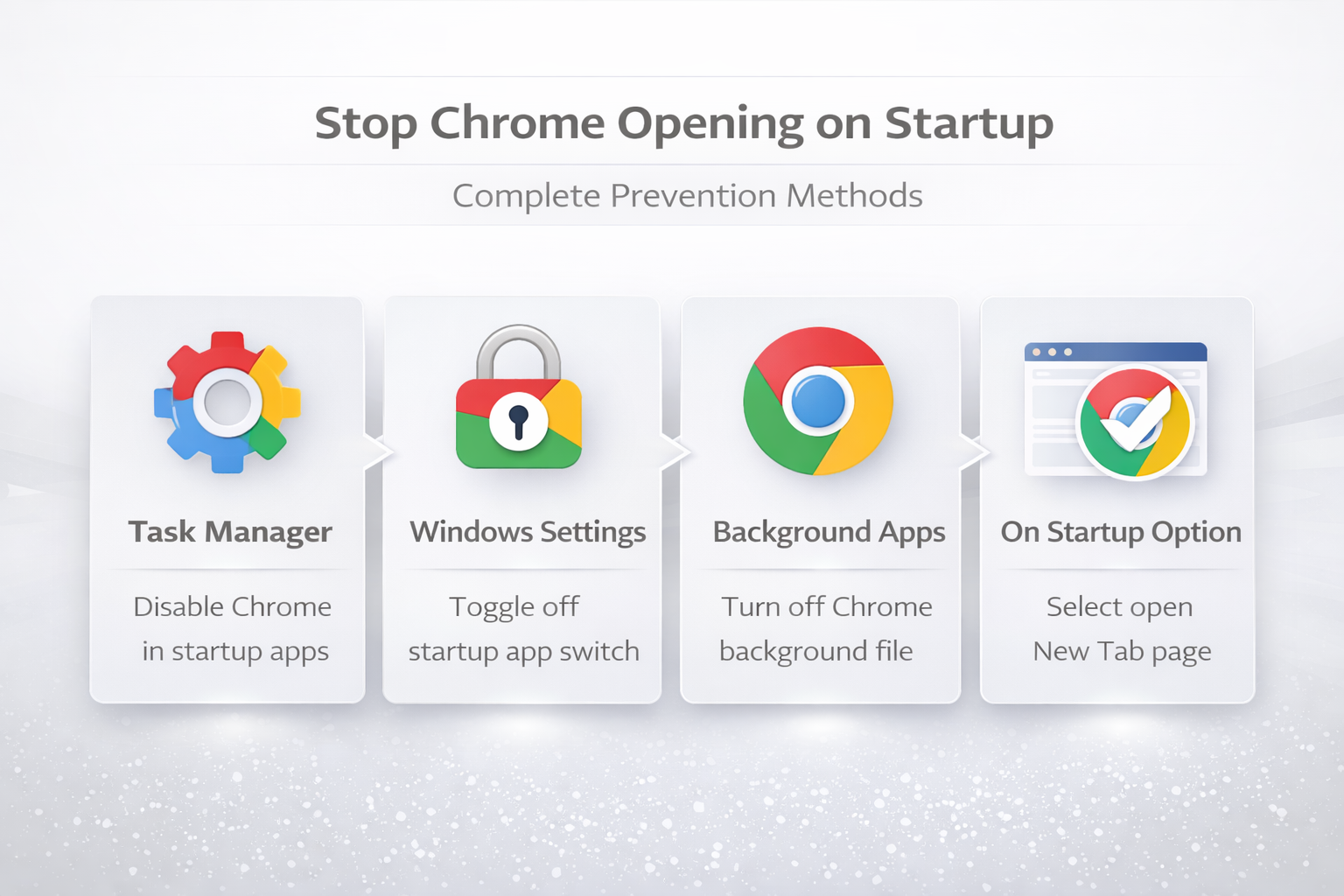
Disable Chrome in Task Manager
The Windows Task Manager provides a dedicated startup tab where you can view and control every application that is configured to launch automatically when your operating system finishes booting. Press Ctrl+Shift+Esc to open Task Manager directly, then click the Startup apps tab located in the left sidebar to reveal a complete list of all registered startup programs. Locate Google Chrome in the list of startup applications, right-click on its entry, and select Disable to prevent the browser from launching automatically during the boot sequence on your computer. This method is the quickest and most reliable approach for most users because it directly removes Chrome from the Windows startup program registry without affecting any browser settings or configurations.
Turn off Chrome startup in Settings
Windows 11 and Windows 10 both include a dedicated startup apps management panel inside the Settings application that provides a user-friendly alternative to the Task Manager method. Open Windows Settings by pressing Windows+I, navigate to Apps, then select Startup to display a toggleable list of all applications registered to launch at boot time automatically. Find Google Chrome in the alphabetical list of startup applications and toggle its switch to the Off position, which immediately prevents Chrome from launching when you restart your computer. This Settings approach is particularly helpful for users who prefer a visual interface and want to see the estimated impact each startup app has on boot performance and overall system resource consumption.
Disable Chrome background apps
Chrome includes a built-in setting that allows the browser to continue running background processes even after you close all visible Chrome windows, which can cause the browser to reappear on startup. Open Chrome, click the three-dot menu in the upper right corner, select Settings, then click System in the left sidebar to access the background application controls for your browser. Toggle off the setting labeled Continue running background apps when Google Chrome is closed to ensure Chrome completely shuts down when you close the last browser window during your session. Disabling background apps prevents Chrome from maintaining a persistent presence in your system tray that can trigger automatic relaunching when your computer starts up or resumes from sleep mode.
Verify background processes stopped
After disabling the background apps setting, you should verify that Chrome is no longer running any hidden processes by checking the Windows system tray area near your clock on the taskbar. Look for a small Chrome icon in the system tray notification area, and if you see one present, right-click the icon and select Exit to terminate all remaining background processes. You can also open Task Manager and check for any Google Chrome entries under the background processes section to confirm that no Chrome components remain active after closing.
Change Chrome On Startup setting
Chrome offers three different startup behavior options that control what happens when you manually open the browser, and one of these options can cause Chrome to appear to launch itself automatically. Open Chrome Settings, click On startup in the left sidebar, and review which of the three available options is currently selected for your browser startup configuration. If Continue where you left off is selected, Chrome will restore your previous browsing session including all open tabs from before your last shutdown, which some users mistake for Chrome opening on its own automatically. Switching to Open the New Tab page ensures Chrome starts with a clean slate every time you open it, and combined with the startup program disable methods above, this eliminates unwanted automatic launching.
Frequently Asked Questions
Why does Chrome open automatically when I start my computer?
Chrome can open automatically at startup for several reasons including being registered as a Windows startup program, having background apps enabled that maintain persistent processes, or having a third-party application configured to launch Chrome. The most common cause is that Chrome was added to the Windows startup programs list either during installation or through a settings change, which instructs the operating system to launch the browser automatically. Checking both the Task Manager startup tab and Chrome background app settings will identify and resolve the automatic launch behavior in the vast majority of cases.
How do I stop Chrome from running in the background?
Open Chrome Settings by clicking the three-dot menu and selecting Settings, then navigate to the System section in the left sidebar where you will find the background apps toggle control. Turn off the Continue running background apps when Google Chrome is closed toggle to ensure that Chrome completely terminates all processes when you close the last visible browser window. After disabling this setting, Chrome will no longer maintain background processes in your system tray, which eliminates one of the most common causes of the browser appearing to launch itself automatically.
Does disabling Chrome startup affect my saved tabs?
Disabling Chrome from the Windows startup programs list does not delete or affect any of your saved bookmarks, browsing history, passwords, or tab session data stored within your Chrome profile. Your previously open tabs will still be available through the Chrome History menu or by using the keyboard shortcut Ctrl+Shift+T to restore recently closed tabs whenever you manually open the browser. The only change is that Chrome will no longer launch automatically when your computer starts, but all your browser data and preferences remain completely intact and accessible.
Summary of prevention methods
Stopping Chrome from opening on startup requires checking multiple locations across both Windows system settings and Chrome browser settings to ensure all automatic launch triggers are properly disabled. The most effective approach combines disabling Chrome in the Windows Task Manager startup tab, turning off Chrome background apps through the browser System settings, and selecting the New Tab page startup option. Following these three steps together guarantees that Chrome will only open when you explicitly choose to launch it, giving you complete control over your startup experience and overall system performance.