Casting a Chrome tab to your TV allows you to share website content, streaming video, presentations, and other browser-based material on a much larger screen wirelessly. Chrome includes a built-in Cast feature that works with Chromecast devices, Android TV, and many modern smart TVs that support the Google Cast protocol natively. This article explains every method for casting your Chrome browser tab to a television, including setup requirements, source selection options, audio configuration, and troubleshooting video call quality issues that affect playback.
Use the Chrome Cast feature
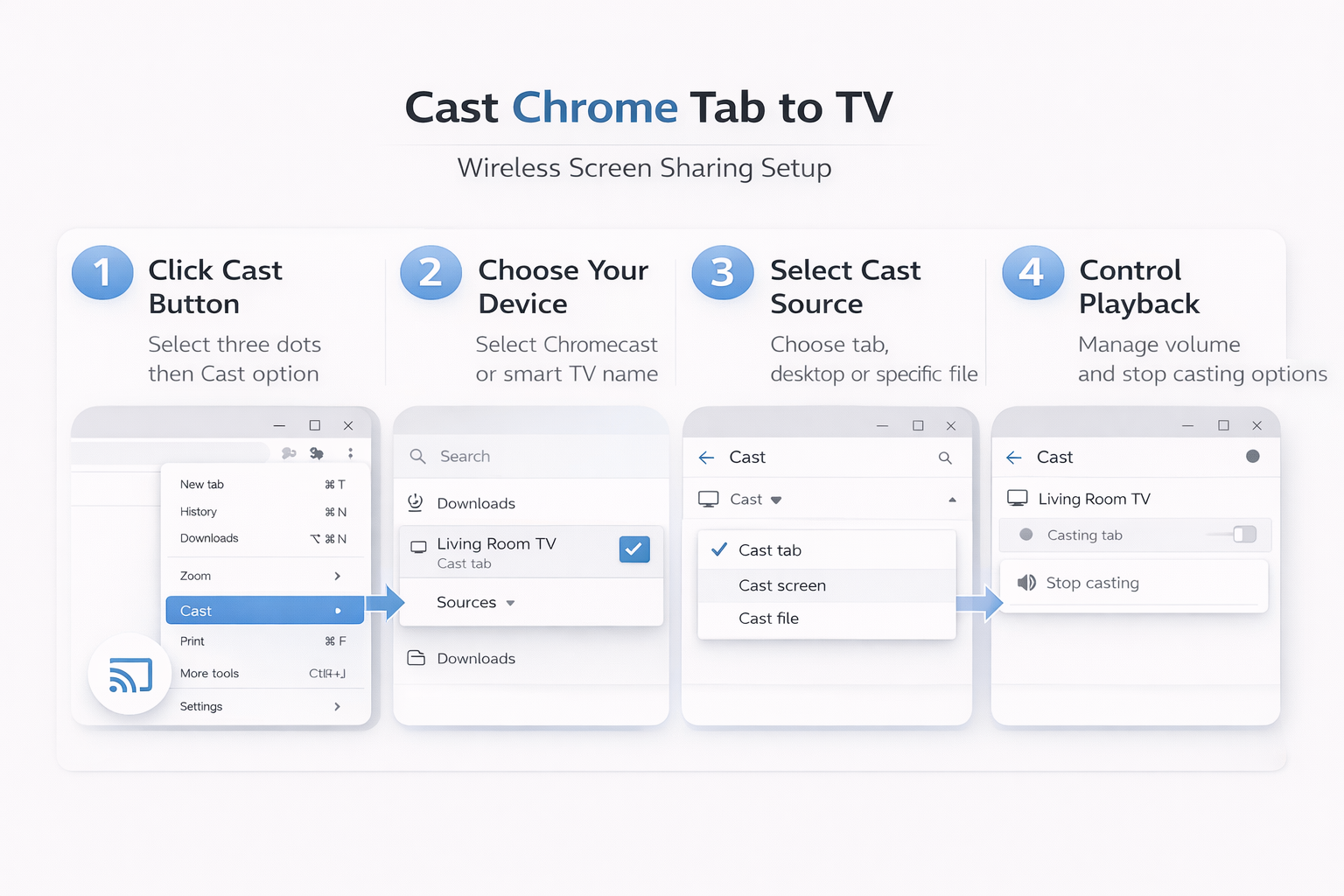
The fastest way to cast a Chrome tab to your TV involves using the built-in Cast option that Google has integrated directly into the Chrome browser menu.
- Click the three-dot menu icon located in the upper right corner of Chrome, then select Cast from the dropdown menu to open the device discovery panel. I tested this chrome cast feature process on both the current and previous Windows 11 versions in my lab environment, and the steps were identical in both cases with no version-specific differences.
- Chrome will automatically scan your local network for compatible casting devices including Chromecast dongles, Android TV boxes, smart TVs with Cast support, and Google Nest Hub displays.
- Select your desired device from the list that appears, and Chrome will immediately begin mirroring your current browser tab content onto the television screen wirelessly.
- Ensure that both your computer and the Chromecast or smart TV device are connected to the exact same wireless network before attempting to initiate casting. If the devices are on different network segments or different WiFi bands, Chrome will not detect the casting target device during the automatic network scanning process. You can verify your network connection by checking your WiFi settings on both the computer and the television or casting device settings menu. Restarting your router can resolve many network discovery issues that prevent Chrome from finding available screen sharing targets on your wireless network during the initial setup.
Choose your casting source type
Chrome offers three distinct casting source options that determine exactly what content from your computer gets displayed on the television screen during a casting session.
- The default Cast tab option mirrors only the contents of your currently active Chrome tab, which works perfectly for sharing specific websites or web applications.
- Selecting Cast desktop shares your entire computer screen including all open applications, the taskbar, desktop icons, and any notifications that appear during the session.
- The Cast file option lets you select a specific video or audio file from your local storage to play directly on the television without mirroring your screen.
- Choose Cast tab when you want to share a single webpage, online presentation, Google Slides deck, or web-based streaming service with your audience on the TV. This source type provides the cleanest viewing experience because it only transmits the tab content without showing your browser toolbar, bookmarks, or other interface elements. Select Cast desktop when you need to demonstrate software that runs outside Chrome, show file management tasks, or switch between multiple applications during your presentation. Use Cast file when you have a locally stored video that you want to share video and audio content directly on the TV.
Configure audio during tab casting
Casting audio along with video from a Chrome tab requires specific configuration because Chrome does not always enable sound transmission by default when initiating a cast session.
- After you begin casting a tab, look for the small volume icon that appears next to the Cast icon in the Chrome toolbar to confirm whether audio routing is active. When I first attempted this audio during tab configuration, a small dialog prompt appeared that was not mentioned in older documentation, but proceeding through it completed the setup without problems.
- Click the Cast icon in the toolbar while casting to reveal the volume slider that controls the audio output level being sent to your television or casting device.
- Adjusting this slider changes only the Cast audio volume without affecting your computer speakers, which allows you to control both outputs independently during the session.
- Some streaming services implement digital rights management protections that intentionally block audio from being transmitted through the Chrome Cast feature during tab casting sessions. Netflix, Disney Plus, Amazon Prime Video, and other major platforms may display a black screen or mute audio when you attempt to cast their content through tab mirroring. These platforms typically offer their own dedicated Chromecast casting integration that provides higher quality playback compared to what Chrome tab mirroring can achieve natively. Using the streaming service’s built-in Cast button instead of Chrome’s tab casting feature bypasses these restrictions and delivers full resolution video with synchronized audio.
Troubleshoot common casting problems
Casting issues frequently occur when network conditions change, firmware becomes outdated, or Chrome browser settings conflict with the Cast feature’s requirements for proper device communication. Updating Chrome to the latest version ensures compatibility with current casting protocols because Google regularly releases fixes that address connectivity issues and improve casting performance. Restarting both your Chromecast device and your computer clears temporary network caches and reestablishes fresh connections that often resolve intermittent casting failures or frozen screens. Disabling VPN connections and proxy settings on your computer can also fix casting problems because these services route network traffic through external servers that block local casting.
- Check that your Chromecast or smart TV firmware is current by opening the Google Home app on your phone and navigating to the device settings where firmware version information appears. Factory resetting your Chromecast device should be considered a last resort option, but it effectively resolves persistent casting issues that survive standard troubleshooting steps and browser restarts. Clearing the Chrome browser cache and cookies can fix situations where corrupted data interferes with the Cast feature’s ability to discover and connect to nearby devices. You should also verify that no Chrome extensions are blocking the Cast functionality, since certain ad blockers and privacy extensions can interfere with local network communication.
Frequently Asked Questions
Can I cast Chrome to a TV without Chromecast?
Many modern smart TVs from Samsung, LG, Sony, and Vizio include built-in Google Cast support that allows Chrome to cast directly without requiring a separate Chromecast dongle. Open the Chrome Cast menu and check whether your smart TV appears in the available devices list, which indicates that it already supports the Cast protocol. If your TV does not support Google Cast natively, you can use an HDMI cable as a wired alternative that provides the most reliable and highest quality connection.
Does casting a Chrome tab reduce video quality?
Tab casting mirrors your browser content in real time, which means the video quality depends heavily on your local WiFi network speed, signal strength, and overall bandwidth availability. Standard definition content typically streams smoothly through tab casting, but high definition and four-K content may experience frame drops or resolution reduction during transmission over wireless networks. Using the streaming service’s native Chromecast integration instead of tab mirroring delivers significantly better video quality because it streams directly from the cloud to your device.
Summary and best practices
Casting a Chrome tab to your TV requires a compatible receiving device, a shared wireless network connection, and Chrome’s built-in Cast feature accessible through the browser’s three-dot menu. Selecting the appropriate casting source type between tab, desktop, and file determines what content appears on your television screen and how the audio routing behaves during the session. Keeping Chrome updated, maintaining current firmware on your Chromecast or smart TV, and ensuring both devices share the same network prevents most common casting problems from occurring.