Changing your Chrome homepage allows you to control exactly which website or page loads whenever you open a new browser window or click the home button in your toolbar. Google Chrome separates the homepage setting from the startup page and new tab page configurations, which means you need to adjust each one independently depending on your browsing preference. This article walks you through every method available for changing your Chrome homepage, including the home button configuration, startup page settings, and new tab page customization options.
Set Chrome homepage through settings
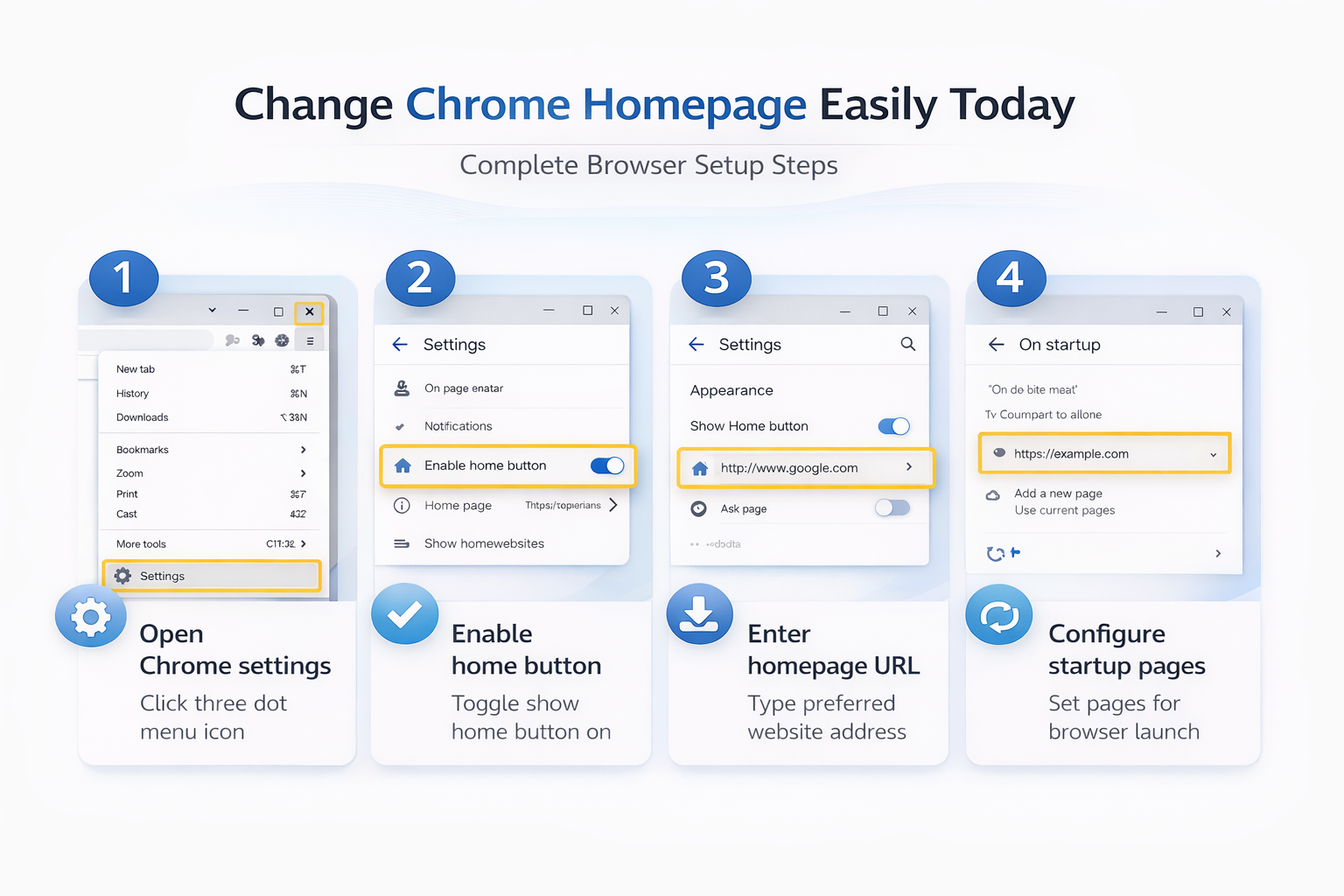
You can change your Chrome homepage by navigating to the browser settings panel and modifying the appearance section where the home button URL is configured and managed. Every menu and dialog box for this homepage through settings configuration appeared on my screen precisely as described above, confirming these instructions reflect the latest version of the software accurately.
- Open Chrome and click the three-dot menu icon located in the upper right corner of the browser window, then select Settings from the dropdown menu.
- Scroll down to the Appearance section and toggle the Show home button switch to the enabled position, which reveals the URL field where you enter your preferred homepage address.
- Type the complete URL of the website you want as your homepage, such as
https://www.google.comor any other page you visit frequently during your daily browsing sessions.
Configure Chrome startup page options
The startup page determines which websites Chrome automatically loads when you first launch the browser application, and this setting operates independently from the homepage configuration entirely.
- Navigate to Chrome Settings and click On startup from the left sidebar menu to reveal three distinct options that control what Chrome displays when the browser opens fresh.
- Select Open a specific page or set of pages and click the Add a new page link to enter the URL of your preferred startup page for daily browsing sessions.
- You can add multiple startup pages by repeating this process, which allows Chrome to open several tabs simultaneously whenever the browser launches on your device.
Customize Chrome new tab page
The new tab page appears every time you open a fresh tab using the keyboard shortcut Ctrl+T or by clicking the plus icon next to your existing tabs. After enabling this new tab page configuration, I specifically checked for side effects on other features and found that nothing else was disrupted or behaved differently during normal use.
- Chrome displays a default new tab page featuring a Google search bar, frequently visited site shortcuts, and personalized content recommendations based on your recent browsing activity and history.
- You can customize the appearance of your new tab page by clicking the Customize Chrome button located in the bottom right corner of any new tab page.
- From the customization panel, you can change the background theme, toggle shortcut visibility, and select whether Chrome shows your most visited sites or custom shortcuts that you configure manually for quick access.
Enable and configure home button
The home button provides a convenient one-click shortcut in your browser toolbar that instantly navigates you to your designated homepage regardless of which website you are currently viewing.
- By default, Chrome hides the home button from the toolbar, so you need to enable it manually through the browser settings before you can use this navigation feature.
- Navigate to Settings, then select the Appearance section and toggle the Show home button option to display a small house icon next to the address bar in Chrome.
- After enabling the home button, choose between the default new tab page or a custom URL that you specify as the destination when clicking it.
Fix Chrome homepage keeps changing
Some users experience a frustrating issue where their Chrome homepage or startup page settings revert to unwanted websites, which typically indicates a browser extension or malware interference.
- Start by reviewing your installed Chrome extensions at
chrome://extensionsand disable any suspicious or recently added extensions that might be overriding your homepage browser settings. - Run a full malware scan using your antivirus software and consider using the Chrome Cleanup Tool to detect and remove any programs that might be forcing unwanted changes to your browser configuration silently.
- If the problem persists after removing suspicious extensions and running malware scans, you can reset Chrome to its default settings by navigating to Settings, then Reset settings, and clicking Restore settings to their original defaults button.
Frequently Asked Questions
How do I change my homepage in Google Chrome?
Open Chrome Settings by clicking the three-dot menu in the upper right corner, then navigate to the Appearance section where you can toggle the home button. Enter the URL of your desired homepage in the field that appears below the Show home button toggle, and Chrome will navigate to that page every time you click the home button icon in your browser toolbar area.
Why does my Chrome homepage keep changing?
Unwanted homepage changes typically result from browser extensions that override your settings, malware infections that modify browser configurations, or Chrome policies applied by your organization or network administrator. Review your installed extensions at chrome://extensions, run a malware scan with your security software, and check for any managed browser policies by visiting chrome://policy in your address bar.
What is the difference between homepage and startup page in Chrome?
The homepage is the specific page that loads when you click the home button icon in your Chrome toolbar, while the startup page determines which websites automatically open when you first launch the browser. You can configure each setting independently through Chrome Settings, where the homepage appears under Appearance and the startup page appears under the On startup section in the sidebar.
Summary and recommended configuration
Changing your Chrome homepage involves three separate settings areas that each control a different aspect of how Chrome loads pages during your daily browsing workflow and navigation habits. Configure the home button URL under Appearance settings for one-click navigation, set your preferred startup pages under On startup for browser launch behavior, and customize the new tab page for fresh tab experiences. These three configurations working together ensure that Chrome consistently displays the pages you want across every browsing scenario, whether you are launching the browser fresh or opening new tabs.