Finding a specific email buried in months of inbox clutter or tracking down a calendar event from weeks ago can consume valuable time that you should spend on actual work. Microsoft Copilot Chat now lets you search emails and calendar events using natural language queries instead of struggling with traditional keyword filters and date range selectors in Outlook. This AI email assistant understands what you mean when you type conversational requests like “find the budget proposal Sarah sent last Tuesday” or “show my meetings with the marketing team.” Throughout this article you will learn exactly how Copilot Chat search through emails and calendar entries works so you can retrieve important information in seconds.
How Copilot Chat searches your Outlook emails
Microsoft 365 Copilot connects directly to your Exchange Online mailbox and processes natural language search queries to locate relevant email messages across your entire inbox history. Unlike traditional Outlook search that requires exact keywords or specific filter combinations, Copilot email search Outlook understands context, sender relationships, and time references within your conversational prompts. You can type something as simple as “emails from my manager about the quarterly review” and Copilot will return matching results ranked by relevance to your request.
Use natural language to describe what you need
The most powerful aspect of using Copilot Chat to find emails with Copilot is the ability to describe what you are looking for in plain everyday language. Instead of remembering exact subject lines or switching between multiple search filters, you simply tell Copilot what the email was about and who might have sent it. This natural language search capability means you can reference topics, timeframes, and people in the same query without constructing complicated search syntax or Boolean operators manually.
Search by sender, date, or topic
Copilot Chat lets you combine multiple search criteria in a single conversational query, making it significantly faster than filtering emails manually through the traditional Outlook interface. You can ask Copilot to find emails from a specific person within a particular date range that discuss a certain project or contain particular types of attachments. When you need to draft emails in Outlook, finding the original conversation thread first with Copilot Chat ensures your reply addresses every point raised.
Find calendar events with Copilot in Outlook
The Copilot calendar search feature extends beyond emails to help you locate specific meetings, appointments, and scheduled events across your entire Outlook calendar history effortlessly. You can ask questions like “when is my next one-on-one with David” or “show all project review meetings from January” to get instant results. This calendar event lookup capability proves especially valuable for professionals who attend dozens of meetings weekly and need to quickly reference past discussions or upcoming commitments.
Locate past meetings and upcoming appointments
Searching for calendar events with Copilot Chat allows you to find both historical meetings and future scheduled appointments using descriptive language rather than scrolling through calendar views. You might ask Copilot to “find the last time our team discussed the product launch timeline” and receive a direct link to that specific calendar entry. This approach saves considerable time compared to manually browsing through weeks or months of calendar data when you need to reference a particular meeting.
Retrieve meeting details and attendee information
Beyond simply finding calendar events, Copilot Chat can surface detailed information about meetings including the attendee list, location, attached agendas, and any meeting notes associated. You can ask “who was invited to the budget planning meeting last Friday” and Copilot will provide a complete attendee roster pulled directly from the calendar event. This functionality pairs well with the ability to get attachment summaries using Copilot in Microsoft 365 when meetings include shared documents.
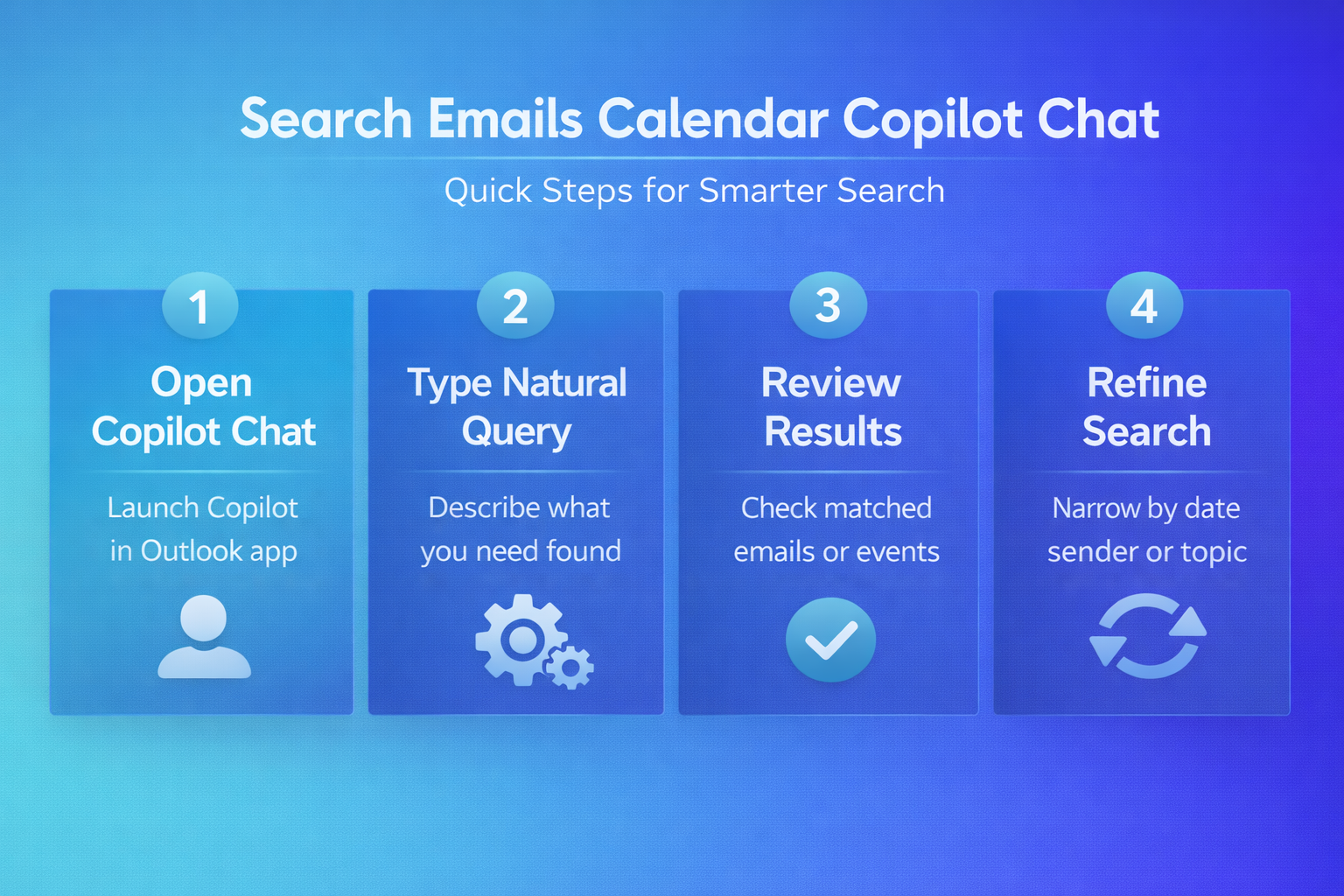
Set up Copilot Chat for email and calendar search
Before you can search Outlook messages with Copilot, you need to confirm that your Microsoft 365 subscription includes Copilot access and that the feature is properly activated within your Outlook application. Your organization’s IT administrator must have enabled Microsoft 365 Copilot for your account, and you should verify that you are running a supported version of Outlook. Follow these steps to ensure Copilot Chat is ready to help you search through your emails and calendar events effectively:
- Open Outlook and look for the Copilot icon in the ribbon toolbar or sidebar, which confirms that the feature is available and activated for your account.
- Click the Copilot icon to open the chat panel, then verify you can type queries by entering a simple test search like “show my latest emails” in the prompt field.
- If the Copilot icon does not appear in your Outlook interface, you may need to enable and activate Copilot in Microsoft Outlook through your account settings.
Tips for writing effective Copilot Chat search queries
The quality of your search results depends heavily on how you phrase your natural language queries, so learning a few best practices will dramatically improve accuracy. Copilot Chat performs best when you provide specific contextual details like sender names, approximate dates, and topic descriptions rather than vague or overly broad requests. These tips help you get the most relevant results from every Microsoft Copilot Chat email finder query you submit:
- Include time references — Mentioning approximate dates or relative timeframes like “last week” or “in December” helps Copilot narrow results significantly beyond what a keyword search alone would achieve.
- Name specific people — Referencing senders or attendees by name allows Copilot to filter results more accurately than searching by department or role title alone in your queries.
- Describe the content topic — Telling Copilot what the email or meeting was about produces better matches than searching for individual words that might appear in hundreds of messages.
- Combine multiple criteria — Asking Copilot to find “the email from James about the vendor contract sent before the holiday break” uses several filters simultaneously for precise results.
Manage your Outlook inbox alongside Copilot search
Combining Copilot Chat search capabilities with good mailbox hygiene practices ensures that your AI-powered searches return clean and relevant results without unnecessary clutter from outdated messages. When your inbox contains thousands of unorganized emails, even Copilot may take longer to surface the most relevant results from your mailbox data.