“Can Microsoft Copilot actually work on my documents independently while I focus on other tasks, or do I need to prompt it every single time?”
Understanding Microsoft Office agent mode and its capabilities
Microsoft has introduced agent mode as an evolution of Copilot functionality within Microsoft 365 applications, allowing the AI assistant to operate with greater autonomy across Word, PowerPoint, and other Office tools. Agent mode represents a shift from traditional prompt-and-response interactions to a more proactive approach where Copilot can execute multiple related tasks based on a single request.
Similar to how you can enable Copilot in Word for document creation, agent mode takes automation further by handling multi-step workflows. You need an active Microsoft 365 Copilot license and the latest versions of Word and PowerPoint to access these features, and understanding how to use Copilot in Word documents will help you maximize agent mode’s potential.
Step-by-step implementation for Microsoft Word Copilot agent
- Open Microsoft Word and ensure you are signed in with your Microsoft 365 account that has Copilot licensing enabled, then verify your application is updated to the latest version through File > Account > Update Options.
- Launch the Copilot pane by clicking the Copilot icon in the Home ribbon or pressing Alt+H followed by FY on your keyboard for quick access.
- Look for the agent mode toggle or indicator within the Copilot interface, which may appear as a settings icon, a dropdown menu, or an explicit “Agent Mode” option depending on your version.
- Enable agent mode by selecting the appropriate toggle, which allows Copilot to perform sequential tasks autonomously rather than waiting for individual prompts after each action.
- Provide a comprehensive initial prompt that outlines multiple objectives, such as “Draft a three-page project proposal including an executive summary, budget overview, and timeline, then format it with professional styling and add a table of contents.”
- Monitor Copilot as it processes your request, automatically generating content sections, applying formatting, and creating supporting elements without requiring step-by-step confirmation from you.
- Review the completed output and use follow-up prompts to refine specific sections, understanding that agent mode maintains context across your entire conversation and document state.
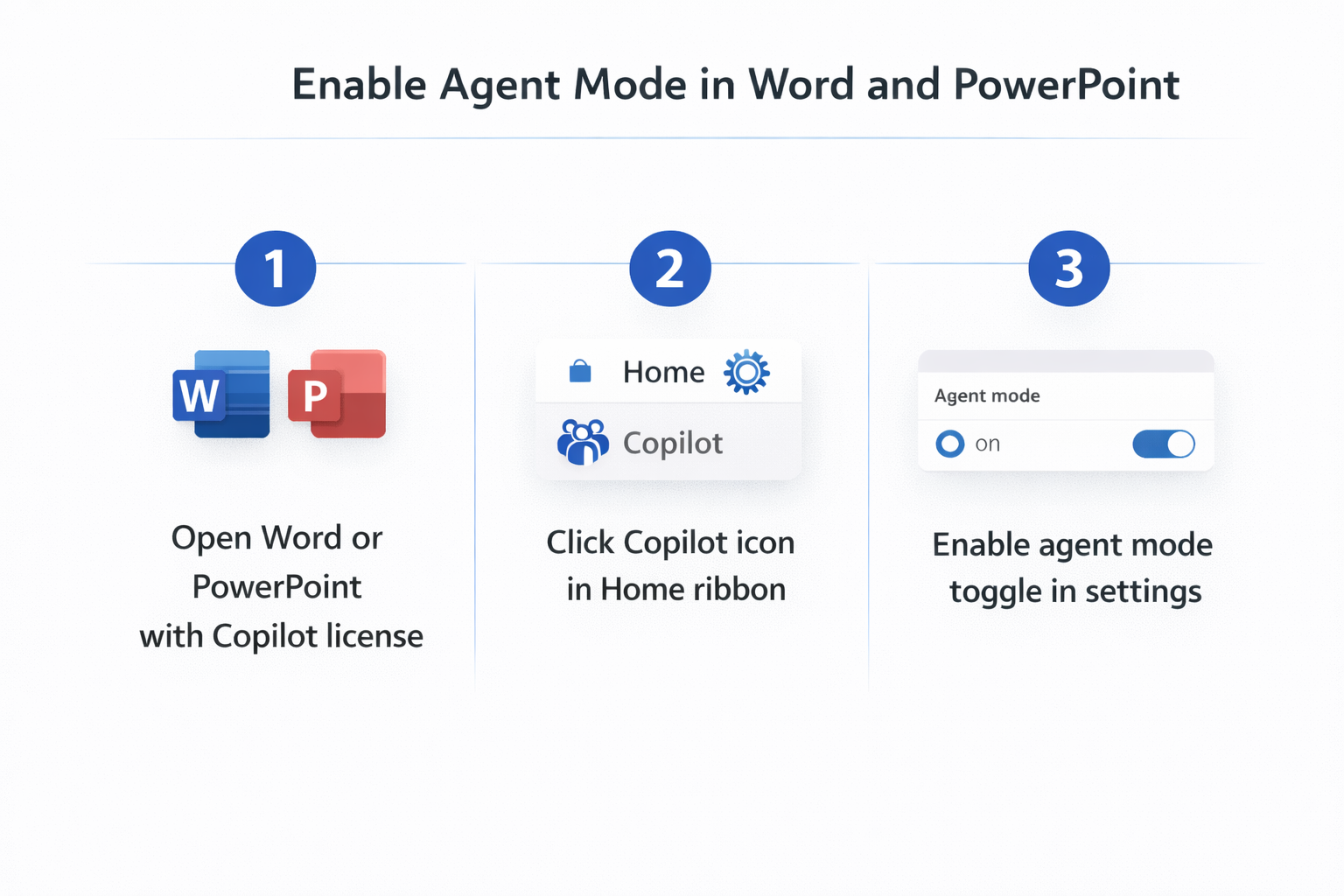
Activating agent mode in PowerPoint presentations
- Navigate to PowerPoint and open a new or existing presentation where you want to leverage agent mode capabilities for slide creation and design enhancements.
- Access the Copilot feature through the Home tab ribbon or by using the keyboard shortcut Alt+H, FY to open the Copilot pane on the right side of your screen.
- Confirm agent mode is available and activated by checking for visual indicators or settings within the Copilot pane, similar to the Word interface but adapted for presentation workflows.
- Issue a complex instruction that requires multiple actions, such as “Create a ten-slide presentation about quarterly sales performance including title slide, agenda, data visualizations for each region, key insights, and recommendations.”
- Allow Copilot to autonomously generate slides with appropriate layouts, insert placeholder content, apply consistent design themes, and organize information logically across the presentation structure.
- Interact with individual slides to request specific modifications while agent mode maintains awareness of the overall presentation context and design consistency throughout your editing session.
- Utilize natural language refinement requests like “make the data slides more visual” or “adjust the color scheme to match our brand guidelines” and observe how agent mode applies changes systematically.
- Save your presentation regularly as agent mode makes multiple changes, ensuring you can revert to previous versions if needed through File > Info > Version History.
Expert Tip: Agent mode works best when you provide detailed initial instructions that clearly define your end goal, allowing Copilot to plan and execute a complete workflow rather than making isolated changes.
Common challenges when using agent mode M365 Copilot
- Agent mode options may not appear if your Microsoft 365 Copilot subscription has not fully provisioned or your tenant administrator has not enabled advanced Copilot features through the Microsoft 365 admin center. Verify your license status under Account settings and contact your IT administrator to confirm that Copilot agent capabilities are activated for your organization.
- Copilot may revert to standard mode or fail to maintain context across multiple actions if your application version is outdated or cached data is corrupted. Force a manual update through File > Account > Update Options > Update Now, then restart Word or PowerPoint completely and clear your Office cache through File > Options > Trust Center.
- Complex multi-step requests might produce incomplete results if the initial prompt is too vague or contains conflicting instructions that prevent Copilot from determining the optimal sequence. Break down extremely complex tasks into two or three well-defined phases, allowing agent mode to complete each phase before providing the next set of instructions.
- Performance may slow significantly when agent mode processes lengthy documents or presentations with extensive media, particularly on devices with limited resources or unstable internet connections. Close unnecessary applications to free system memory, ensure your network connection is stable, and consider working with smaller document sections before applying changes to the entire file.