You’re about to join an important client call, but your home office looks cluttered. Can you quickly apply a professional background in Microsoft Teams without downloading third-party software? The answer is yes, and it takes less than a minute to set up.
Set background effects for Microsoft Teams
Microsoft Teams includes built-in background effects that help maintain professionalism during video calls while protecting your privacy. The platform offers three main categories: blur effects that soften your surroundings, static images ranging from office settings to scenic locations, and video backgrounds that add subtle motion to your virtual environment.
We will learn how you can easily access and apply these effects before or during meetings; as well as customize your background library with personal images, and troubleshoot common display issues.
You will need Microsoft Teams desktop application version 1.3.00.30866 or later, Windows 10 build 10.0.18362 or macOS 10.13 High Sierra minimum, and a processor with Advanced Vector Extensions 2 support for optimal performance. Mobile users require iOS 12 or Android 8.0 or higher with compatible device specifications.
The configuration works across scheduled meetings, instant calls, and channel meetings, giving you consistent control over your video presentation regardless of meeting type. For additional privacy settings, you can also set do not disturb Teams status to prevent interruptions during important video calls.
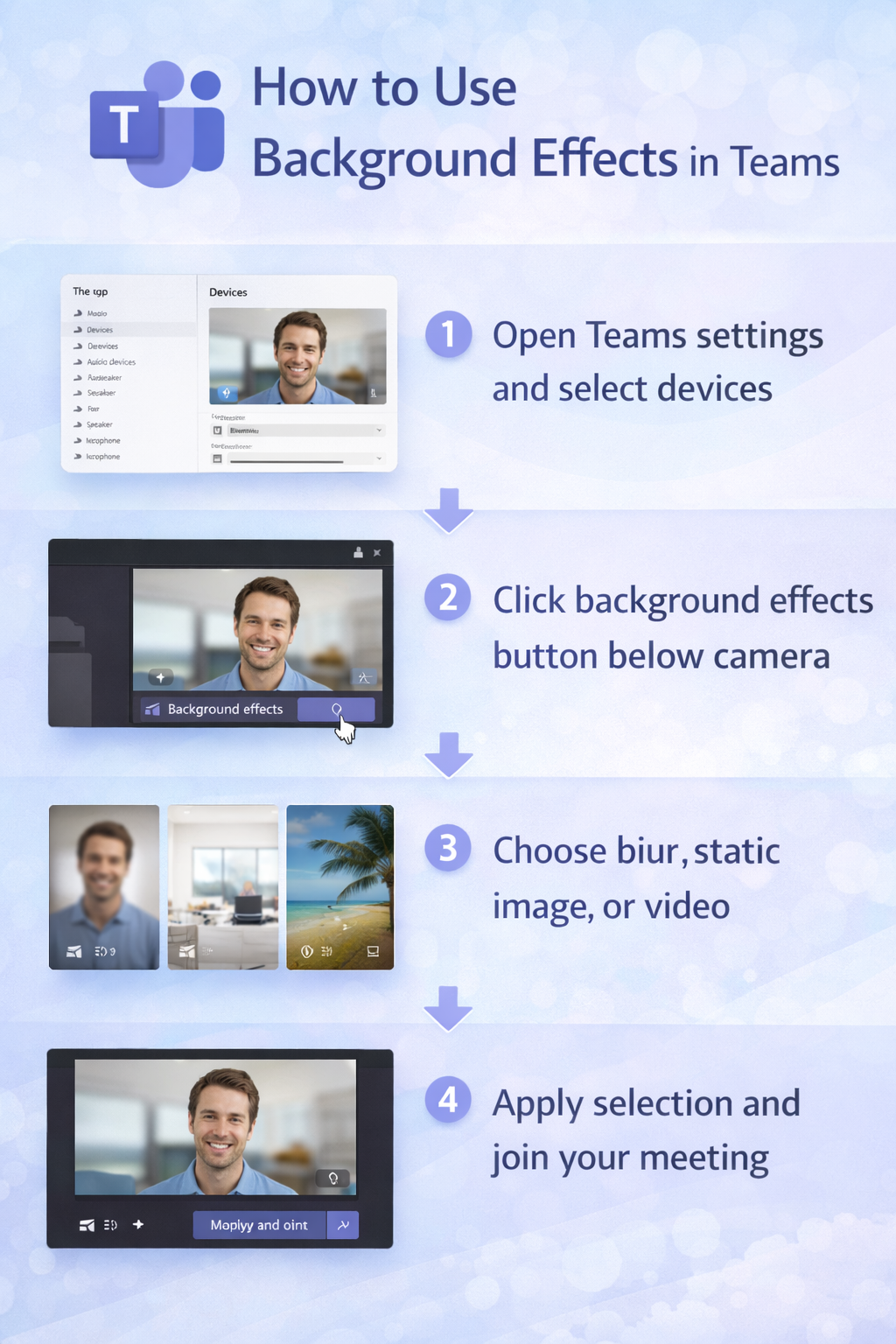
Change background for Teams meetings before joining calls
- Launch Microsoft Teams and navigate to your profile picture in the top-right corner of the application window. Click the three-dot menu icon next to your status indicator to access additional settings and options.
- Select “Settings” from the dropdown menu, then choose “Devices” from the left sidebar navigation panel. Locate the “Camera” section where you’ll find the “Background effects” button positioned directly below your camera preview window.
- Click “Background effects” to open the background selection panel displaying all available options in a scrollable gallery format. The panel shows blur options at the top, followed by Microsoft’s curated collection of static images and any custom backgrounds you’ve previously uploaded.
- Choose “Blur” to soften your background while keeping you in focus, or select “Blur my background” for a stronger effect that makes surroundings nearly unrecognizable. These options work well when you need quick privacy without completely hiding your environment during unexpected calls.
- Browse through Microsoft Teams background effects in the gallery by scrolling through the pre-installed options that include professional office settings, nature scenes, abstract patterns, and branded Microsoft environments. Click any thumbnail to preview how it appears with your video feed in real-time.
- Click “Apply” or “Apply and turn on video” to confirm your selection and save the background effect for your next meeting. The system remembers your choice and automatically applies it to subsequent calls until you change the setting manually.
Additional backgrounds for Teams through custom uploads
- Click the “Add new” button marked with a plus icon in the background effects panel to upload your own images from your computer’s file system. The upload dialog accepts JPG, PNG, and BMP file formats with recommended dimensions of 1920×1080 pixels for optimal display quality.
- Navigate to your desired image file, select it, and click “Open” to add it to your background library where it appears alongside the default Microsoft options. Custom images automatically sync across devices when you sign in to Teams with the same account credentials.
- Organize your background collection by hovering over any custom image thumbnail and clicking the three-dot menu to access options for renaming, deleting, or setting as your default background. This management capability helps maintain a curated selection appropriate for different meeting contexts and professional requirements.
Expert Tip: Create a dedicated folder on your computer containing 5-7 professional background images suitable for various meeting types—client presentations, internal team calls, and casual check-ins—so you can quickly switch contexts without searching through your entire photo library.
Background filters for Teams meetings during active calls
- Join your scheduled meeting or start an instant call by clicking the camera icon in any chat conversation or selecting a meeting from your calendar view. Wait for the pre-join screen to appear before your video becomes visible to other participants.
- Locate the “Background effects” icon on the pre-join screen toolbar, positioned between the microphone and camera controls as a small portrait-shaped button with sparkle effects. Click this icon to access the same background selection panel available in settings without leaving the join screen.
- Select your preferred background option from the gallery, preview how it appears with your current lighting and camera angle, then click “Apply and join” to enter the meeting with your chosen effect already active. This workflow prevents other participants from seeing your unfiltered background during the initial connection moment.
- Change backgrounds mid-meeting by clicking the three-dot “More actions” menu in the meeting controls toolbar at the bottom of your screen. Select “Apply background effects” from the dropdown menu to reopen the selection panel without interrupting your audio or video connection.
- Preview different awesome Teams background images while remaining in the call by clicking various thumbnails in the gallery panel—your video feed updates in real-time for you but doesn’t change for other participants until you click “Apply”. This preview functionality lets you test multiple options without disrupting the meeting flow or drawing attention to your adjustments.
Animated Teams backgrounds for free and video effects
- Access video backgrounds by opening the background effects panel and scrolling past the static image options to locate the “Video backgrounds” section at the bottom of the gallery. Microsoft provides several animated options including subtle office scenes, nature environments, and abstract motion graphics at no additional cost.
- Select an animated background by clicking its thumbnail preview, which displays a small play icon in the corner to distinguish it from static images. The preview window shows a few seconds of the looping animation so you can evaluate whether the motion level suits your meeting context and personal presentation style.
- Apply the video background using the same “Apply” button workflow as static images—the animation begins immediately and loops continuously throughout your meeting duration. Video backgrounds consume slightly more system resources than static options, so monitor your device performance during longer calls to ensure smooth operation.
Remember: Video backgrounds work best with solid-color walls behind you and consistent lighting conditions. Complex backgrounds with multiple colors or patterns can cause edge detection issues that make the animation appear to bleed into your silhouette during movement.
- Disable video backgrounds if you experience performance issues by returning to the background effects panel and selecting either a static image or the “None” option at the beginning of the gallery. Your system resources immediately return to normal levels, and your actual physical background becomes visible to meeting participants.
Microsoft Teams background effects optimization tips
- Position yourself 1-2 feet away from any walls or objects behind you to help Teams’ AI distinguish between your body and the background more accurately. This distance creates natural depth that improves edge detection algorithms and reduces the ghosting effect where background images appear through your hair or shoulders.
- Ensure adequate front-facing lighting by positioning your primary light source in front of you rather than behind, which prevents backlighting that confuses the background separation algorithm. Natural window light or a desk lamp positioned at eye level provides the most flattering illumination while supporting clean background effect rendering.
- Test your background selection in a practice meeting before important calls by starting a meeting with yourself or using Teams’ “Meet now” feature without inviting participants. This testing approach lets you evaluate how your chosen background performs with your specific camera, lighting conditions, and typical sitting position without risking technical issues during actual business conversations.
- Update your Teams application regularly to access new background options and improved processing algorithms that Microsoft releases through monthly updates. Navigate to your profile picture, select “Check for updates,” and install any available versions to ensure optimal background effect performance and access to the latest features.