Wireless keyboard stops responding to connection attempts
“My wireless keyboard worked fine yesterday, but now it won’t connect to my computer at all. I’ve tried turning it on and off, but Windows doesn’t seem to recognize it anymore. The LED indicators show it’s powered on, but I can’t type anything, and it’s not appearing in my Bluetooth devices list.”
Understanding wireless keyboard connection failures a
Wireless keyboard connectivity problems typically stem from driver conflicts, power management settings, or interference between the keyboard and Windows Bluetooth stack. These issues become particularly common after Windows updates, when computers wake from sleep mode, or when multiple wireless devices compete for the same connection protocols.
You’ll need administrator access to your Windows computer and approximately 15-20 minutes to complete these troubleshooting steps. We’ll focus on both Bluetooth and USB wireless keyboards, covering driver management, power settings, and Windows configuration adjustments that resolve connection failures. The solutions work across Windows 10 and Windows 11 systems, though menu locations may vary slightly between versions.
Checking power and basic wireless keyboard connectivity
- Verify that your wireless keyboard has sufficient battery power by checking LED indicators or replacing batteries with fresh ones, as low power often prevents successful connection establishment with Windows systems.
- Confirm that the keyboard’s power switch is in the ON position and that any connection or pairing buttons are functioning properly, since some keyboards require specific button combinations to enter discoverable mode.
- Test the keyboard with another computer or device if available to determine whether the issue originates from the keyboard hardware or your Windows configuration, helping isolate the root cause of connectivity problems.
- Position the keyboard within three feet of your computer to eliminate distance-related connection issues, particularly important for Bluetooth keyboards that may struggle with interference from other wireless devices.
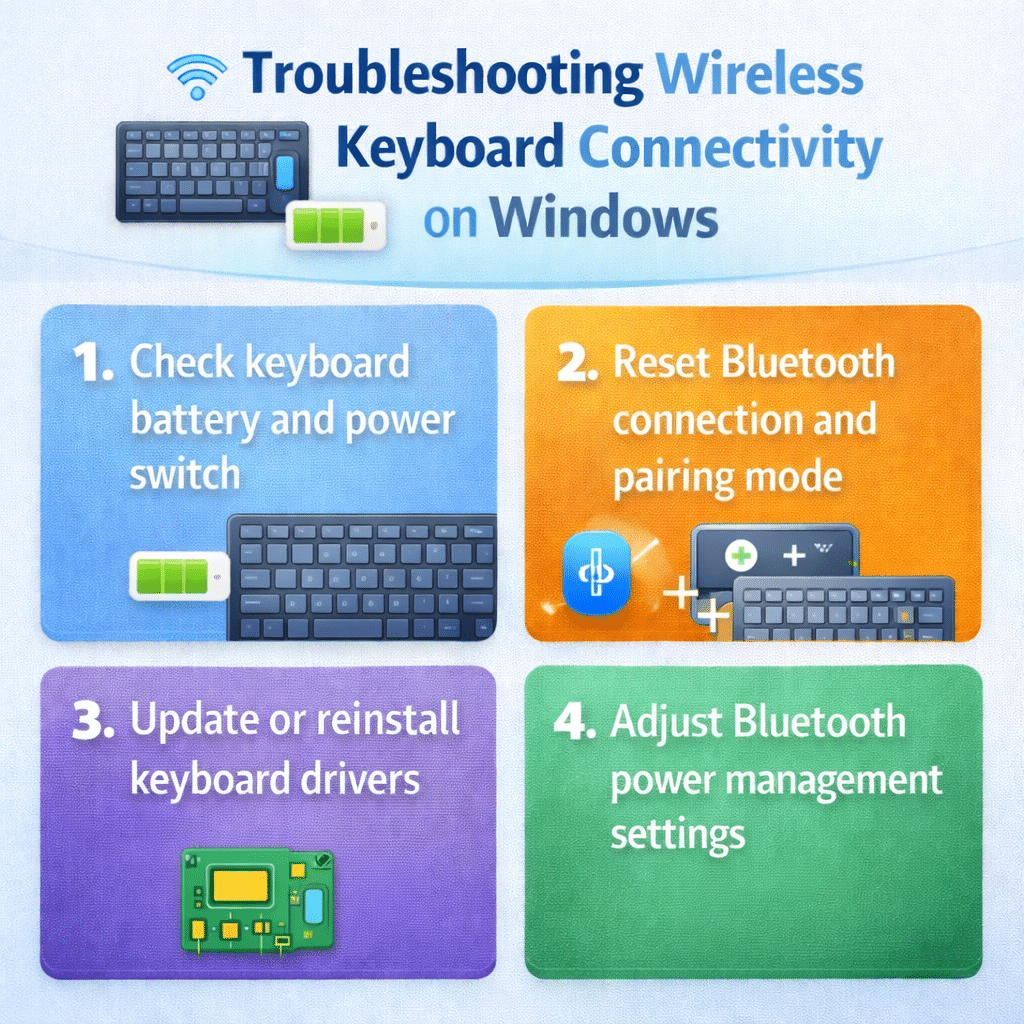
Resetting Bluetooth connections for wireless keyboards
- Open Windows Settings by pressing Windows key + I, then navigate to Devices > Bluetooth & other devices to access the primary Bluetooth management interface where you can view all connected wireless peripherals.
- Locate your wireless keyboard in the device list, click the three-dot menu next to its name, and select “Remove device” to completely eliminate the existing connection profile and clear any corrupted pairing data.
- Turn off Bluetooth completely by toggling the Bluetooth switch to OFF, wait for 10 seconds, then turn it back ON to reset the Bluetooth adapter and clear any temporary connection conflicts.
- Put your keyboard into pairing mode according to manufacturer instructions, typically involving holding the Connect or Bluetooth button for several seconds until LED indicators show it’s discoverable to nearby devices.
Expert Tip: Some wireless keyboards require you to press and hold specific key combinations while powering on to enter pairing mode, so consult your keyboard manual for device-specific instructions.
Updating and reinstalling wireless keyboard drivers
- Access Device Manager by right-clicking the Start button and selecting “Device Manager” from the context menu, or press Windows key + X and choose Device Manager from the power user menu.
- Expand the “Keyboards” section to view all keyboard devices, then locate your wireless keyboard entry, which may appear as a generic HID device or with the manufacturer’s name depending on driver installation status.
- Right-click on the wireless keyboard entry and select “Update driver” to allow Windows to search for the latest compatible drivers automatically, which often resolves compatibility issues introduced by recent system updates.
- If automatic driver updates don’t resolve the connection problem, right-click the keyboard device again and select “Uninstall device” to remove the current driver installation completely.
- Restart your computer after uninstalling the keyboard driver, and Windows will automatically attempt to reinstall appropriate drivers during the boot process, potentially resolving driver corruption issues.
Advanced Windows configuration for persistent connection issues
- Open Windows PowerShell as an administrator by searching for PowerShell in the Start menu, right-clicking on the result, and selecting “Run as administrator” to access system-level Bluetooth management commands.
- Execute the command
Get-PnpDevice | Where-Object {$_.Class -eq "Bluetooth"}to display all Bluetooth devices and their current status, helping identify specific hardware conflicts affecting keyboard connectivity. - Reset the Bluetooth cache by stopping the Bluetooth service with
Stop-Service bthserv, clearing the cache folder, and restarting the service withStart-Service bthservto eliminate corrupted connection data. - Modify power management settings for your Bluetooth adapter by accessing Device Manager, expanding “Bluetooth” devices, right-clicking your Bluetooth adapter, selecting Properties, navigating to the Power Management tab, and unchecking “Allow the computer to turn off this device to save power.”
Important Tip: Disabling power management for Bluetooth adapters prevents Windows from automatically turning off wireless connections during sleep mode, which commonly causes keyboard disconnection problems.
Troubleshooting persistent wireless keyboard connection problems
- Wireless keyboards may fail to connect when Windows power management settings automatically disable Bluetooth adapters during sleep mode, requiring you to disable power saving options in Device Manager under the Bluetooth adapter’s Properties > Power Management tab.
- Driver conflicts often occur after Windows updates when generic drivers replace manufacturer-specific keyboard drivers, necessitating manual driver reinstallation from the keyboard manufacturer’s website rather than relying on Windows automatic driver detection.
- Multiple Bluetooth devices operating on the same frequency can create interference preventing keyboard connection, so temporarily disable other Bluetooth devices like mice, headphones, or speakers to isolate connection issues.
- Windows Bluetooth stack corruption sometimes requires complete service restart using administrative PowerShell commands to stop and restart the Bluetooth service, clearing cached connection data that may prevent new keyboard pairings.
For more on resolving Bluetooth issues, visit Bluetooth not detected fixes.
If your wireless mouse also has issues, see wireless mouse troubleshooting.
Issues with driver updates can similarly affect other devices as described in keyboard problems in Teams.